Have you already set up your bank account in bexio and would you like to create a link to your e-banking now? Once the link is created, you will be able to automatically import your bank transactions into bexio and submit outgoing payments to your e-banking.
| Configuring data transfer: | Activateb.Link in e-banking and allow bexio access |
| File format for payments: | pain.001 |
| File format for account statements: | Camt.053 V8 with details |
| Notes: |
- Only one AKB contract at a time can be linked to a bexio account.
- QR ready interface
- Automatic sync of transactions overnight
- Transactions are always available on the following day
- Date filter (retroactive import of transactions) max. 60 days in the past
- Payments triggered via the interface are always carried out as a collective booking
- Authentication via Access app
- The settings required for the setup in e-banking under »Process for the connection« https://www.akb.ch/digitale-akb/banking/blink
|
Connect with bLink to your e-banking and bexio
- Click on "Connect e-banking
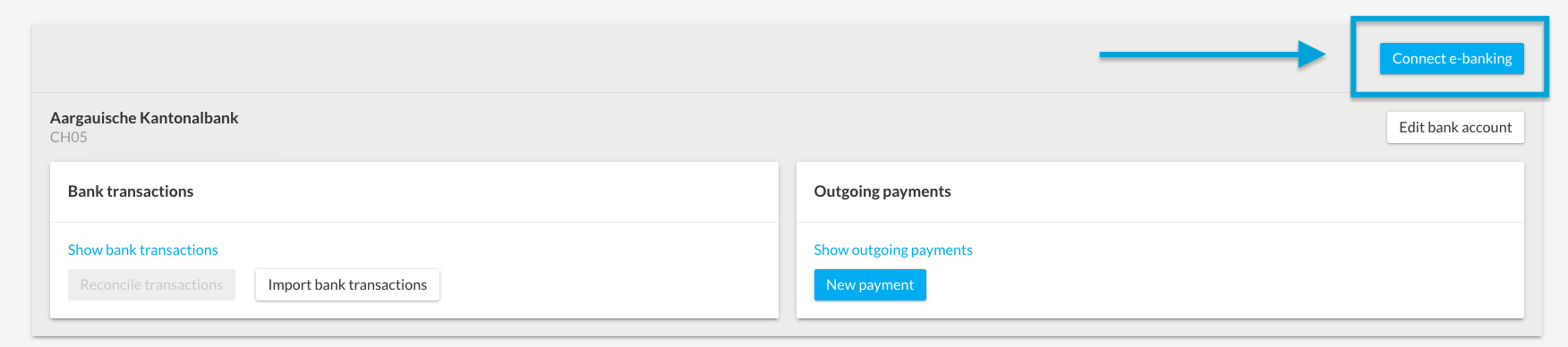
- You will get a dialog stating that you are now redirected to the e-banking from your bank. Click on the blue button to continue. Identify yourself with your Digital Banking contract number.
- Log in to your e-banking at Aargauische Kantonalbank. Enter your contract number and password.
- Scan the graphic (photoTAN) or confirm on your cell phone that you want to enable access in a third-party application.
- Grant bexio AG access to your data so that the transactions can be collected.
- Check all three items to allow the account information and payments to be sent to the bexio system.
- In the penultimate step, the bank again requires the scanning of the graphic (photoTAN) for confirmation of the software connection between the Aargauische Kantonalbank and bexio.
- At the last step, a "Next" button will appear where you will be redirected to your bexio account.
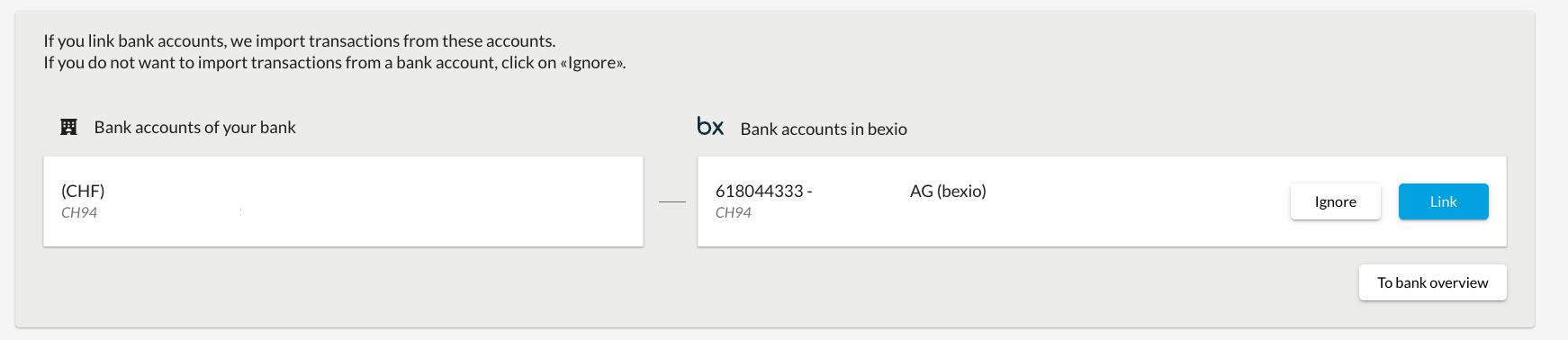
- Link the bank account to the existing bexio bank account or to a new bexio bank account. Bank accounts that do not want to be used in bexio can be ignored using the "Ignore this bank account in bexio" option. It is important that all bank accounts are either linked to a bexio bank account or explicitly ignored.
Importing transactions retrospectively with the date range
Transactions can be imported retrospectively into bexio. To do this, click on Banking in the menu at the top of bexio and then click on the small arrow next to "Import transactions." You can then set a "Date range." Thus, account statements that have already been marked as "imported or read" in your e-banking are also checked again and imported.

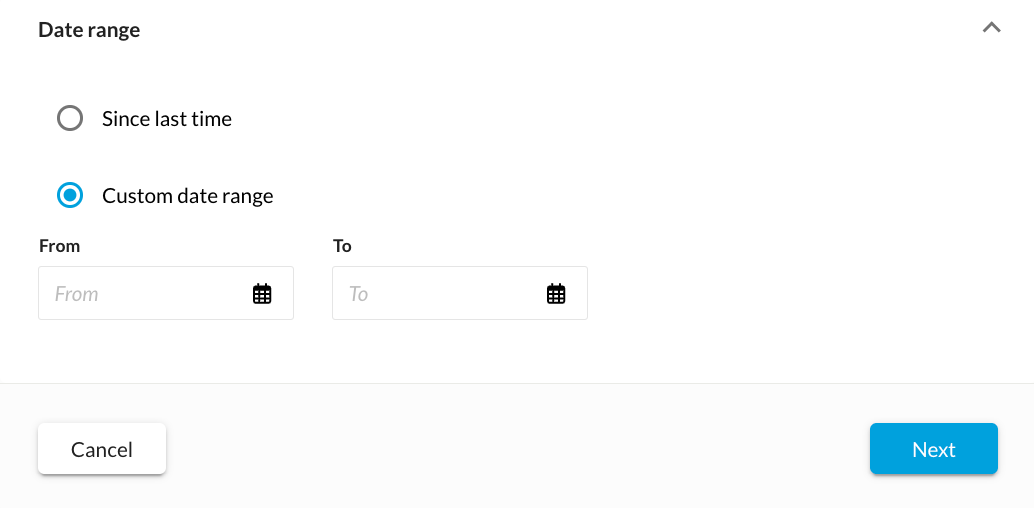
We have a duplicate filter active on the interface that prevents you from importing a transaction twice. Accordingly, you cannot have duplicates and can thus ensure that all transactions have been imported. All transactions are automatically picked up overnight. I would generally recommend that you retroactively pick up transactions once a week. Transactions can be picked up 60 days back. However, pickup is only possible for a period of 5 days at a time. If you want to retrieve the last 60 days, this must be done in 12 tranches. With this function you can ensure that all transactions are imported and nothing is forgotten. If you want to import the transactions over a longer period of time, you must complete this via the manual process.
Deactivating the interface
How do I disconnect my UBS account in bexio?
You can manually disconnect the link to e-banking by clicking on the "three dots" next to the blue "Import transactions" button.

A dialogue window opens for you to confirm the disconnection of bexio and e-banking.
Transactions imported up to that date will still be visible in bexio. You may re-establish the connection at any time.
Recording and approving outgoing payments
Record outgoing payments
Outgoing payments are recorded in the optimal manner via the supplier invoice, or alternatively directly under "Banking" → "New outgoing payments". Instructions containing more detailed information can be found here »

Send outgoing payments to e-banking
As soon as the payment has been recorded, it will appear in the bexio banking area under “Show outgoing payments”. To send the payments to your e-banking for execution, select the pending payments in question and then click on "Transfer payments". For this function to be activated, you must have created a link to your e-banking »

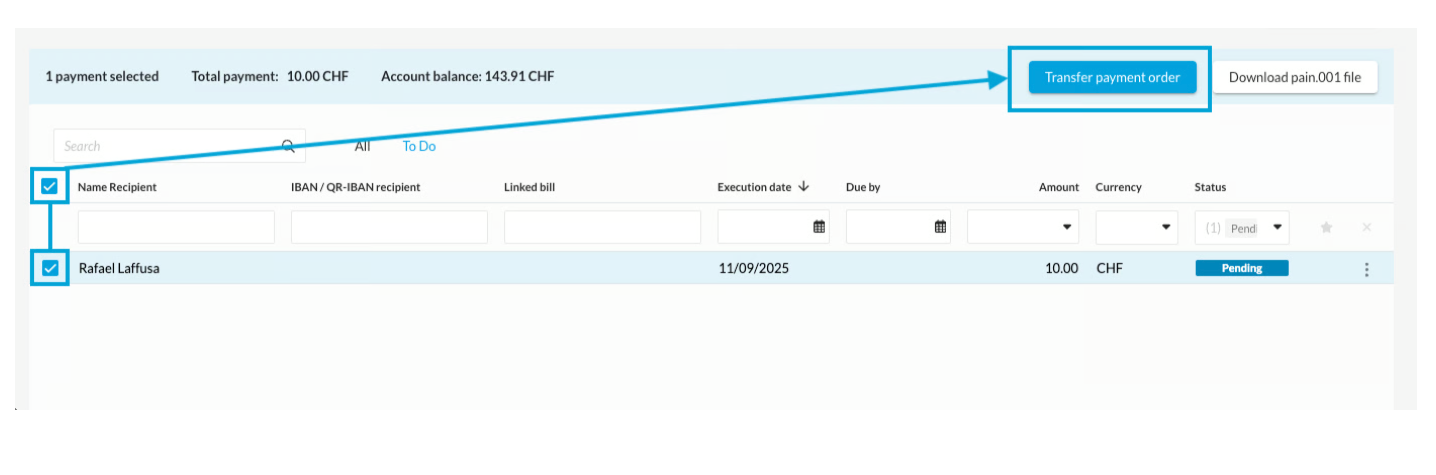
After the transfer, you must additionally display the payment order in your e-banking.
To do this, log in to e-banking. Go to "Payments > Recorded files" to view any pending orders.