All key figures in the financial charts are displayed in your primary accounting currency and include gross amounts (with VAT). Any transactions recorded in foreign currencies (such as invoices or bills) are automatically converted using your saved exchange rates. In addition, all postings in a foreign currency (invoices, bills, etc.) are converted for the financial charts using the stored exchange rate.
For more information: How does bexio handle foreign currencies ?Summary:
Open Invoices (Debtors)
This widget automatically calculates your outstanding balance by deducting partial payments from partially paid invoices. However, when viewing or exporting invoice lists in Sales → Invoices, the system displays original invoice values.
Follow the calculation steps below to filter your invoices, adjust for partial payments in Excel, and match your Dashboard totals exactly.
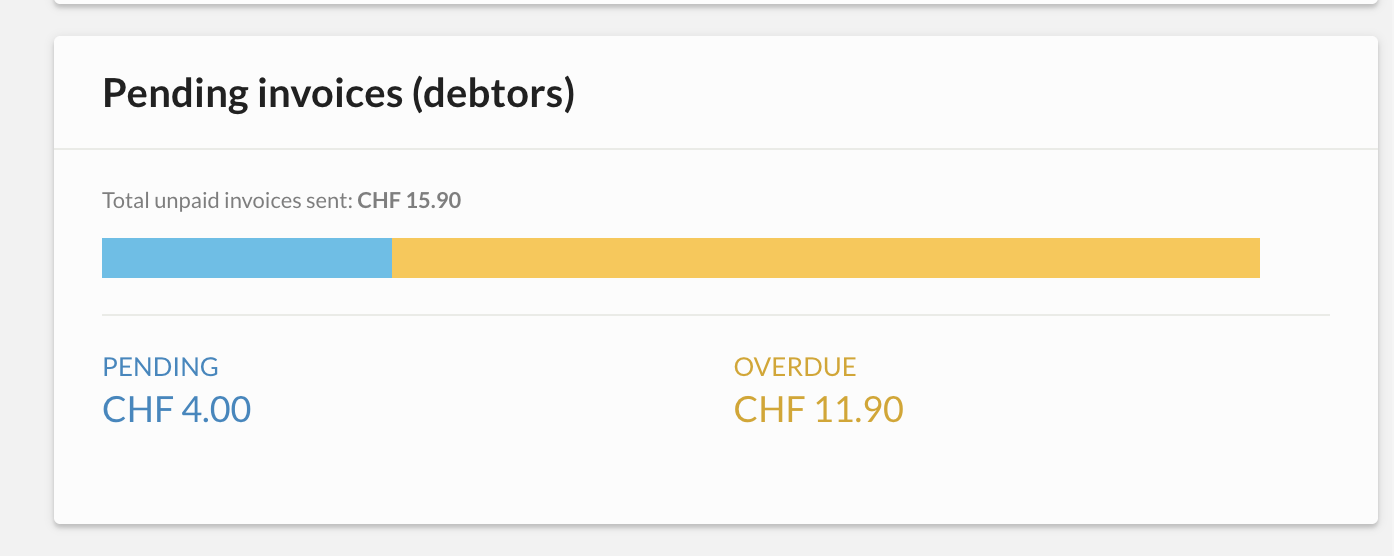
1. How to Calculate Pending Invoices (Not Overdue)
These are all unpaid invoices that have not yet reached their payment deadline.
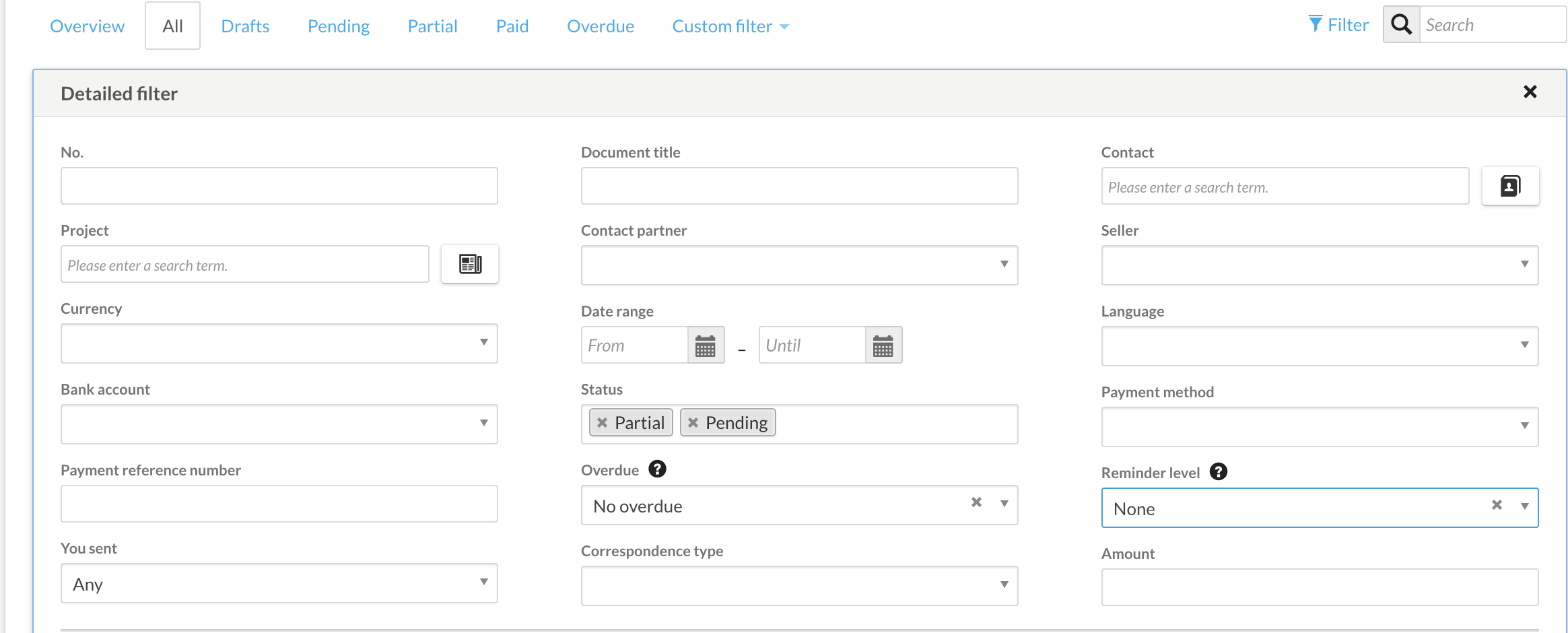
To calculate the balance of invoices that are currently open but not yet overdue:
- Go to Sales → Invoices.
- Set the status filter to show pending and partial invoices only (exclude Overdue status).
- The resulting net total corresponds to your open invoice balance (e.g., CHF 4.00).
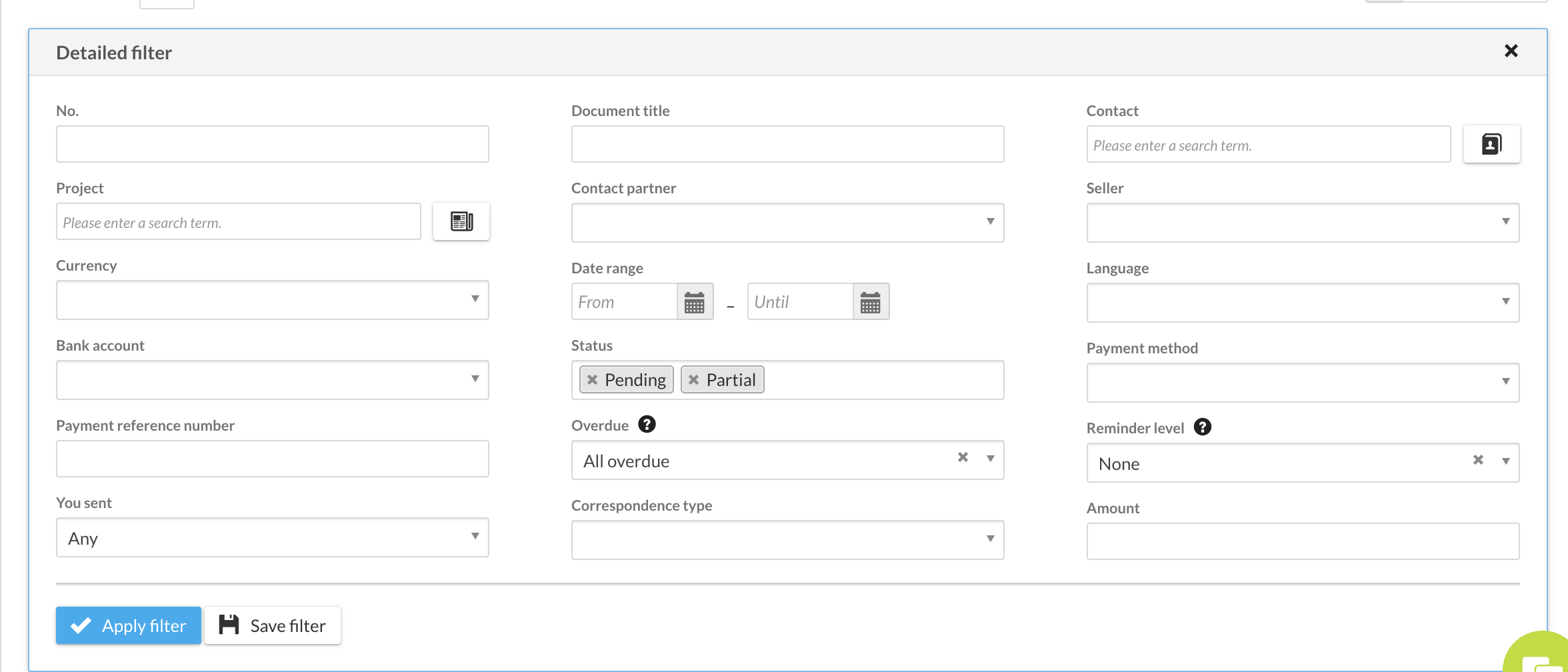
2. How to Calculate Overdue Invoices
These are all unpaid invoices that have already exceeded their payment deadline.
- Go to Sales → Invoices.
- Filter the status to Overdue (ensure both Pending and Partial statuses are selected).
- Adjust the filters to include all relevant Reminder levels (if applicable, ensure all active levels are selected).
- Set the view to display both the remaining open balance and the Initial Gross Total (e.g., CHF 11.90) to account for partial payments.
- Click Export to download the list as an Excel file.
3. Adjust for Partial Payments in Excel
The initial gross total includes the full original amounts of partially paid invoices. To get the actual remaining balance:
- Open the exported Excel file.
- Locate any invoices where a partial payment has already been received.
- Deduct the received partial payments from the gross total amount.
4. Reconcile Total Balance with the Dashboard
Add your adjusted overdue total to your non-overdue open invoices total:
Open Invoices (Not overdue) + Overdue Invoices (Minus partial payments) = Total Dashboard Balance
Open bills (Creditors)
Total value of all unpaid bills/accounts payable (“Purchasing” → “bills”). The total or residual amounts of the bills with the “Open”, “Partial”, and “Overdue” statuses are taken into account.

| Status | Description of criteria | Period |
| Open |
All unpaid bills that have not reached the payment deadline.
|
All bills that have ever been created in bexio and that satisfy the above criteria.
|
| Overdue |
All unpaid bills that have already exceeded the payment deadline.
|
All bills that have ever been created in bexio and that satisfy the above criteria.
|
Cash or cash equivalents receipts and expenditures
The chart you are viewing displays the cash flows of your cash accounts for the selected period. This chart focuses specifically on the movements of your active cash accounts (numbered from 1000 to 1090), which can be found under Accounting → Reports → Account ledger.
Under "Income" and "Expenses", the figures for entries in the "Cash" accounts are calculated based on the selected period. An entry is included in the chart below as soon as it meets the following criteria:
- One of the booked accounts must be assigned to the "Cash" account group (accounts 1000 to 1090).
- Bank-to-bank entries and balance carryforwards are not displayed, as these entries and transactions cancel each other out. This means that if both accounts used are assigned to "liquidity", they will not be taken into account in this chart. In this case, however, it is important that all "liquidity" accounts are entered in Banking for the chart to function correctly.
Examples to clarify the display:
- What does not appear: If you transfer money from your 1020 BCV account to your 1022 Raiffeisen account, the entry will not be displayed. This is because it is a movement between two liquidity accounts that are normally linked to your assets and displayed in the «Banking» tab.
- What appears: On the other hand, if you make an entry from account 1020 to a transfer account 1090 that is not linked to the «Banking» tab, this entry will be displayed.
Here is an example to verify the figures in this chart:

As you can see from the slide, we have income at CHF 250.00. Expenses are at CHF 8550.00.
Balance sheet with carry forward to 01.01.2022

If we look at the current assets, we have an enormous listing of all liquid assets accounts. This seems a bit confusing at first if you want to see the key figures of the dashboard.
Balance sheet without carry forward to 01.01.2022

Therefore, we simply take away the carry forward to 01.01.2022. If we now look at the balance sheet or only the liquid assets account, we also have an amount of CHF -8330.00.
Transactions

When analysing the account 1020 in detail, we have CHF 250 on the debit side and CHF 8550 on the credit side. This is what the dashboard also reflects.
Important: For more precise information and to compare your figures, we advise you to check the accounting reports directly (Accounting → Reports → Account ledger) and select the appropriate cash account (for example, from 1000 to 1090).
If no entry appearing meets the criteria above, check that the accounts used are also assigned to the "Cash" account group. You can find the chart of accounts under "Settings" → "All settings" → "Accounting" → "Chart of accounts ".
Top expenses (costs)
The 7 most frequently used “Expense accounts” are shown under “Top expenses”. The distribution is shown as a percentage. This is calculated based on the use of the expense accounts for all postings. The period can be determined by using the date range. If an account used for financial accounting belonging to the "Expense account" account type is used as follows, it will have the following effect in this diagram:
- For a manual posting.
- For a manual bank posting.
- For an expenditure.
- For a bill.

Invoice overview tab
Under "Sales" → "Invoices" you can go to "Overview" to get an extended dashboard of the invoice overview. To obtain a detailed analysis of your sales data, read the following post: “Sales analysis”.

Top customers
Total revenue of the top customers by invoices (top 4 customers + various).
- Where does the data come from?: "Sales" - "Invoices".
- What is taken into account?: All invoices with the “Open”, “Partial”, and “Paid” statuses.
This diagram displays lifetime data across all years; it cannot be filtered to show top customers by specific years.

Total by status
The total amounts of the invoices by status ("Draft", "Open", "Partial", and "Overdue").
- Where does the data come from?: "Sales" - "Invoices" - values by status minus incoming payments
- What is taken into account?: The effective values of all invoices excluding the payments (e.g., an open invoice for CHF 2,000 minus incoming payment (CHF 285.10) results in a total open amount of CHF 1,714.90.
Period: All invoices for each status (excluding “Paid”) that have ever been created in bexio and that satisfy the above criteria.

Revenue
The “Revenue” category displays the expected monthly revenue value that is calculated based on the entered invoices with the “Open”, “Partial”, and “Paid” statuses and that are calculated for the selected period. This calculation is displayed on the basis of the data found under “Sales” → “Invoices”. The value in this calculation is the gross invoice amount (including VAT). The month for which the revenue is shown is dependent on which invoice date is set.
