Match transactions in bexio
In our banking area, we offer you the opportunity to compare your bank transactions (credits & debits) with your accounting transactions. You can compare your invoices, your supplier invoices, your expenses and your pay with the corresponding accounting bookings in bexio.
The big advantage is that you have a complete overview of your finances and can carry out error-free accounting. So you have your finances under control at all times and you avoid the tedious manual matching.
Video tutorial
Have a look at our video, where you will find the most important information on bank reconciliation.
The video is only available in German. Thank you for your understanding.
Manually import transactions with file
- First export an electronic account statement in camt.053 format on your e-banking
- Go to your desired bank account in Banking
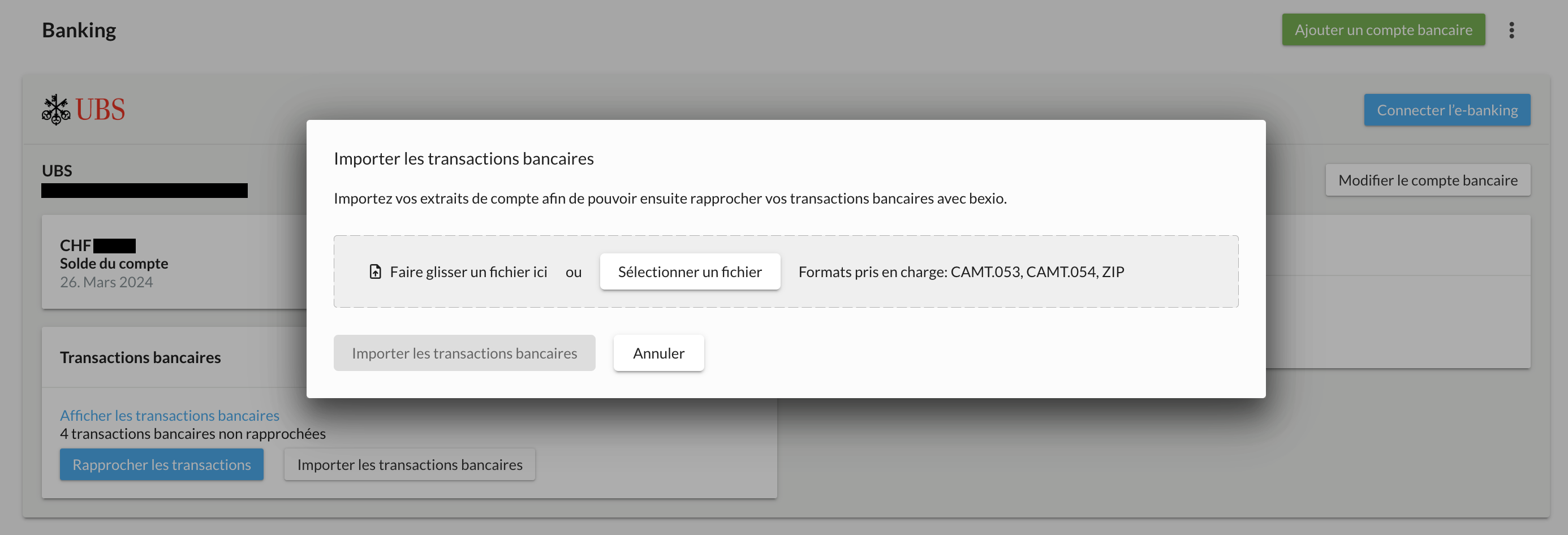
- Click on the "Import bank transactions" button
- Select a file (camt.053, camt.054 or ZIP are supported) by clicking on "Select file"
- Select your file(s) by clicking on "Select file". Up to 30 camt.053 or camt.054 or 1 ZIP file containing up to 30 camt.053 / camt.054 are supported.
Booking or value date
We use the booking date as a standard for transactions. This corresponds to the date of your e-banking movements.
If you want to use the value date, you can change this. You will find the option in your bank account in bexio under the "Banking" section. Click on the "Edit bank account" button. You will then see the option "Use value date" at the bottom on the right.
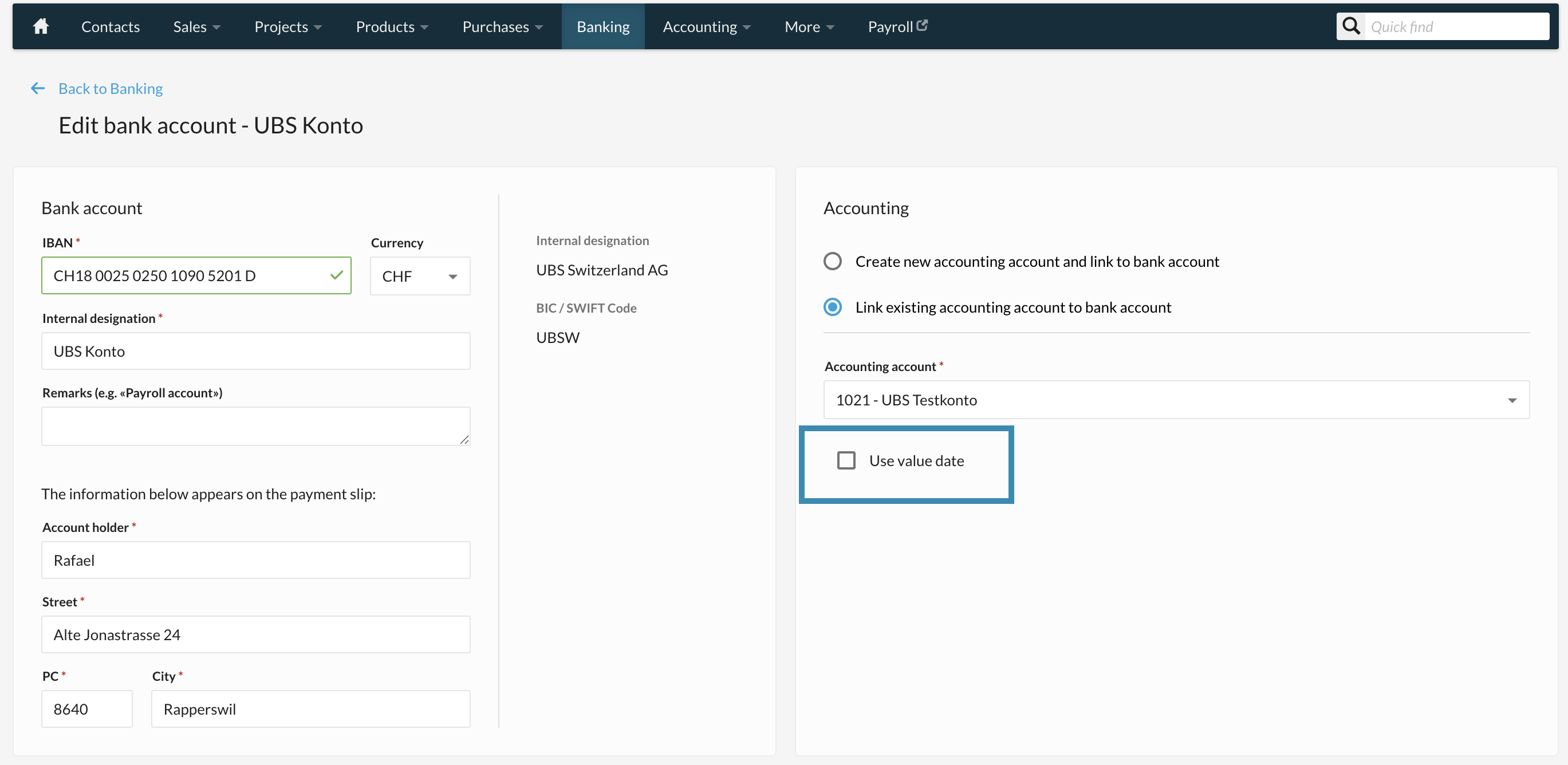
If you activate the "Use value date" option, the value date will be used for transactions from that moment on. During reconciliation, the transaction date sometimes differs from the date on your e-banking.
As soon as you activate the option, you will be asked whether you want to apply this change immediately to all bank accounts. If your answer to this question is yes, it will be changed immediately for all bank accounts.
If you deactivate the option, you can also change this for bank accounts.
Match transactions
Click on "Match transactions" and you will be taken to the bexio comparison overview.
You will find your bank transactions on the left and your bexio bookings on the right. You can find out more in the points that follow.
How do I match credit notes with invoices (debtors)?
You have a customer credit (positive amount) in the left column. You will find the bexio transactions on the right.
If:
- Date
- Amount
- Match QR reference number,
we assign the payment automatically and, after you have checked bexio’s proposal and everything is correct, you only need to click on "Match now" and the invoice in bexio will be set to paid with the corresponding date.
If the payment cannot clearly be assigned, you can use the search field to search for the relevant contact or an invoice number, and you will then be shown all of the contact’s open invoices. Select the corresponding invoice and carry out the match. Only invoices that have an Open & Partial status are taken into account.
When a customer makes a payment that settles multiple invoices, you have the option of splitting the amount and matching all of the corresponding invoices. Please note that the total amount in both columns must be the same for a match to be possible.
This print screen shows you how you can split the amount:

Automatic reconciliation
With QR invoices, we are able to obtain enough information from the banks to enable an automatic reconciliation in bexio. Even if you import bank transactions manually, the QR credit notes are automatically reconciled.
How do I match credit notes with supplier invoices (creditors)?
If you have a debit in the left column, you have transferred money (amount in minus). You will find the bexio transactions on the right.
If:
- Date
- Amount
- Match QR reference number,
we will automatically make a suggestion for matching. If this is also correct for you, click on "Reconcile now". The function works in the same way as for debtors. With "Reconcile now", the supplier invoice is automatically set to paid with the corresponding date. The supplier invoice can also be reconciled completely automatically if you have entered the payments in the purchasing module and transferred them to the bank.
If automatic recognition fails, you can use the search field to search for contacts and numbers, after which all open supplier invoices for the contact will be displayed. You can select and compare them. Supplier invoices with the status Open & Partially paid are taken into account. All others are not taken into account.
Automatic reconciliation of accounts payable
The following requirements must be met for the automatic reconciliation of supplier invoices to work.
- Create supplier invoice in the purchasing module.
- Enter payment directly on the supplier invoice in bexio.
- Transmission of payments to the bank - either via the bexio interface or via a pain.001 file.
- Import account transactions into bexio - automatically via interface or by uploading a camt.053 or ZIP file.
Important: The bank must provide the correct IDs when importing (this is usually the case, but can vary depending on the bank)
How do I post expenses (creditors)?
Expenses can also be matched. Click on "Expenses" in the tab and search for contact, description or amount and we will list possible expenses. As already described above, carry out the match by selecting the appropriate expense and clicking "Match now".

How are foreign currency transactions handled?
For foreign currency transactions, the foreign currency amount is always shown. When posting, the conversion rate is applied by the bank. You will find the corresponding amount in the bank currency in the transaction view. If the bank does not supply the exchange rate within the transaction file, you must ensure that the correct exchange rate is stored in the settings under "Functions & modules -> Currencies and exchange rates" so that the correct CHF amount is posted in the journal.
What do I do if there is no suitable booking on bexio?
In this case, we recommend that you enter the transaction via manual posting so that it is entered in the system for accounting purposes and so that your financial accounting is complete and correct in the end.
Click on the manual booking tab. This mask differs only slightly from the mask which you can also find under the "Accounting" - "Journal" tab. You can enter the following data:
- Document number
- Accounting account
- Name (description)
- Amount
- VAT rate
- Upload receipt
Then click on match.

What is a customer booking?
If you have a credit note or a debit that should be broken down for a customer, but no corresponding document has been entered in bexio, you can also enter a so-called "customer booking". The difference with manual booking is that a "contact" is mandatory and the booking is made to this contact.
The booking will be visible in the contact’s detailed view in the "Finance" tab. This is also visible in the Journal.
How can I edit / undo a match?
You can edit a bank reconciliation again if, for example, you used an incorrect accountancy account during reconciliation or you want to change an existing text.
To do this, go to the "Banking" section and click on "View bank transactions".

When you have found the relevant booking, click on "Actions" and "Edit match" or “Undo match”.
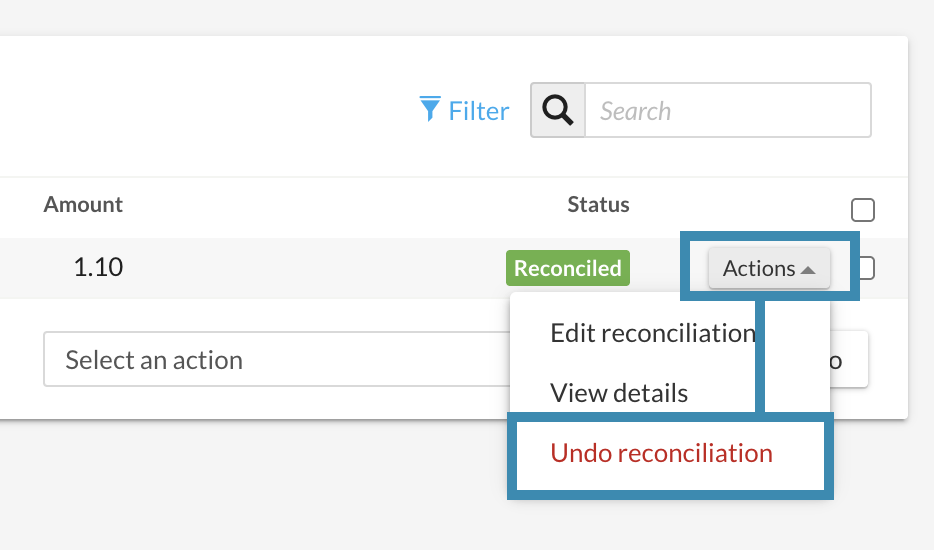
- “Edit match” allows bookings to remain and can easily be changed.
- “Undo match” allows a complete match to be removed and you can enter it again.
Edit match:
The transaction opens and you can see all the information you have entered, which you can now edit. Individual positions can now be removed and added. Save the change, and the transaction is posted and reconciled again.
Important!
If you have split the transaction into several postings (invoices, supplier invoices, expenses, etc.), please note that all postings will be lost after clicking on "Undo match".
How can I ignore a transaction?
If you ignore a transaction, it will not be reconciled and will not be posted in your accounting. If you are not sure how to deal with the transaction or which accountancy account the booking should be made to, you can first get advice from your trustee, ignore the transaction and post it later.
This line will now have an "Ignored" status in the list of bank transactions. If you click on "Actions", you can cancel the status and carry out the update again.

What status can a transaction have?
A bank transaction can have the following status:
- Not reconciled: These transactions are ready for you to reconcile. These have not yet been posted and can be reconciled using transaction reconciliation.
- Automatically reconciled: These transactions were reconciled automatically and successfully. These are booked in the financial accounting of bexio.
- Reconciled: These transactions were successfully reconciled and are booked in the financial accounting of bexio.
- Ignored: You have ignored these transactions and they thus have no influence on financial accounting in bexio and no longer appear in the transaction list.
- Pending: This status only occurs with UBS clients. These are transactions that have not yet been fully processed. This status normally changes to "Not matched" automatically after a few days. If this does not happen, please contact bexio support.
You can view the status of the respective transactions via "Show bank transactions". You can use the "Actions" button on the right to adjust the status of the transaction.