Overview
Supported payment methods in bexio
- QR-Invoice
- Bank or postal office payment in CHF and foreign currencies
- Foreign transactions (SEPA and Swift)
Note
- Bank transfers can only be made with IBAN.
- Payments to foreign countries require an IBAN.
- Payments to non-SEPA countries are not possible via bexio and must be entered directly in e-banking
|
Entering payments in Banking
How to enter payments from the Purchases module can be found here .
Enter new payment
Here you can see how to create a new payment. To do this, go to your bank account with which you want to make the payment. Click on the button "New payment" to start the process. This will open the following screen.
Tip: You can search for the contact and its address in the name.
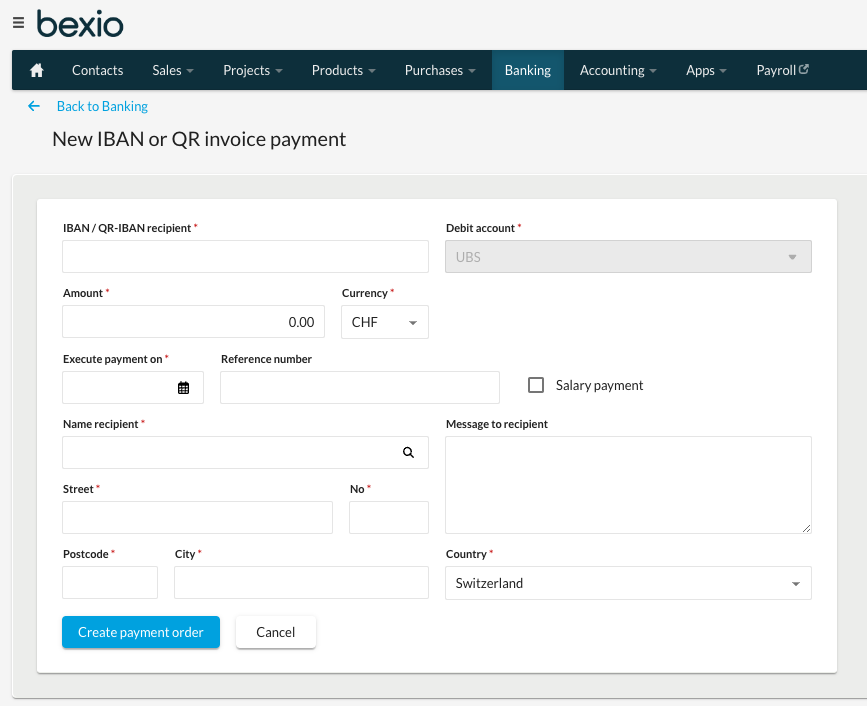
| Notes
You may define the desired execution date (date, on which your account may be debited) for the payment order as follows:
- Latest execution date 60 calendar days ahead (as of the submission date)
- The execution date for the entry must be at least "today".
- It is important that you enter a house number. If this house number is unknown, you can fill it in with a "1" for the time being. We ask you to find the house number and enter it in your contact. The house number will be mandatory in the future due to the new "Swiss Payment Standard" regulations.
|
Transfer payments to e-banking

All entered payments (only one payment is available in the example above), are listed under "Outgoing payments" with status "pending". To send your payments to your e-banking for execution, proceed as follows:
- In banking, go to the bank account, from which you are making the payment
- Click link "Show outgoing payments"
- Select the payments to be executed (activate the check box at the end of the line)
- Next, click the "Transfer payments" button"
- In this dialog, you will now see the number of payments, the account to be devited and the total payment order amount
- Click the "Transfer payments" button
- Enter the login data for your e-banking (not required for UBS)
- Verify the login process with a code (different depending on the login method; not required with UBS)
- Some banks also require the entry of a confirmation code
The transfer process is now complete and the transferred payments' status is changed to "Transferred.".
We recommend that you verify payments made in e-banking to ensure they are there and have been accepted by the bank.
|
Note
Basically, payments can be sent to your e-banking several times. As soon as you click on "Transmit", these payments are transmitted to your e-banking. In this context, we do not check whether they have already been transmitted at a previous point in time.
We have no way of checking this in your e-banking afterwards. However, you can usually view the transferred files directly from bexio during data transfer in e-banking.
Please make sure that you do not send payments that have already been transferred to the bank a second time.
Important
Please also note that, depending on the bank, payments must still be released/signed/signed in e-banking for the payment to be processed.
One of the prerequisites for transfers of payments to e-banking is that you have linked your e-banking to bexio and have already received transactions successfully once before.
|
Download (pain.001) payment file

All entered payments (the example above provides only one payment) are listed under "Outgoing payments" and are assigned the "pending" status. To be able to download payments as payment files in the XML format (pain.001), proceed as follows:
- In banking, to to the bank account you made the payment from
- Click the link "Show outgoing payments"
- Select all payments to be made (activate the check box at the end of the line)
- Next, click on the arrow next to button "Transfer payments"
- Choose option "Download pain.001 (EZAG) file" in the drop down menu
- A dialog window now displays the number of payments, the account debited and the total payment order amount
- Click button "Download pain.001 (EZAG) file"
The download process is now complete and the payment file is stored on your computer. Normally, you will find the stored file in your download folder.
In bexio, the downloaded payments have been changed to status "downloaded."
Delete payments
Deleting payments in banking
 Principally, payments in bexio can be deleted by taking the following steps:
- In banking, go to the bank account from which you transferred the payment
- Click the link "Show outgoing payments"
- Click tab "Transferred" or "Downloaded"
- Search for the payment to be deleted
- Choose option "Delete bank transfer payment" under "Actions" (drop down menu)
- Dialog "Bank payments already transferred/downloaded" will appear
- Confirm the deletion of the payment by clicking the "Delete bank transfer payment" button"
| Important
Please remember that payments have to be deleted in both, bexio and your e-banking.
Although bexio maintains various interfaces with banks, they do not include any functions that will automatically cancel e-banking payments
|
Reconciling bank transactions
Do you not just want to transfer a payment, but also reconcile inbound payments to your bank account using bexio? Click here to find out how.
To the overview «Banking with bexio».