Enter your bills in bexio, create the payment for them and send it to your e-banking system to be executed. Here, you will find instructions on how to do this.
Additional articles:❯ Create a bill❯ Edit a bill❯ Delete a billContents
Enter outgoing payment
You can find out how to scan the QR deposit slips and have the payment information filled in automatically in our support articles Creating creditor / bill and bexioGo – Document scanner.
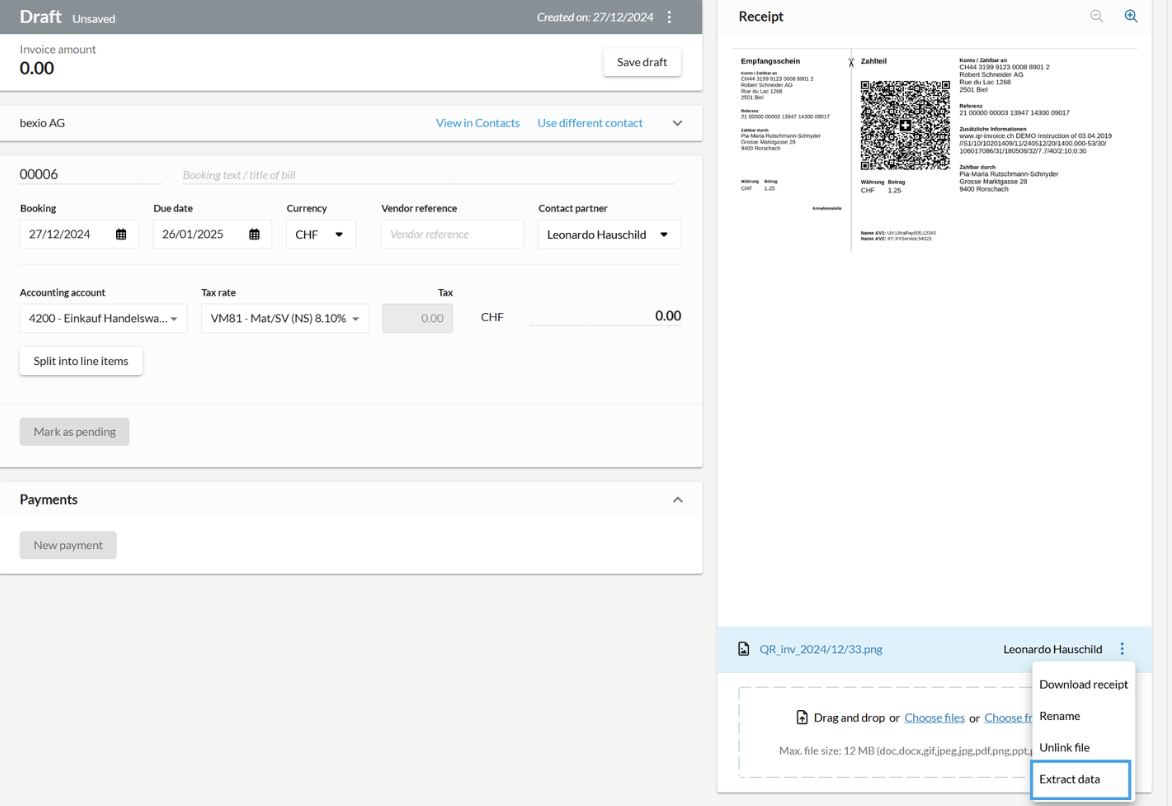
For bills with an attachment that contains a QR invoice, if the QR details have not been extracted yet, it is possible to trigger the extraction within the bill detailed view.
Open the file preview context menu and select the option to “Extract data”.
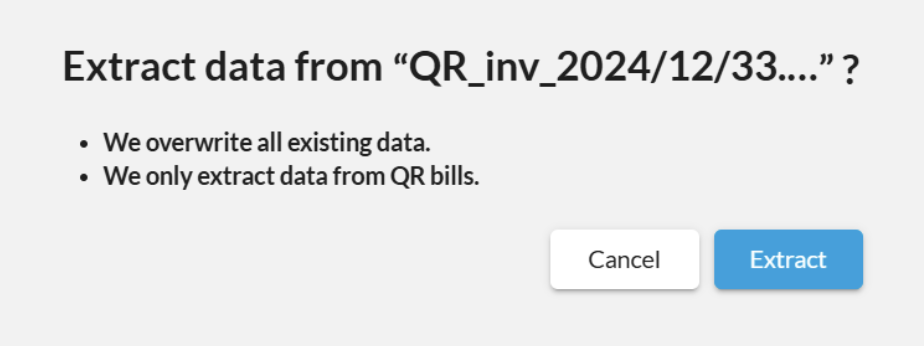
Please note that all information will be overwritten on the bill if extraction is successful.
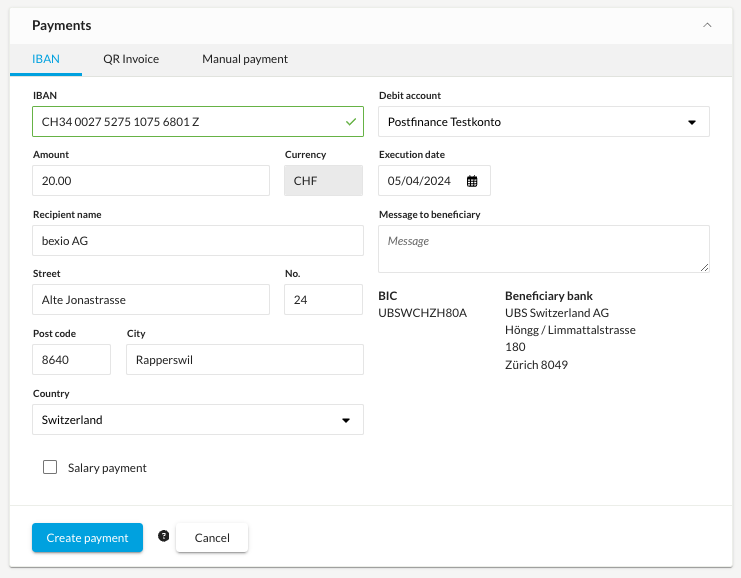
Outgoing payments can also be entered directly in the bill. After clicking on "Enter payment", the following payment options will be available to you:
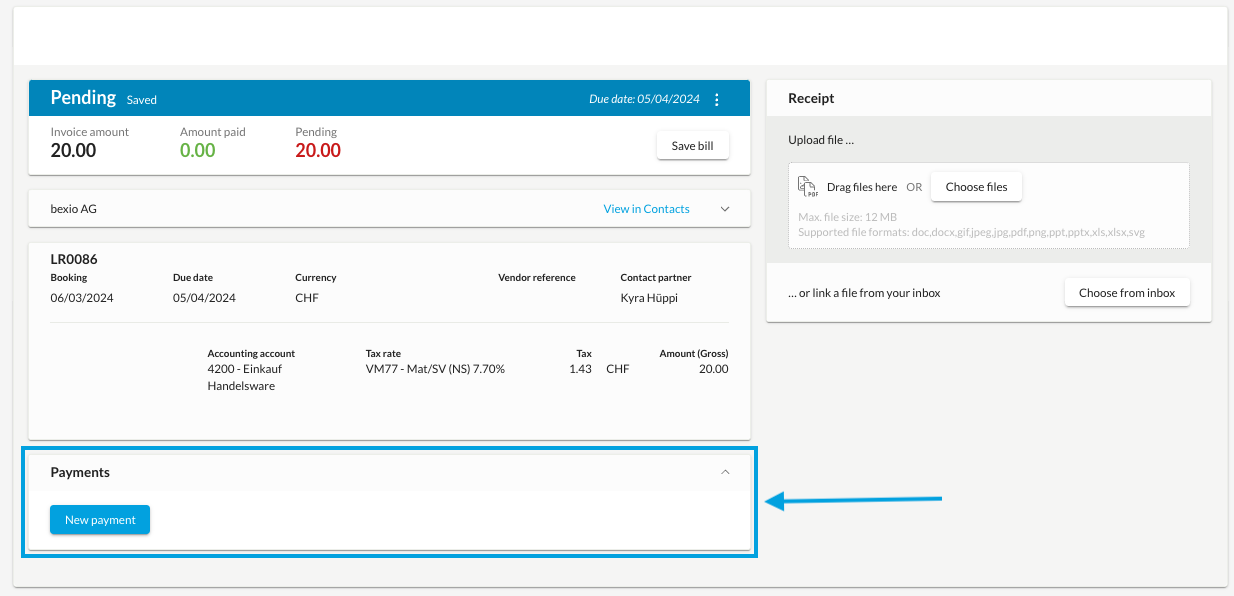
Enter the payment information to be able to "Create payment order". This automatically creates a payment in bexio banking. Please note that the payment order has not yet been transmitted to your e-banking system. To do this, follow the next section.
Edit outgoing payment
In order to edit details on an outgoing payment please access the context menu on the payment list and select Edit.
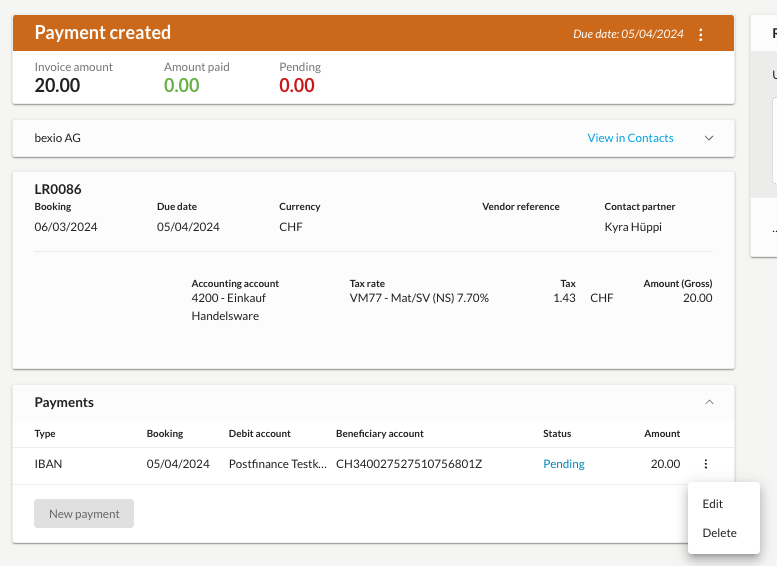
It is not possible to change the bank account from which the payment is initiated nor the payment type - if those details need to be changed then the payment needs to be deleted and recreated.
Once you enter the necessary details click on Save payment to update the payment order in banking.
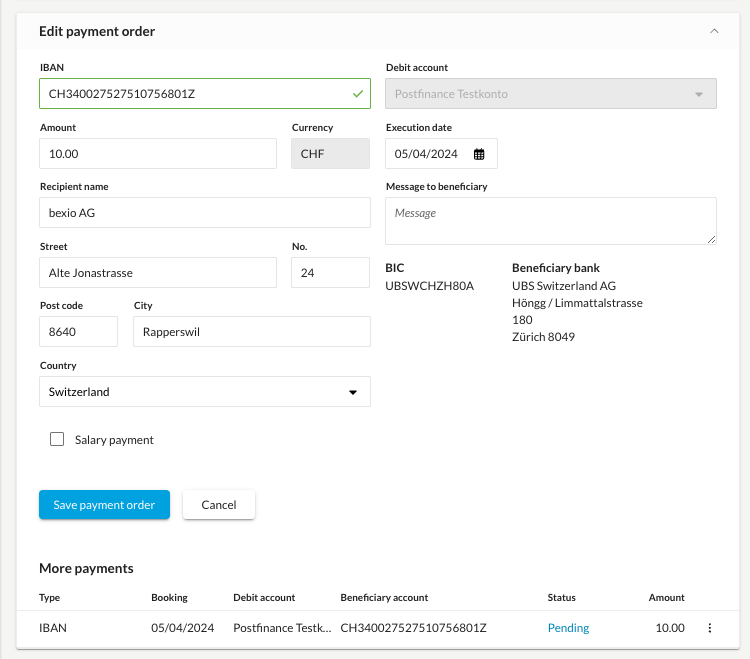
Please note that only IBAN and QR payments in status Pending or Failed can be edited. It is not allowed to edit a payment that is already Downloaded or Transferred.
In addition, we do not allow to edit manual payments and cash discounts.
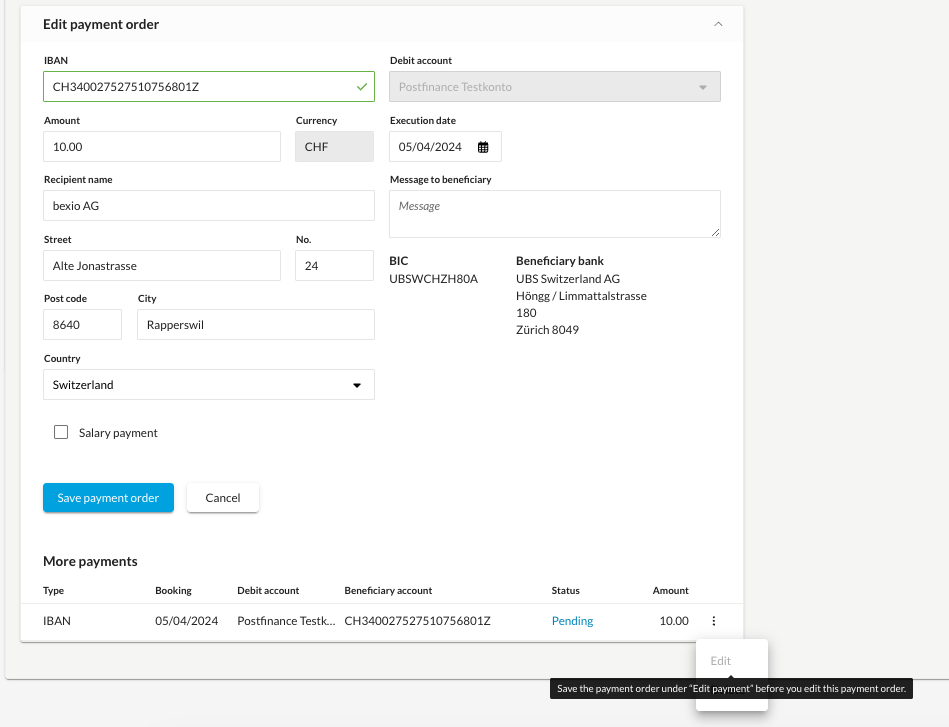
If there are multiple payments added to a bill then changes on one payment need to be saved before another payment can be edited.
Submit outgoing payment to the bank
All outgoing payments that you enter via the bills end up in the banking area under "Outgoing payments". Click on "Show outgoing payments" to access the overview.
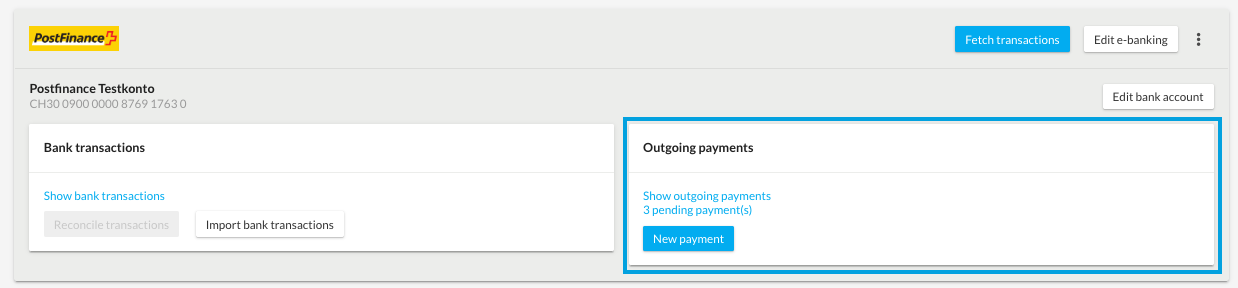
Select the desired payments using the checkboxes. If you use a bank with which we maintain a direct interface to e-banking, you can send the selected payments immediately to your bank's e-banking system using "Transmit payments" so that they can be executed. Alternatively, you can also use the file "pain.001" and manually upload it to your e-banking system to make the payments. Please note that we cannot provide you with any information about where you can upload the payment file at your bank, as this differs from one bank to another.
❯ More information about banks with a direct interface "
❯ More information about recording and transmitting payments"
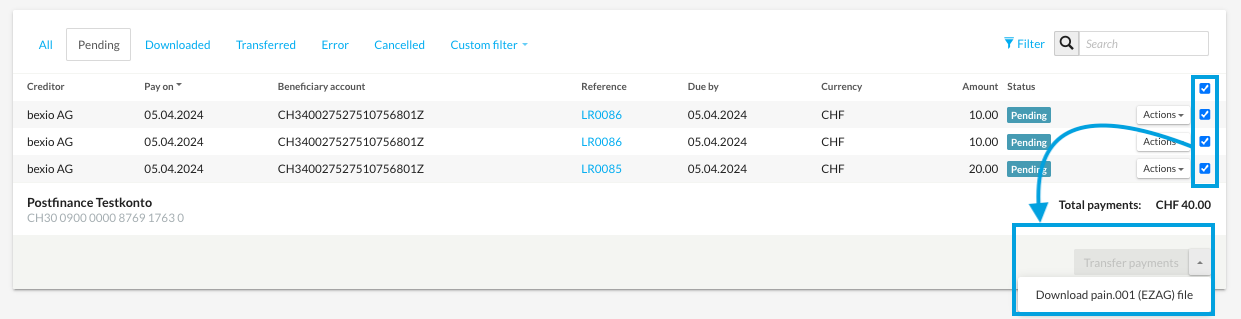
Status of the bill
After the payment has been recorded, its status changes to "Open" and the bill is displayed as "Bank payment created".
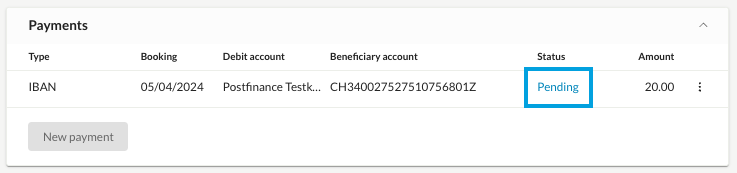

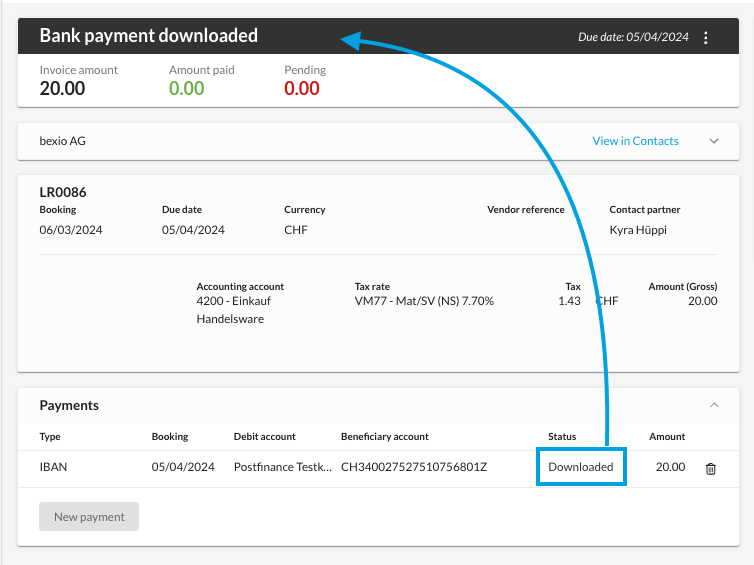
If the payment is "downloaded" or "transmitted", the status of the bill also changes.
When does the status change to "Paid"?
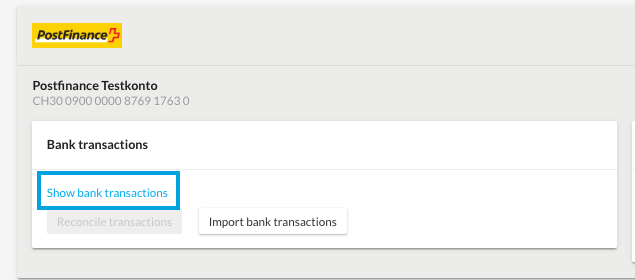
The status of the bill only changes to "Paid" when either the matching of the corresponding bank transaction has been made or a manual outgoing payment has been posted in the invoice. If the bill is still in the status "Transmitted" or "Downloaded" despite the matching, check the matching of the transaction again. The easiest way to do this is under "Banking" → "View banking transactions".
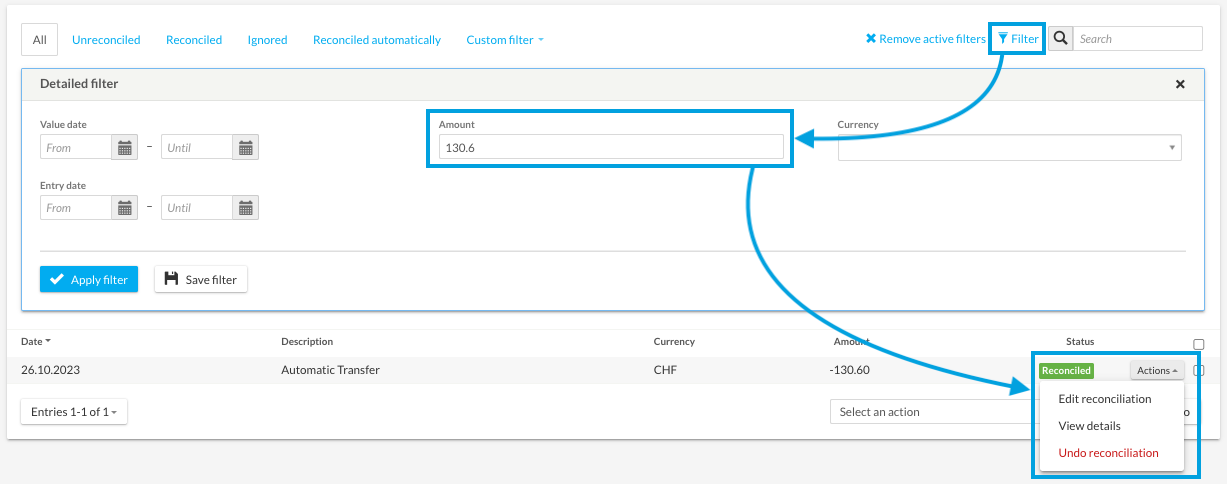
Open the "filter". Filter by amount or date. Afterwards, you can click on "Actions" → "Edit matching" in the already matched transaction to edit the matching again and match it with the correct bill.
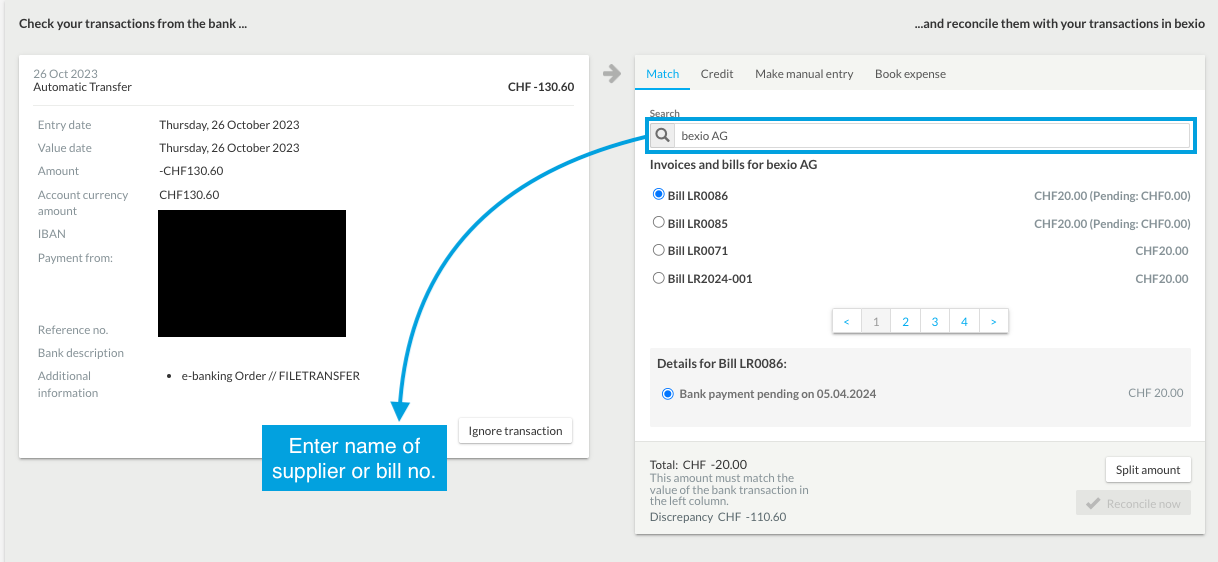
Match bank transaction with the bill
To match the associated bank transaction with the bill, go to "Banking". Open "Match transactions". Then search for the transaction and enter the name of the supplier or directly the number of the bill under "Match". Select the appropriate invoice. Confirm this with "Compare now". For more detailed information on matching your banking transactions, see this support article "
If you have entered the payments in the purchasing module and transferred them to the bank, the payment is automatically reconciled after the import.
Manually post outgoing payments
For payments directly in the bill, you also have the option to enter the payment manually. Under "Manual payment", you can store and save the correct bank account, a posting text, the corresponding date and the amount. In this way, the bill is immediately marked as "paid".
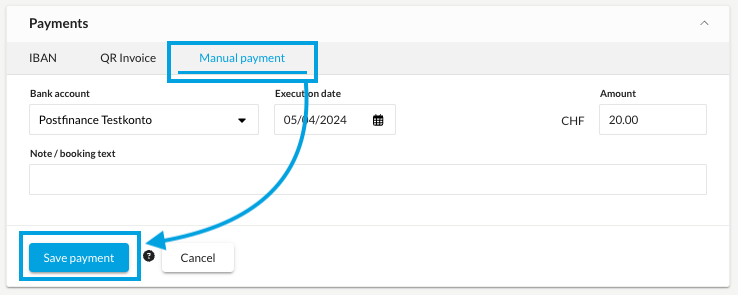
Please note that no payment will be triggered. The bill is marked as "paid" and posted accordingly in the journal. Of course, you can make the payment of this invoice elsewhere. However, an additional matching of the bank transaction is made superfluous by this process and would only result in a double entry.
Post the remaining amount as a discount
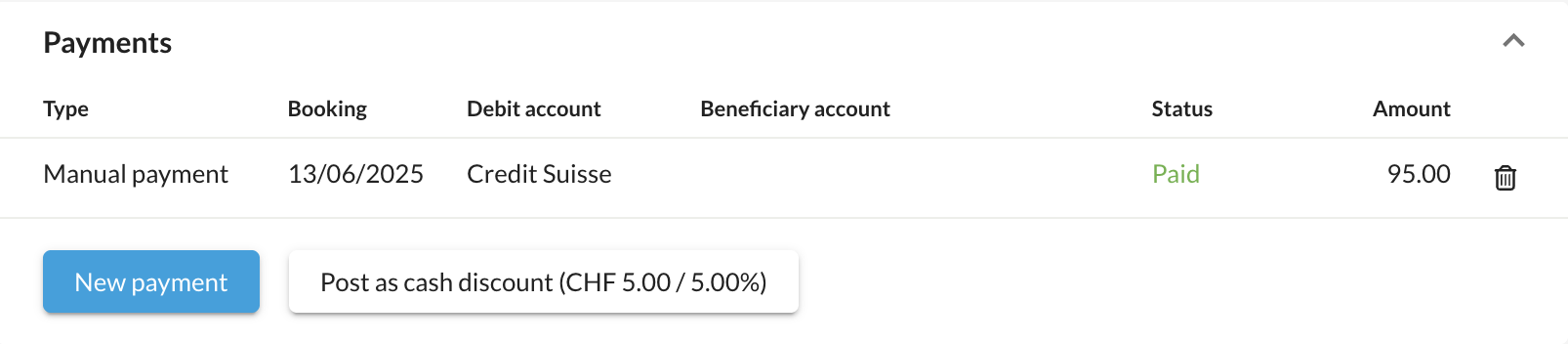
As soon as you create only a partial amount as an outgoing payment in the bill, the option to enter the remaining amount as a cash discount appears below it.
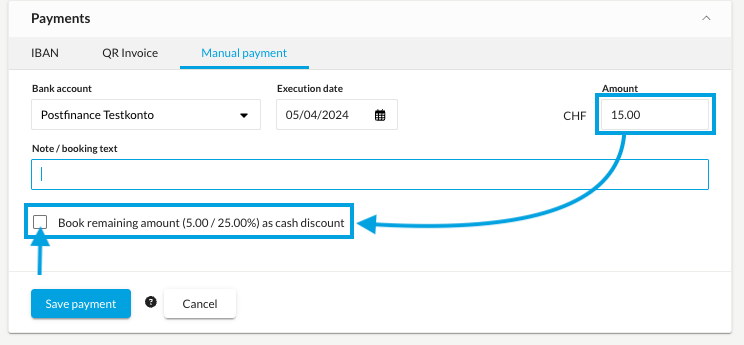
If the bill pending amount is equal or below 10% of the bill total amount then an additional option to post the remaining amount as cash discount will be available.
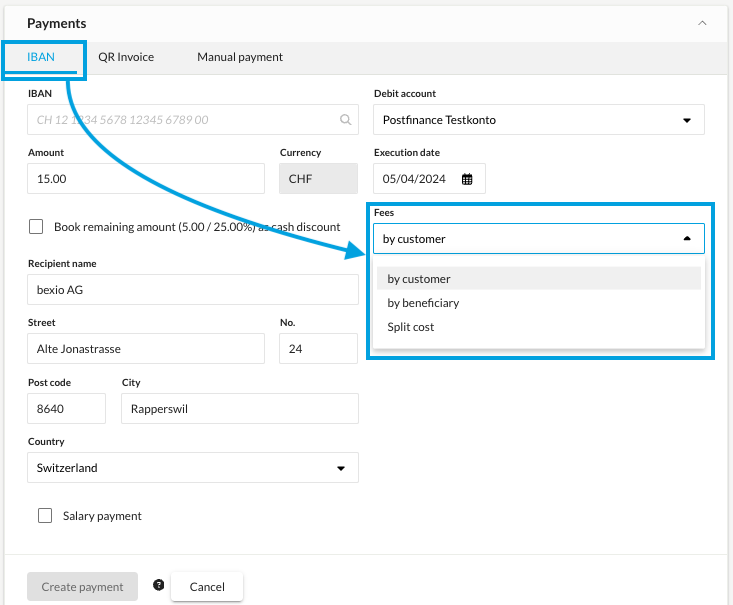
Fees for payments abroad
As soon as payments for abroad are entered, it can be selected directly in the bills to which debits they belong. The "Fees" field appears at the beginning of all bills, but if a Swiss IBAN is selected, the field disappears again.