Have you already set up your bank account in bexio and would now like to create a connection to e-banking? Once the link is established, you will be able to automatically import your banking transactions into bexio and transmit outgoing
payments to your e-banking.
Supplementary contributions:❯ Anwendung der Bank «PostFinance» english version coming soon..
Contents
- Compatibility & Data
- Steps to create a PostFinance e-banking connection
- Setting up a bank account
- Selecting the file format
- Requesting electronic account statements by phone
- Subscribing to file transfers in PostFinance e-banking
- Connecting to bexio
Compatibility & Data
| Supported login method: | PostFinance ID / Mobile ID (provided that Face ID is not activated) / Login via app |
| File format for payments: | pain.001 (ISO ready) |
| File format for the account statement: | camt.053 (ISO ready) |
| File format for QR credits: | camt.054 (ISO ready) |
Supported login methods
bexio supports both login via "PostFinance ID"/card reader and via "Mobile ID." When logging in, you must select the method you use when logging in directly to PostFinance e-banking. Please note that we do not currently support the "Face ID" login option in bexio. If you use this login option for e-banking, you cannot log in to bexio via Mobile ID. The solution here would be to not use the new login method at this time or to log in via PostFinance ID (card reader). You can find more information about the login method in this article: «Unterstützte Login Methoden».
Security: bexio does not store any login details (such as contract numbers, passwords, or cookies). bexio will never ask you for your e-banking login details in writing or by telephone. Please never disclose this confidential information to third parties.
Steps to create a PostFinance e-banking connection
- Setting up a bank account
- Selecting the file format
- Requesting electronic account statements by phone
- Subscribing to file transfers in PostFinance e-banking
- Connecting to bexio
Setting up a bank account
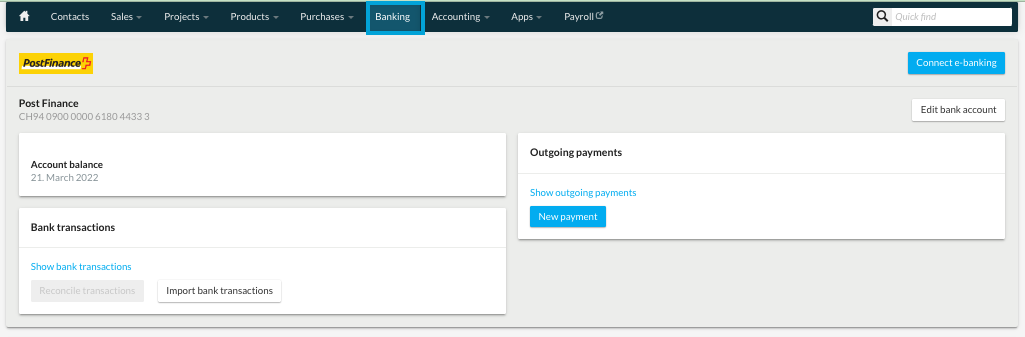
To create a connection, the account must have already been set up in “Banking”. If this is not yet the case, start by following the steps in this post: Add a bank account. You can then follow the further steps in this section.
Order electronic statement of account
To establish a connection to e-banking and, consequently, for transactions to be imported into bexio and outgoing payments to be exported, you need to request ISO-format electronic account statements. To request that deliveries be made in this file format, please contact PostFinance by phone and choose the following option:
camt.053 Version 8, with details, without voucher images, single booking (daily delivery)
This configuration is suitable for bexio users who have no or few QR payment receipts to post. With this setting, QR credit notes can be viewed in bexio with a delay of 2-3 days.
Requesting electronic account statements by phone
Contact PostFinance customer support by phone on the relevant number and have your e-finance number for e-banking ready:
→ Private customers: 0848 888 710 (CHF 0.08 / min within Switzerland)
→ Business customers: 0848 888 900 (CHF 0.08 / min within Switzerland)
Tell your customer advisor the following:
✓ You are using (“bexio”) third-party software and would like to request that your electronic account statements be sent in one of the formats above.
✓To ensure the interface functions correctly, only one “camt.053” format can be used per bank account. Old configurations must be removed.
✓ Account statements should be issued daily – by default, they are usually only issued every month.
Gut zu wissen:
→ Please order electronic bank statements direct by phone or in writing via the messaging service. You should not need to fill out lengthy forms to order electronic bank statements. However, if the bank insists on it, bexio support cannot help with completing any forms, please contact the bank directly.
→ It can take up to 5 days for PostFinance to complete the conversion.
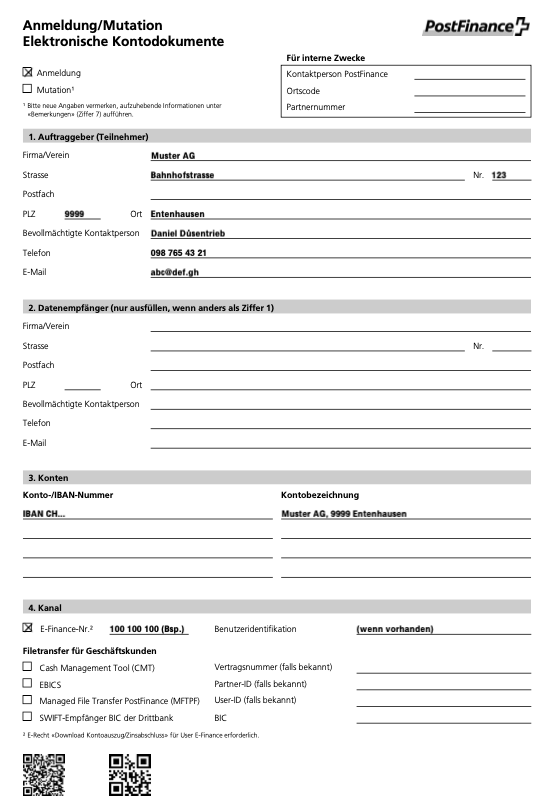
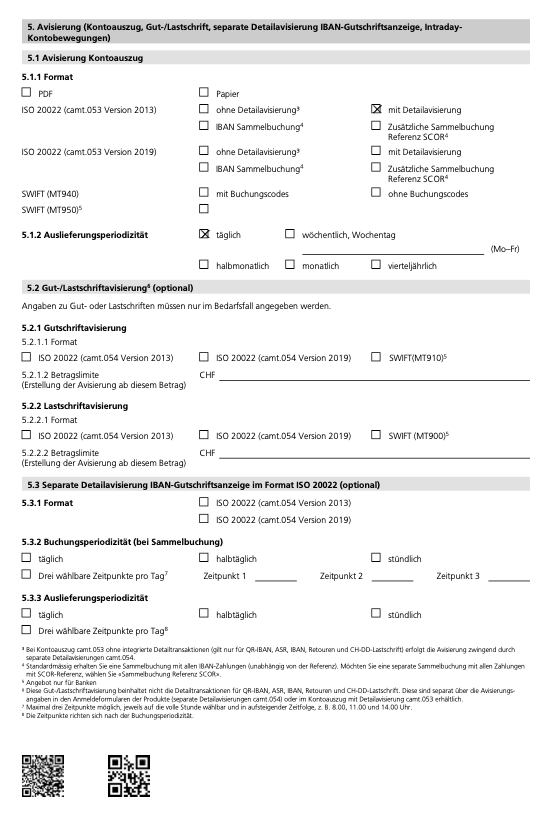
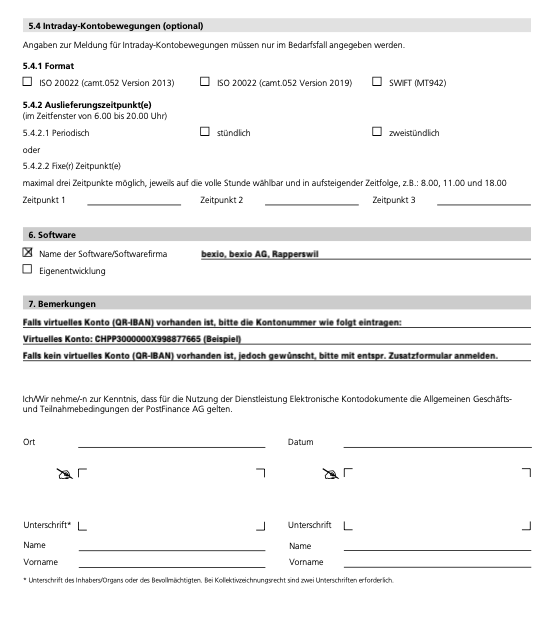
In the following screenshots, you will find information on how to complete the form.
Subscribing to file transfers in PostFinance e-banking
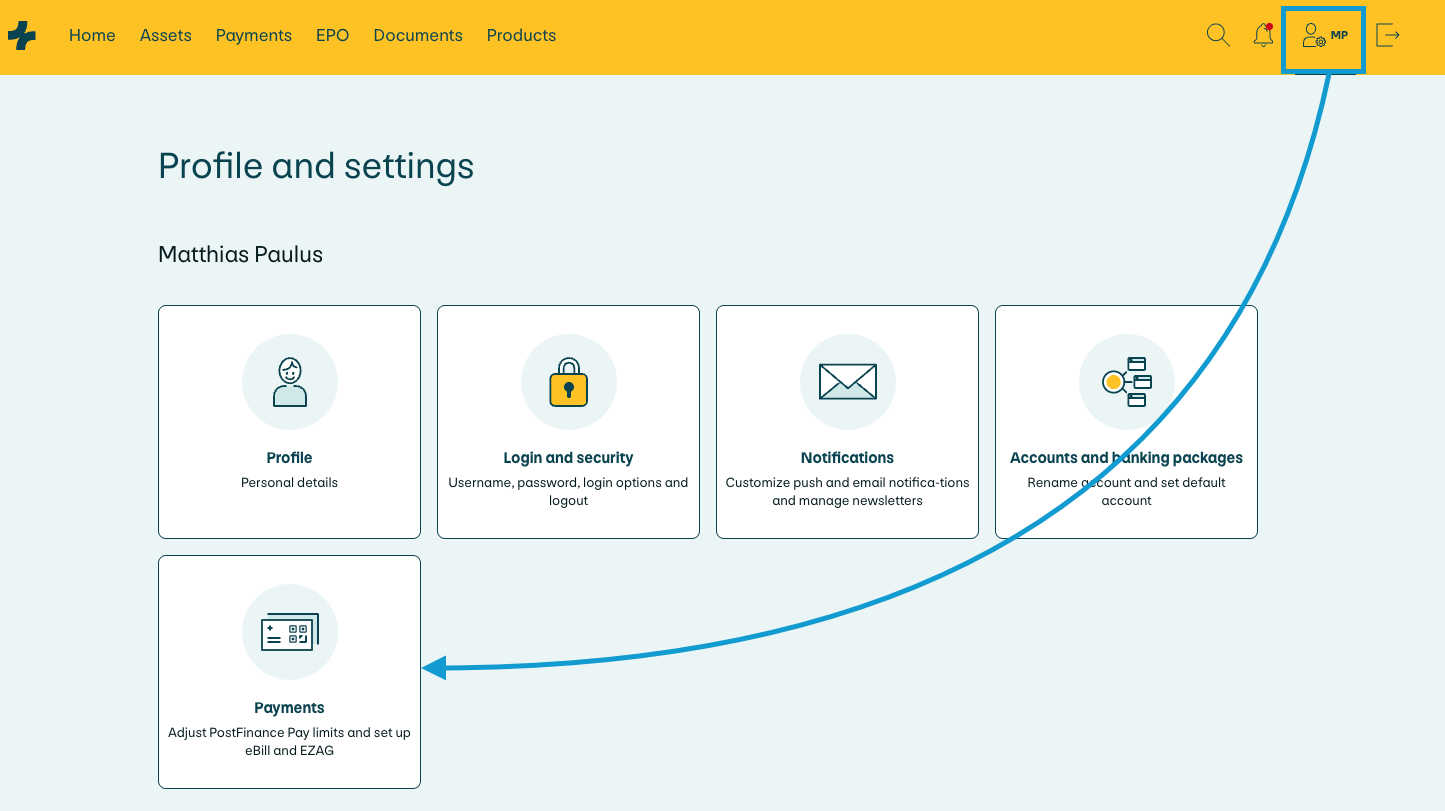
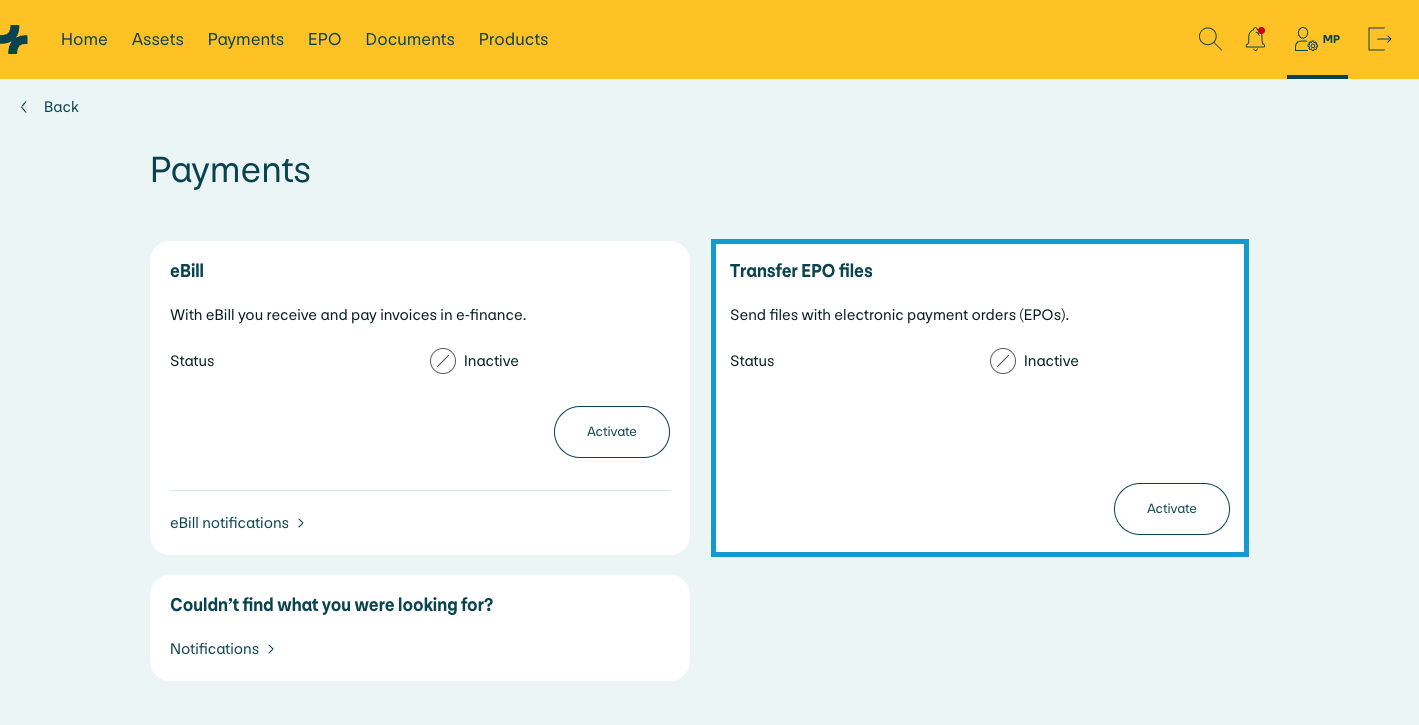
In order for outgoing payments from bexio to be transmitted to PostFinance, the “transfer electronic payments” option must be activated in e-banking. This only has to be done once. Log on to e-banking and click on your name in the top right corner and select “Payments”. In the subsequent menu you will find the “Transfer EPO files” settings which can be activated or deactivated.
Connecting to bexio
Pre-connection checklist:
✓ The bank account has been set up in the bexio banking module.
✓ One of the two formats for electronic account statements has been requested from PostFinance by telephone.
✓ You have taken into account that PostFinance can take up to 5 working days to complete the conversion.
✓ “File Transfer” is activated in the e-banking settings.
✓ You have at least one existing transaction in your e-banking from the last 5 days. This can be a completed payment or a credit note. (So that the electronic account statement can be created.)
Have all the points above been taken into account? You can now link your bank account and your e-banking.
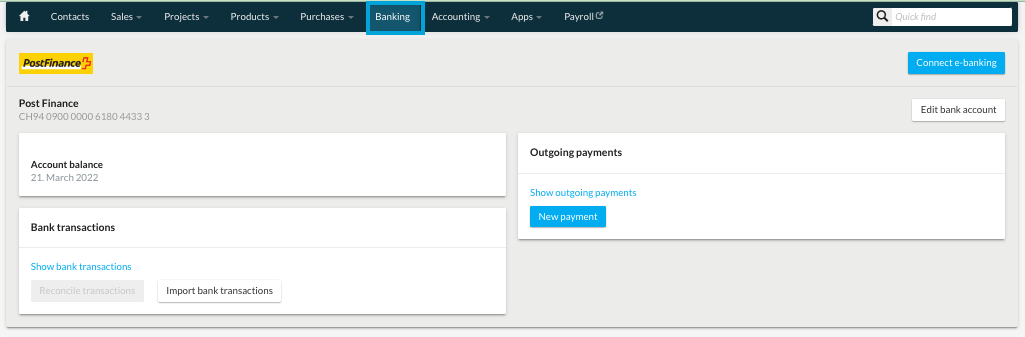
1. Open banking module in bexio
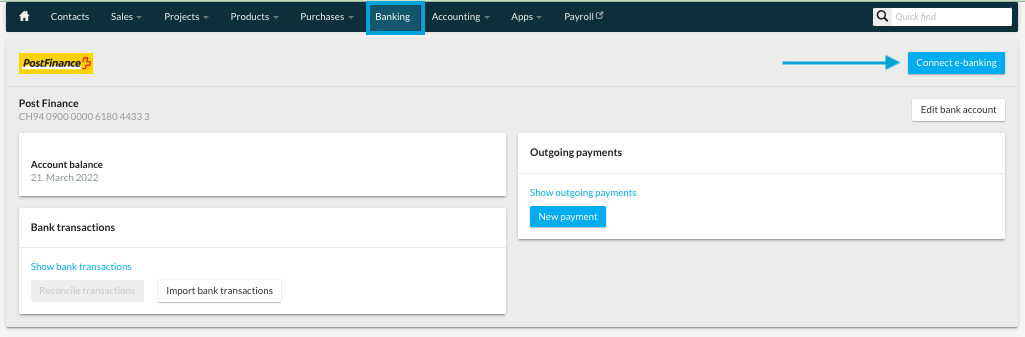
2. Click on “Connect e-banking”
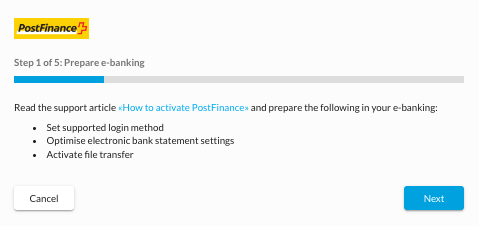
3. Preparing for e-banking
Here you will be prompted again to check that you have chosen the correct login method, requested the correct electronic account statements and activated file transfers in your e-banking.
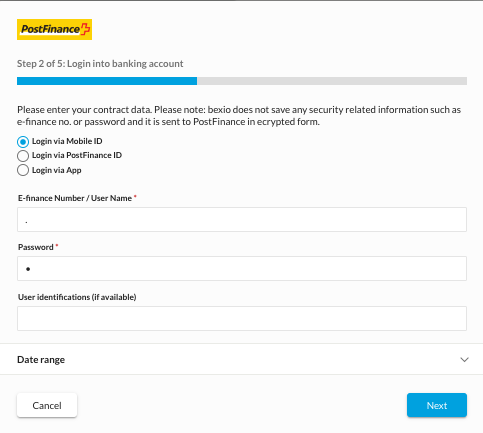
4. Registering with your PostFinance account details
Log in with your e-banking user data, including authentication method (e.g. mTAN)
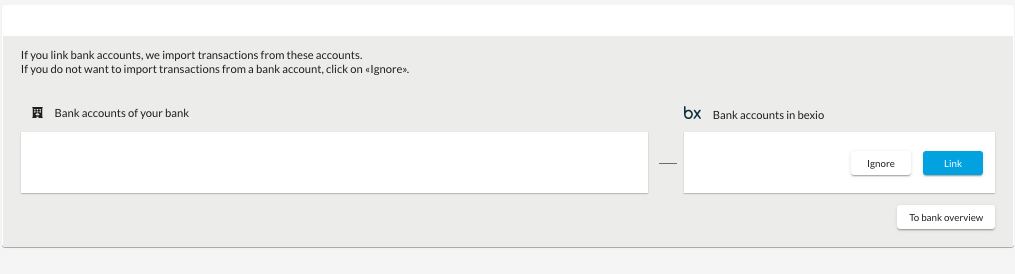
5. Connect your bank accounts
Link the bank account to the bexio bank account, if you do not wish to use a bank account in bexio, you can “ignore”this. Review the bank accounts you have linked and ignored.
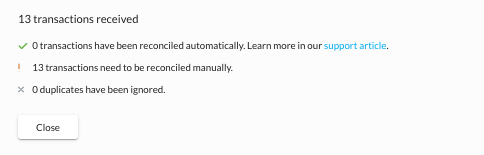
6. Overview of imported transactions
The final step will show you an overview of how many transactions have been imported. We divide these transactions into the number of transactions that have been reconciled automatically, the number of transactions that still have to be reconciled and the number of duplicates that have been ignored.
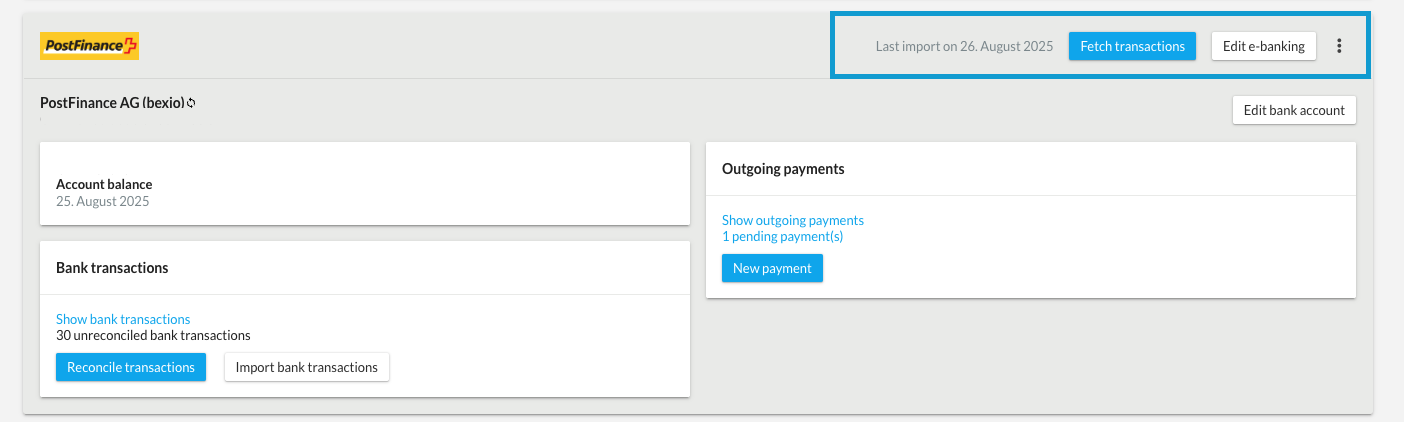
Once you have successfully linked at least one bank account, the "Retrieve transactions" button will be displayed instead of the "Connect e-banking" button that was previously visible.
Note: Under certain circumstances, the login may have completed successfully, but you may not be able to see transactions. This section will give you insights into the possible reasons for this: No transaction received.