Have you already set up your bank account in bexio and would you like to create a link to your e-banking now? Once the link is created, you will be able to automatically import your bank transactions into bexio and submit outgoing payments to your e-banking.
Inhalt
In this article, you will learn just how easy it is to synchronise your Zurich Cantonal Bank
(ZKB) account with bexio as well as how to balance transactions and submit payments.
| Setting up data transfer: | bLink there is an overview in e-banking |
| File format for payments: | pain.001 (ISO ready) |
| File format for account statements: | camt.053 with details V8 |
| Notes: |
|
Important note:
If you have successfully established the connection, you will be able to use the interface from
the following day.
First you need to create your Zurich Cantonal Bank account. You can then link the bexio bank
account to the e-banking bank account as follows:
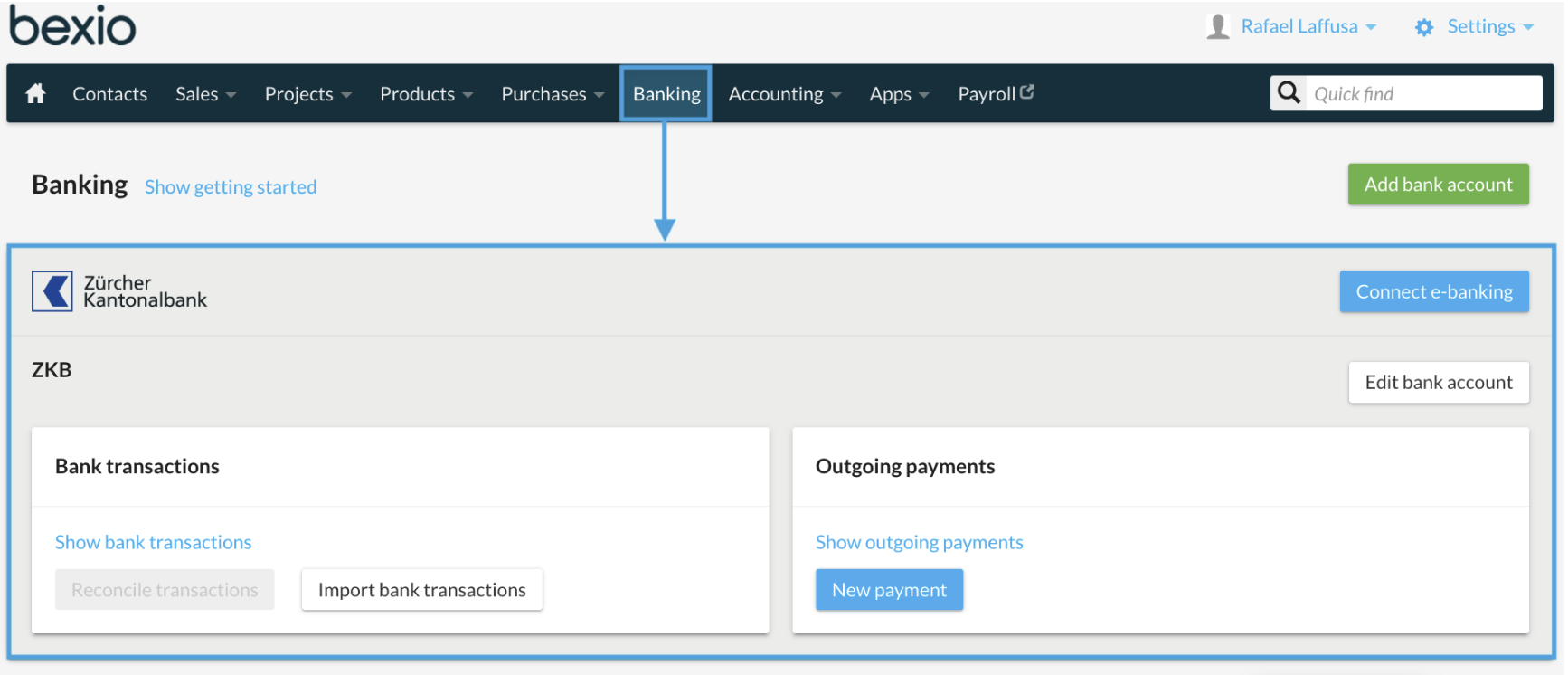
Click on the button »Connect e-banking«

You will see a message telling you that you will now be redirected to ZKB e-banking. Click
on »Go to Zurich Cantonal Bank« to continue.

Log in to your e-banking account with Zurich Cantonal Bank. Enter your username and
password.

Scan the graphic (photoTAN) with your ZKB app or reader and then enter the TAN you
have received.

Accept the terms of use for software connections via API.

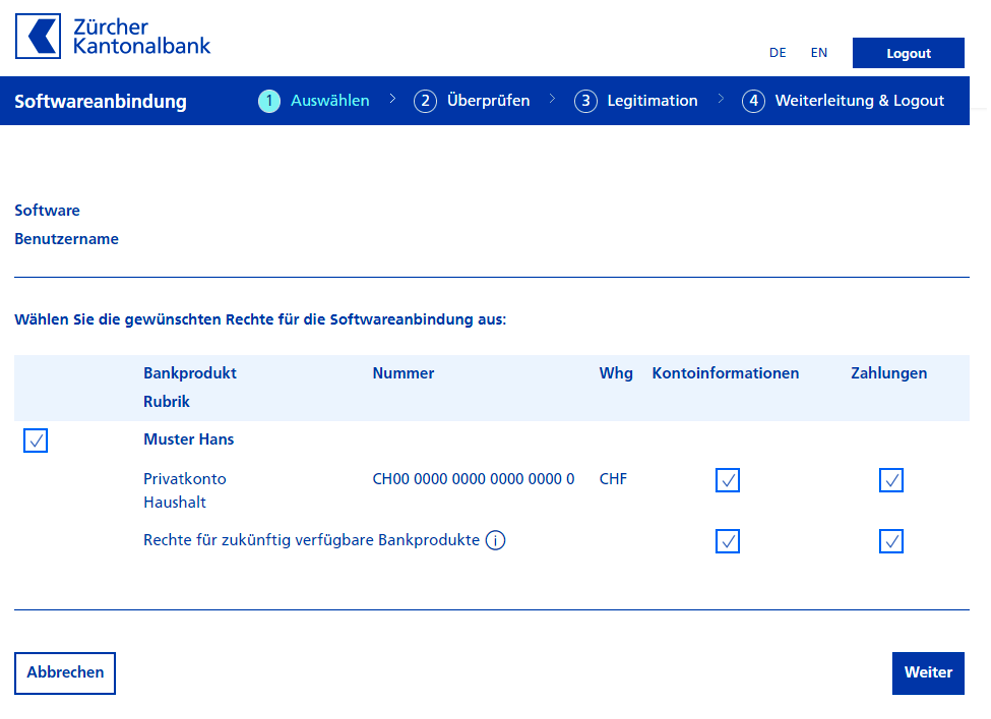
As soon as you have confirmed the connection, you will be redirected to another menu item,
where you can assign your bank the rights to transmit the account information and payments.
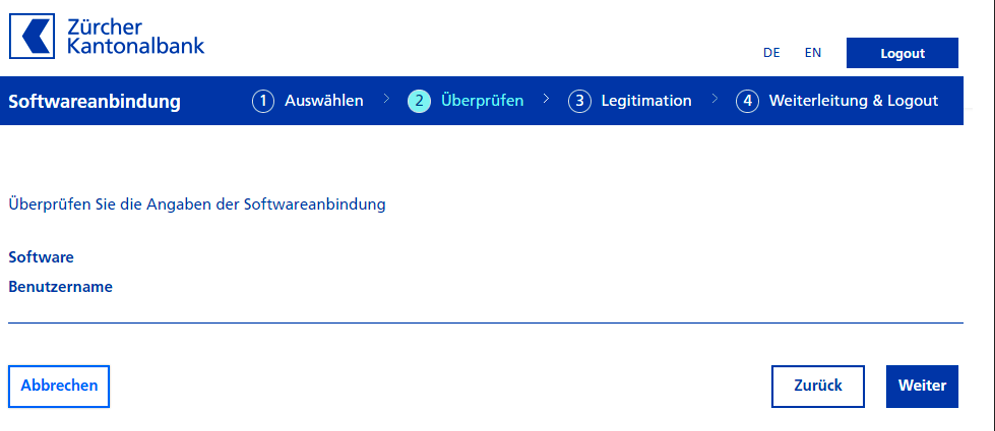
Check the details of the software connection.
In the penultimate step, the bank requires the graphic (photoTAN) to be scanned again to confirm the software connection between Zurich Cantonal Bank and bexio. 
In the last step, a »Continue« button will appear, which will redirect to your bexio account. You will be automatically logged out of your e-banking at the same time.

Link the bank account to your existing bexio bank account or to a new bexio bank account. Bank accounts that you do not need to use in bexio can be ignored using the »Ignore this bank account in bexio« option. It is essential that all bank accounts are either linked to a bexio bank account or explicitly ignored.

Once you have successfully established the connection, you will be able to use the interface from the following day.
Transactions can be imported retroactively into bexio. To do this, click on Banking in the menu at the top of bexio and then click on the small arrow next to »Import transactions« You can then set a »Date range«. This way, account statements that have already been marked as »imported or read« in your e-banking can also be checked again and imported.
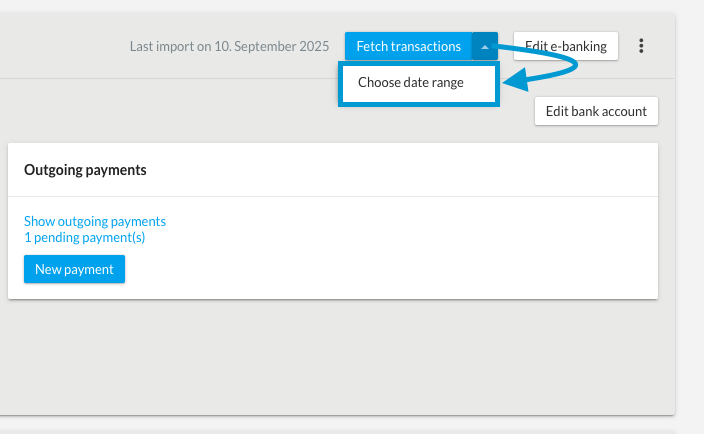
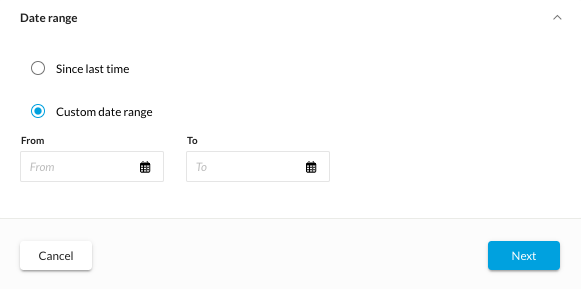
The interface features a duplicate filter to prevent importing a transaction twice. This means that you cannot have duplicates and that you can ensure that all transactions have been imported. All transactions are automatically imported overnight. Due to technical restrictions, you can import 5 business days at a time in a period of 2 months. With this feature, you can make sure that all transactions have been imported and nothing has been forgotten.
You can manually disconnect the link to e-banking by clicking on the »three dots« next to the
blue »Import transactions« button.
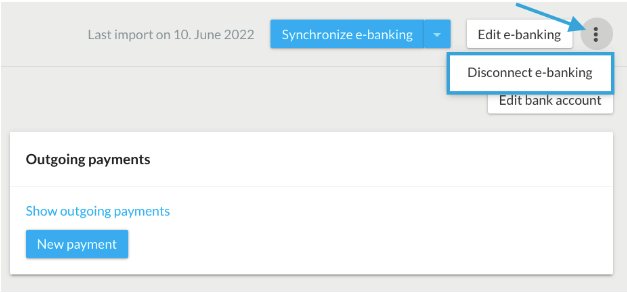
A dialogue window will open for you to confirm you want to disconnect bexio and your e-banking. Transactions imported up to that date will still be visible in bexio. You can re-establish the connection at any time.
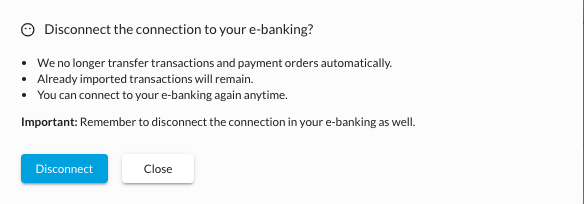
You can remove bexio's rights in your e-banking, thereby disconnecting e-banking. If you disconnect in bexio, please do the same with the bank. You can find this in your e-banking under »Service & contacts« > »Manage additional functions« > »Software connections«.
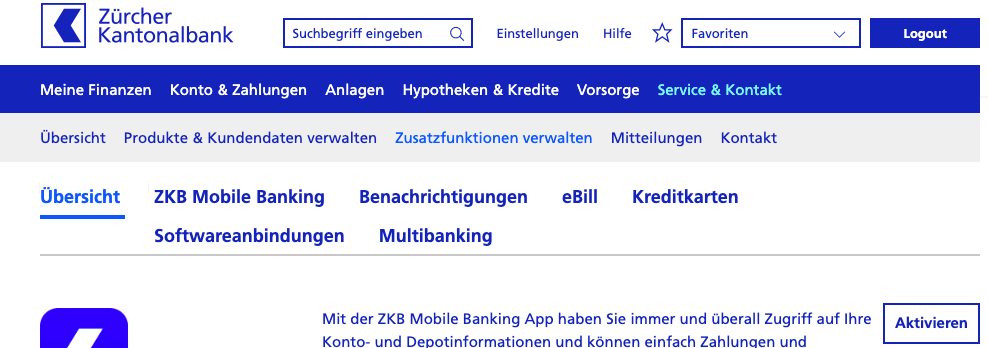
You can remove the permissions you gave bexio in the Onboarding Flow here.
You can also find more information here: https://www.zkb.ch/de/unternehmen/digitales-banking/software-anbindungen/anbindung-via-api.html
Outgoing payments are recorded in the optimal manner via the supplier invoice, or alternatively directly under "Banking" → "New outgoing payments". Instructions containing more detailed information can be found here »

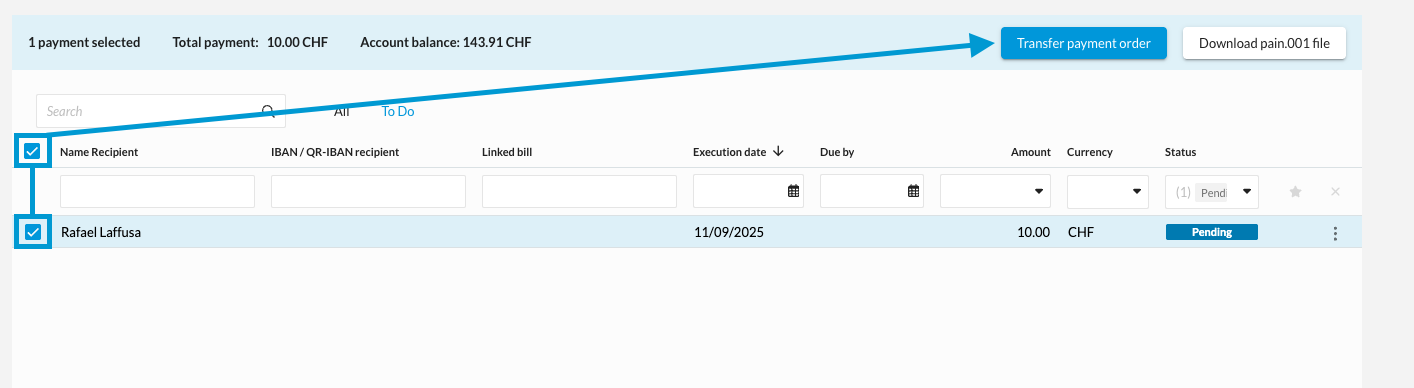
As soon as the payment has been recorded, it will appear in the bexio banking area under “Show outgoing payments”. To send the payments to your e-banking for execution, select the pending payments in question and then click on "Transfer payments". For this function to be activated, you must have created a link to your e-banking »