Since the adjustment of net tax rates (NTR) as of 01.01.2025, more than two rates are legally permitted; however, this requires manual interim steps in bexio, as the system automatically supports only two NTR boxes. Affected users whose rates have changed or who now require a third NTR must filter the corresponding turnover via the journal and calculate the tax manually instead of relying on the automated form. The values determined in this way are then manually added to the declaration in the FTA (ESTV) portal, whereby auxiliary tax keys without box assignments should often be used in bexio.
Content
Initial Situation
Important information regarding the 2025 VAT revision – handling changed net tax rates and their accounting in bexio:
As of January 1, 2025, the partial revision of the VAT Ordinance (VATV) came into force. This brings significant changes, particularly for users of the net tax rate method (NTR), such as the expansion to up to ten simultaneously applicable NTR (previously a maximum of two).
We recommend reviewing this support article together with your fiduciary. Certain VAT entries may need to be adjusted retroactively.
Since the Federal Tax Administration (FTA) also adjusted certain net tax rates at the beginning of the year, we would like to point out two central challenges when using the NTR method in bexio:
1. Expansion to more than two net tax rates:
bexio currently only supports the previous regulation with a maximum of two NTR (boxes 323 and 333).
2. Adjustment of existing net tax rates:
It is possible that your valid NTR was changed as of 01.01.2025 and you may not have noticed it.
Are you affected?
First, check your reporting method via the following link:
«Settings» - «All settings» - «Accounting» - «VAT basic settings»
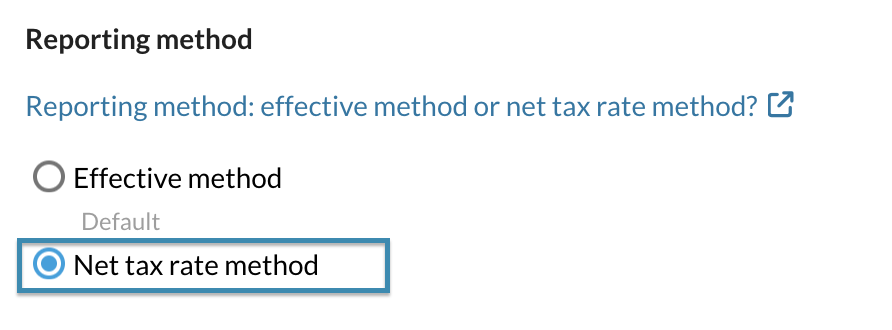
If you do not use the net tax rate method for accounting, this topic does not apply to you.
I am using the "NET TAX RATE METHOD" and account according to "AGREED consideration"
In the following chapters, you will learn more about the procedure in different scenarios.
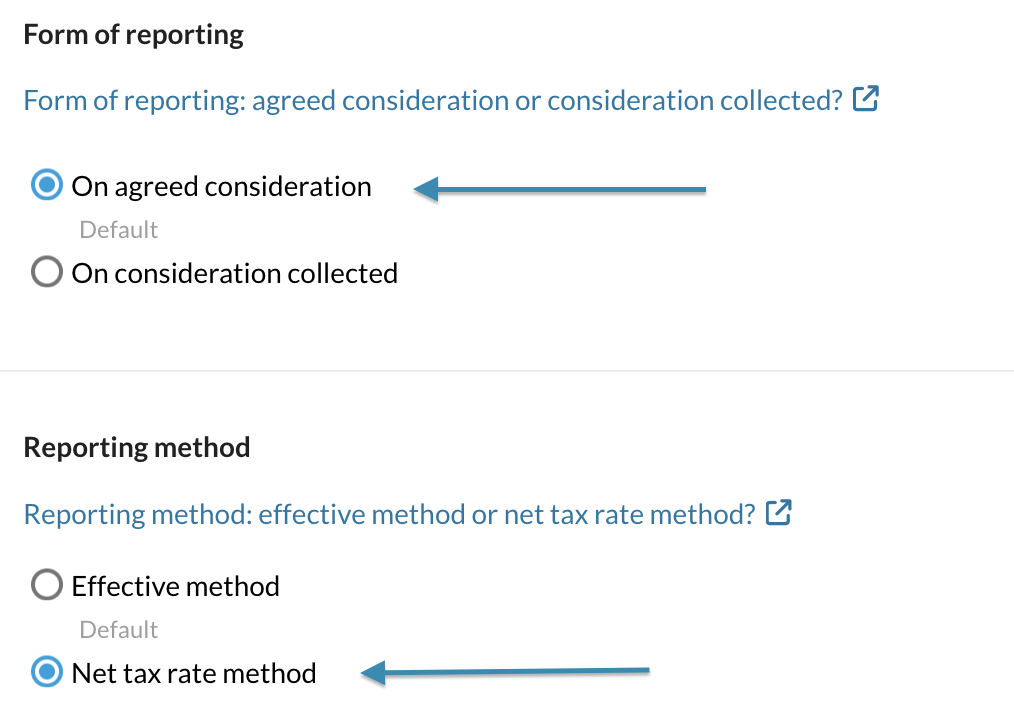
You can check your form of reporting and reporting method using the following path.
«Settings» - «All settings» - «Accounting» - «VAT basic settings»
You have Net tax rate method and account according to agreed consideration . (Your settings are the same as in the following illustration)
Continue and check the following points of the scenario that applies to your situation.
My previous net tax rate has changed - I have only one net tax rate
My previous net tax rate changed as of 2025. I have already used the old NTR in invoices/postings in 2025. How do I proceed?
In this case, we recommend that you continue to account with the old NTR for 2025. Create a new NTR and set the start date to January 2026.
Set the end date for the old NTR to December 2025. This ensures traceability and helps you keep an overview.
You can find out how to create a new net tax rate in the following article: Creating a net tax rate.
Below you can see a sample view with an old NTR until 2025 and a new NTR from 2026.

Since the incorrect NTR continues to be applied in 2025, the VAT Payable must now be calculated manually. You can find out how to do this in the following section.
Manual calculation of turnover and VAT Payable
Step 1: Open the Journal
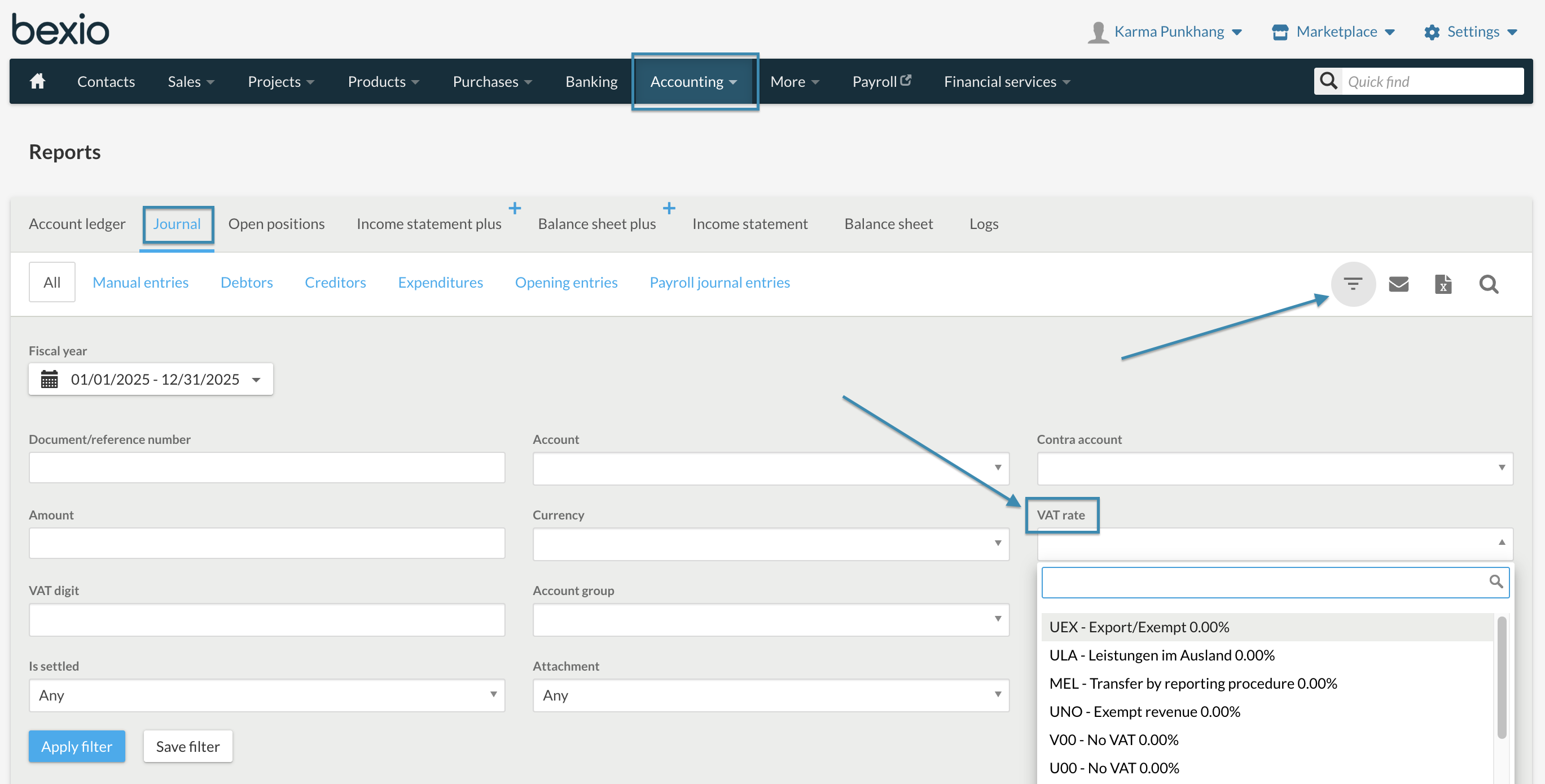
- Navigate to «Accounting» -> «Reports» -> «Journal».
Step 2: Filter by VAT code
- Click on the filter icon (top right) for the detailed filter search.
- Set period: Set the date for the accounting period you want to declare (e.g., the 1st or 2nd semester of 2025).
- Filter by VAT rate: In the filter field with the heading "VAT rate", now select your old net tax rate.
- Apply the filter.
Step 3: Determine and export turnover
The journal now shows you all bookings that you created in the selected period with your old net tax rate.
Determine total turnover: Add the total of the amounts from the Debit or Credit column of the revenue account. This corresponds to the relevant taxable total turnover (incl. VAT) for this one net tax rate.
Formula: Total Credit - Total Debit = taxable total turnover
Tip: For easier further processing, you can download the filtered journal as an Excel or CSV file using the export function. You will find the button at the top right next to the filter button.
Step 4: Manually calculate VAT payable and enter in the ePortal
Calculate VAT payable: Multiply the determined total turnover (from step 3) by the new net tax rate.
Formula: Total turnover x NTR in % / 100
Declaration:
Open the VAT form in the FTA (ESTV) ePortal and declare the turnover and VAT payable as usual.
My previous net tax rate has changed - I have two or more net tax rates
My previous net tax rate changed as of 2025. I have already used the old NTR in invoices/postings in 2025. How do I proceed?
In this case, we recommend that you continue to account with the old NTR for 2025. Set the end date for the old NTR to December 2025. This ensures traceability and helps you keep an overview.
You can find out how to create a new net tax rate in the following article: Creating a net tax rate.
Below you can see a sample view of what these tax rates could look like. For the 1st NTR on box 323, you have two VAT codes (1x the old, 1x the new NTR). Leave the 2nd NTR on box 333 as before.
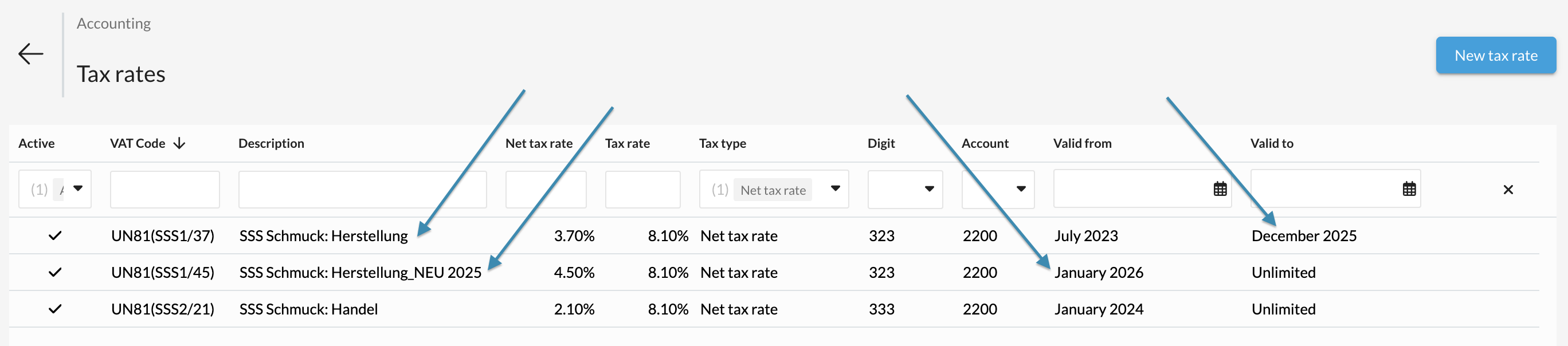
Since the incorrect 1st NTR on box 323 continues to be applied in 2025, the VAT Payable must now be calculated manually. This does not affect your 2nd NTR, which therefore does not need to be calculated manually. You can find out how to perform the manual calculation in the following section.
Manual calculation of turnover and VAT Payable
Step 1: Open the Journal
- Navigate to «Accounting» -> «Reports» -> «Journal».
Step 2: Filter by VAT code
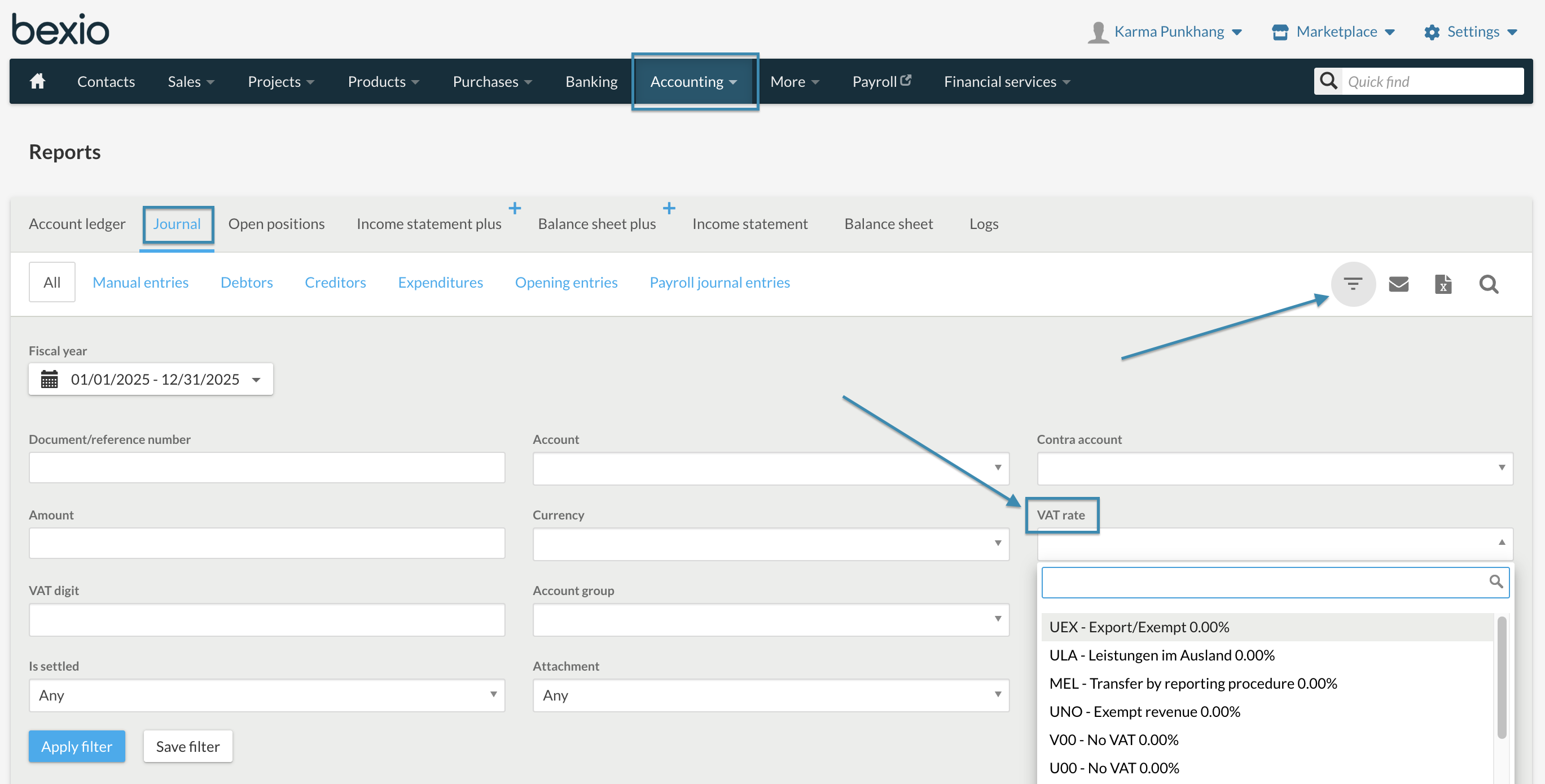
- Click on the filter icon (top right) for the detailed filter search.
- Set period: Set the date for the accounting period you want to declare (e.g., the 1st or 2nd semester of 2025).
- Filter by VAT rate: In the filter field with the heading "VAT rate", now select your old net tax rate.
- Apply the filter.
Step 3: Determine and export turnover
The journal now shows you all bookings that you created in the selected period with the old 1st NTR.
Determine total turnover: Add the total of the amounts from the Debit or Credit column of the revenue account. This corresponds to the relevant taxable total turnover (incl. VAT) for this one net tax rate.
Formula: Total Credit - Total Debit = taxable total turnover
Tip: For easier further processing, you can download the filtered journal as an Excel or CSV file using the export function. You will find the button at the top right next to the filter button.
Step 4: Manually calculate VAT payable and enter in the ePortal
Calculate VAT payable: Multiply the determined total turnover (from step 3) by the new net tax rate.
Formula: Total turnover x NTR in % / 100
Declaration:
Open the VAT form in the FTA (ESTV) ePortal and declare the turnover and VAT payable as usual.
I need to apply an additional, new net tax rate as of 2025 - I previously had only one net tax rate
A secondary activity accounts for more than 10% of my total turnover. The FTA requires that I settle this turnover with a different NTR. I now have to settle with two NTR retroactively as of 01.01.2025. How do I proceed?
Create a new NTR and do not use it until January 2026. You can find out how to create a new net tax rate in the following article: Creating a net tax rate.
Below you can see a sample view of what these rates could look like (1x the old NTR and 1x the new NTR).
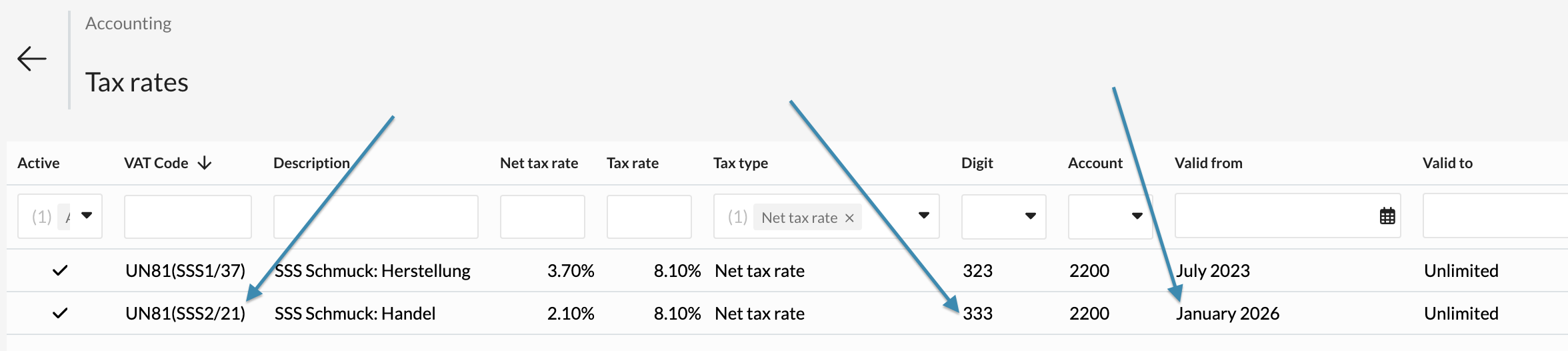
Since the incorrect NTR is applied to part of the turnover in 2025, the VAT Payable must now be calculated manually. You can find out how to perform the manual calculation in the following section.
Manual calculation of turnover and VAT Payable
Step 1: Open the Journal
- Navigate to «Accounting» -> «Reports» -> «Journal».
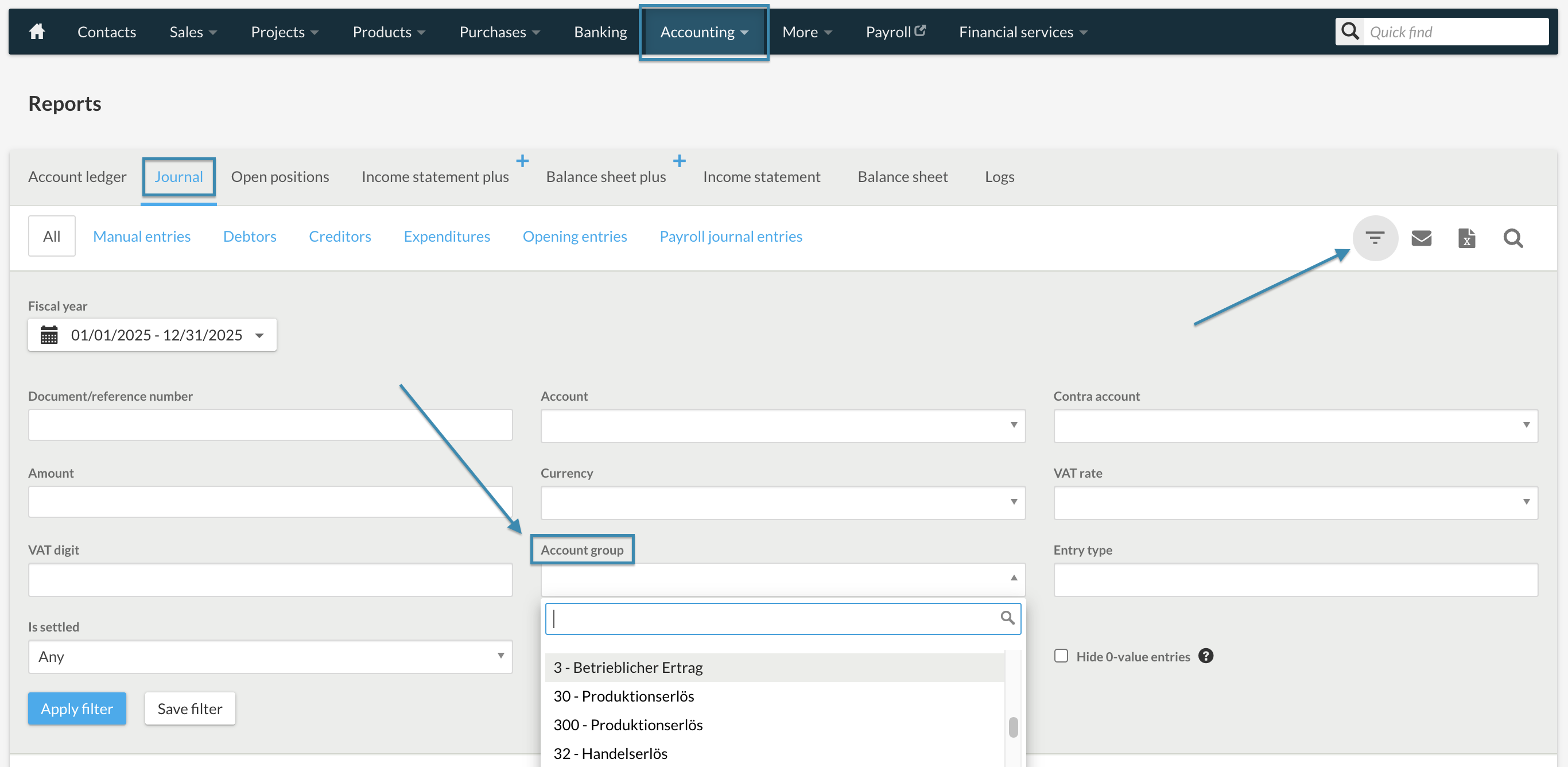
Step 2: Filter by revenue account
- Click on the filter icon (top right) for the detailed filter search.
- Set period: Set the date for the accounting period you want to declare (e.g., the 1st or 2nd semester of 2025).
- Filter by VAT rate: In the filter field with the heading "VAT rate", now select your old net tax rate.
- Apply the filter.
Step 3: Determine and export turnover
The journal now shows you all bookings on the revenue account that are to be settled with the new NTR.
Determine total turnover: Add the total of the amounts from the Debit or Credit column of the revenue account. This corresponds to the relevant taxable total turnover (incl. VAT) for this one net tax rate.
Formula: Total Credit - Total Debit = taxable total turnover.
Tip: For easier further processing, you can download the filtered journal as an Excel or CSV file using the export function. You will find the button at the top right next to the filter button.
ATTENTION: If you have not kept a separate revenue account and have booked everything via one revenue account, you must manually select and calculate these. Here it is advisable to export with Excel and edit.
Step 4: Manually calculate VAT payable and enter in the ePortal
Calculate VAT payable: Multiply the determined total turnover (from step 3) by the new net tax rate.
Formula: Total turnover x NTR in % / 100
Declaration:
Open the VAT form in the FTA (ESTV) ePortal and declare the turnover and VAT payable as usual.
I need to apply an additional, new net tax rate as of 2025 - I previously had two or more net tax rates
A secondary activity accounts for more than 10% of my total turnover. The FTA requires that I settle this turnover with a different NTR. I now have to settle with three or more NTR retroactively as of 01.01.2025. How do I proceed?
In this case, we recommend that you continue to account with the old NTR for 2025. Create a new NTR and do not use it until January 2026. Do not assign a box to this VAT code.
You can find out how to create a new net tax rate in the following article: Creating a net tax rate.
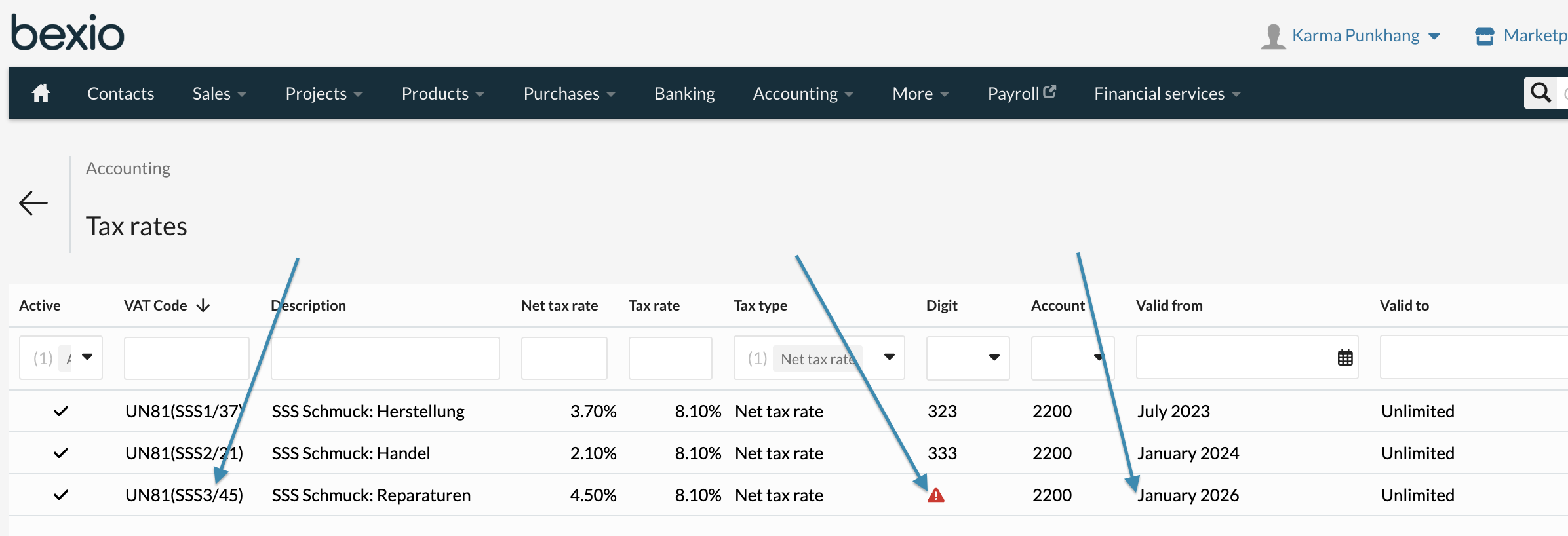
Below you can see a sample view of what the net tax rates could look like.
For the 1st NTR, box 323 is stored.
For the 2nd NTR, box 333 is stored.
For the new 3rd NTR, no box is stored.
Since the incorrect NTR continues to be applied in 2025, the VAT Payable must now be calculated manually. You can find out how to perform the manual calculation in the following section.
Manual calculation of turnover and VAT Payable
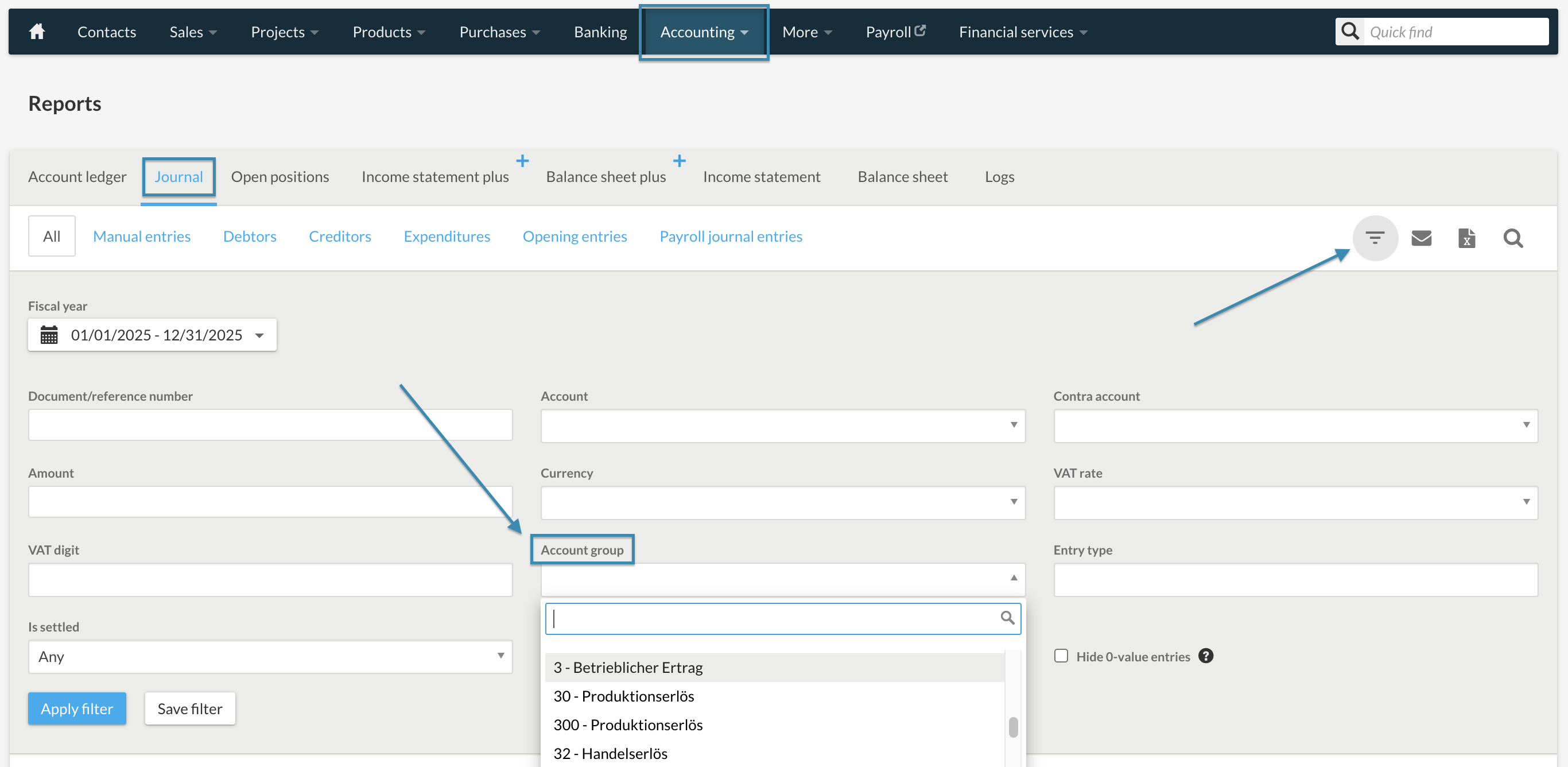
Step 1: Open the Fibu Journal
- Navigate to «Accounting» -> «Reports» -> «Journal».
Step 2: Filter by revenue account
- Click on the filter icon (top right) for the detailed filter search.
- Set period: Set the date for the accounting period you want to declare (e.g., the 1st or 2nd semester of 2025).
- Filter by VAT rate: In the filter field with the heading "VAT rate", now select your old net tax rate.
- Apply the filter.
Step 3: Determine and export turnover
The journal now shows you all bookings on the revenue account that are to be settled with the new NTR.
Determine total turnover: Add the total of the amounts from the Debit or Credit column of the revenue account. This corresponds to the relevant taxable total turnover (incl. VAT) for this one net tax rate.
Formula: Total Credit - Total Debit = taxable total turnover
Tip: For easier further processing, you can download the filtered journal as an Excel or CSV file. (You will find the button at the top right next to the filter button)
ATTENTION: If you have not kept a separate revenue account and have booked everything via one revenue account, you must manually select and calculate these. Here it is advisable to export with Excel and edit.
Step 4: Manually calculate VAT payable and enter in the ePortal
Calculate VAT payable: Multiply the determined total turnover (from step 3) by the new net tax rate.
Formula: Total turnover x NTR in % / 100
Declaration:
Open the VAT form in the FTA (ESTV) ePortal and declare the turnover and VAT payable as usual.