As a trustee, you have the option of managing your trustee portal and your company profile in bexio and setting them up according to your needs. You can now also see your trustee account with all your clients in the bexio Cockpit and benefit from our new process management system in addition to extended financial figures.
Contents
Where can I find the bexio Cockpit?
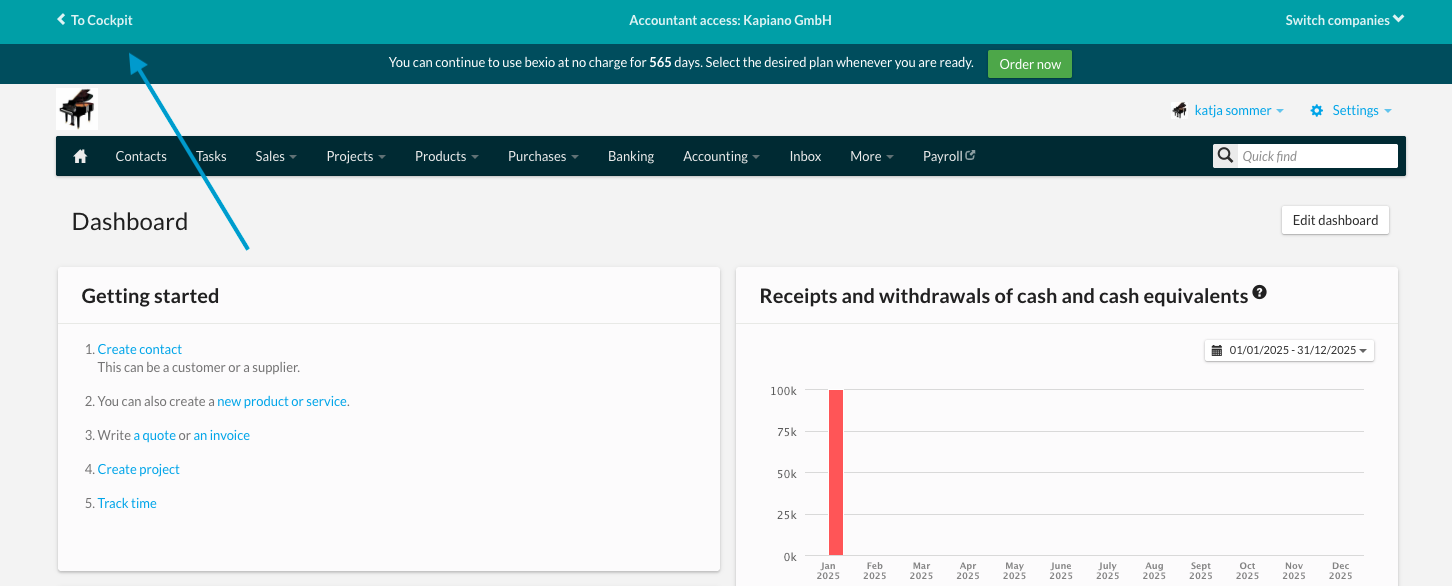
You can access the bexio Cockpit directly via the URL cockpit.bexio.com. You can also easily acces the Cockpit when you are in a client's bexio office. Simply click on "To Cockpit" in the menu bar at the top.
My profile
If you click on your name or the profile picture, you can enter your user profile or log out of the bexio Cockpit. Under "My profile" you can customize your profile details (name, e-mail address, profile picture) and the language. Click on "Log out" to log out of bexio Cockpit.
Clients
This tab gives you an overview of all your clients. The client list can be filtered, sorted and you can customize the view according to your needs (tiles or list).
Filter function: If the "My clients" filter option is active, you will only see clients from whom you are registered as a fiduciary user in bexio Office.
Favorites function: You also have the option of marking individual clients as favorites using the "favorites star".
You can also create a new client via the "Add client" button (top right) and thus create a new bexio account. Find out more in this article:bexio account for clients – Create/Add Account
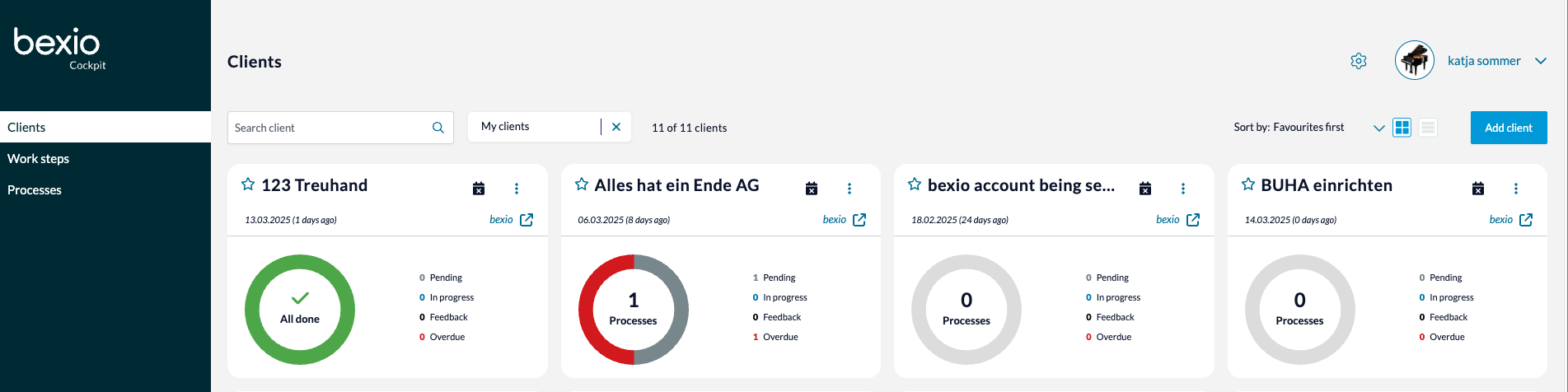
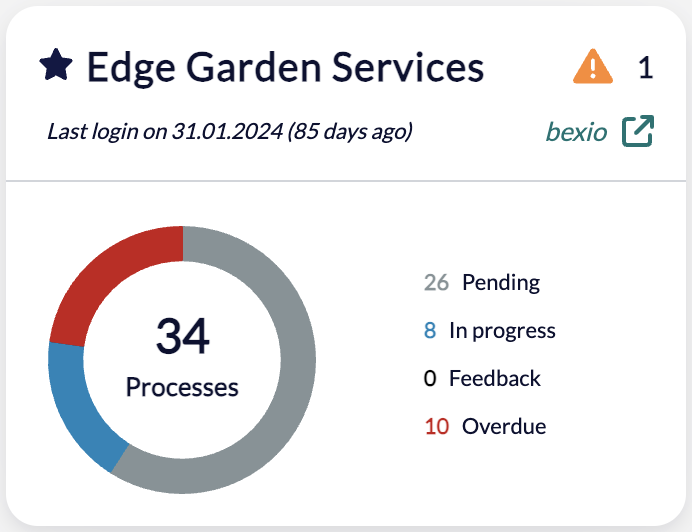
The most important information about a client, as well as any warnings about key figures that you have saved, can be viewed on the tile or line for that client.
In the bexio accounting for any client, you can access the list view of clients via the three-dot menu or by clicking on the link that follows at the top right of the client's tile in the tile overview:

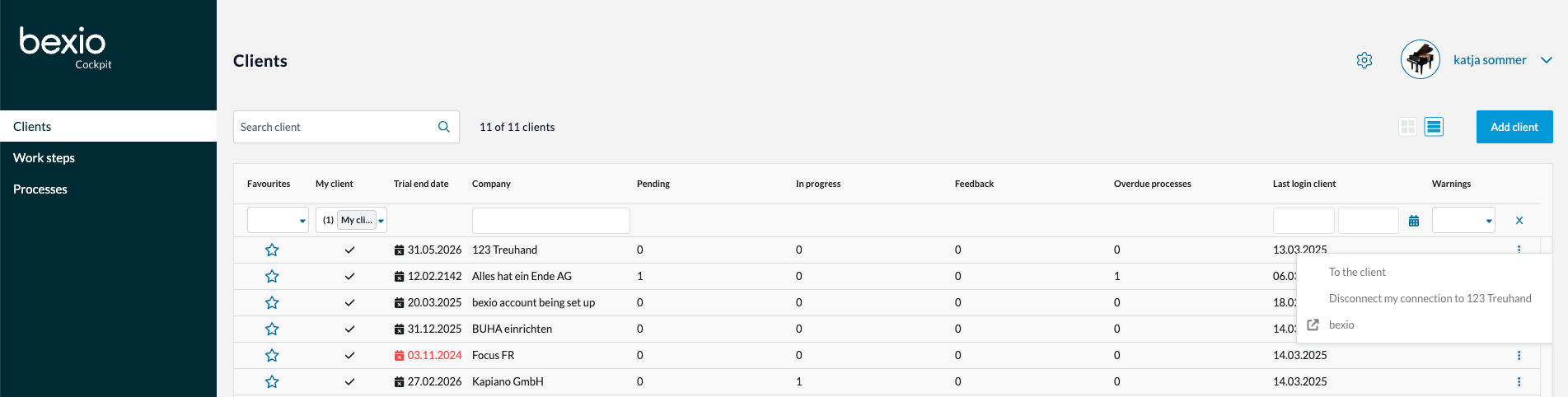 To manage customer access, i.e., grant or revoke your team members' access to clients, use the three-dot menu on the list overview of clients.
Note: If you are dealing with a classic customer package, for data protection reasons the customer (super admin) must still confirm the invitation of the trustee in bexio once the trustee has been linked in the portal. The client then receives an email through which they must confirm the connection before the trustee can gain access.
Work steps
In this tab, you can see, filter and edit all your upcoming process steps.
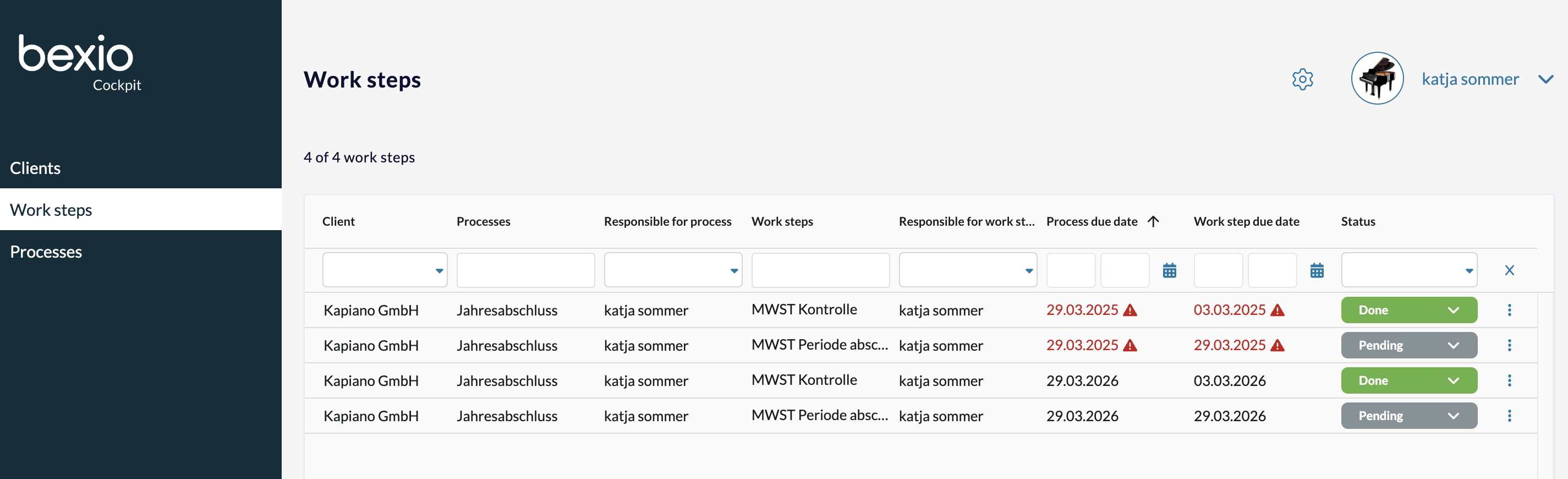
A work step is a subtask of a process that you have stored for a client with a due date and responsibility. The three-dot menu on the individual work step takes you "to the process", "to the client" or you can "edit the work step". You can set the status of a work step directly on this overview from "Open" to "Completed". More on how to create processes and work steps in the paragraph below.
Please note: Users only see those work steps for which they are defined as "Responsible for work step".
Processes
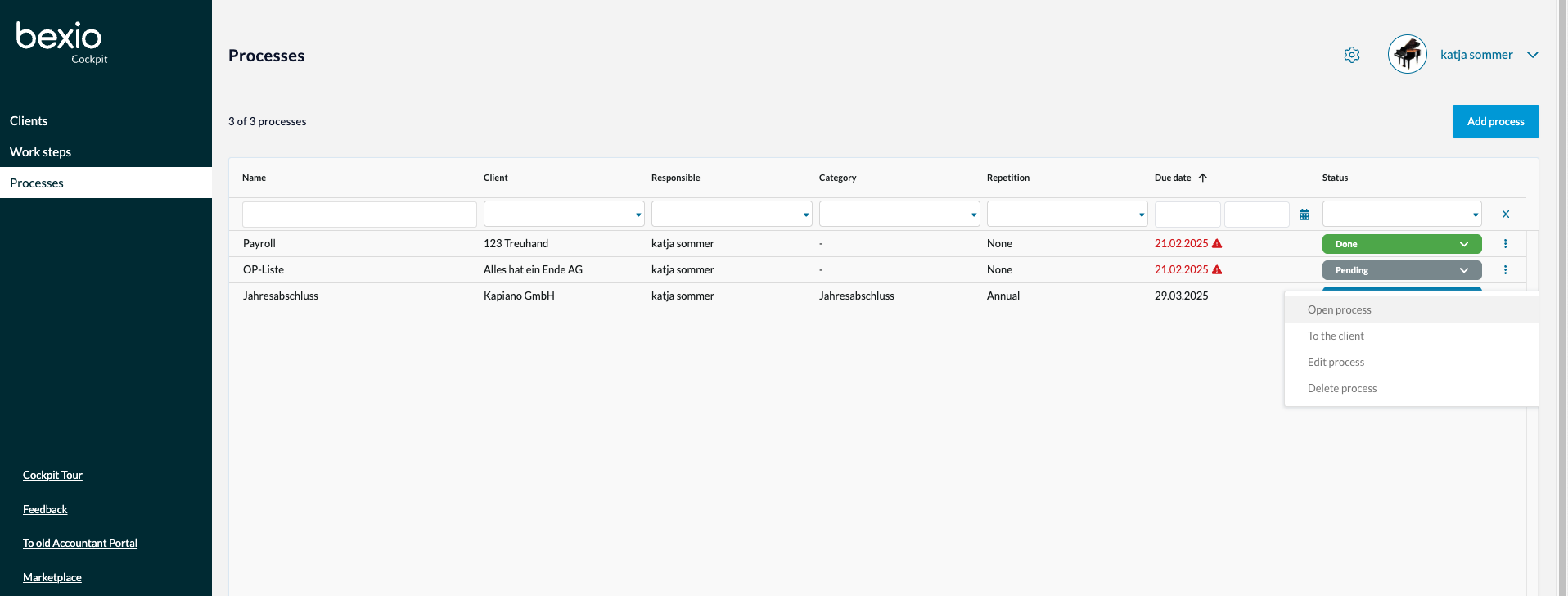
In the Processes menu, you can see an overview of all existing processes of all responsible trustees, where you can also edit them.
The processes, with detailed process steps, help you to organise and provide an overview of your trustee-related tasks for bexio clients.
To filter the processes more easily, you can enter the "process categories" in the Processes submenu, then assign them to the individual processes and process templates.
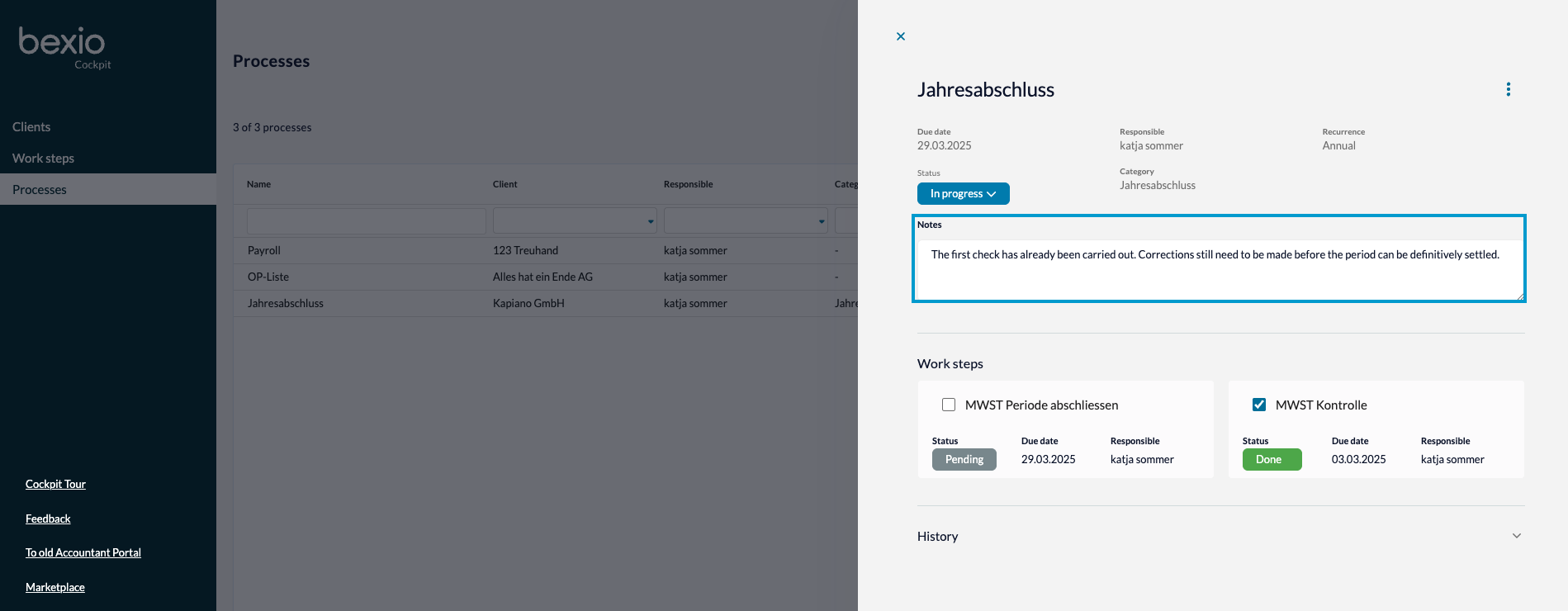
You can also add notes to the processes. To do this, click on the three dots on the right side and select "Open process". There you can write comments on the procceses in the field under "Notes".
Creating processes and work steps
Click on “Add process” in the process overview to create a new process and new work steps.
In this screen, you define the name, responsibility and the relevant client. Optionally, you can assign a process category, which is displayed in the process list for clarity. Users with the Admin role can create a new category directly here. You can use an optional, short description text (max. 250 characters) to explain the process in more detail.
Processes can be defined as one-off or recurring. For recurring processes, set a recurrence frequency in addition to the due date. After the due date, a new process is automatically created with the new due date. Example: The “Payroll” process is created as a monthly recurring process, the first due date is January 31, 2025. On February 1, 2025, the system automatically creates a new “Payroll” process with a due date of February 28, 2025.
You can organize processes more granularly with any number of subordinate work steps. To do this, click on “Add work step” and define at least the name, optionally the responsibility, description and due date of the work step.
You can create the process templates so that you don't have to enter process details manually for each client. This allows you to copy the processes uniformly from the templates to the clients and assign them to the responsible trustees.
Note: If you want to create a process for a client and the responsible trustee and use it again, you can check the box "Save as process template" before saving the process. This saves the process directly in the process templates (independent of the client and employee), and you can retrieve the template from the next client.
More on the settings for Admins you will find in the following Helpcenter article: bexio Cockpit - Settings for Admins
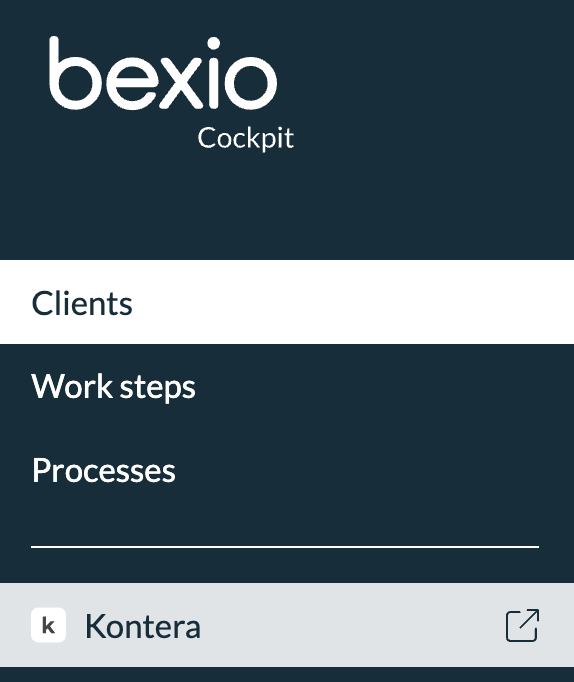
Kontera link
In the navigation bar on the left-hand side, you have the option of going directly to Kontera. To do so, click on the ‘Kontera’ menu item and you will be redirected to the Kontera start or login page.