In this article you will learn more about the settings of the user with the "Admin"-role.
Settings
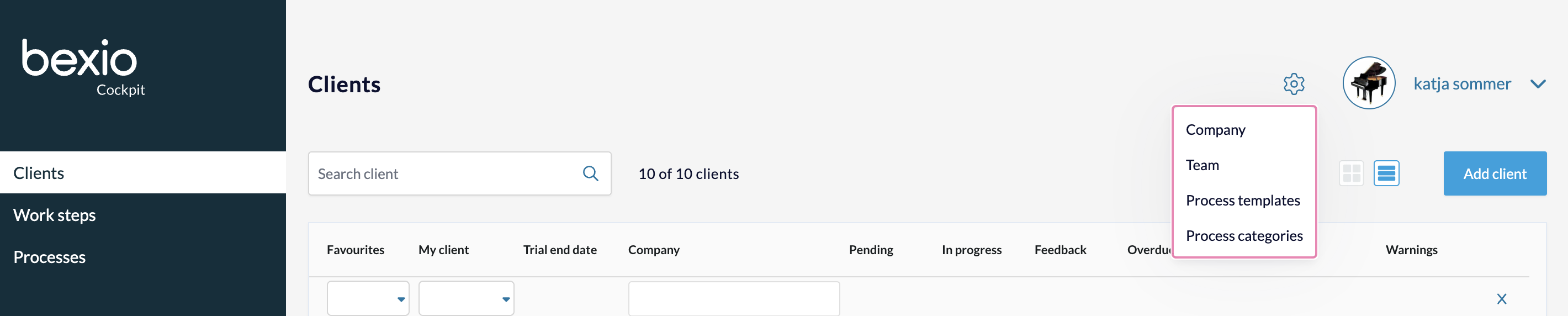
You can use the gear icon to make settings that affect your company and your team. You can also edit templates and process categories directly via this menu.
Please note that only team members with the role as "Admin" can see this menu (gear icon) and make the corresponding settings.
Company
You can view and manage your master data via the "Company" menu item. You also have the option of publishing your company in the bexio fiduciary directory (checkbox "Display my company in the bexio fiduciary directory."). To enhance your profile in the directory, you can upload a logo here and add a quote/company slogan and a brief description of the company. You also have the option of attaching a more detailed company profile in PDF format.
Team
You can edit existing team members and add new ones via the "Team" menu item. Existing team members can be deleted via the three-dot menu.
The following user roles are available in the bexio Cockpit:
- "Admin" role: Users with this role have access to the settings menu (gear icon). Only they can assign clients to team members ("Settings" tab in the detailed view of a client) and create new process templates.
- "Team member" role: Newly added team members receive an e-mail asking them to accept the invitation and set a password. The new team member then appears as "Active".
If a fiduciary joins your Cockpit when they register themselves, they will appear in the "Applied for" status and you can accept or reject them via the three-dot menu.
For more information regarding the options / modifications on the team member, you can check out the following article: Cockpit user profile
Process templates
The “Process templates” menu item takes you to the overview of all created process templates and you can display, edit and delete them here. Click on “Add process template” to create a new template.
Please note: If you edit an existing process template, processes that were previously created with this template will not be changed.
Process categories
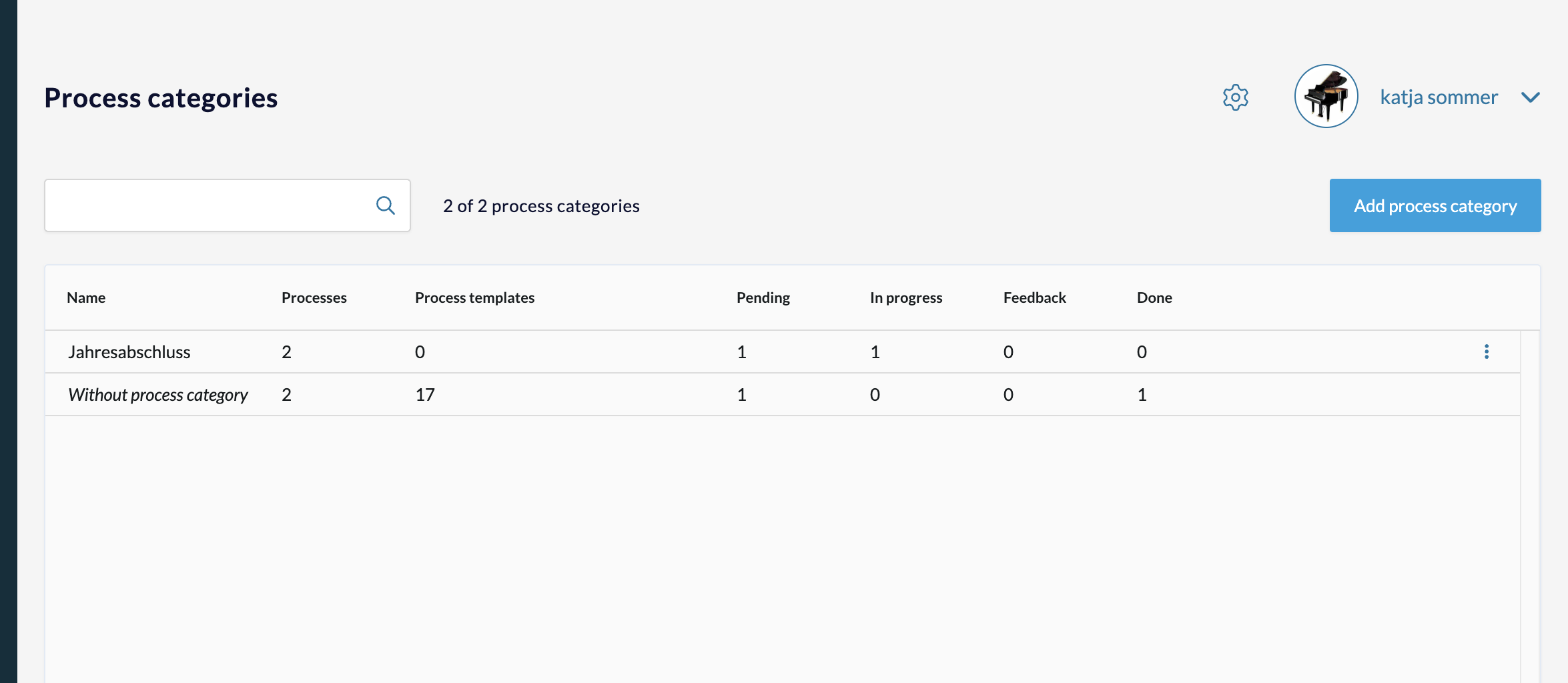
The “Process categories” menu item in the settings (only visible to admins) takes you to an overview of all created process categories and allows you to view, edit and delete them. Click on “Add process category” to create a new category.