Table of Contents
Quick Info
In this article, you will learn how simple it is to synchronize your TKB bank account with bexio and how to reconcile transactions and submit payments.
| Set up data transfer: | Activate bLink in E-Banking and allow bexio access |
| File format for payments: | pain.001 |
| File format for account statement: | camt.053 V8 |
| Notes: |
- Only one contract can be connected to a bexio account at a time.
- QR-enabled interface
- Automatic sync of transactions overnight
- Transactions are always available on the following day
- Date filter (retroactive retrieval of transactions)
|
Connect E-Banking
First, you need to create your TKB bank account. Then you can link the bexio bank account to the E-Banking account as follows:
- Go to the Banking section and scroll to your TKB account
- Click on "Connect E-Banking"
- You will receive a dialog indicating that you will now be redirected to the TKB E-Banking. Click on "To TKB" to proceed.
- Log in with your E-Banking user data, including the verification method.
- Allow bexio access to your Banking data by clicking "Confirm".
- Link the bank account to the existing bexio bank account or to a new bexio bank account. Bank accounts that you do not wish to use in bexio can be ignored using the "Ignore this bank account in bexio" option. It is important that all bank accounts are either linked to a bexio bank account or explicitly ignored.
After successful linking with at least one bank account, the "Retrieve transactions" button will then be displayed instead of the previously visible "Connect E-Banking" button.
Note
It may happen that the login was successful, but no transactions are visible. In this article, you will find possible reasons for this: No transactions received.
Retrieve Transactions
The synchronization of the TKB bank account occurs automatically every night. If you want to start the synchronization manually, you can do so by clicking on "Retrieve transactions" in the "Banking" section.
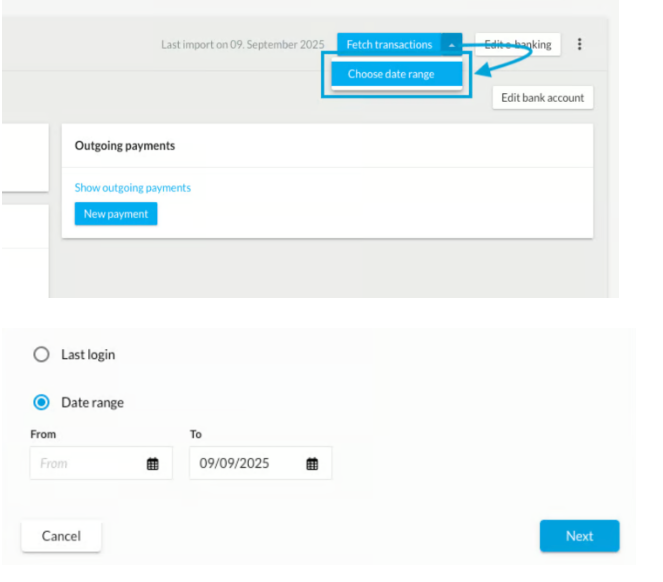
Important
To avoid importing all transactions from your bank account from older years into bexio, we recommend that you set all transactions to "read" at TKB before the initial connection. You can do this by going to "Download data" in your TKB account. There, select all unread files and click on "download".

Submit Payments
Enter payments as described in the article Enter payments and submit them to your bank with one click.
Important!
For TKB, payments submitted to your E-Banking must also be signed. The submitted payments can be found within OLIVIA. under "Payments" - "Release Payments".
For further information on these settings, please contact your customer advisor or the TKB E-Banking support directly.
E-Banking Support: Contact form / Tel. 0848 111 447
Supported Login Methods
bexio currently supports the M-TAN method for TKB banking. You can find more information about the different login methods in this article: Supported Login Methods.
Disconnect the interface
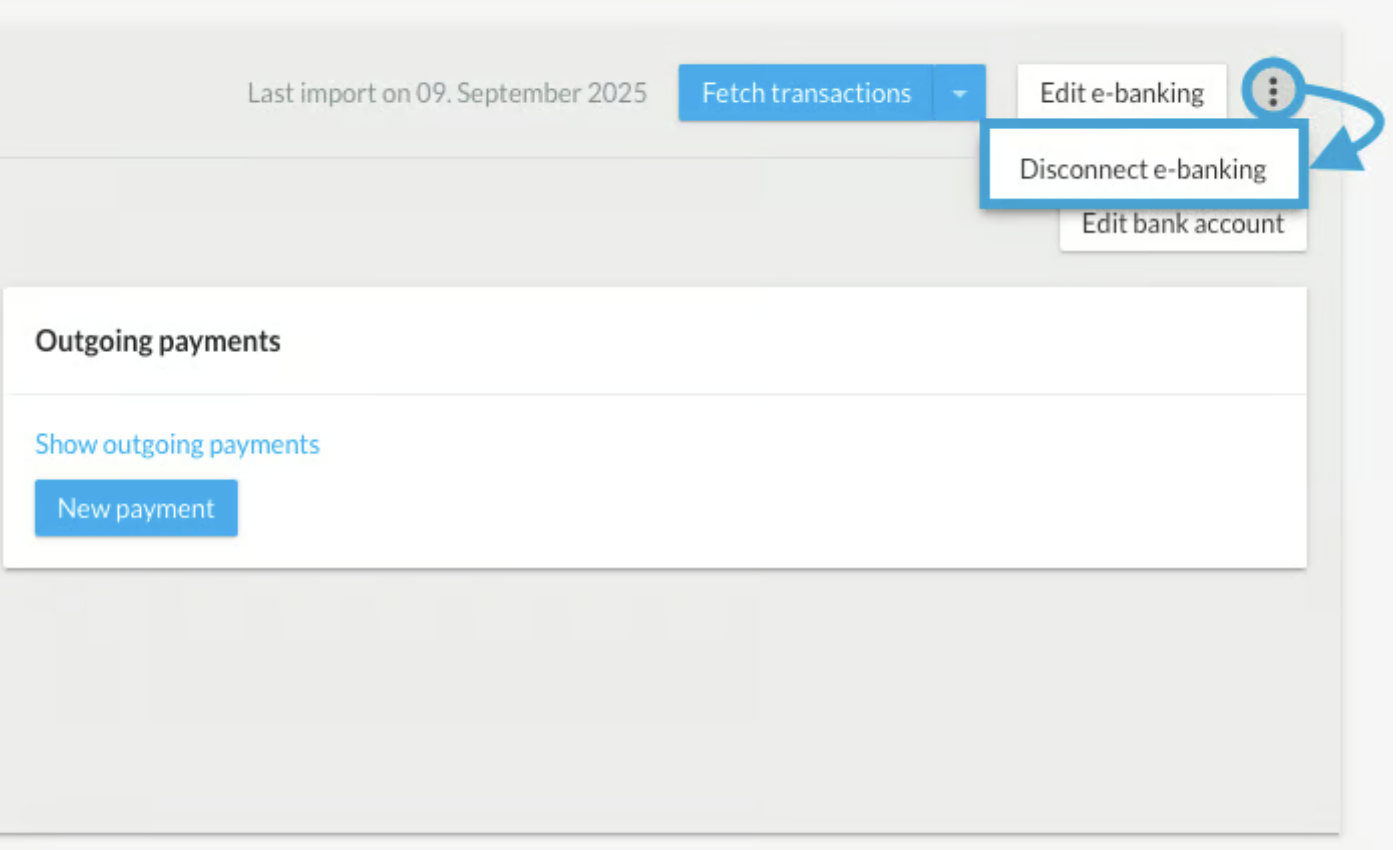
You can manually disconnect the e-banking connection by clicking the "three dots" next to the "Edit E-Banking" button.
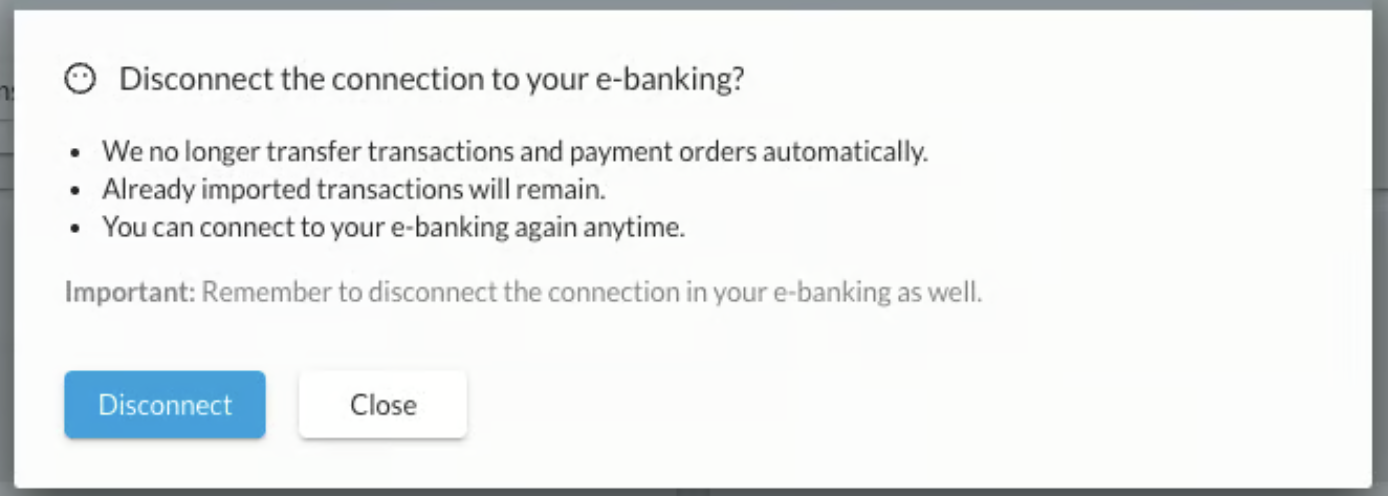
A dialog box will open in which you must confirm the disconnection between bexio and your online banking service. Transactions that have already been imported will still be visible in bexio. You can reestablish the connection at any time.
Security
bexio generally does not store login information such as contract numbers, passwords, or tokens. bexio will not ask you for your E-Banking access data in writing or by phone. Please never share this confidential data with third parties.