Contents
Quick info
This article will show you how easy it is to synchronise your St.Galler Kantonalbank account with bexio, and how to reconcile transactions and transfer payments.
| Supported login methods: | m-TAN |
| File format for payments: | pain.001 |
| File format for bank statements: | camt.053 V8 |
| Note: |
- Only one SGKB contract can be linked to a bexio account at a time
- QR-enabled interface
- Automatic Overnight Synchronization of Transactions
- Transactions are always available the next day
- Date Filter (Retroactive Retrieval of Transactions)
|
Supported login methods
bexio supports the M-TAN login method for St.Galler Kantonalbank online banking. For more information about the different login methods, please refer to this article: Supported login methods
Connect to online banking
First, you need to create your St.Galler Kantonalbank account in bexio. You can then link the bexio bank account with your online bank account as follows:
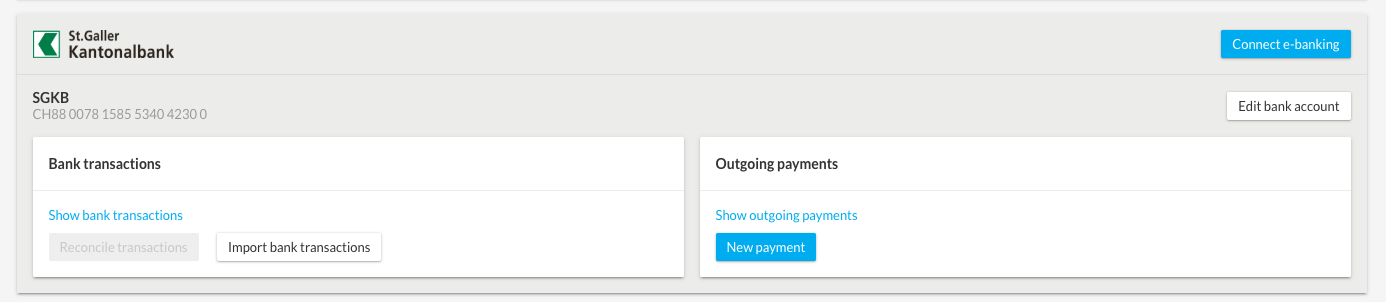
- Go to the bexio Banking section and scroll down to your St.Galler Kantonalbank account
- Click on »Connect banking«.
- A dialogue box will appear, informing you that you are being forwarded to the St.Galler Kantonalbank online banking service. To continue, click on "Connect to St.Galler Kantonalbank".
- Log in with your online banking credentials and verification method (e.g. M-TAN).
- Allow bexio access to your banking data by clicking on "Confirm".
- Link the bank account to the existing bexio bank account or to a new bexio bank account. Bank accounts that you do not want to use with bexio can be ignored by selecting the option "Ignore this bank account in bexio". It is important that all your accounts are either linked to a bexio bank account or explicitly ignored.
After bexio has been successfully linked to at least one online bank account, the "Connect to online banking" will disappear and be replaced by the "Retrieve transactions" button.
Important note:
Under certain circumstances, no transactions may appear, despite the fact that you have logged in successfully. Transactions can be imported the next day, if any are available.
Retrieve transactions retroactively using the date range
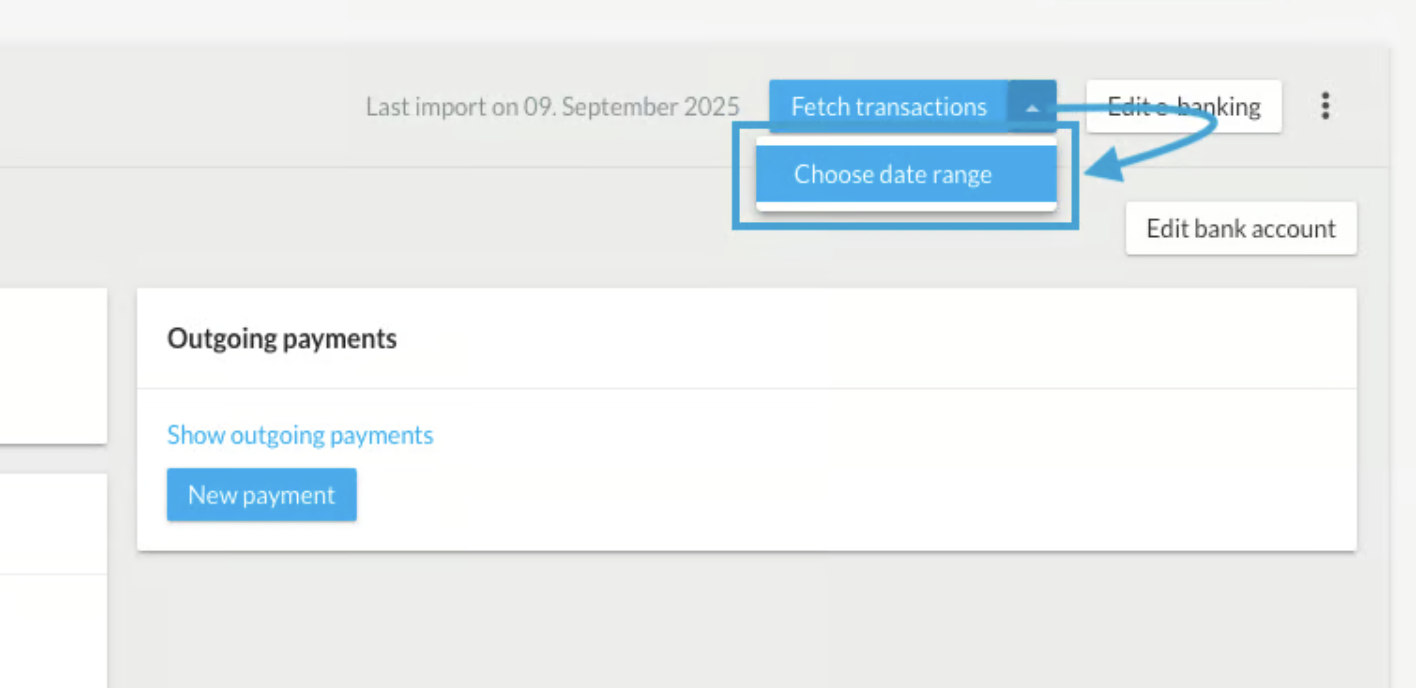
You can import transactions into your bexio retroactively. To do this, click on “Banking” in the top menu of bexio, then click the small arrow next to “Retrieve Transactions.” You can then specify a “Date Range.” This ensures that even account statements that may already be marked as “retrieved or read” in your online banking will be checked again and imported.
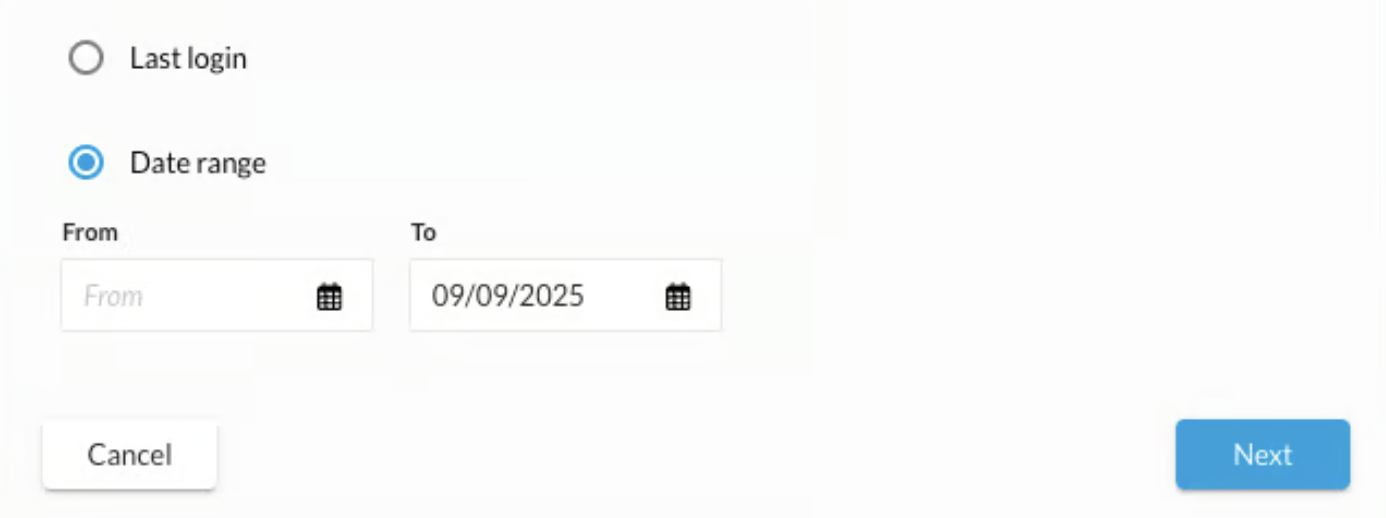
We have a duplicate filter enabled on the interface that prevents you from importing a transaction twice. As a result, you won't have any duplicates, and you can be sure that all transactions have been imported. All transactions are automatically retrieved overnight. However, this feature allows you to verify that all transactions have been imported and that nothing has been overlooked.
Record and approve outgoing payments
Record Payments
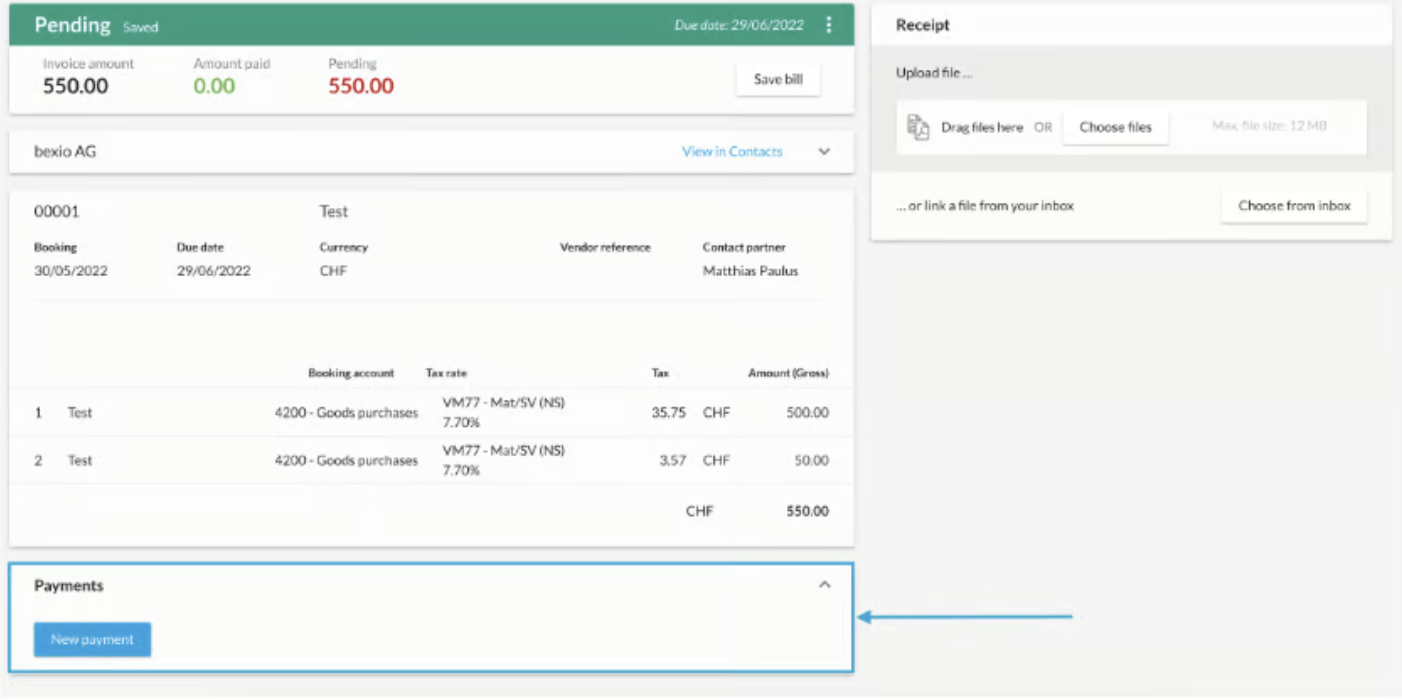
Outgoing payments are best entered via the supplier invoice or, alternatively, directly under “Banking” → “New Outgoing Payment.”
Submit Payments
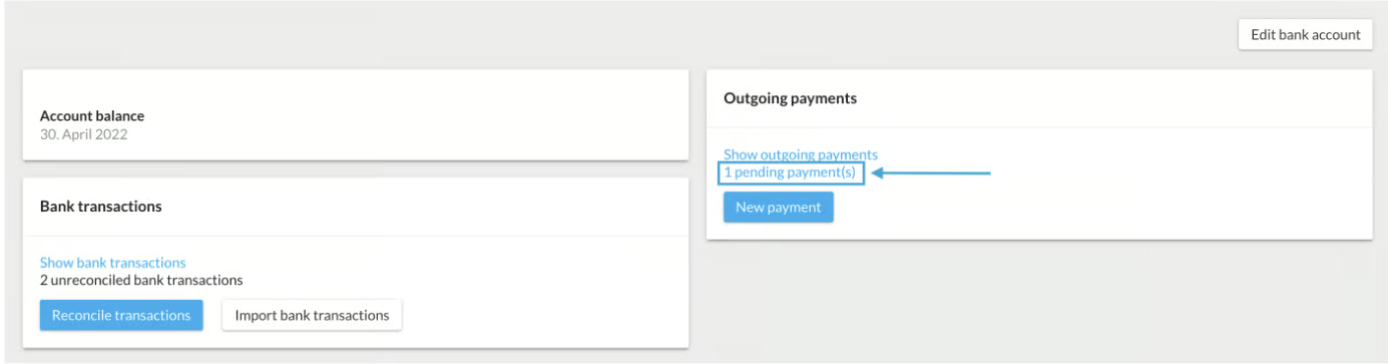
As soon as the payment has been recorded, it will appear in the bexio Banking section under “(..) Pending Payments.”
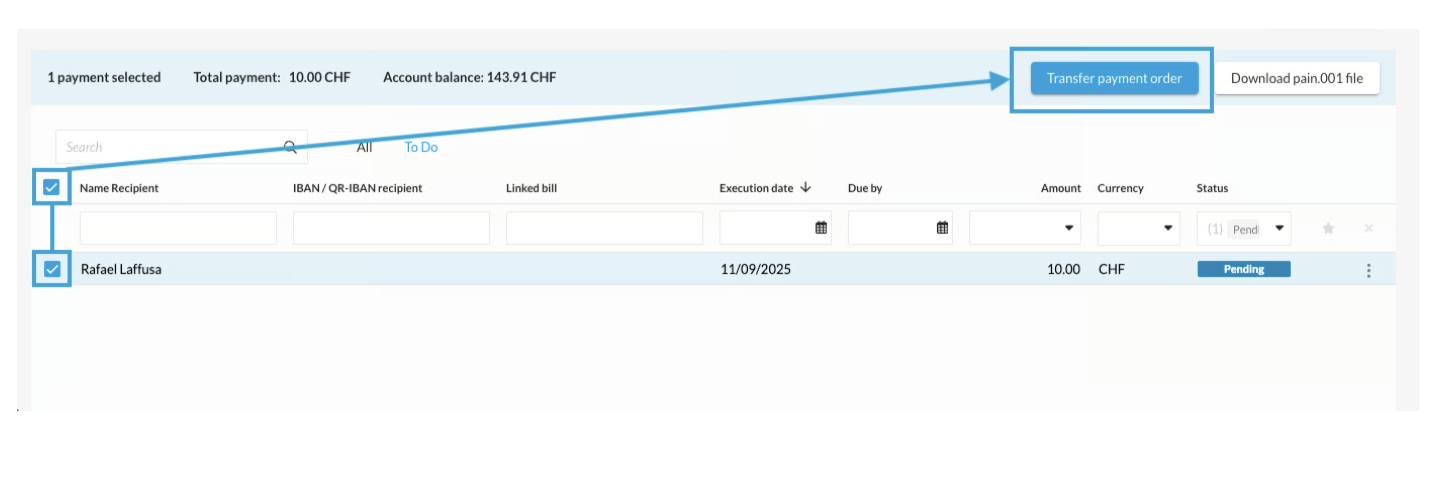
To send the payments for the transaction to your online banking, select the relevant outstanding payments and then click “Submit Payment Order.”
After submitting the payments, you must approve them in your online banking system to ensure that the payment is processed on the desired date.
Note:If the "Transfer Payment Order" button is grayed out, this means that the interface is not connected, and you can only download a pain.001 file.

Disconnect the interface
How do I set up my bank in bexio?
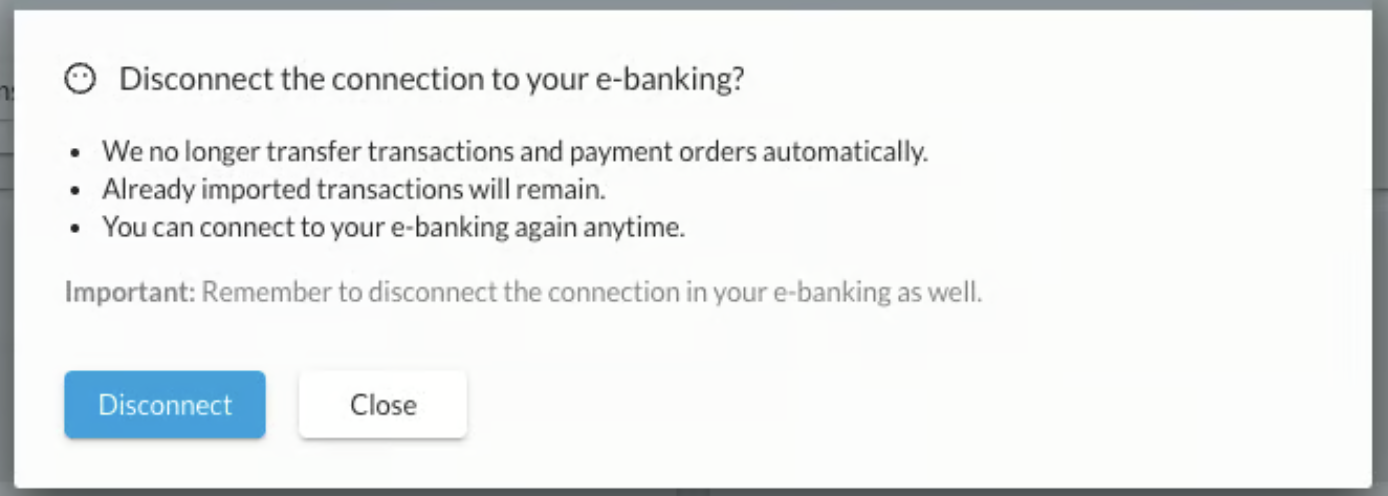
You can manually disconnect the e-banking connection by clicking the "three dots" next to the "Edit E-Banking" button.
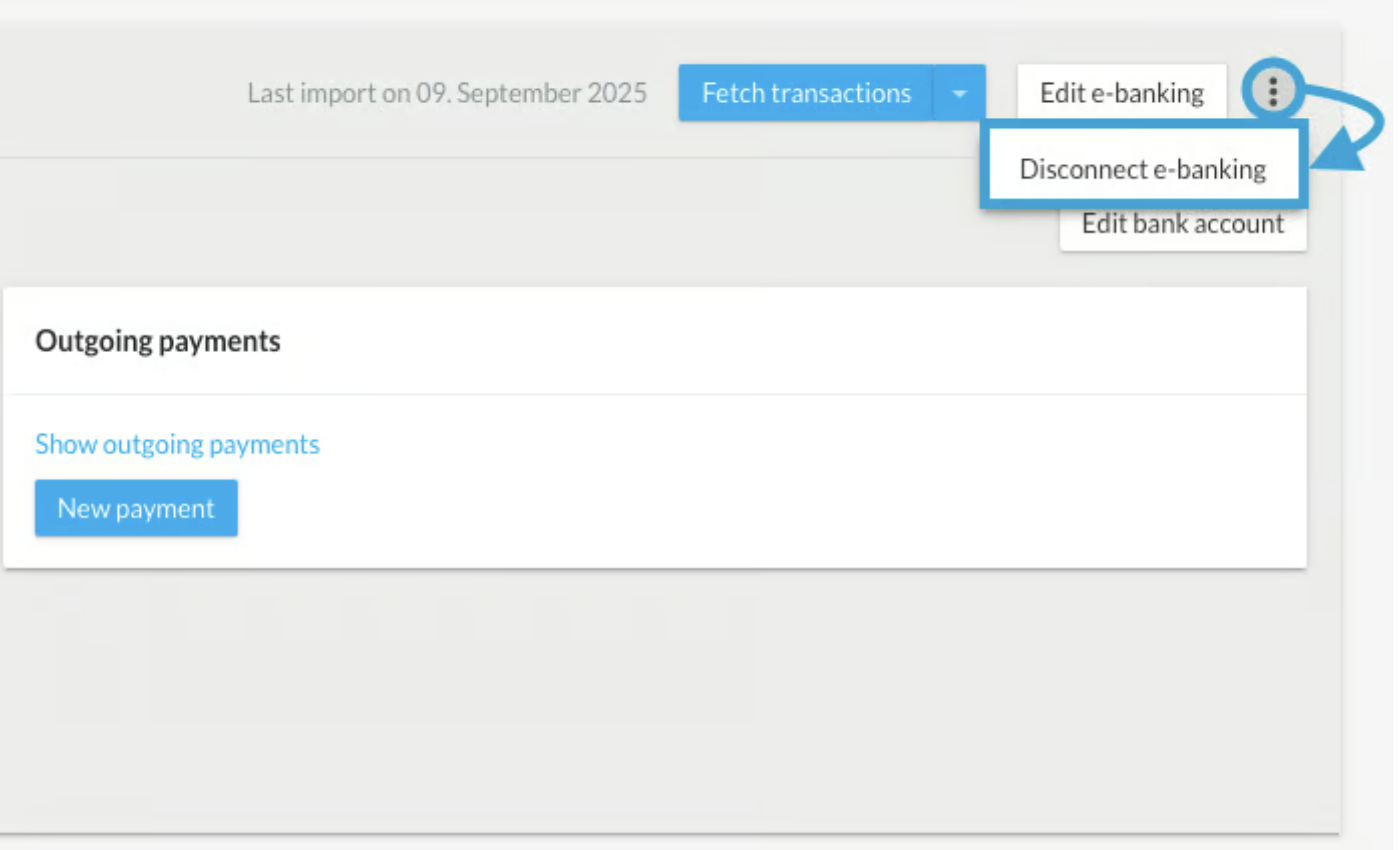
A dialog box will open in which you must confirm the disconnection between bexio and your online banking service. Transactions that have already been imported will still be visible in bexio. You can reestablish the connection at any time.