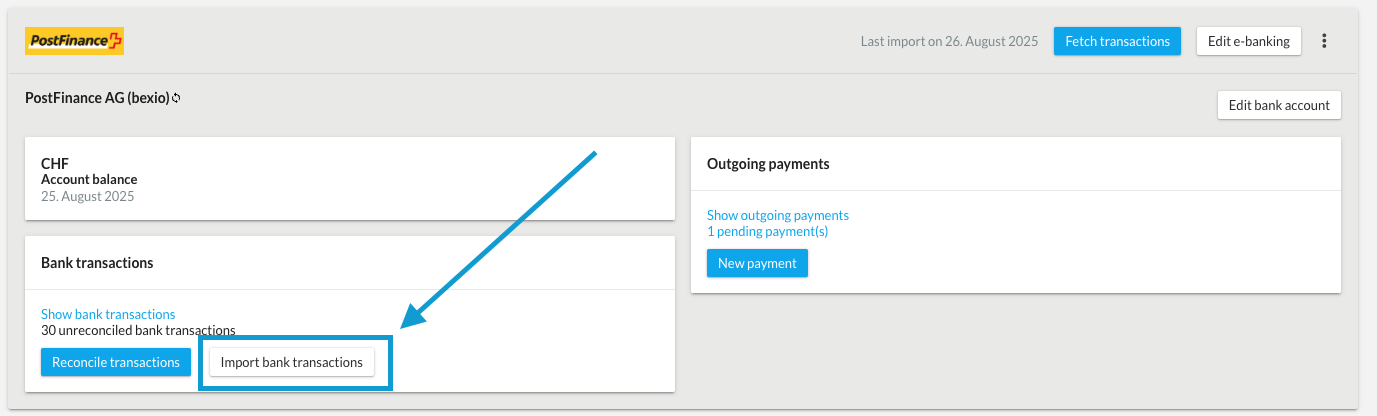
This article describes various processes and options with the connected interface, as well as how you can disconnect it again.
Additional contributions:→How do I activate the PostFinance bank?Contents
Disconnect interface
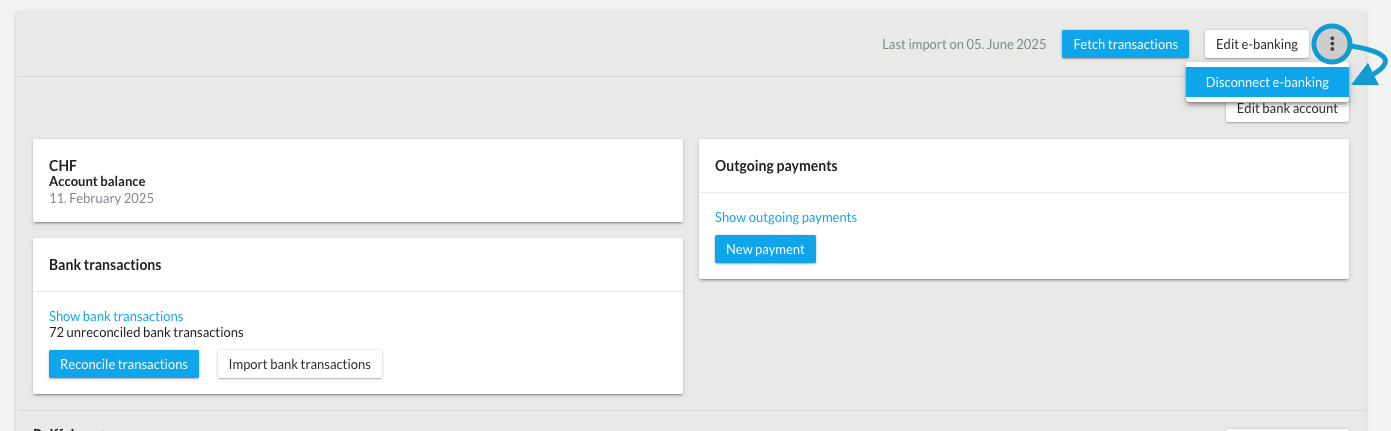
If you want to disconnect from e-banking, you can select "Three-dot menu" → "Disconnect e-banking." Please note that it may only be possible to reconnect once new transactions are available in e-banking. Transactions that have already been imported will remain available.
Transfer payments
Record payments as described in the article Recording payments and transfer them to your bank with just a few clicks.
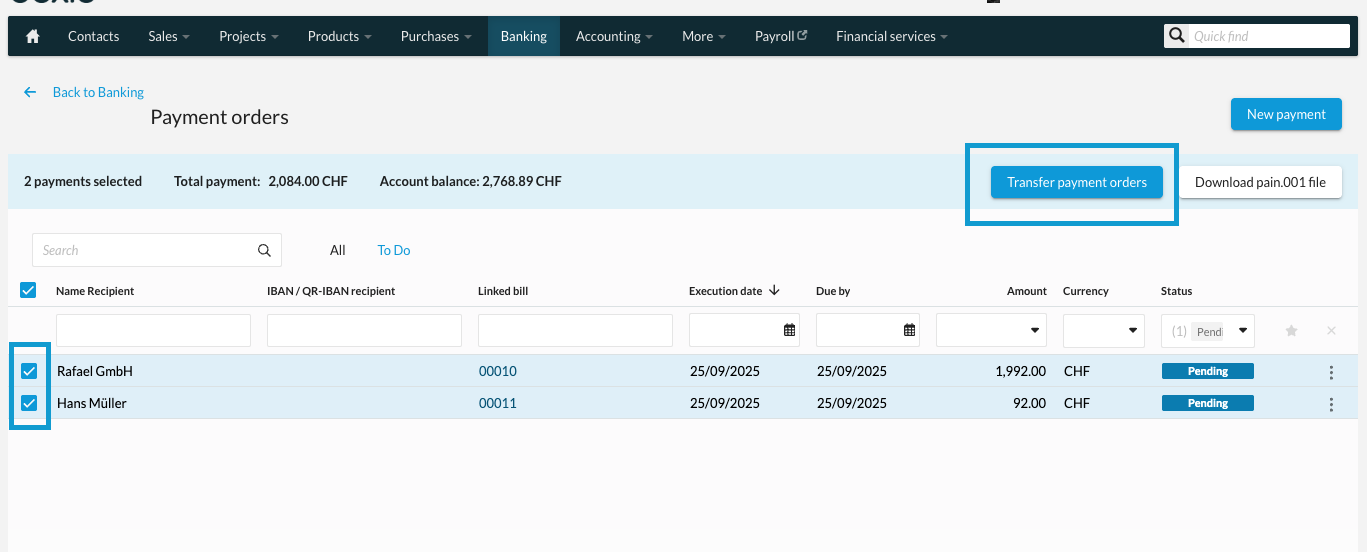
Depending on your bank and e-banking agreement, you may need to additionally approve and release payments in e-banking. Please contact your bank's support team directly for further information.
Important:
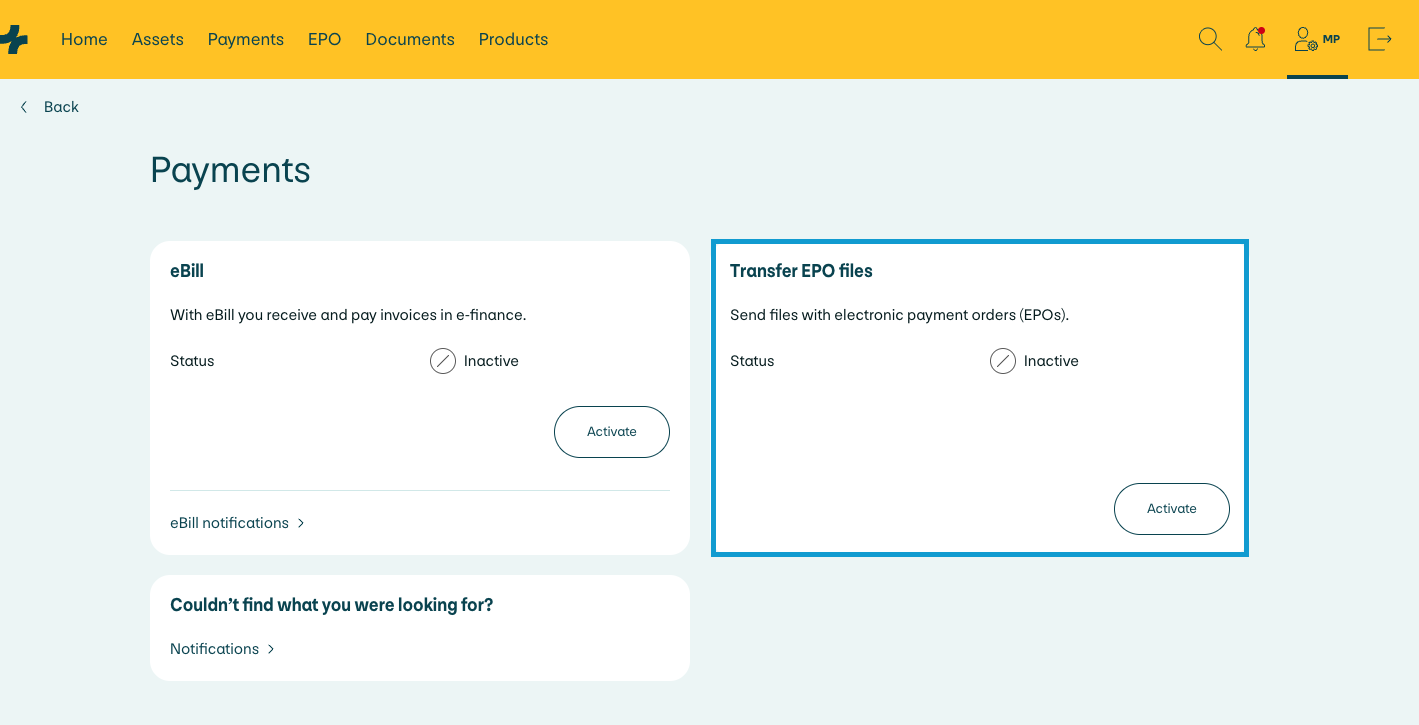
Please note that you will only be able to submit payment orders after you have also activated the "Submit files" option in e-banking, otherwise you will always receive a yellow error message.
Download account statements (camt.053) in E-Finance
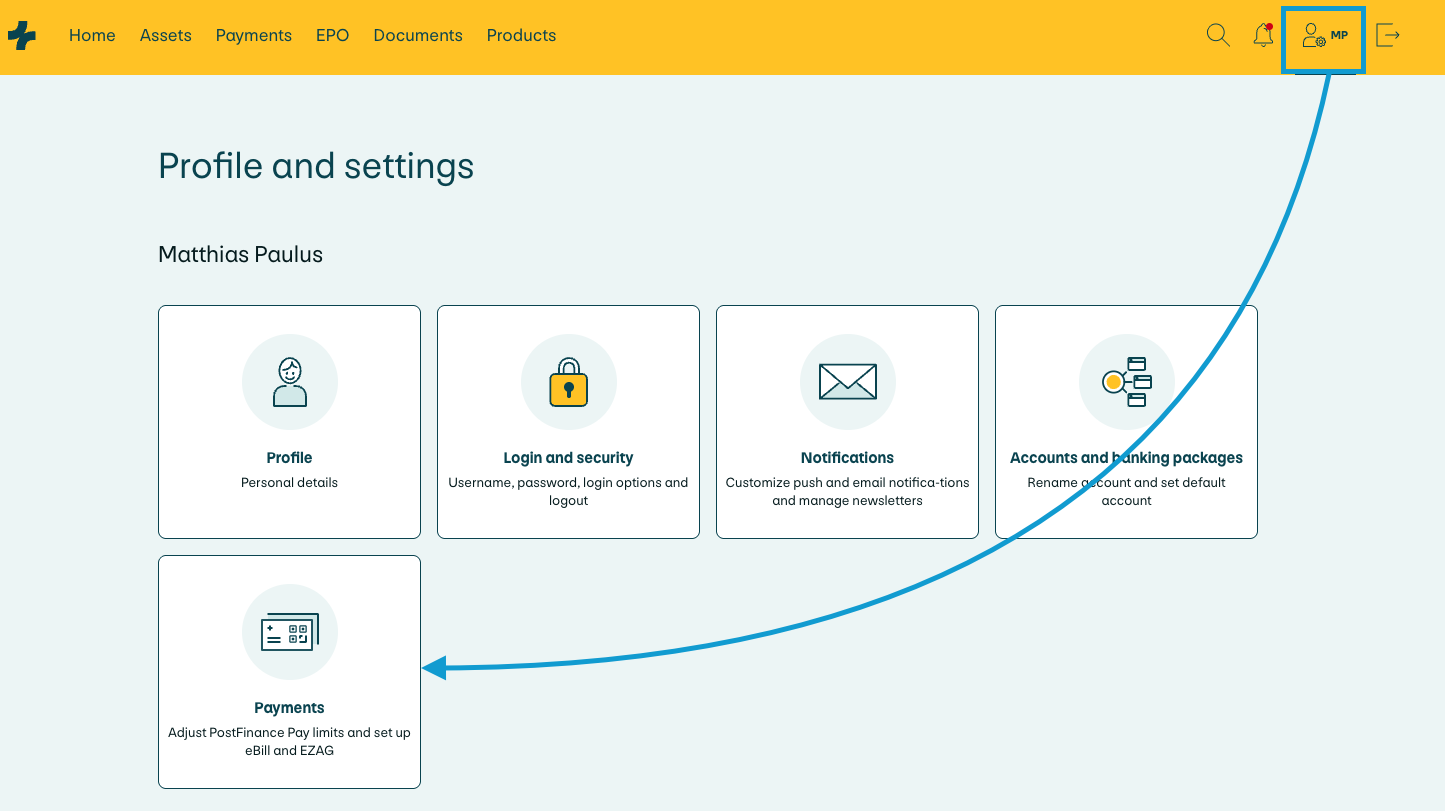
You can find your account statements in E-Finance under the menu item "Documents."
- Click on the "Documents" tab.
- Click on the small arrow "⌵" next to Search option to open a filter.
- Leave the category as "All."
- Under "Type," select "Account statements."
- Under "Status," select "All" and then click on "Search."
Now you can also see the account statements that have already been collected and download them if necessary.
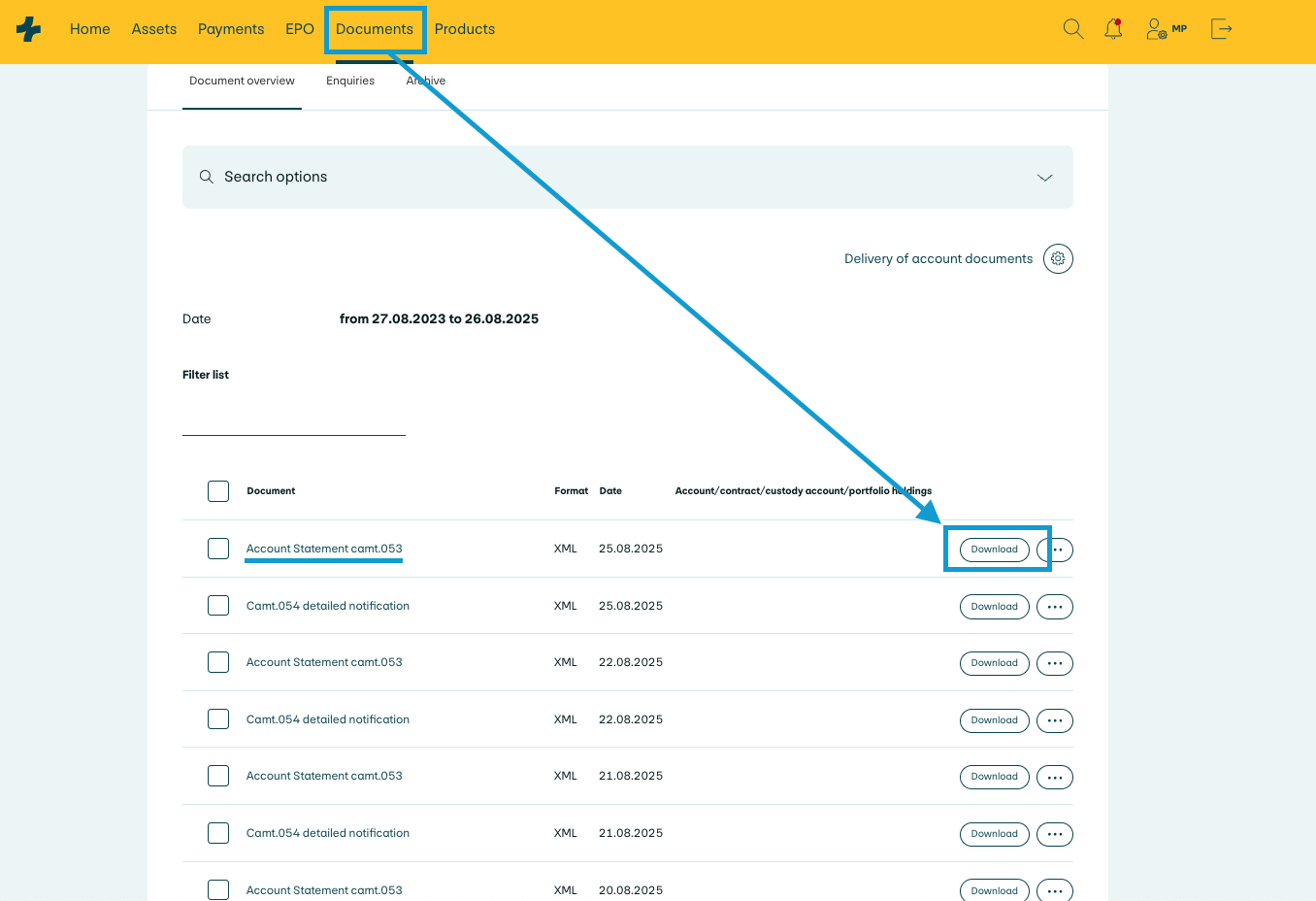
After downloading the camt.053 or camt.054 file, you can upload it to your bexio account under Banking, which will import all transactions made.