Every contact has a customer account. This allows you to view all financial transactions associated with that contact.
The customer account displays the following items in particular:
- Invoices
- Credit notes & Vendor credit notes
- Bills & expenses
- Incoming and outgoing payments
- Manual customer account entries
Underpayments received and overpayments are also listed there. In accounting, these transactions are recorded by default on account 2030. If you have modified your chart of accounts, the account number may differ.
Content
How to open a customer account
Customer account functions
How to access the customer account
Source of customer entries & credits
Creating a manual entry from the customer account
Deleting a customer account entry
Creating a customer entry from a bank reconciliation
Deleting a customer entry from a bank reconciliation
Creating an account statement
Customer account functions
The customer account allows you to:
- View the financial transactions of a contact
- Create manual customer account entries
- Delete existing entries
- Create an account statement for the contact
How to access a customer account
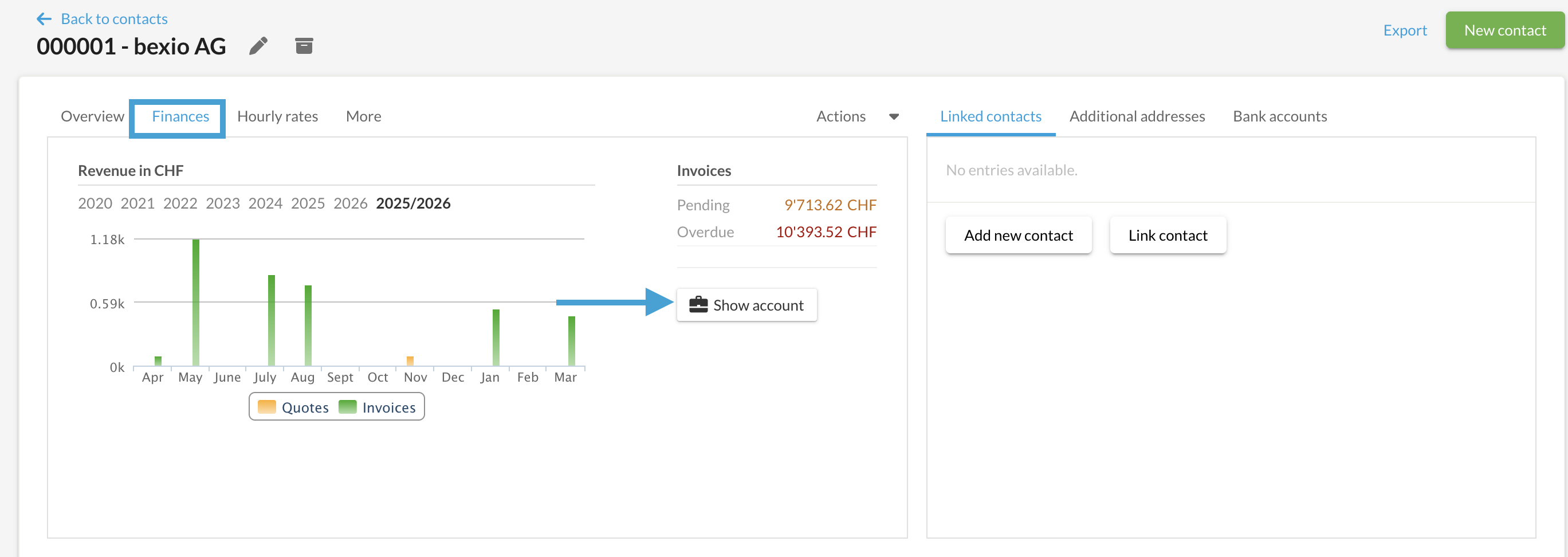
To access a contact's customer account:
- Open the relevant Contact.
- Go to the Finance tab.
- Click on Show account.
The contact's customer account will then open with all associated transactions.
Source of customer entries & credits
A customer may have a positive balance (a credit in their favor) resulting from:
- Credit note: You have created a credit following a return of goods or a billing error.
- Bank reconciliation: A payment received via the "Banking" module has been associated with the contact without being linked to a specific invoice (e.g., overpayment).
- Manual entry: You have manually added a credit directly in the contact's "Finance" tab.
Managing Refunds for Customer Credits
For detailed instructions on processing refunds, please refer to our article: How to manage overpayments, underpayments, and refunds
Refunding Manual Entries: If a positive balance was created via a manual entry (and not through a formal Credit Note in the Sales > Credit Notes tab), the refund must be processed manually. To do this, you must record an offsetting manual entry (debit) to balance the account.
o maintain accurate records, manual entries must be handled with care. If in doubt, please contact your accountant. They will provide the correct counter-accounts to ensure your books are balanced correctly.
How to create a manual entry from the customer account
This function is useful, for example, in the following cases:
- Refunding an overpayment (debit)
- Recording a down payment received (credit)
To record a manual customer account entry:
- Click on + Customer entry.
- Enter a title for the entry.
- Enter the amount in the Customer entry field.
- Save the entry.
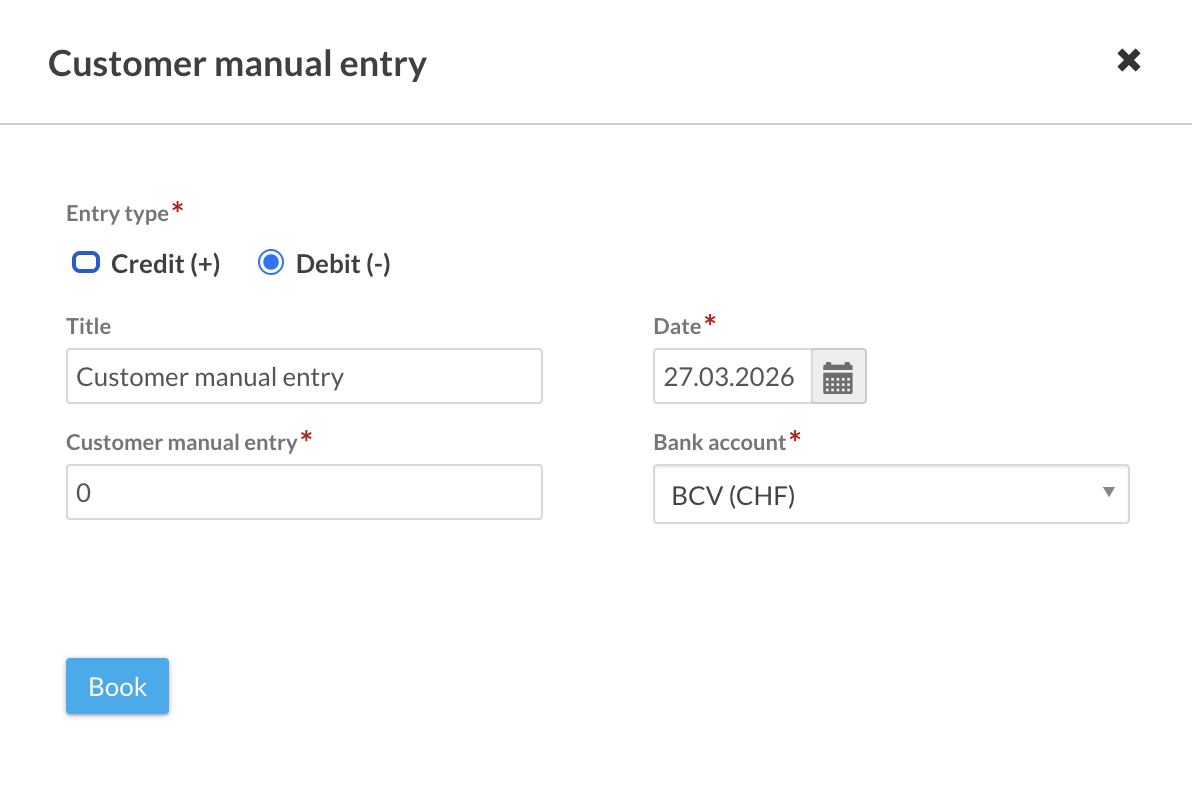
The content of the Title field is used as the posting text in the accounting.
How to delete a customer account entry
Deletion is only possible if the entry is in a fiscal year that is still open.
To delete an entry:
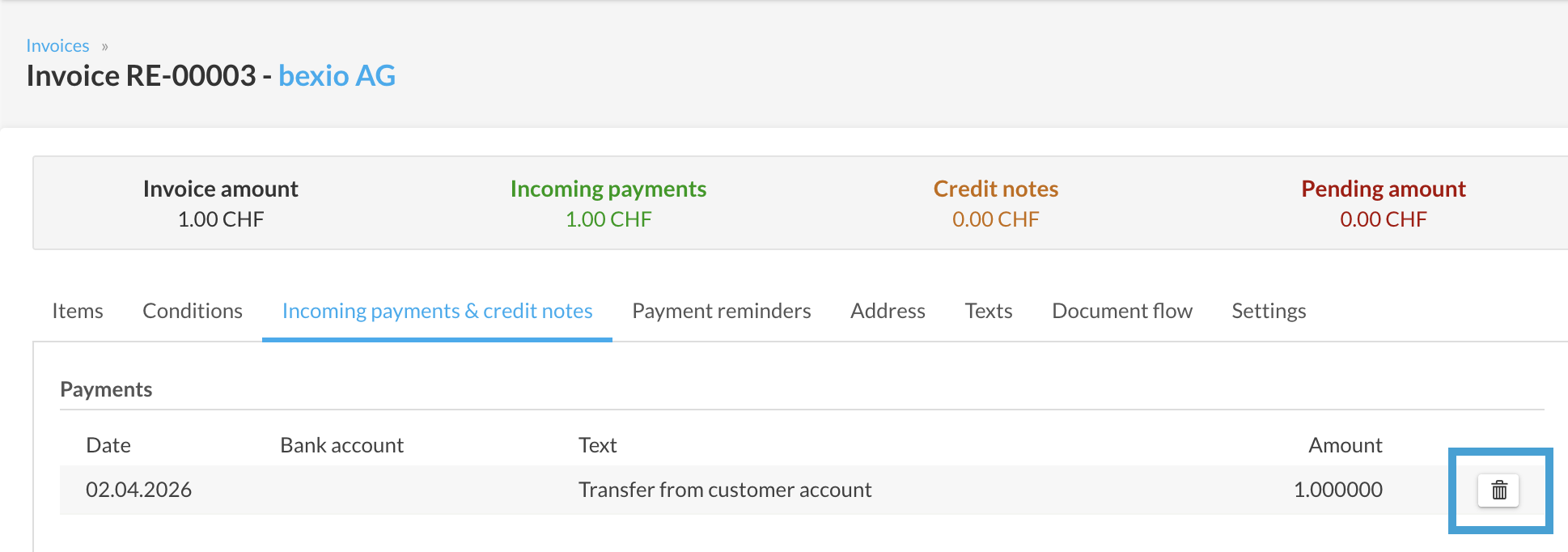
Go to the "Show account" tab (via Contacts > Finances) and click on the trash icon located next to the amount.

It is also possible to delete the entry directly from the 'Incoming payments & credits' section of the invoice in question.
Creating a customer entry from a bank reconciliation
When a transaction comes from your bank, it can be reconciled directly from the banking module.
- Go to the Banking tab > Reconcile transactions.
- Click on the Credit entry option.
- Select the contact of your choice from the list.
- Click on Save.
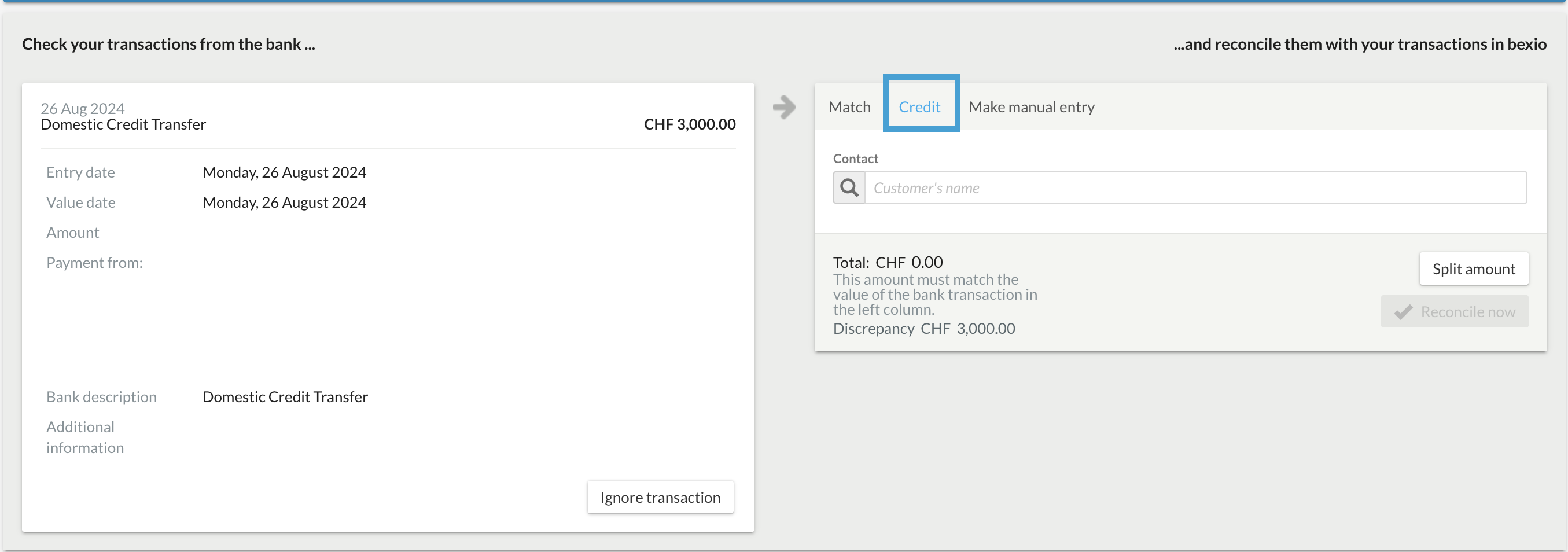
The entry is now recorded in the contact's accounting and indicates that it originated from the bank reconciliation.
Deleting a customer entry from a bank reconciliation
If an entry was generated via the Banking module, it cannot be deleted directly from the customer account. You must cancel the link with the bank transaction:
- Go to the Banking menu > Show transactions.
- Search for the corresponding transaction (use date or amount filters if necessary).
- Click on action > Undo reconciliation.
Once the reconciliation is undone, the entry is automatically removed from the customer account and the bank transaction status returns to "To be reconciled."
Creating an account statement
To learn how to create an account statement, refer to the article: Creating a customer account statement.