Best practices for handling invoice discrepancies, including both overpayments and underpayments.
Contents
Prior information regarding the customer account: In bexio, each of your contacts has a type of account. This is allocated a minus value when you create invoices (this is a debt owed to you) and the customer account balances or reverts to a plus value once your customer pays or overpays your invoices. We book these customer bookings to the customer account “2030 - Deposit payments received from third parties”. Learn more about it »
Overpayments
Credit carry-forward to next invoice
Scenario: A customer overpays the invoice total or inadvertently makes a duplicate payment. Rather than issuing a refund, the overpayment is credited to the customer's account and will be applied to their next invoice.
Recommended Procedure:
-
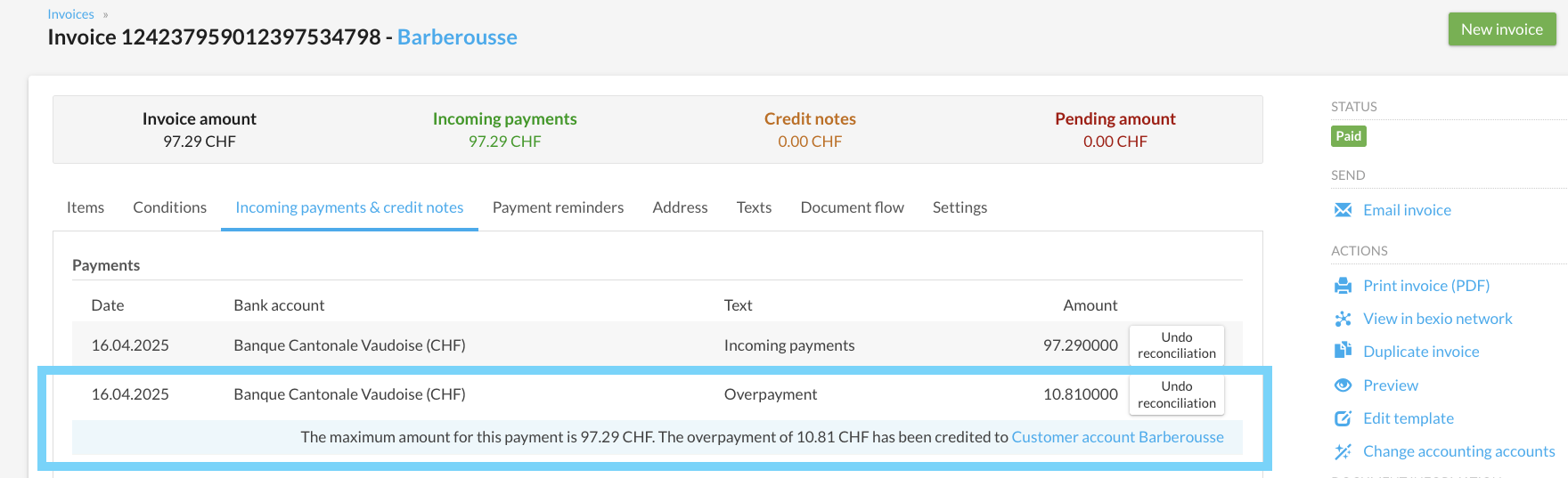
Reconciliation Process: Reconcile the full payment against the corresponding invoice. The system will automatically post the surplus as a credit to account "2030 - Down payments received from third parties."
- To view this balance, navigate to the Contact profile, open the Finances tab, and click Show account. For more details, refer to the Customer Account - Financial Overview.
-
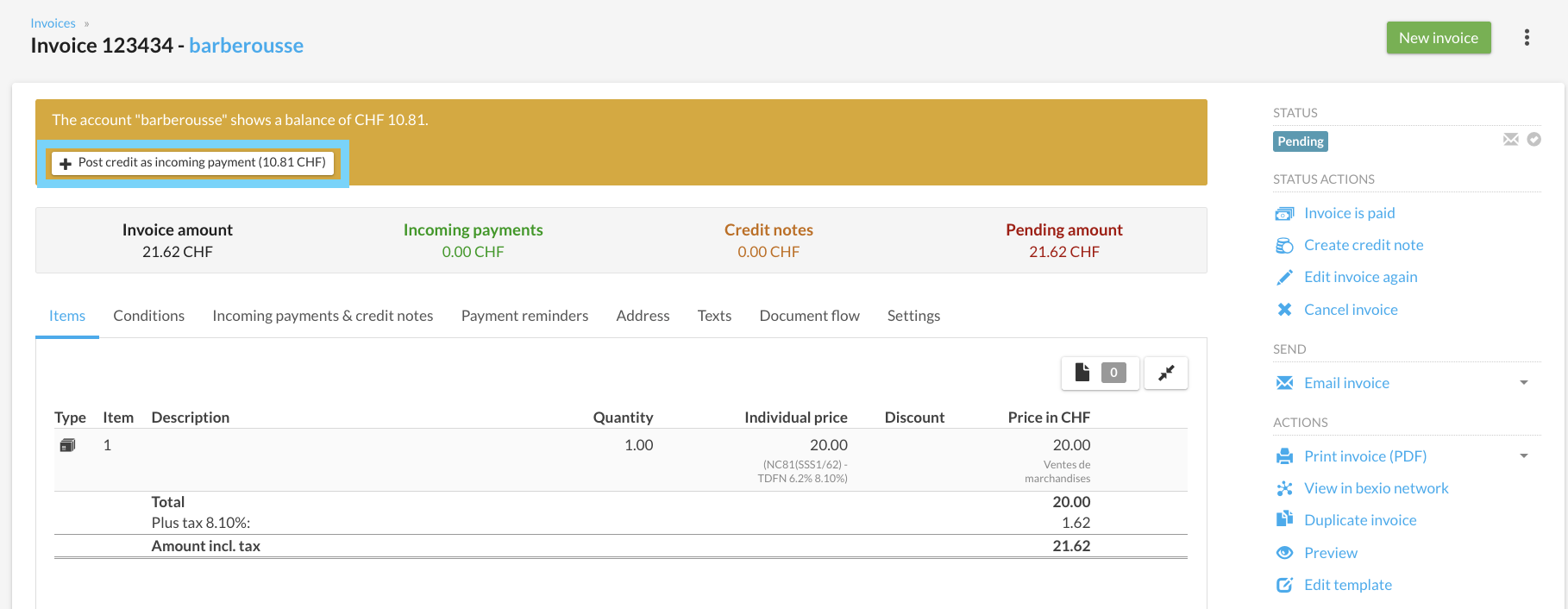
When you create a new invoice for this customer, a notification (pop-up) will appear. This allows you to deduct the credit directly from the total amount, provided the invoice status is set to "Pending."
New invoice to the same customer in the status “Open” - funds can be debited immediately.
The amount is refunded (overpayment or double-payment)
Scenario: The customer accidentally pays more than the invoice total or issues a duplicate payment. The surplus amount or duplicate payment must be processed as a refund to the customer.
Recommended Procedure:
-
Reconcile the total payment (including the overpayment) against the invoice. The system will automatically post the surplus to account "2030 - Down payments received from third parties."
- To view this amount, navigate to the Contact profile, open the Finances tab, and click Show account. For more details, refer to the Customer Account - Financial Overview.
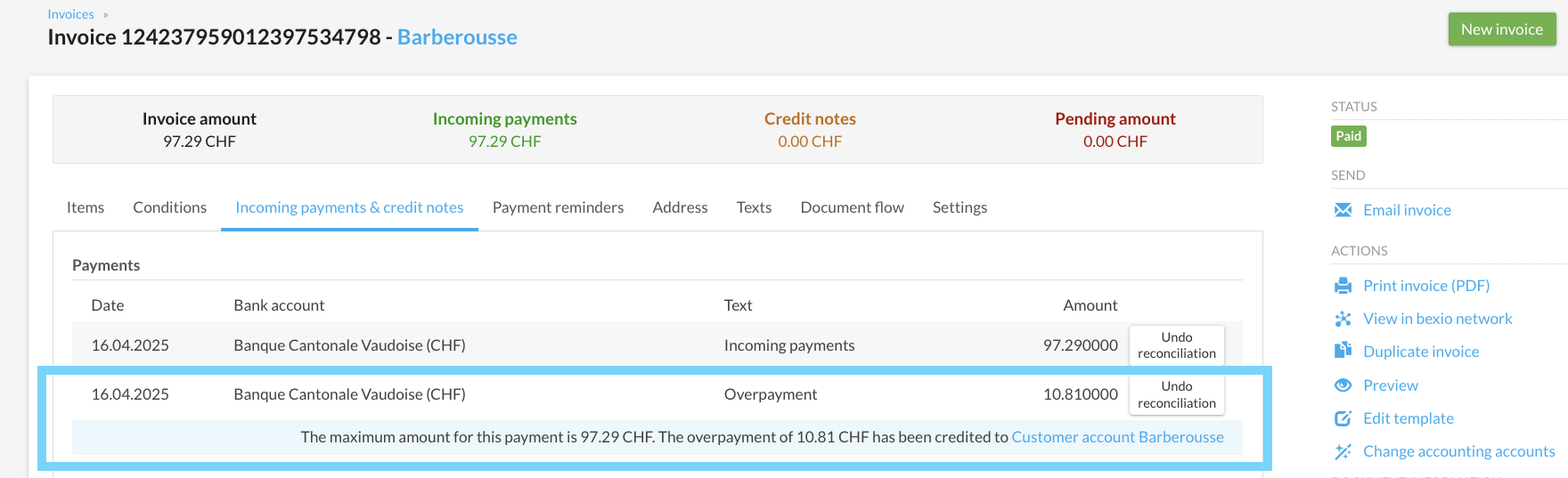
- Enter a payment equal to the amount that exceeded the invoice amount, either via bexio banking or directly in your e-banking.
- For more information about How to enter and transfer payments directly out of bexio.
-
After receiving the transaction in bexio banking, you can book it again against the customer account of the invoice recipient by means of “customer booking”. → This will offset the overpayment.
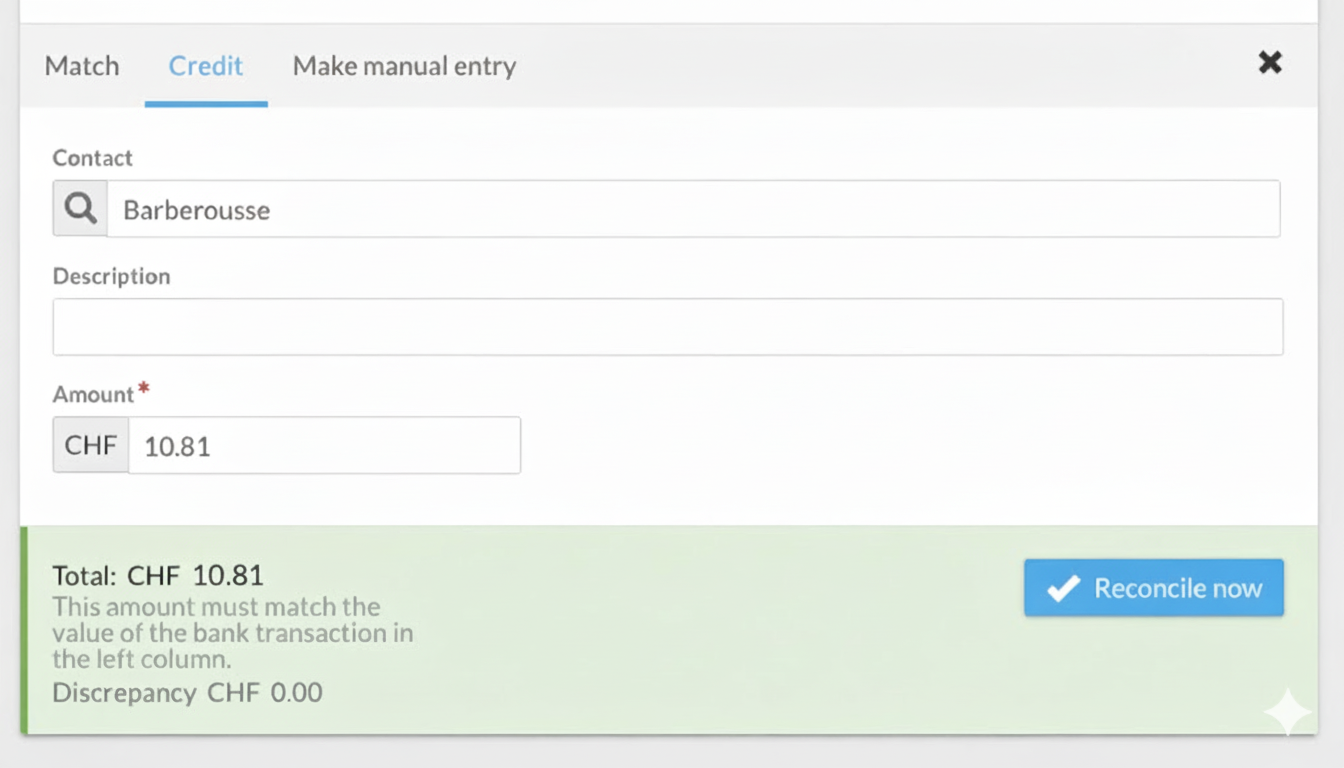
Alternative to the customer account: A second option would be for the amount to be “split” even when the bank reconciliation of the excessive amount has been completed. The effective amount on the invoice and the overpayment/double-payment on a “transitory account” such as “1099 - Unclear amounts”. After the payout of the overpayment must once again be reconciled, it can now only be offset with the same transitory account instead of the customer account.
The amount is non-refundable (booked as income)
Scenario: The customer pays an amount exceeding the invoice total to compensate for additional or extraordinary services rendered. This surplus should be recorded as extraordinary income within your accounts.
Recommended Procedure:
- When doing a bank reconciliation of the received payment, use the “Divide Amount” function.
- You enter the first entry under "Corresponding". → Find the invoice number or invoice recipient in the search tab and enter only the effective amount in the invoice under “New Payment Receipt”. Confirm this briefly with Enter / Tab, then select “Split Amount”.
- For the next booking, click on “Manual booking” and select the appropriate income account for the extraordinary income. (Please note: the selected income account in the screenshot is just an example. Consult your trustee to select the right account for you). The overpayment amount should have been calculated automatically, and you can confirm this with “Reconcile Now”
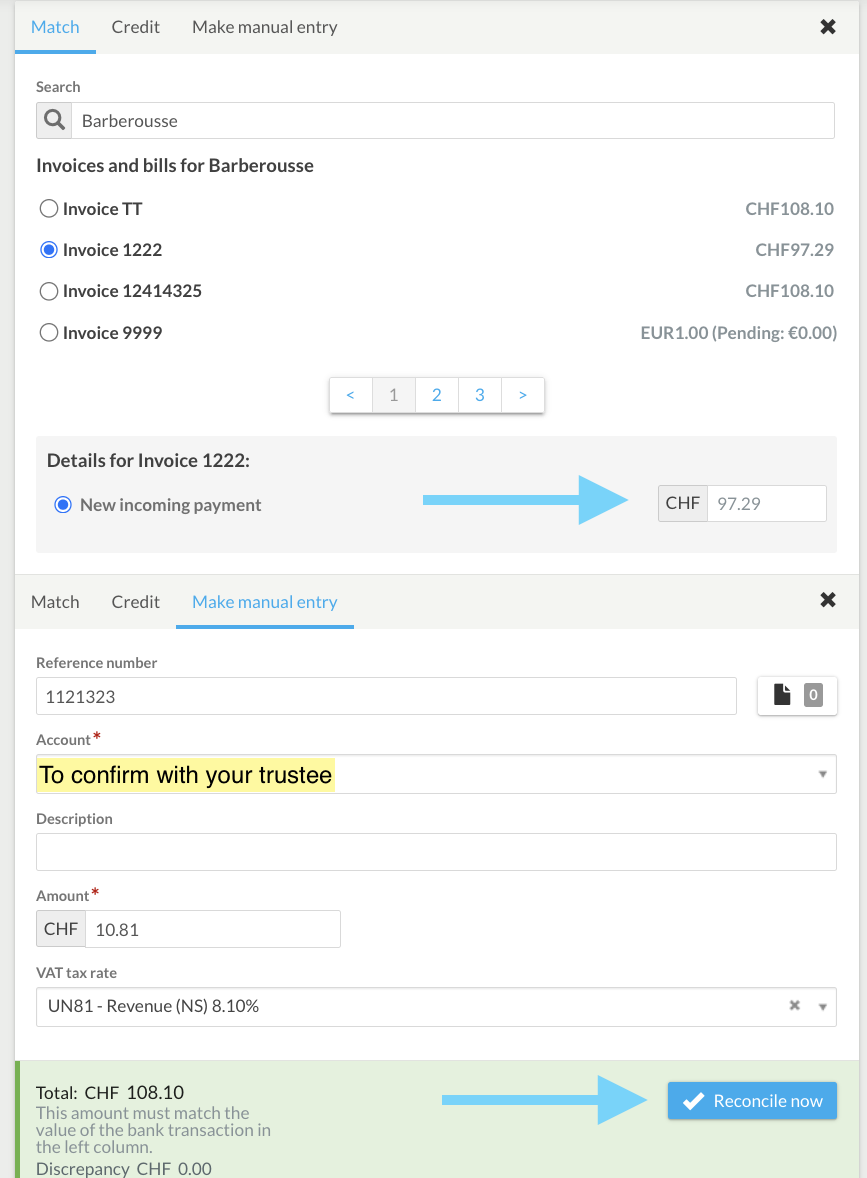
Underpayment
Handling approved underpayments and deductions
Scenario: The customer pays less than the invoiced amount. If the underpayment is approved (e.g., a pre-agreed deduction), the remaining balance can be settled by applying a discount or issuing a credit note to bring the invoice balance to zero.
Recommended Procedure:
- The amount corresponding to the invoice balance is reconciled according to the standard procedure. The remaining balance (residual amount) can then be settled via the "Payments & Credits" tab using one of the following methods:
-
-
Discount: Used for minor discrepancies or agreed-upon reductions.
-
Credit Note: Used for more significant adjustments or formal corrections.
Handling Payment Discrepancies in bexio: For underpaid invoices, the remaining balance can be booked as a Discount (VAT-effective) or a Credit (non-VAT-effective). Alternatively, to record a Loss on Receivables, please use the "Manual Entries" section.
Because we are not certified accountants, we are unable to provide specific bookkeeping advice. We recommend contacting your trustee or accountant to ensure your entries comply with local regulations.
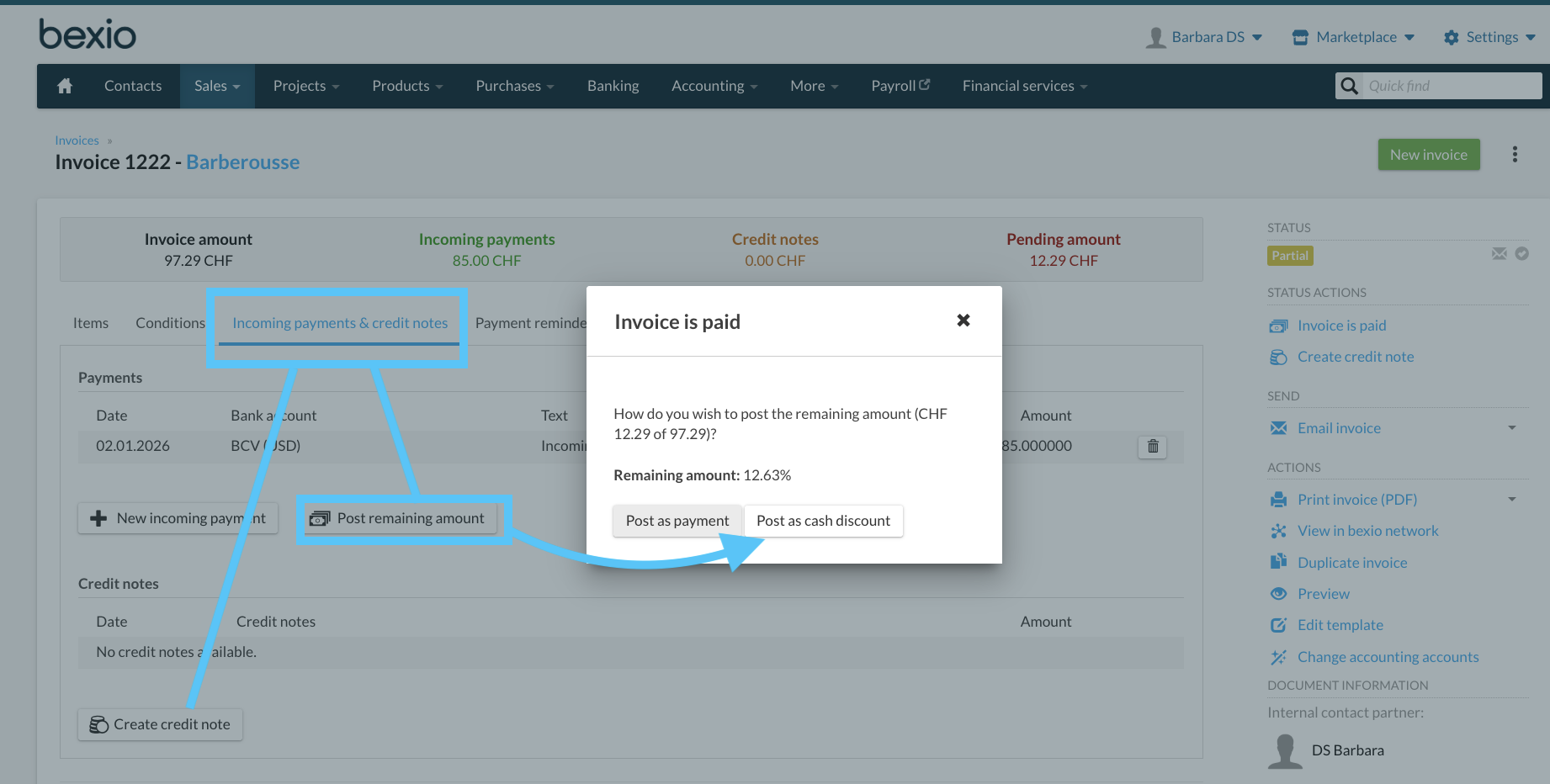 The amount will be booked out under “Payments & Credits” either by means of “discount” or “credit note”.
The amount is not paid - invoice is settled (the income is booked back)
Scenario: The customer makes only a partial payment or fails to pay an open/overdue invoice entirely. You may leave the invoice status as "Unpaid" and record a manual adjustment. Alternatively, you can settle the invoice via a credit note and perform a manual adjustment to account for the reduction in earnings or loss of receivables.
Recommended Procedure:
- Open the unpaid invoice and go to the “Reminders” tab.
- If so, you can click on the button “Set invoice to “not paid”.
- A "reverse booking" of the originally booked income is consequently made. → When creating an invoice, for example, 1100/3200 was booked. This booking will only be corrected with a reverse booking.
- If the reverse booking is not sufficient, you can make an adjustment booking under “Accounting” → “Manual booking”.
Has a partial payment for the invoice amount already been made? Or was the VAT period already charged? - In this case, the reverse booking cannot be made using the “Invoice set to “Unpaid ” function . → Alternatively, create a credit note under the tab “Receipts & Credits” to enter a reverse booking of the income. Reverse bookinga can therefore be made as usual, under “Manual postings”.
For more information, learn more about “Invoice not paid” in detail. »
Refund
Processing goodwill refunds via credit notes
Scenario: The customer pays the invoice in full, but you later issue a full or partial refund as a gesture of goodwill. Issue a credit note for the refund amount and record a corresponding outgoing payment to settle the balance.
Recommended Procedure:
-
The customer pays the invoice in full. The transaction is reconciled to the corresponding invoice.
- Enter a payment of the amount to be paid via bexio banking, or directly via your e-banking.
- The retrieved transaction, following execution, can be “ignored” in this particular case because transactions cannot be reconciled to credits.
- Create a credit note. (In the credit note under "Texts" → "Reference", optionally add the invoice number for verification purposes). Click on "Credit note is issued".
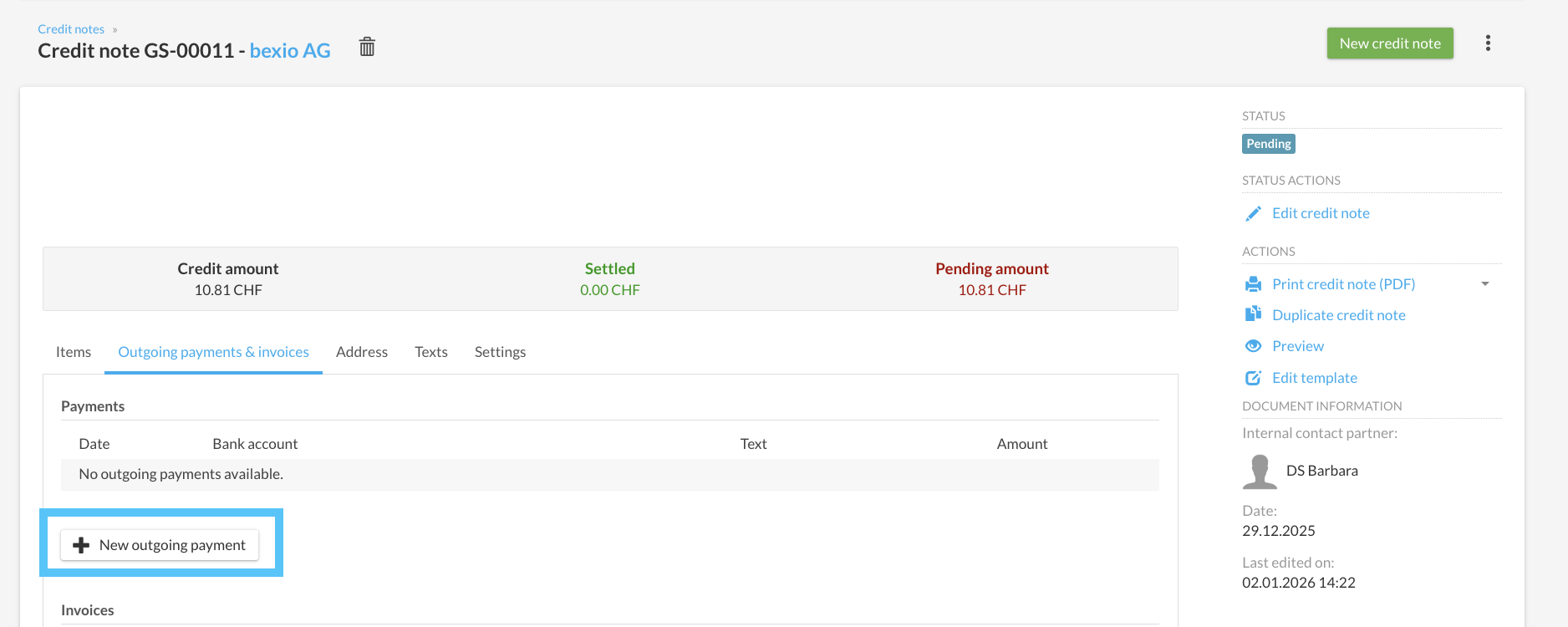
- Then, under “Payments & Invoices”, insert a new payment issue on the corresponding value date via the corresponding bank account.
Ignore the bank transaction, as it cannot be reconciled with a credit note.
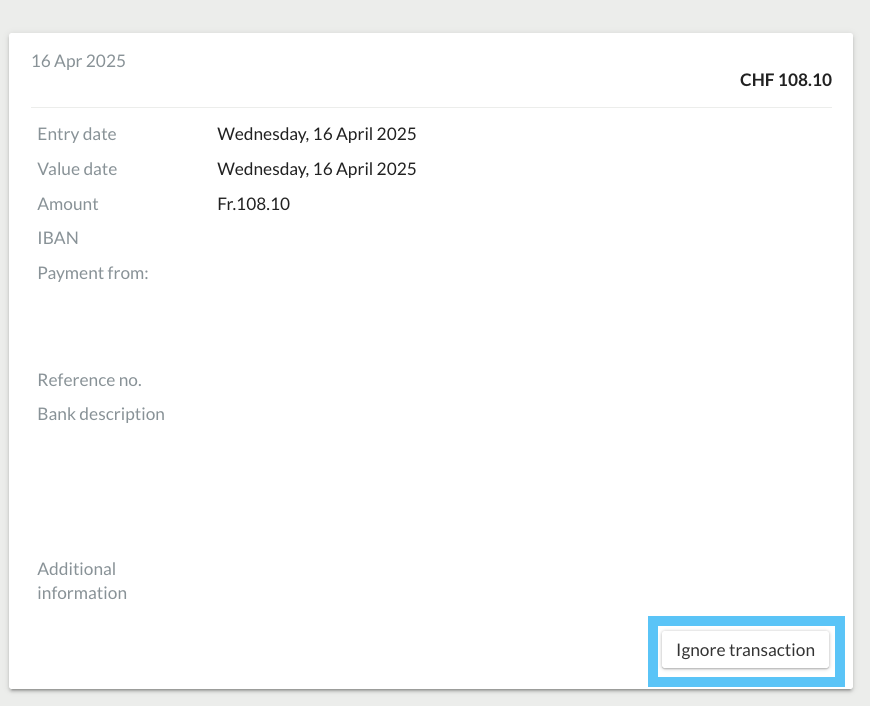 Enter a new manual payment issue in the created credit note and set the payment details of the completed payment.