Under "Project", you have the option to enter timesheets, such as projects. Below, we will first discuss how to enter timesheets. Regarding project entry, we discuss it in more detail in the article "Enter a new project".
Hover over "Project" and choose "Time". You will now reach the overview of entered timesheets.
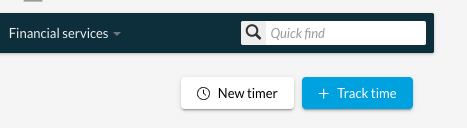
Click on "New Entry" to reach the entry mask.
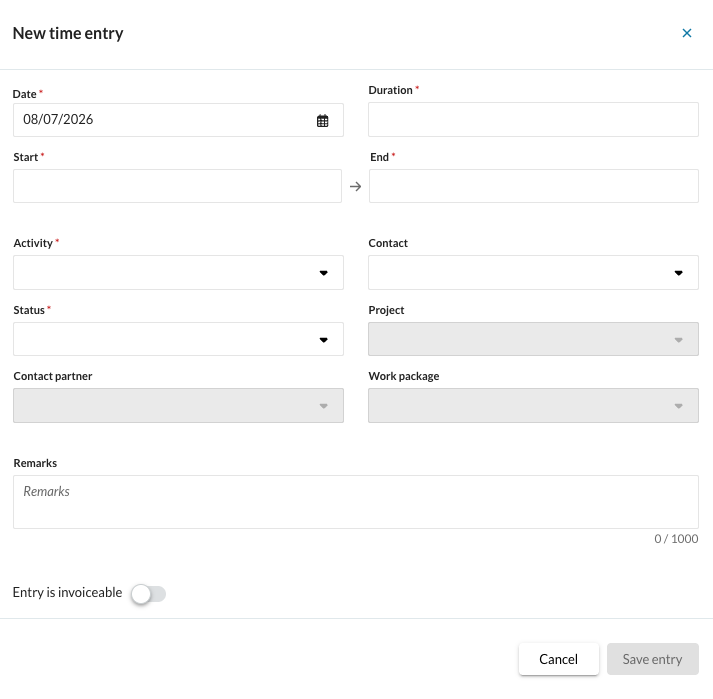
Activity
Here you determine which activity the timesheet entry concerns. Activities can be defined in "Settings" and linked to different hourly rates. To learn how to manage activities, refer to the article "Manage Business Activities".
Status
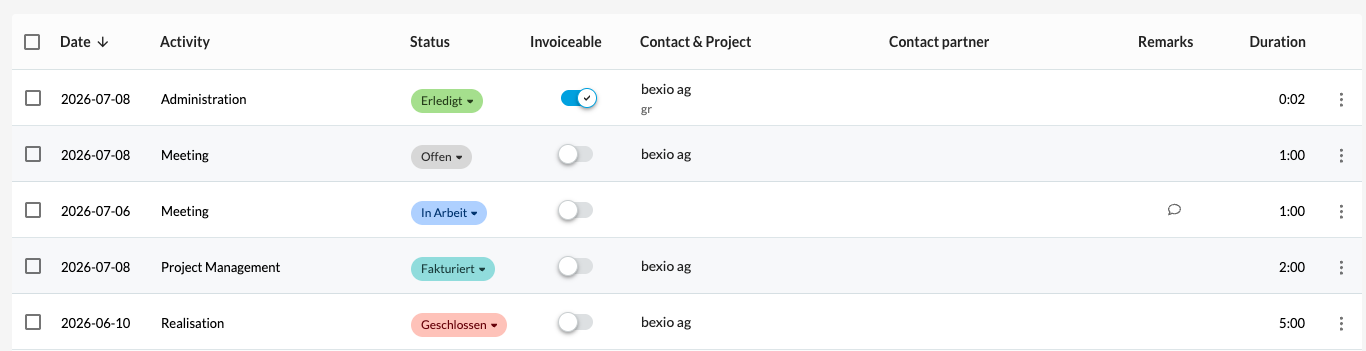
The status indicates the progress of the timesheet entry: "open", "in progress", "completed", "invoiced", or "closed". If you wish to eventually invoice the service, the entry must have the status "Completed". As soon as you have imported the entry into an invoice, the status automatically changes to "Invoiced".
Text
Insert a text here, for example: the nature of the service itself. This text will eventually be inserted on the invoice when you collect payment for the service.
Invoiceable
Tick this box if you wish to invoice for the service.
Timesheet Entry Type
There are three ways to enter a time entry:
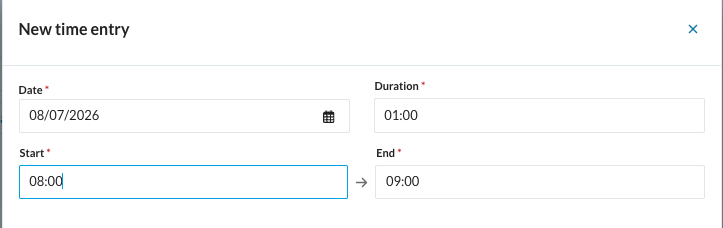
- Duration: Enter the total time taken to complete the task. The ‘Start’ and ‘End’ fields will be filled in automatically accordingly (starting at 00:00 unless otherwise specified).
- From/To: Here you determine when the task began and when it ended. The duration is then automatically calculated.
- Timer: (for detailed instructions, see the link below: timer)
Determine the Contact
As described elsewhere, assign the entry to a contact and, if applicable, to a correspondent and a project.
Transfer to payroll
Under Times, you can transfer the recorded hours for hourly-paid staff directly to payroll. The times are automatically carried over to the paystubs for the relevant month and entered there directly.

Using filter and search functions
In the overview of recorded times, you can use various filters and the free-text search to search specifically for certain entries.
Available filter options
- Free-text search: Use the search field on the far left to search for specific terms.
- Time period: Select predefined time periods such as All, Today, Current week or This month.
- Detailed filters: Narrow down the list further using the following criteria: Date, Activity, Status, Invoiceable, Contact, Project, Work package, Contact person
Save filters
Click the ‘Save filters’ button on the right to permanently save your current filter selection. The next time you open the overview, your saved filter view will load automatically.
Note: The saved filter will remain on your device and in your browser until you clear your browser cache and cookies, or reset the filter using the ‘Reset all’ button.
Note: The saved filter will remain on your device and in your browser until you clear your browser cache and cookies, or reset the filter using the ‘Reset all’ button.
Duplicating (copying) time entries
To quickly reuse time entries you have already recorded, you can simply copy them:
- Navigate to the desired time entry in the overview.
- Click on the three-dot menu (actions menu) at the far right of the row.
- Select the ‘Duplicate’ option.
- An input window will open with the data already filled in.
Note: For the duplicated entry to be saved, at least one field must be modified.