In payroll accounting, the principle is: once a payroll statement has been completed and paid out, it should no longer be deleted or opened. bexio offers you the function of subsequent corrections instead.
This allows you to make adjustments in a past month, which are automatically transferred by the system to the next open payroll run and offset there.
Subsequent corrections of insurances
How it works
Subsequent corrections can only be entered in already closed (previous) months.
Step-by-step guide
1. Select month
Navigate to Payroll statements and select the already completed month as well as the affected employee. On the right side, you will now find the section "Corrections Deductions".
2. Enter correction
-
Click on the relevant category (e.g., "Corrections Deductions").
-
Select the desired wage type [e.g., Correction DSP].
-
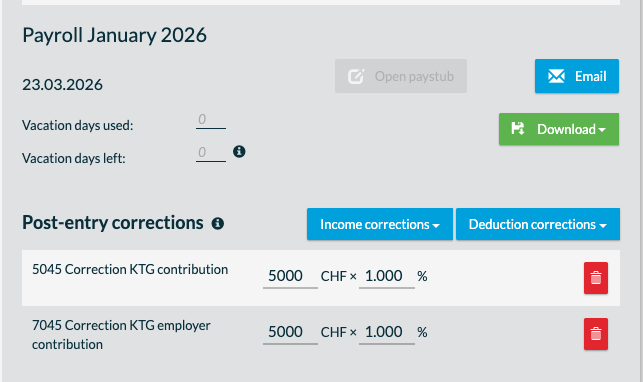
Enter the correction amount. There is always the employee and the employer side.
Calculation formula for insurances:
The correction results from the relevant wage sum multiplied by the difference in percentage:
Wage sum: CHF [Amount] × Correction rate: [X] % = Correction amount: CHF [Amount]
3. Automatic transfer
Once you have saved the correction, you do not need to do anything else. bexio automatically transfers the amount to the next open month. There, the difference is clearly listed as a correction item and effectively taken into account in the payment or deductions.
The most important things at a glance
-
History remains clean: The original month remains unchanged, which is essential for auditing and accounting.
-
Automatic offsetting: You no longer have to make manual calculations in the current month; the system takes the value from the previous month.
-
Limited selection: Only wage types that are system-approved for retroactive corrections are available.
Tip/Note: If you have deducted too much in completed payroll statements and need to correct the deductions, you can enter the value as a negative amount.