In this article, you will learn how to register in the bexio Cockpit and what options you have.
Content
How do I register as a Fiduciary?
There are different ways to register as a Fiduciary. If you register as a Fiduciary, the next step is either to create a Cockpit or you will be invited directly into an existing Cockpit and can register as a Fiduciary through this route.
Important information:
- If you create a new Cockpit and you are the first employee of the Cockpit, you are automatically registered as the Admin of the Cockpit. Only employees with the "Admin" role have access to the Cockpit settings and can add new team members.
- Per user (email address), you can only be in one Cockpit. If you want to work in multiple Cockpits, registration with a different email address is necessary.
Option 1: You register via the website
You can register via the website bexio.com -> "For Fiduciaries" -> "Register now for free" or directly via this link.

Then enter your name and email address and click the blue "Register for free" button. You will then receive an email with a link to confirm your email address. When you click the link, you will be taken to the Cockpit registration page where you can set your password.
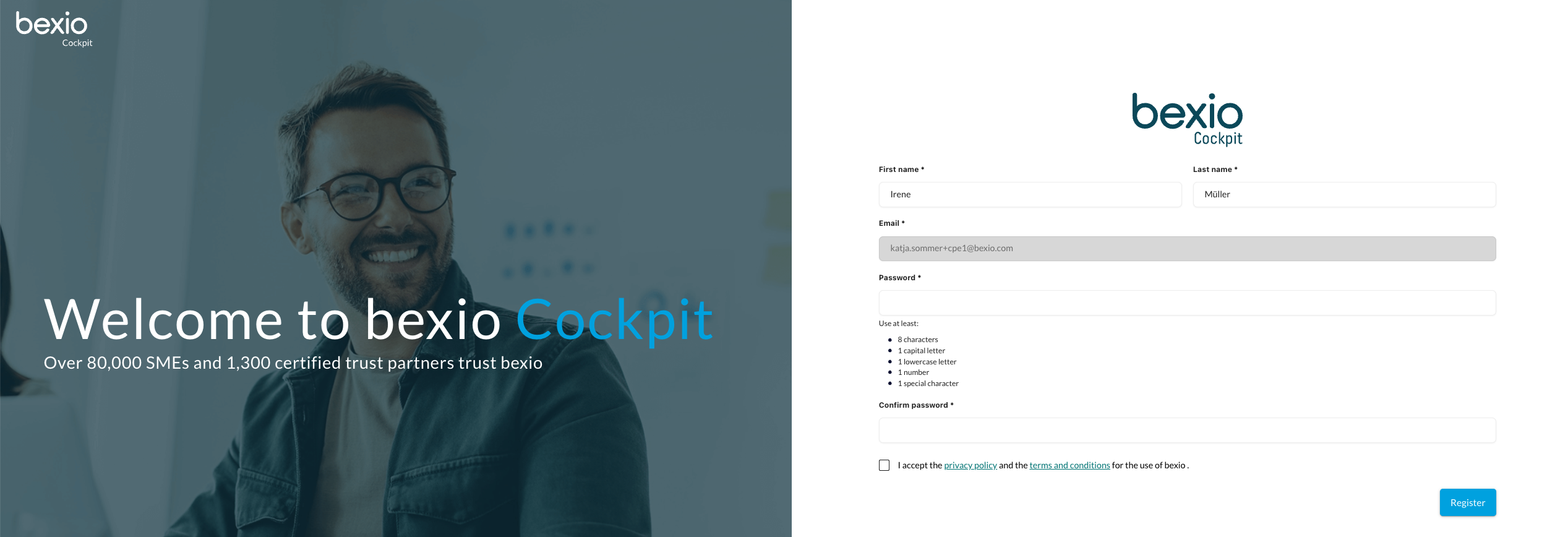
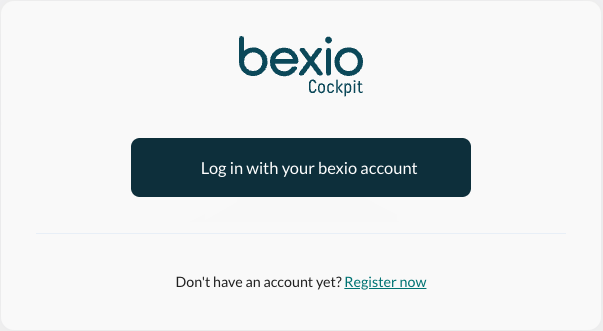
The registration as a Fiduciary is now complete, and you can now log in with the created password by clicking on "Log in with bexio account" or by logging in directly at cockpit.bexio.com. The next step is to create the Cockpit or be invited into an existing Cockpit.
Option 2: You are invited by a client in (bexio) Office as a Fiduciary
The second option is for the client to add you as a Fiduciary from their bexio account. This is done under "Settings" -> "Users" -> "Invite and manage Fiduciaries" at the top right, using the green button "Invite Fiduciary". The client enters your email address, and you receive an email with a link. Click on "Answer to invitation". In the next step, you can create the Fiduciary user and set a password.
The registration as a Fiduciary is now complete, and you can now log in with the created password by clicking on "Log in with bexio account" or by logging in directly at cockpit.bexio.com. The next step is to create the Cockpit or be invited into an existing Cockpit.
Option 3: You are invited by an Admin in the Cockpit as a team member
The person with the "Admin" role can add you from the Cockpit as a team member / Admin. More information can be found below in the section "How do I access an existing Cockpit?".
How do I create a new Cockpit?
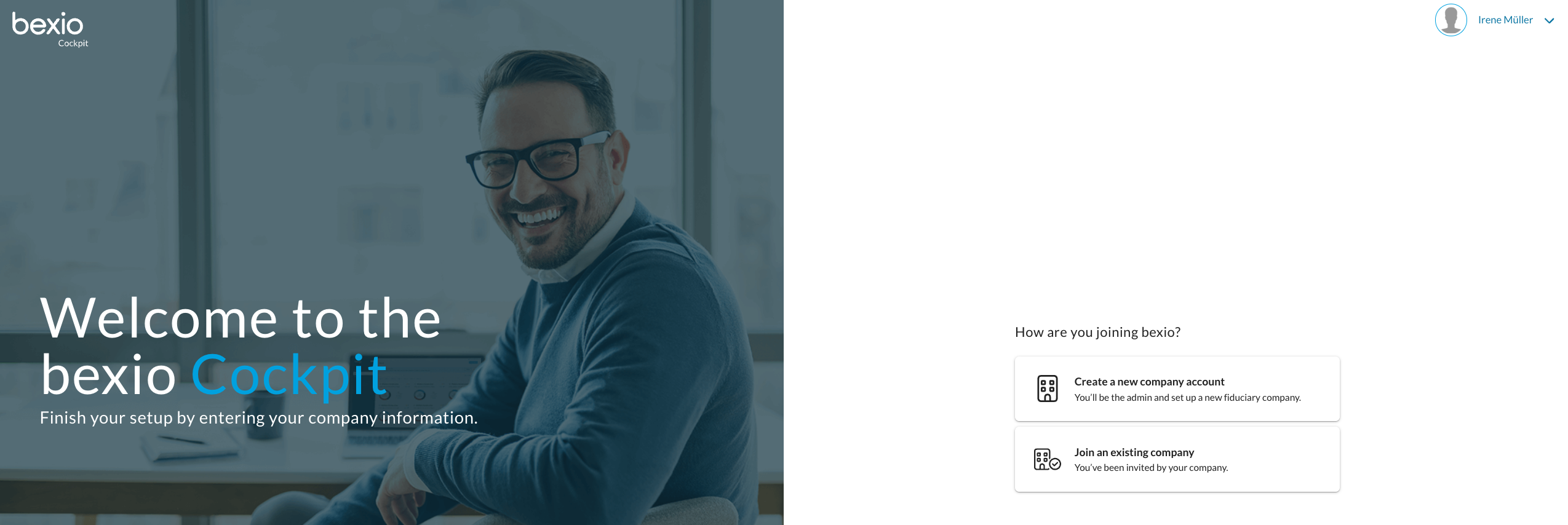
After successful registration, if you log in again, you will reach this mask. This concerns the assignment/creation of the Cockpit. There is the option to be invited to an existing Cockpit or to create a new one. More information about an existing Cockpit can be found in the last section of this article "How do I access an existing Cockpit". If you wish to create a new Cockpit, select the top option "Create new Cockpit" here.
Note: This is not yet about client assignment. If you have already been invited by a client, the invitation will be visible in the Cockpit afterwards. This only concerns the creation/assignment of the Cockpit, which should take place in any case.
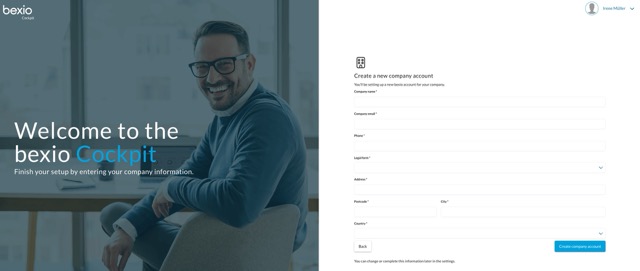
Now fill in the details of your Fiduciary company and click on "Create company account". You can change this information at any time afterwards under the company settings (gear icon -> Company).
Your Cockpit has now been successfully created. If you were previously invited as a Fiduciary by a client, this invitation will be visible under "Clients" and can be accepted accordingly.

How do I access an existing Cockpit?
If you wish to join an existing Cockpit, the team member with the "Admin" role must invite you as a team member or Admin in the Cockpit after your Fiduciary registration.
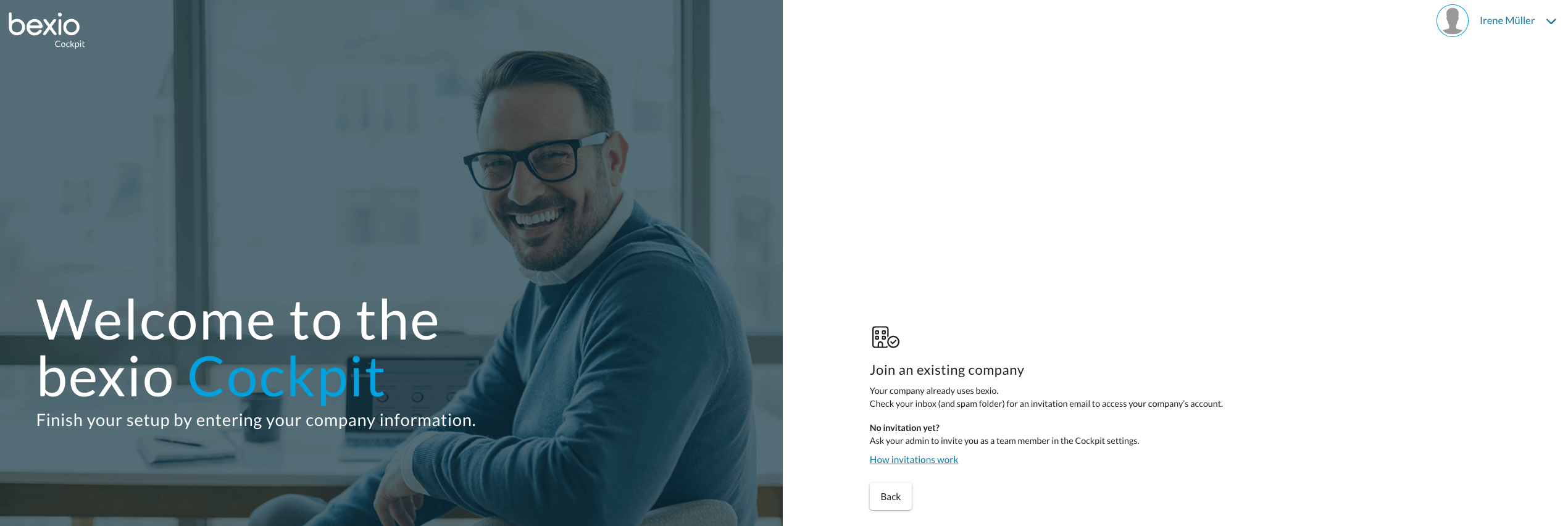
This can be done via the settings (gear icon) -> Team -> blue button on the right "Invite team member".

After the invitation, you will receive an email in which you can accept it via the "Accept invitation" link to be in the respective Cockpit.
If you have already been invited by a client after registration, this invitation will be visible under "Clients" after you have successfully joined the Cockpit.