The annual report to the pension fund (BVG) via ELM (Uniform Wage Reporting Procedure) differs in one significant aspect from other insurances (such as AHV or UVG): it often serves as a pre-registration of the estimated wages for the coming year.
Here is the most important information you need to know for implementation in bexio:
Content
1. The Timing (Important!)
Unlike the AHV report, which closes the past year, the BVG annual report is typically sent at the beginning of the year (usually in January).
- Goal: The pension fund needs the estimated annual salaries of your employees to create the new contribution statements for the current year.
- Prerequisite: The payroll run for the month of January must already be completed in bexio before you send the report.
2. What is reported?
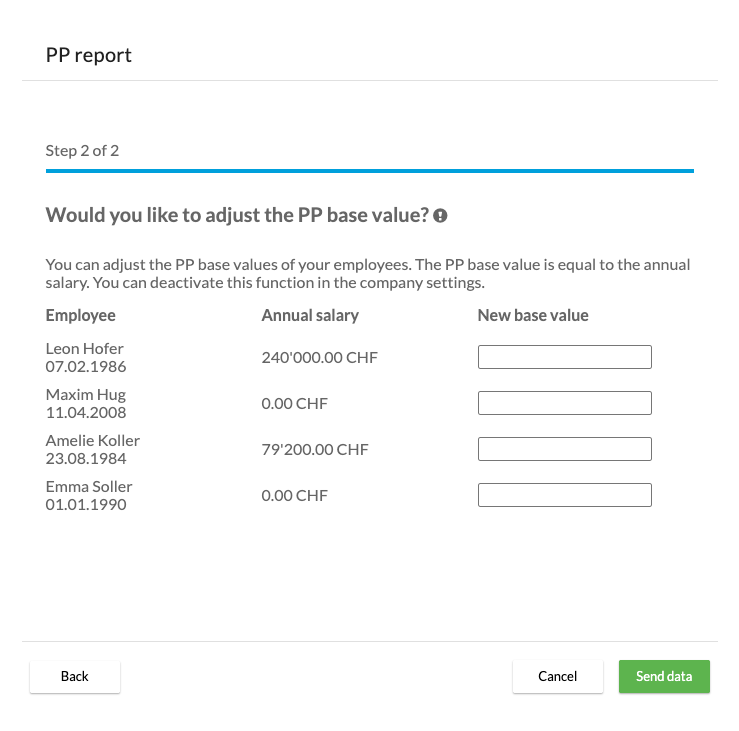
- Estimated annual wages: bexio calculates the estimated annual income based on the January wage.
- Manual adjustment: In bexio, you have the option to manually override the BVG basis if you already know that the wage will change during the year (e.g., planned wage increase or change in workload in the summer).
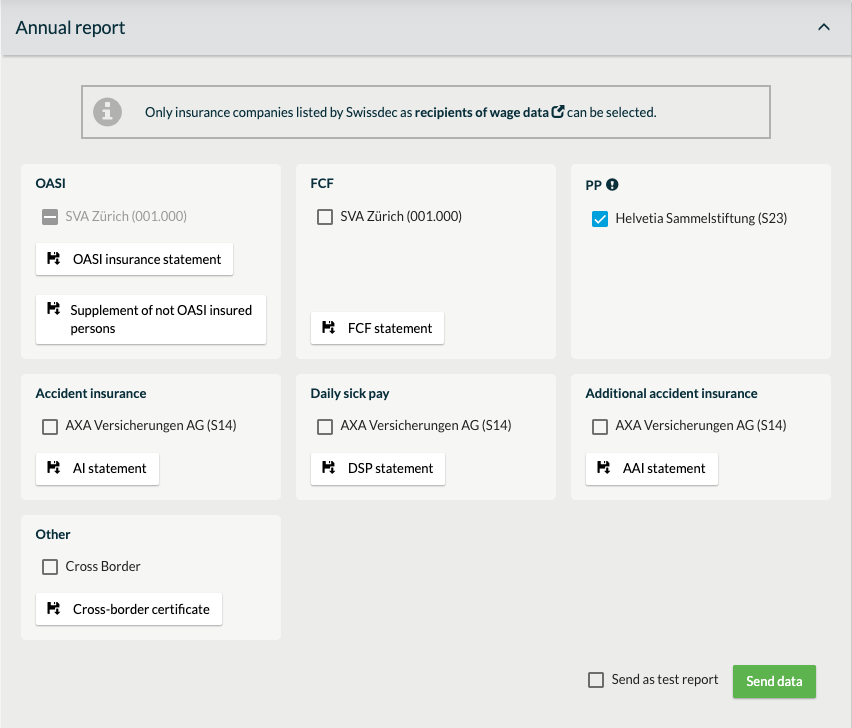
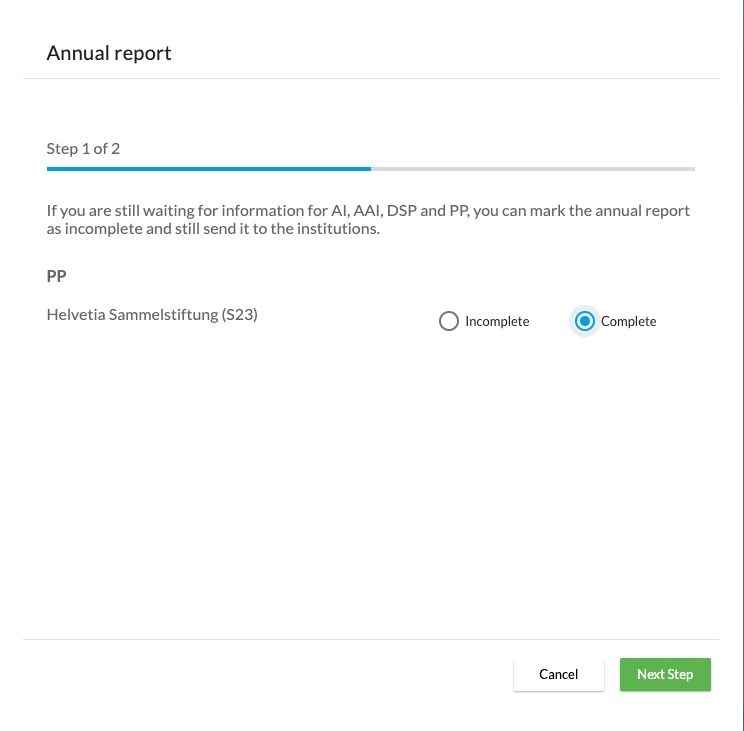
- Completeness: You can mark whether the report is already complete or if data for individual employees is still missing.
3. The Data Flowback
A special feature of the BVG-ELM procedure is the confirmation from the insurance:
- After submission, you will receive a list back from the pension fund.
- This list contains the effective annual contributions (employee and employer shares) that the fund has calculated.
- These amounts can often then be directly imported into bexio, so that the monthly deductions precisely match the pension fund's invoice.
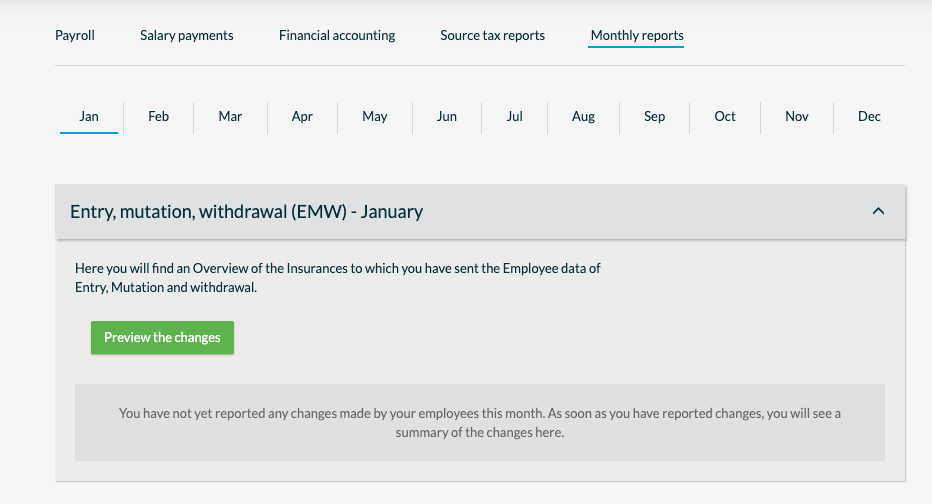
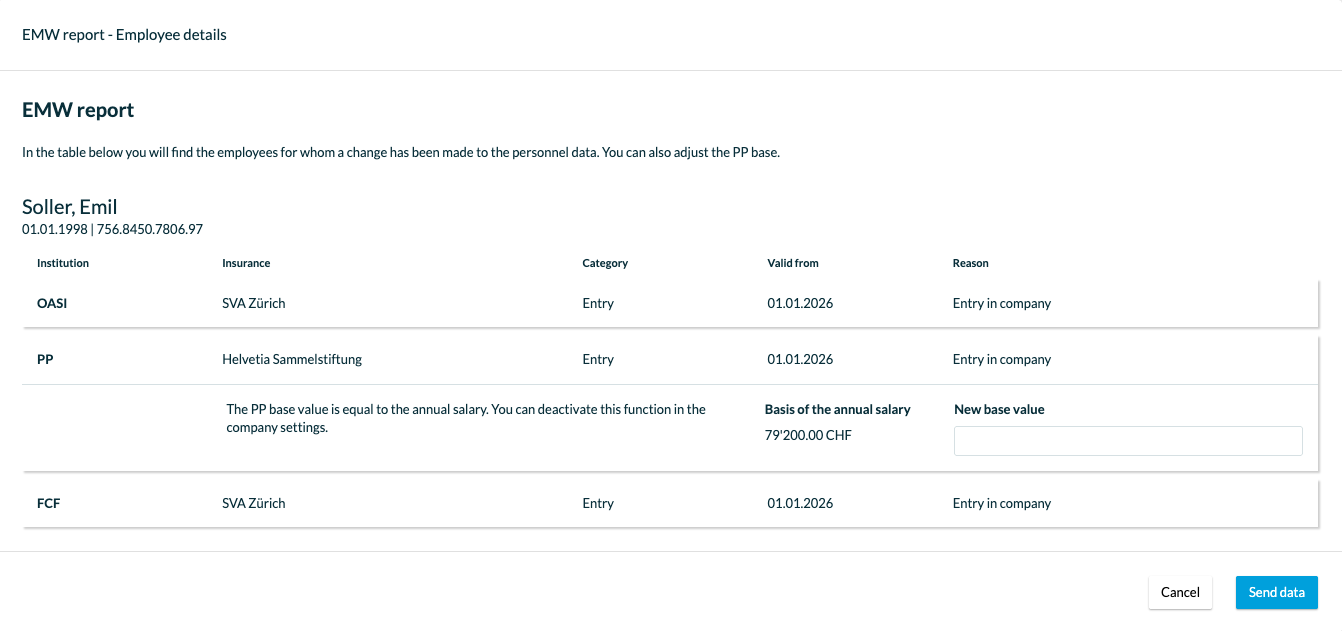
4. EMA Reports (Entry, Mutation, Exit)
Since Swissdec Version 5.0, mutations can also be reported during the year:
- Entries: New employees are reported directly.
- Mutations: Wage changes or adjustments to workload.
- Exits: Termination of employment.
- You can find these reports in bexio under Monthly Reports.
5. Prerequisites for Sending
For sending via ELM to function correctly, the following data must be stored accurately:
- Insurance profile: The correct client number and contract must be recorded in the BVG insurance settings.
- BVG codes: Each employee must be assigned to an insurance group (e.g., A1).
- ELM activation: In the insurance settings, the transmission method must be set to "ELM".
Summary: Complete the January payroll, check the estimated annual salaries under Documents > Annual reports, and send the BVG report to obtain the correct contribution data for the new year.
How to adjust the BVG basis for the annual report in bexio:
Step-by-Step Guide
- Navigate: Select the Documents tab.
- Annual Reports: Click on the sub-item Annual Reports.
- Choose Insurance: Select your BVG insurance from the list and click Send.
- Edit Mode: In the employee list, you will now see the column Estimated Annual Salary. (bexio automatically calculates this value: January salary x 12).
- Manual Correction: Click directly into the amount field for the respective employee. You can now manually overwrite the value.
- Save: Ensure you save the changes (usually at the end of the line or at the bottom of the page) before initiating the transmission.
Why should you do this?
The pension fund will invoice you based on this reported amount. By providing a very accurate value here, you prevent large differences at the end of the year (reconciliation) and ensure that your employees' monthly wage deductions are already very close to the final statement.
Pro Tip:
If you have adjusted the BVG basis and successfully sent the report, you often receive a feedback document from the insurance in the system. Afterwards, check under Payroll > Settings > Insurances whether you can adopt the new premium values (the calculated CHF amounts from the fund) directly for future payroll runs.
1. Checking the Send Status
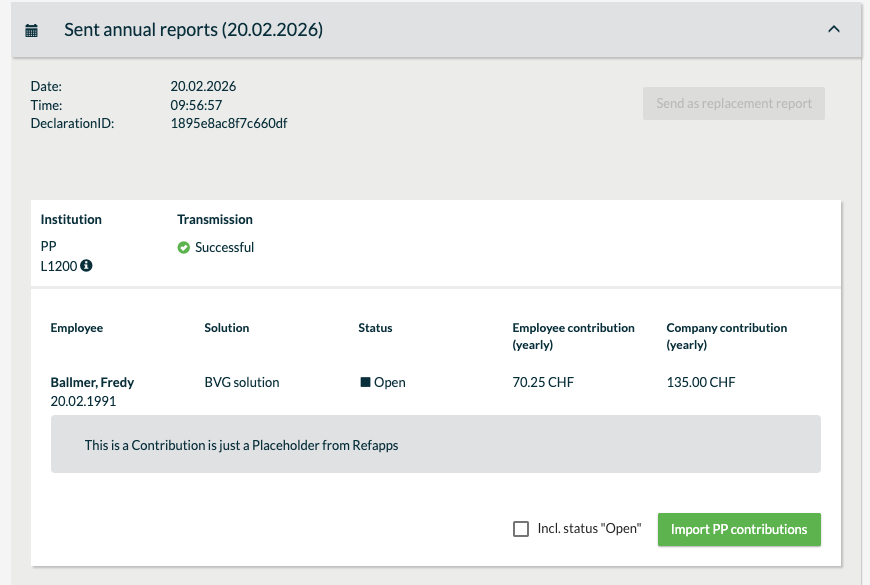
After you have sent the report, the status in bexio changes. You can find this information under: Documents > Annual Reports.
- Successful: The data was technically correctly transmitted to the Swissdec distributor.
- Error: If the report was rejected (e.g., due to an invalid contract number), you will see a red symbol here with an error message.
2. The Feedback Protocol (The "Dialogue")
For the BVG report via ELM, an actual data exchange occurs. After the insurance has processed the data (which can take a few minutes to several days), it sends a response back.
You can identify success by two documents that appear in the transmission overview:
- Transmission Protocol: Confirmation that the report was sent.
- Feedback / Results: Here, the insurance lists which individuals it has accepted and what contributions (in CHF) it has calculated for the year.
3. Importing the Feedback (The Most Important Step)
As soon as the insurance has processed the data, bexio often offers you the option to import the results.
- Click on the relevant BVG report in the transmission overview.
- Look for the button "Import BVG contributions".
- This will directly transfer the CHF amounts calculated by the insurance into the employee master data. This ensures that the deduction on the payslip exactly matches the insurance's invoice.
Important Note: If the feedback protocol shows "Warnings," this often means that the insurance could not assign an individual (e.g., incorrect AHV number). You must manually check these individuals, as otherwise, correct BVG deductions cannot be calculated for them.