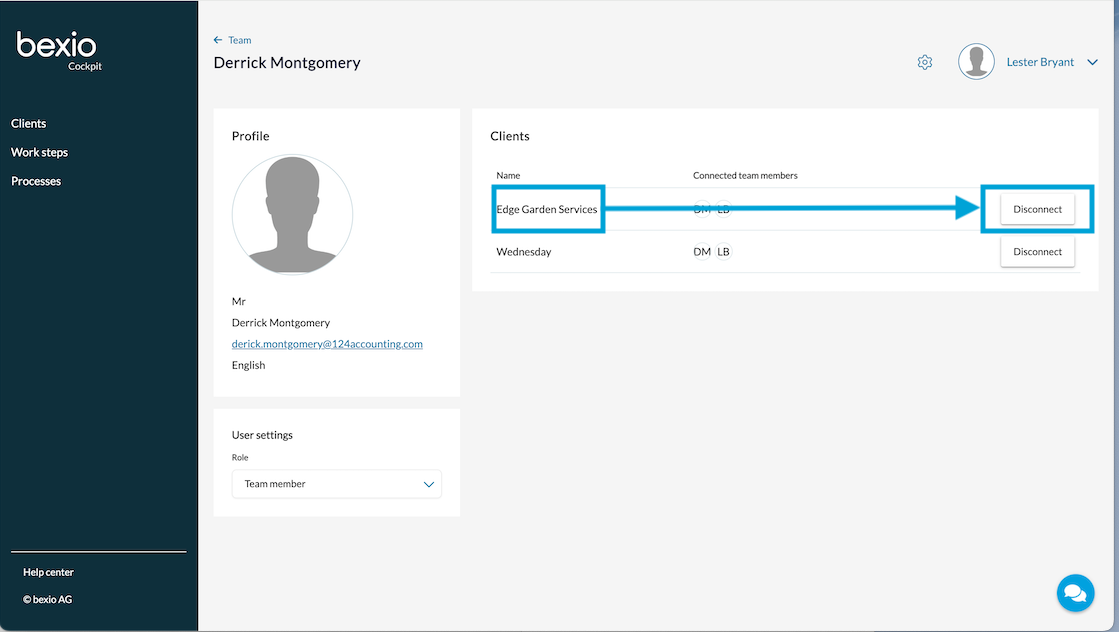
In the team member overview, you can see which team members are connected to which clients. You can change the role (admin or team member) and remove client connections of the profile page of the respective team member.
Content
How do I get to the profile page of a team member?
Please note: The settings regarding the team members is only available for Admins.
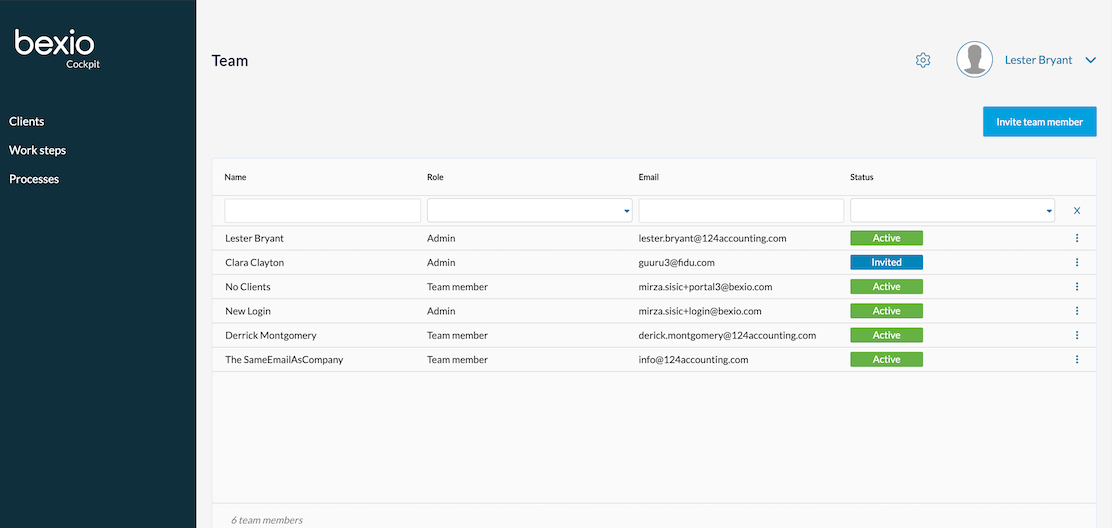
- Click on the "gear" symbol on the top right corner.
- Choose "Team".
- Click on the "three-dot-menu" on the right side and choose "Open profile" or get to profile page by clicking on the preferred team member.
- Thus you will get to the profile page of the team member where you have insights on the personal data, the role and the client connections.
Which functions and information does the profile page offer?
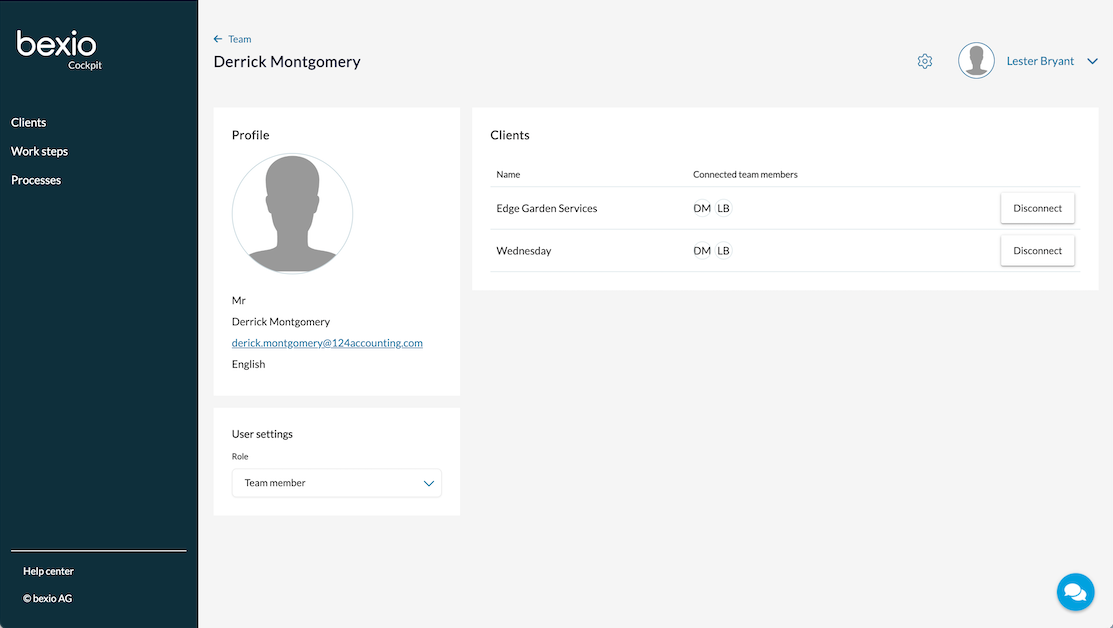
The profile page grants you an overview over the key information of a team member.
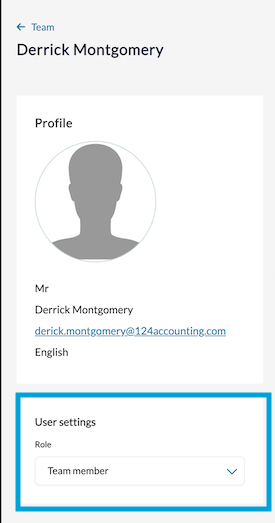
On the left side you see the profile of the team member with information such as the profile picture, name, e-mail address and language.
You can also edit the user settings. This means you can change the team role (admin or team member).
On the right side you can find the client overview. Here are the names of the clients and their assigned team members. You can additionally manage the client connections and remove them.
How do I change the role of a team member?
In the user profile under "User settings" on the left side, you can change the role via the dropdown menu. The changes will be effective immediately.
How can I disconnect a team member from a client?
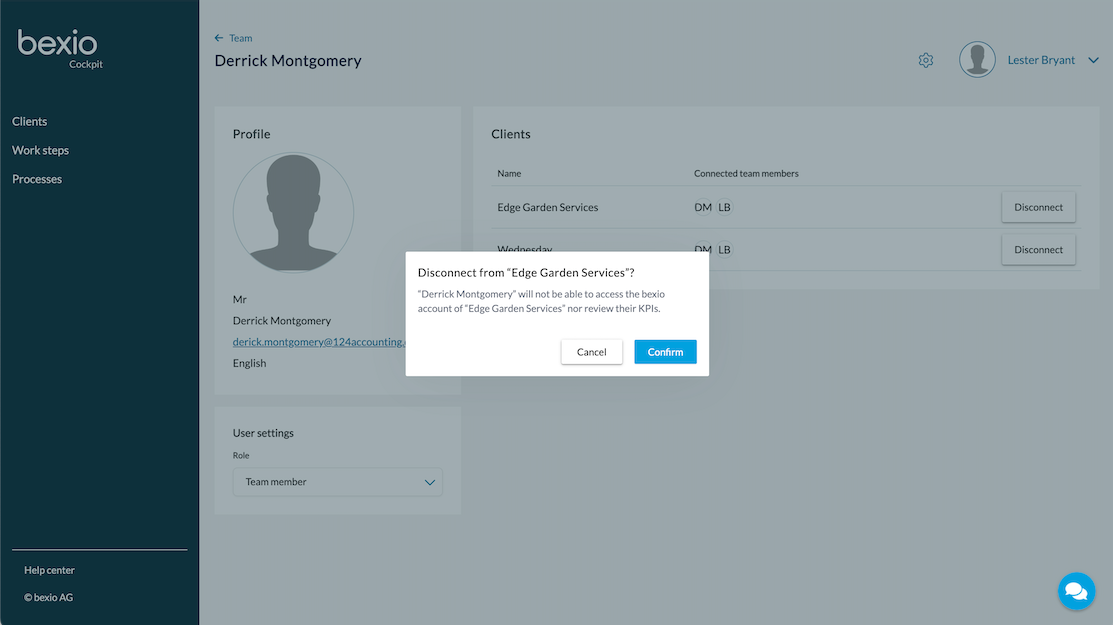
You can disconnect the client directly from the profile page. To disconnect a client from a team member, click on the "Disconnect" button and confirm subsequently. Please note that a team member can only be separated from a client if it is not the last user.