Have you already set up your bank account in bexio and now want to connect to e-banking? Once the link is established, you can automatically retrieve your bank transactions in bexio and transfer outgoing payments to your e-banking.
Create bank/cash account
Quick Info
In this article, you will learn how easy it is to synchronize your SZKB account with bexio and how you can reconcile transactions and transfer payments.
| Set up data transfer: | b-Link - Start connection in Bexio with "Connect e-banking." |
| File format for payments: | pain.001 |
| File format for the account statement: |
camt.053 V8 with details
|
| Notes: |
- Only one UBS contract can be linked to a bexio account at a time.
- QR-enabled interface
- Automatic overnight synchronization of transactions
- Transactions are always available the following day
- Authentication with SZKB Secure App
|
Important:
Are there any things that need to be done on your end before starting the consent flow?
- No. A valid e-banking agreement with the "SZKB Secure" authentication procedure is required.
- Please contact the Schwyzer Kantonalbank customer center if your e-banking contract has not yet been set up for SZKB Secure. Tel. 058 800 20 20.
Connect to bLink in your e-banking and bexio
-
Click on "Connect e-banking."
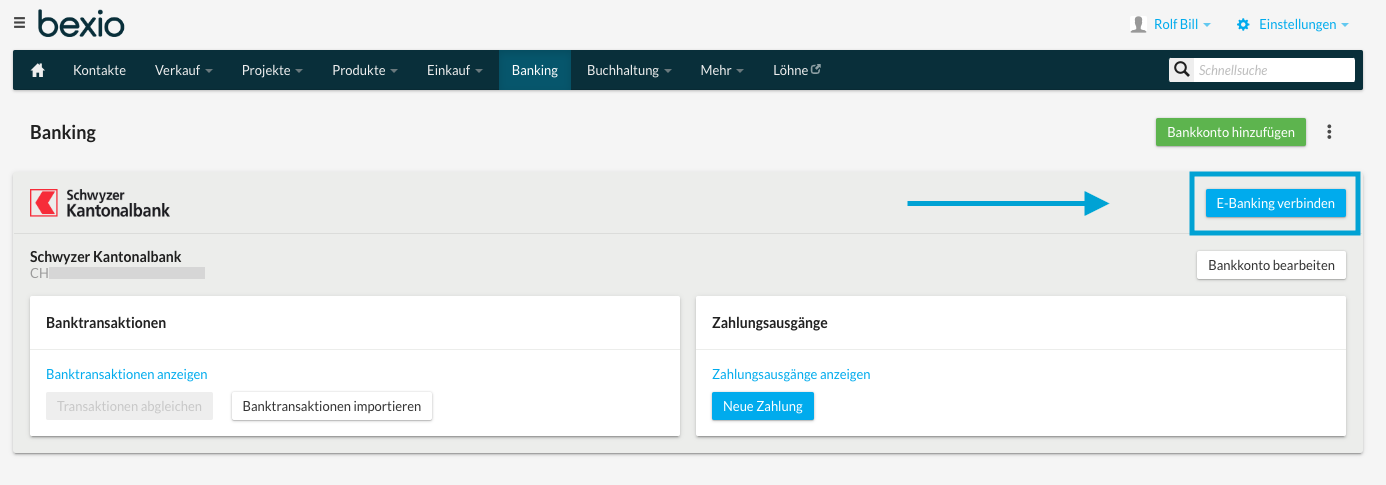
-
A dialog box will appear informing you that you are now being redirected to your bank's e-banking site. Click on the blue button to continue.
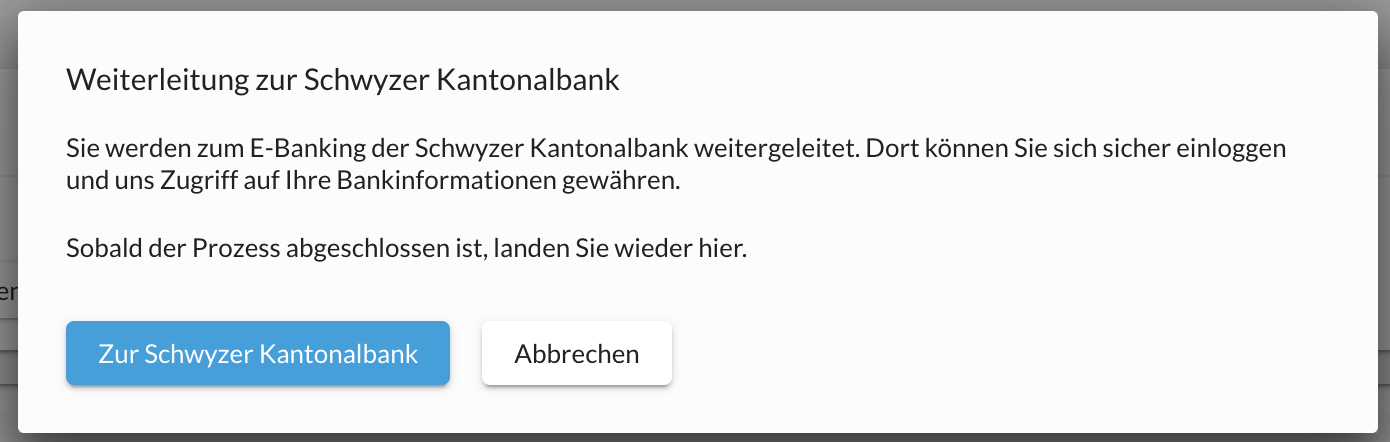
- Please log in using your Schwyzer Kantonalbank e-banking login details (e-banking contract number and password).
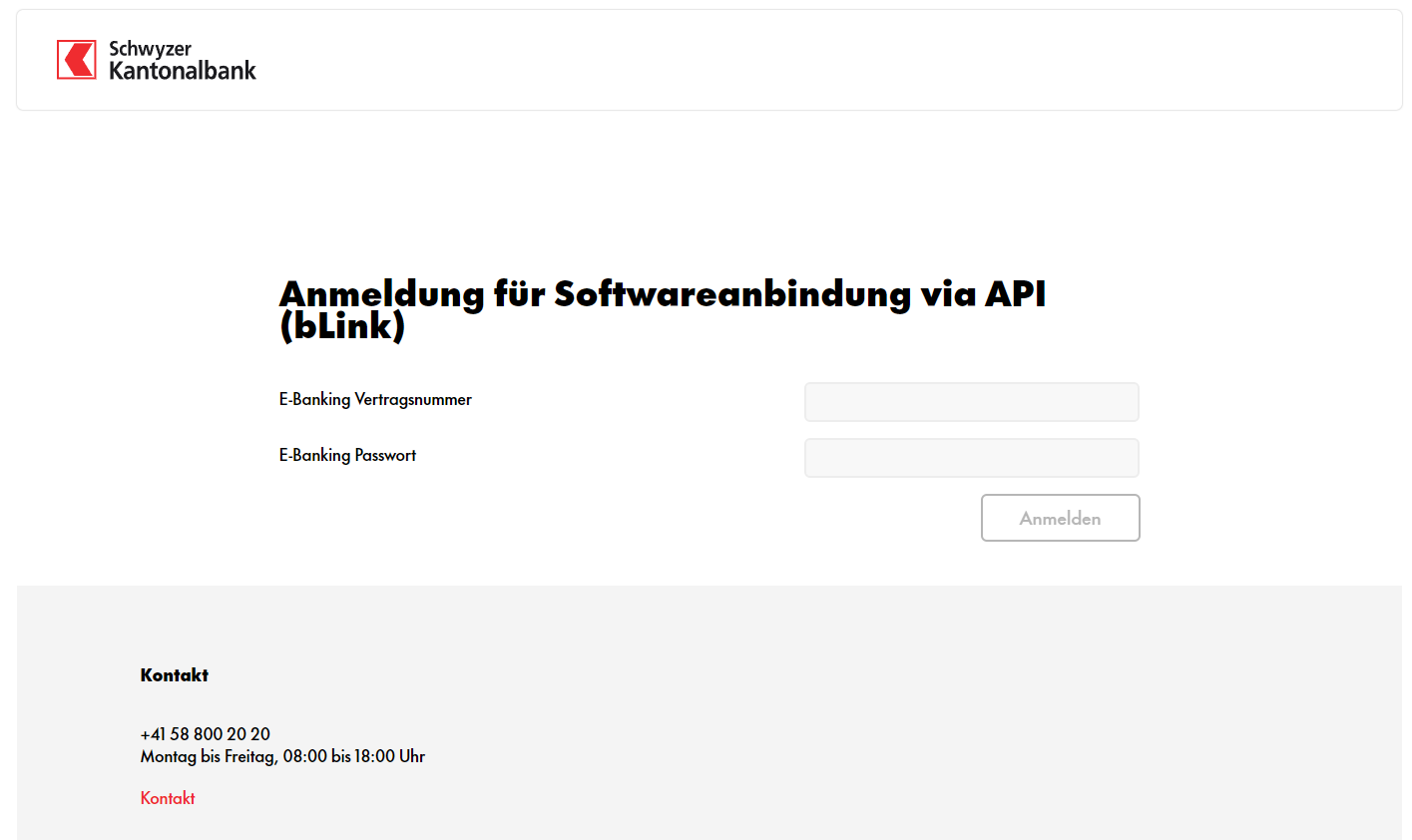
- Confirm your registration with the SZKB Secure App.
- Check all three boxes so that account information and payments can be transmitted to the bexio system.
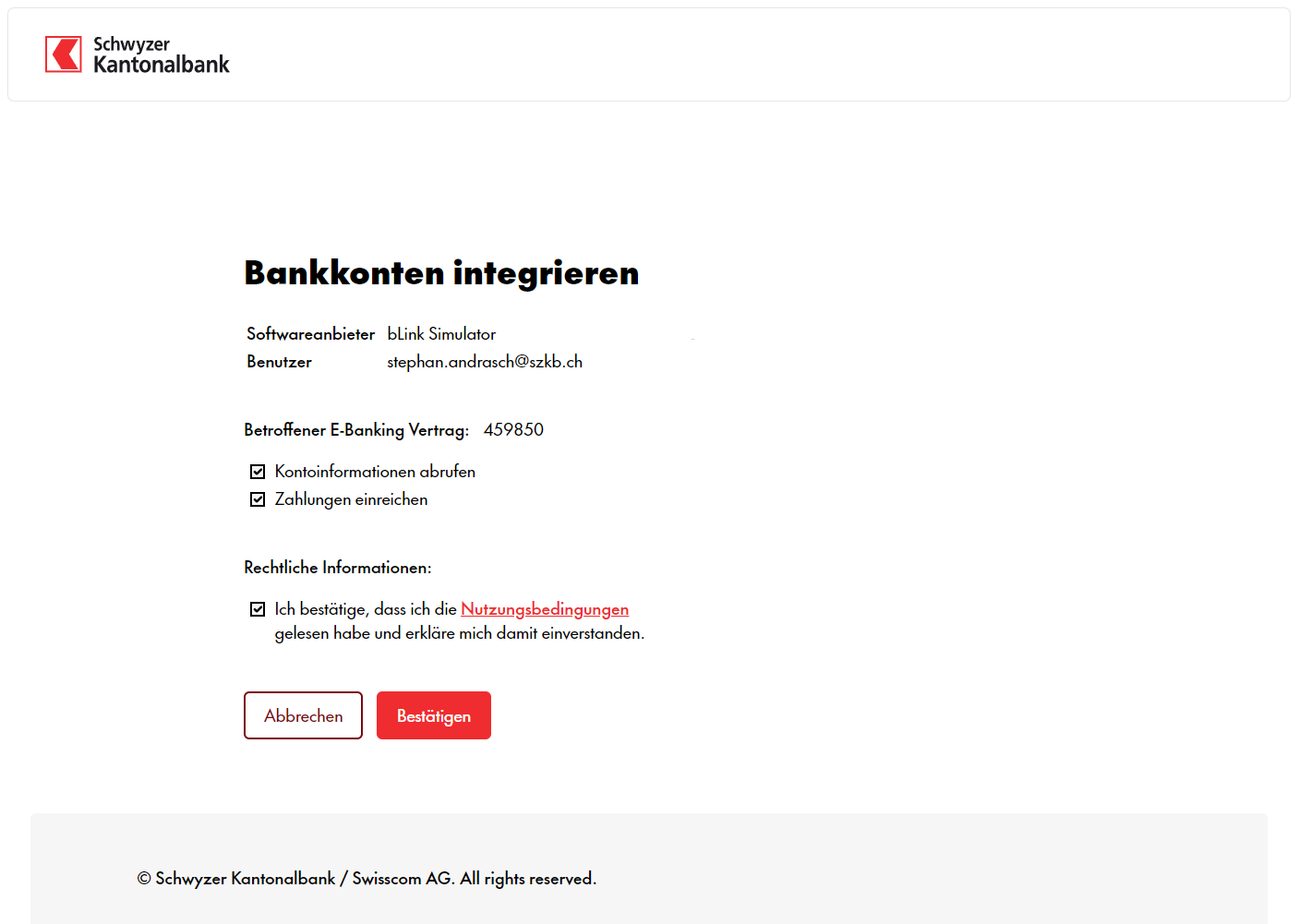
- After confirmation, you will be redirected back to bexio and the connection will be established.
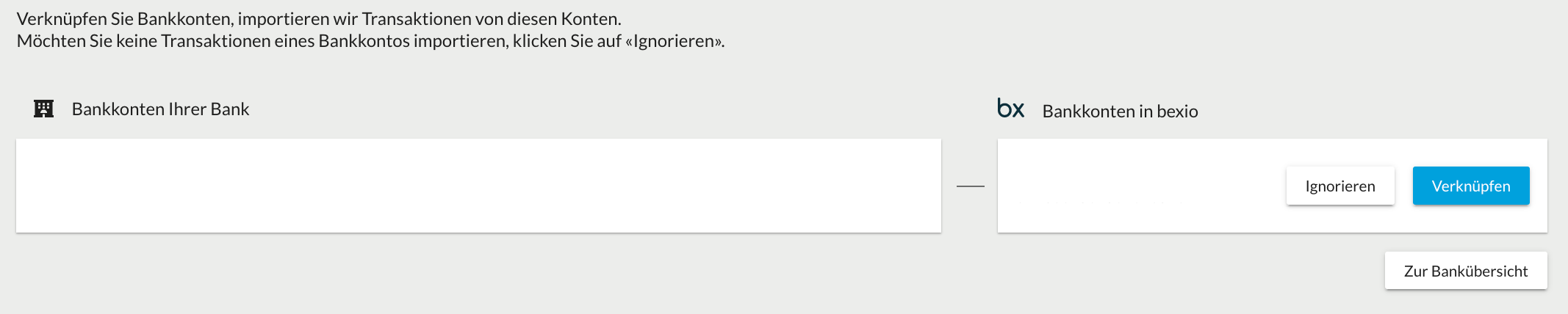
- Link the bank account to the existing bexio bank account or to a new bexio bank account. Bank accounts that you do not want to use in bexio can be ignored by selecting the option "Ignore this bank account in bexio." It is important that all bank accounts are either linked to a bexio bank account or explicitly ignored.
Retrieve transactions retroactively using the date range
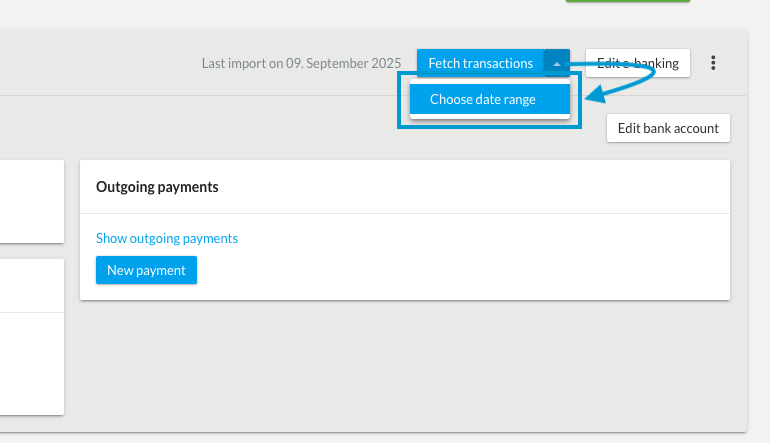
Transactions can be imported retroactively into your bexio account. To do this, click on Banking in the menu at the top of bexio and then click on the small arrow next to "Retrieve transactions." You can then specify a "date range." This means that even account statements that may already be marked as "fetched or read" in your e-banking will be checked again and imported.
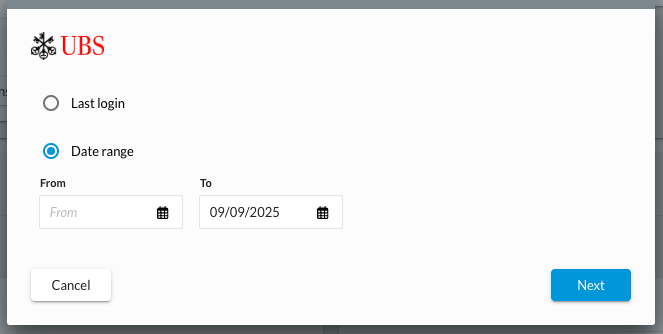
We have a duplicate filter active on the interface that prevents you from importing a transaction twice. This means you cannot have duplicates and can therefore ensure that all transactions have been imported. All transactions are automatically retrieved overnight. Due to technical limitations, we can only retrieve 5 business days at a time within a 2-month period. However, this feature allows you to ensure that all transactions have been imported and that nothing has been forgotten.
Deactivation of the interface
How do I separate my bank in bexio?
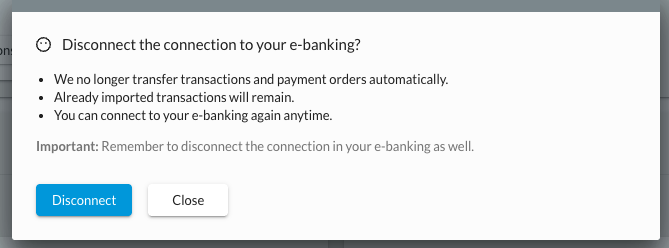
You can manually disconnect from e-banking by clicking on the "three dots" next to the "Edit e-banking" button.
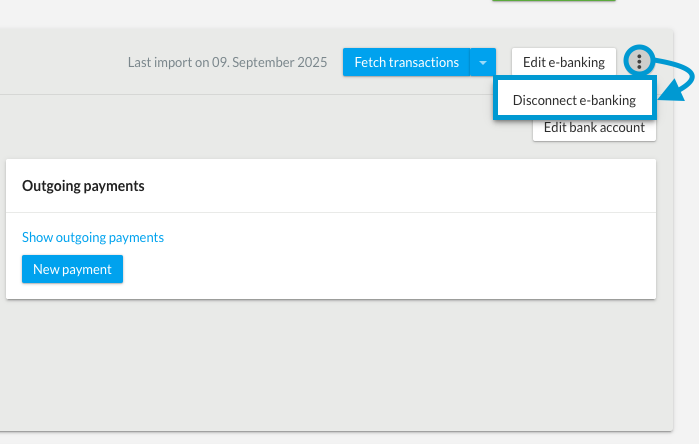
A dialog box will open in which you must confirm the disconnection between bexio and e-banking. Transactions that have already been imported will still be visible in bexio. The connection can also be reestablished at any time.
Record and approve outgoing payments
Record payments
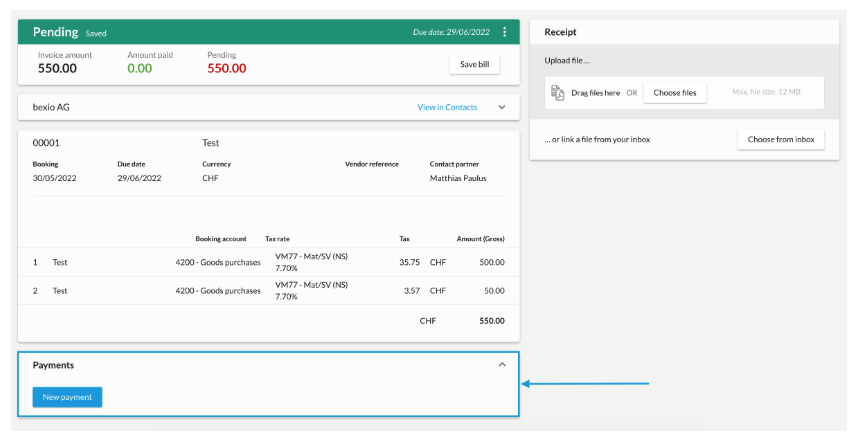
Outgoing payments are best recorded via the supplier invoice or alternatively directly under "Banking" → "New outgoing payment."
Submit payments
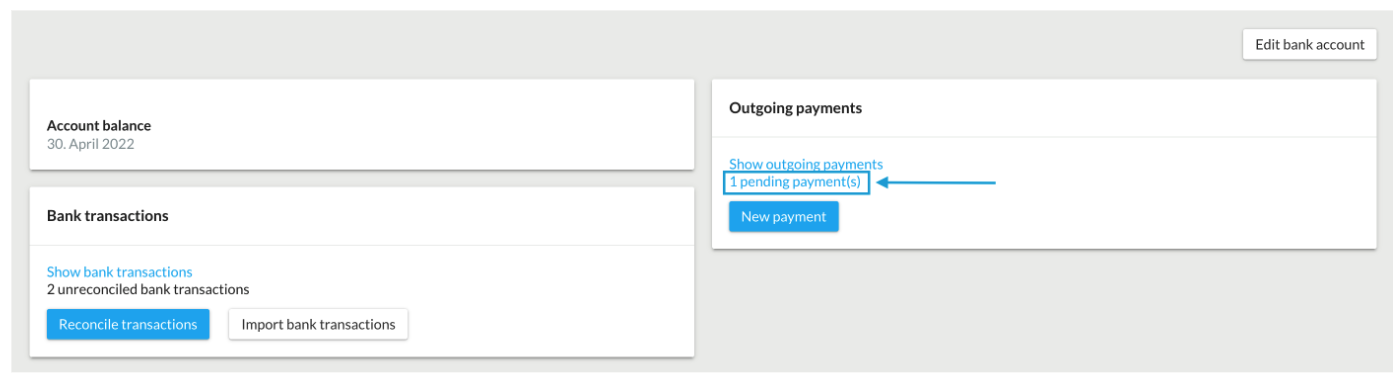
Once the payment has been recorded, it will appear in the bexio Banking section under "Show outgoing payments." To send the payments to your e-banking for execution, select the relevant outstanding payments and then click on "Submit payments."
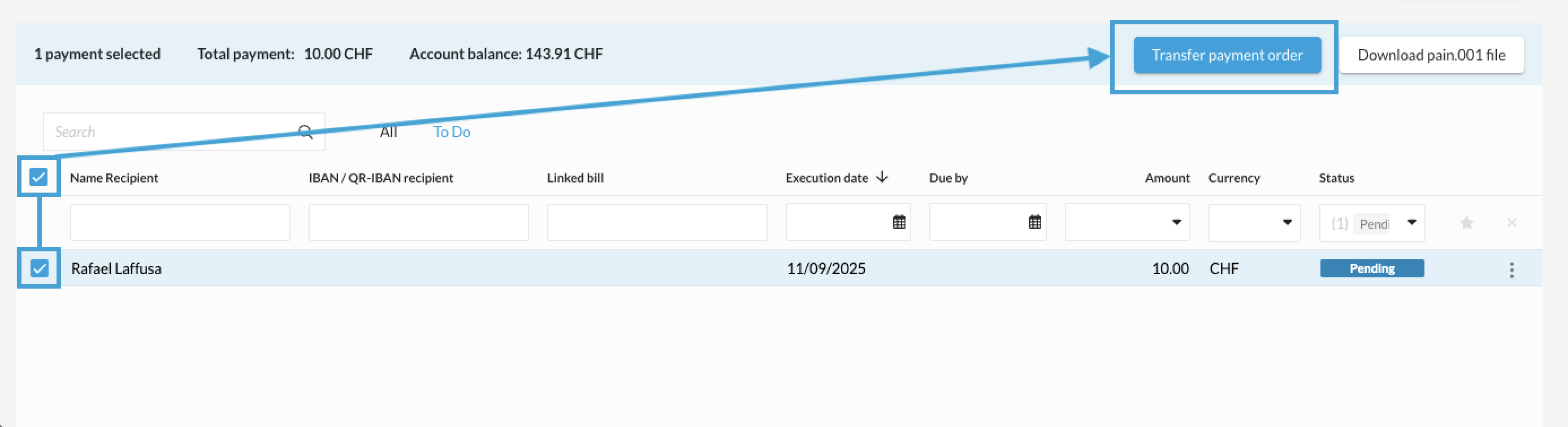
After submitting the payments, you must approve them in e-banking so that the payment is executed on the desired date.