In this article, you will learn what information is available in the details view of a client in the bexio Cockpit and how to manage it.
Contents
Overview
The “Overview” tab displays the most important information at a glance. The display varies depending on your role and permissions.
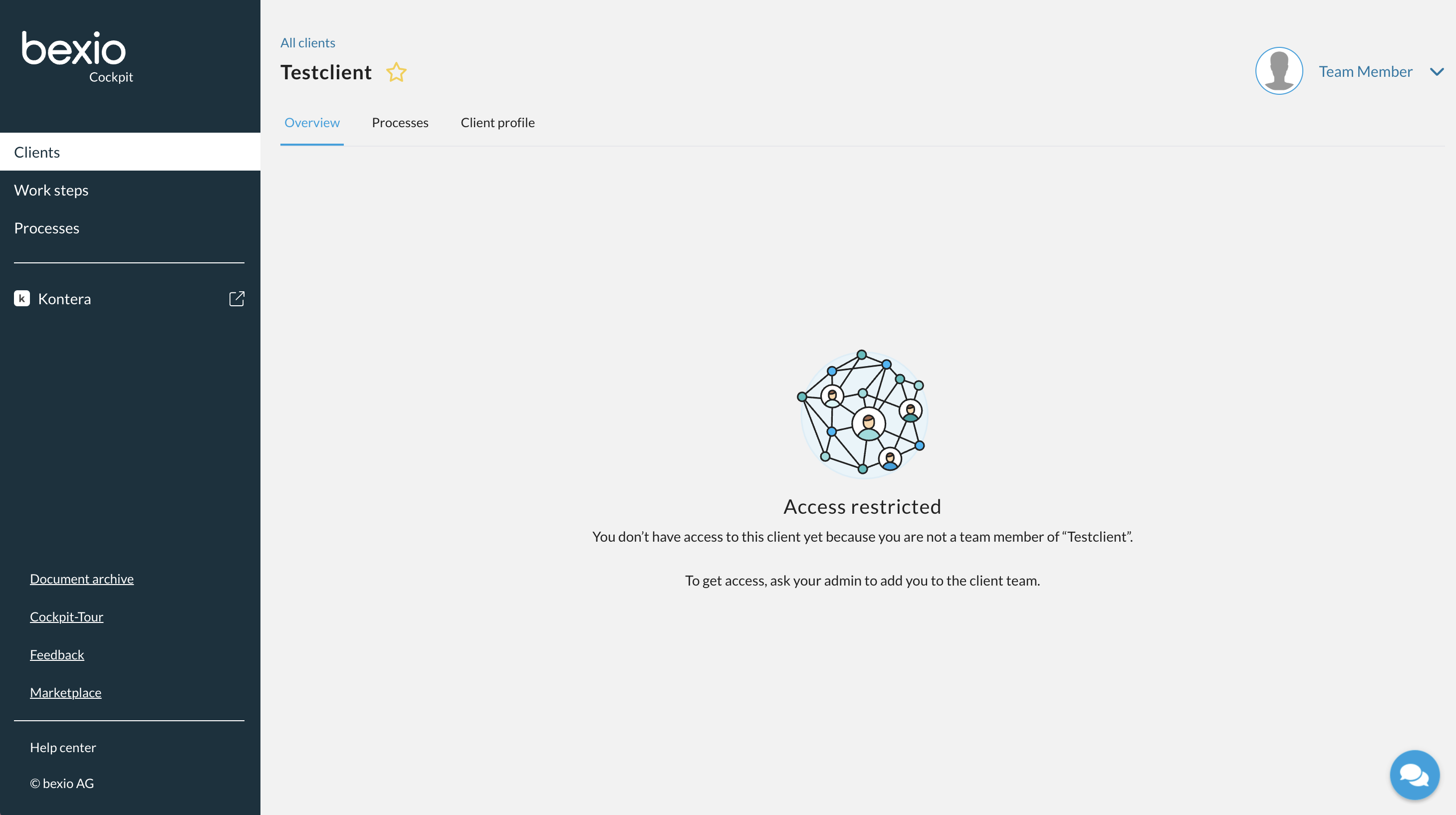
You are a team member in the Cockpit without a connection to the client:
If you do not have access to the client or are not a team member of that client, you cannot view any further details. To gain access, contact your Cockpit administrator so they can grant you access. The client must also confirm the access.
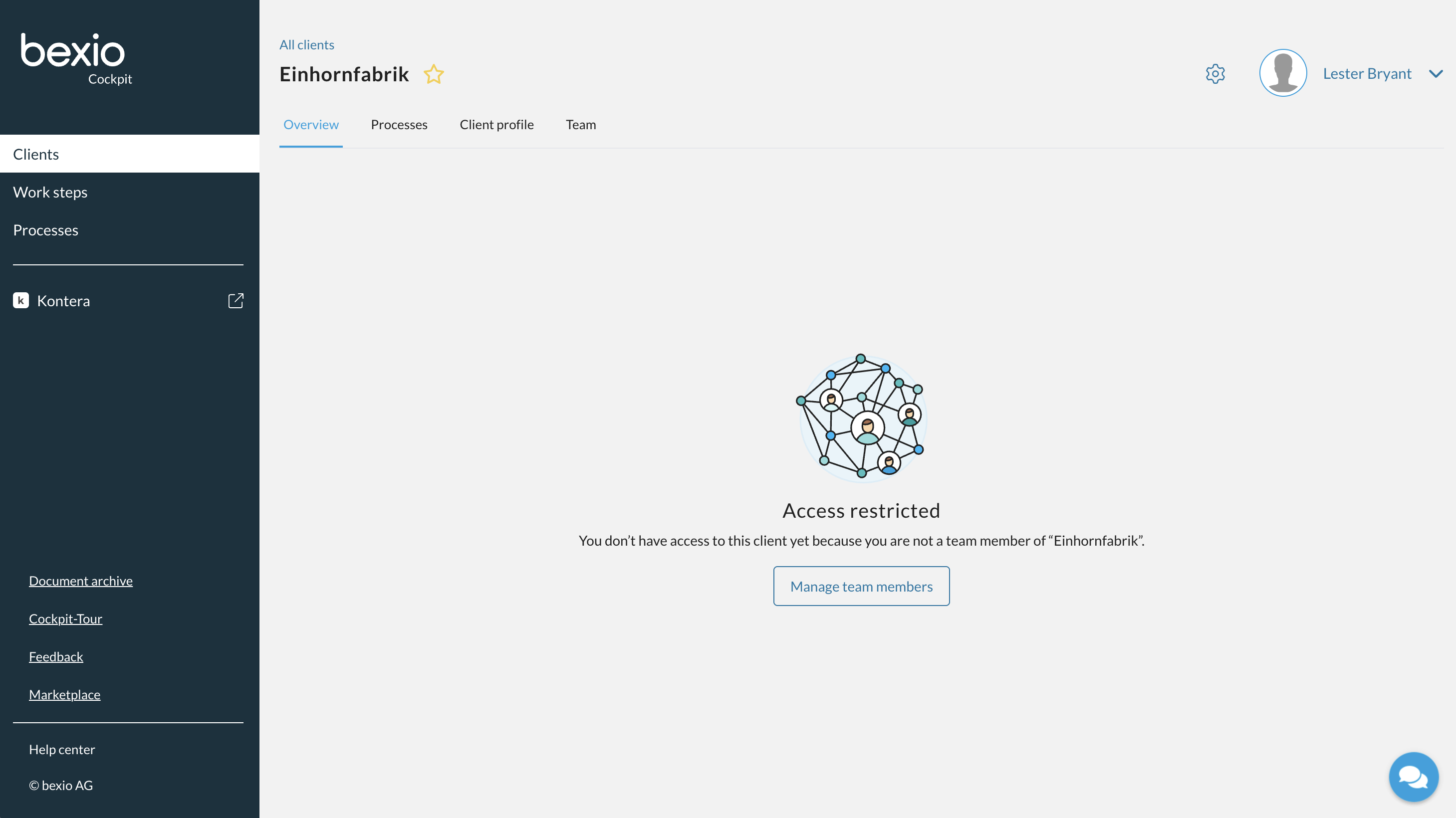
You are an admin in the Cockpit but are not connected to the client:
If you do not have access to the client or are not a team member of that client, you cannot view any further details. To gain access, go to the “Team” tab and request access to the client. The client must first accept the invitation for you to receive full access.
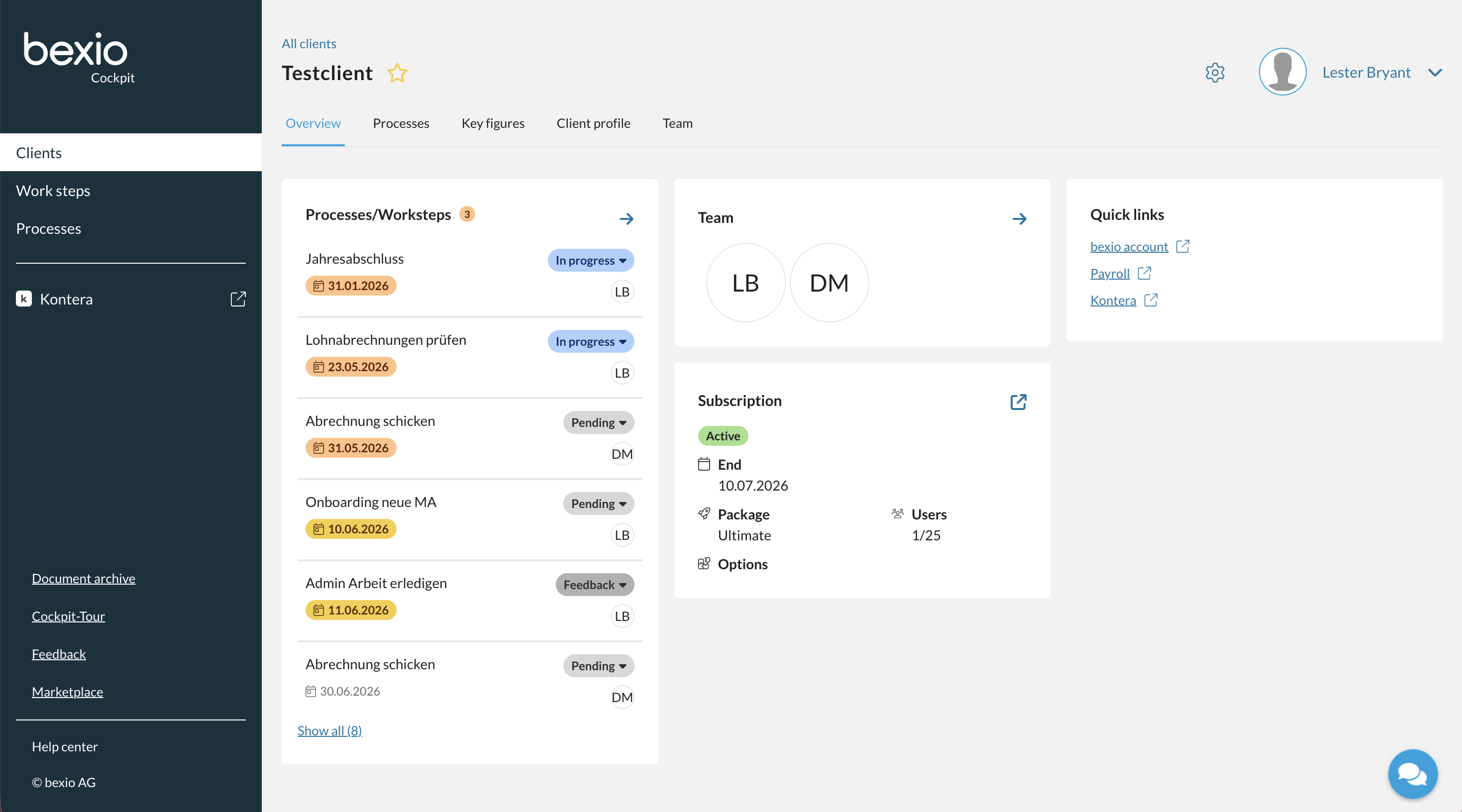
You are connected to the client:
If you have access to a client, you will see the following information in the overview:
- Key information about the most urgent processes and tasks
- Team members who also have access to the client
- Key information regarding the subscription (term, package, users, and options)
- The most important links so you can quickly and easily access our tools
When you click the arrow icon on the respective tile, you will be taken directly to the corresponding menu item.
You also have the option to mark a client as a favorite by clicking the star icon next to the client name.
Processes
Processes with steps can be filtered, edited and created here in the client tab.
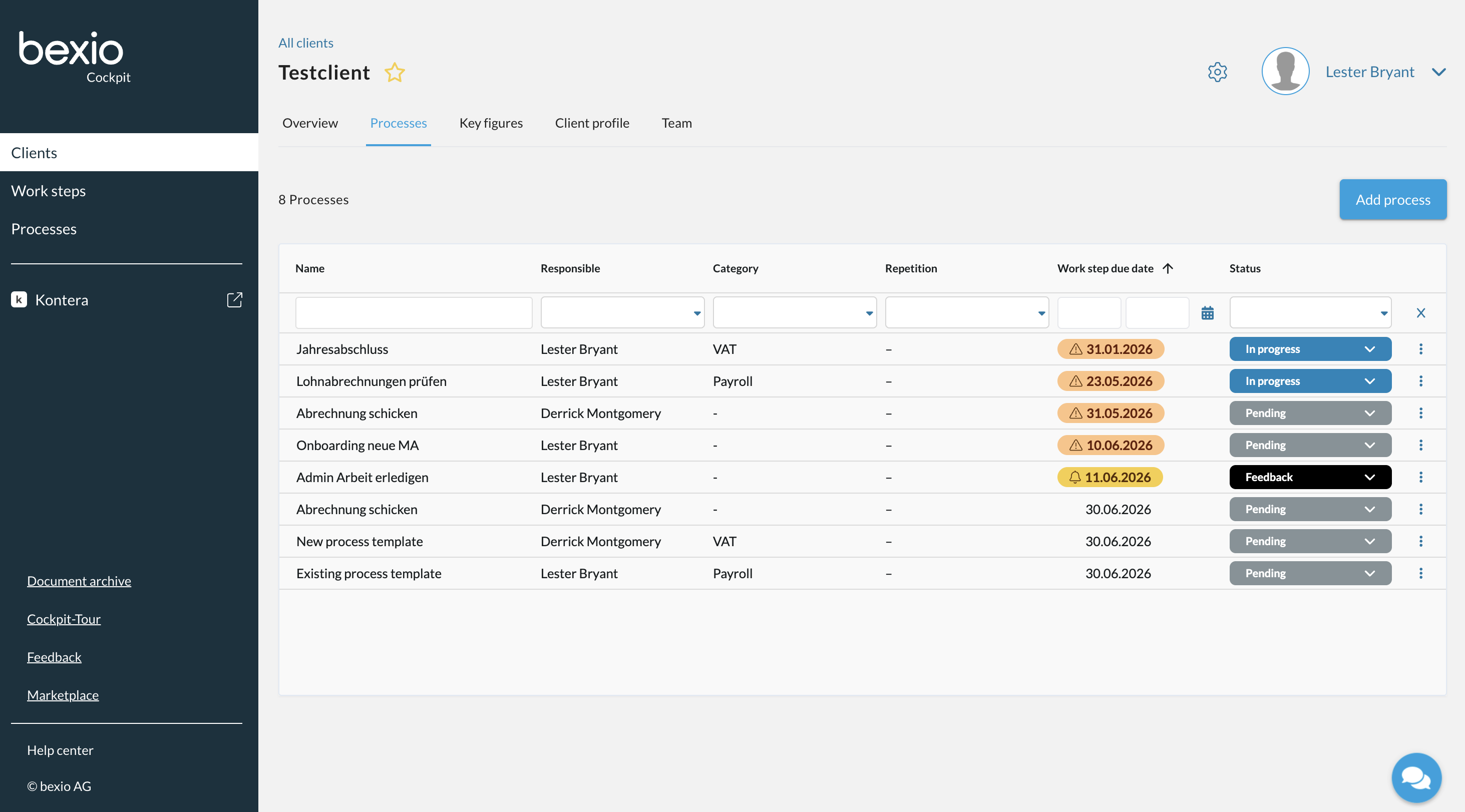
Clicking on a process opens it, displaying the associated steps and providing you with additional editing options.
Key figures
The key figures for a client are derived directly from bexio accounting and synchronised daily. Delays with data synchronisation (up to 48 hours) may therefore occur.
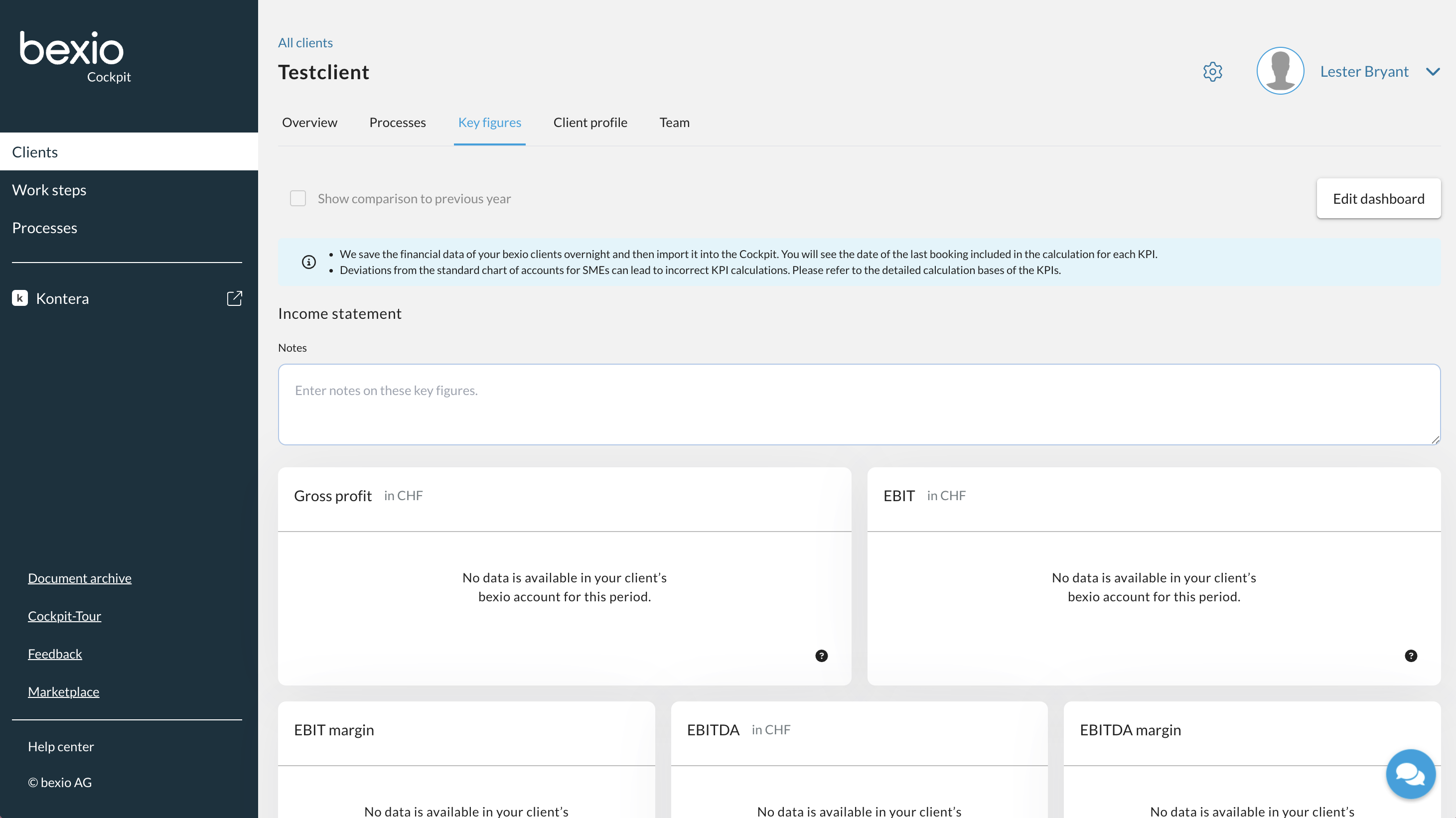
The possible key figures can be displayed with or without a year-on-year comparison and include the following key performance indicators, indicators of liquidity, and key balance sheet figures.
| Key performance indicators | Liquidity indicators | Key balance sheet figures |
| Gross profit | Operating cash flow | Quick ratio |
| EBIT | Liquid assets | Working capital |
| EBIT margin | | Outstanding accounts receivable |
| EBITDA | | Outstanding accounts payable |
| EBITDA margin | | |
A derivation or explanation of each of these key figures can be found behind the question mark symbol for the key figure in question.
Furthermore, notes and warnings can be stored here in relation to the key performance indicators, liquidity indicators and key balance sheet figures. Warnings are displayed on the client overview so that you can respond as a fiduciary.
Client profile
In the client profile you can see the address and contact person per the company profile in the bexio account. This information is also automatically synchronised and displayed.
Team
Under “Team,” you can see all team members who have access to this client. Using the three-dot menu, you can remove users who are already connected (“Disconnect”). If the client has not yet confirmed a newly added user in their bexio Office, the status “Access requested” will appear here. Using the three-dot menu, you can resend the access request for these users or withdraw it.
Click “Select team member” below and then the “Add team member” button to connect a new user to this client. Note that the client must confirm every user in their bexio Office.