Import new contacts or update existing contacts in bexio. Imports are carried out in the background. You can therefore continue working in bexio during an import.
Note: We recommend a maximum of 5'000 contacts per import.
Important: If you have already entered contacts in bexio, we will match the contacts in bexio with the contact numbers from your import file. Make sure that the contacts from the import file do not have the same contact numbers as the contacts in bexio if you do not want to overwrite the contacts in bexio.
Example: If you want to export contacts from one bexio account and import them into the second bexio account to complete the contact list, the contact numbers in the export file must be removed. Otherwise all contacts in the second bexio account will be overwritten with the contact data from the first bexio account.
Contents
- Where can I find the contact import tool?
- Which formats can be imported?
- Which contact information can be imported?
- How do I enter line breaks?
- Is the file checked for duplicates?
- Can I also update contact details using the contact import tool?
- Import a list of contacts
Where can I find the contact import tool?
The contact import feature is located in the contact list next to the button for creating a new contact.
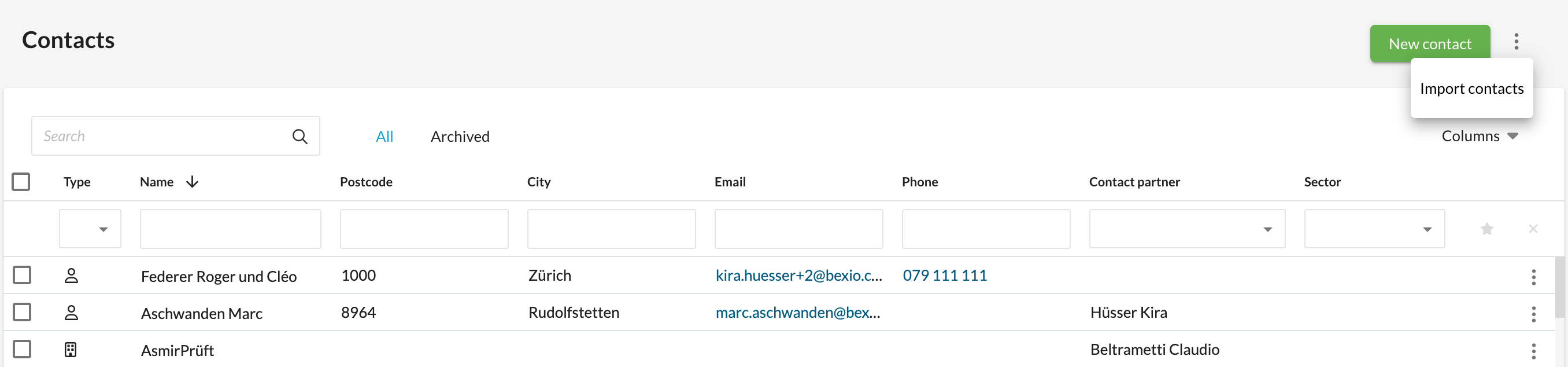
User right: In order for the import function to be visible, you need to have the user right "Edit = all" for the "Contacts" module. Account holders and "super admin" users can edit these rights.
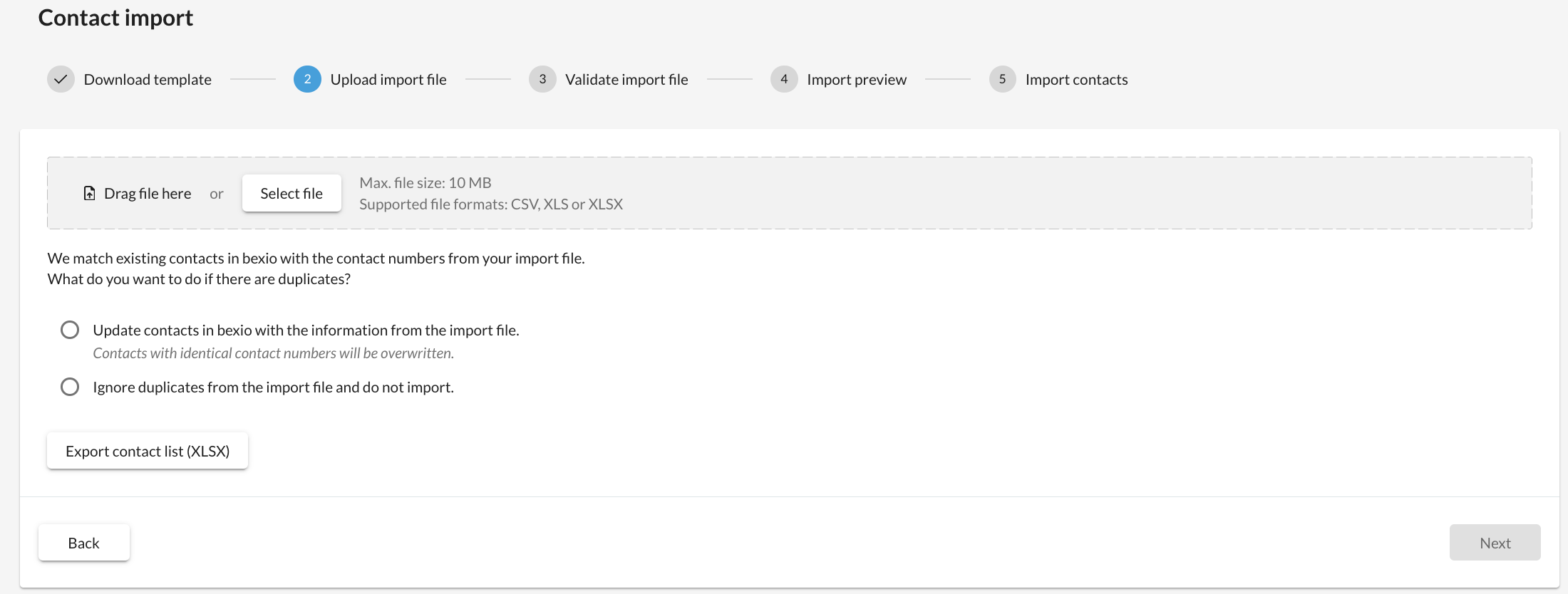
When importing contacts, files in CSV, XLS or XLSX format can be uploaded. The maximum file size is 10 MB.
We strongly recommend working with bexio's Excel template. You can download this in the first step of the contact import. Add your contacts to the template and then upload the file again in the second step.
Note: We recommend a maximum of 5'000 contacts per import.
All values contained in the Excel template can be imported. Additional columns will be ignored during import.
In the following table, we will discuss the special characteristics of some of the values:
|
Value
|
Characteristic
|
|
Contact no.
|
The contact number can be assigned either manually (via Excel import) or automatically for all contacts.
A contact number may only contain numbers. No letters or special characters are allowed.
For automatic assignment, the "Contact no." field can be left empty for all contacts.
|
|
Contact type
|
All contacts must contain a contact type. Only the values "1" for company and "2" for private are allowed as the contact type.
|
|
Company
|
All contacts with the contact type "Company" must contain a company name.
|
|
Surname
|
All contacts with the contact type "Private" must contain a surname.
|
|
Contact no. of the linked company
|
Private contacts can be linked to company contacts as a contact person.
To do this, enter the contact number of the associated company contact in the "Contact no. of linked company" field in the row of the private contact.
Any number of private contacts can be linked to company contacts.
|
|
Contact person
|
All contact persons must be stored in bexio and clearly correspond to a bexio user or a contact person (without a login). Enter the contact person using the format "Surname" "First name".
If no contact person is entered, the user who carries out the contact import will be stored as the contact person.
|
|
Street
|
Street name (max 70 characters)
|
|
House no.
|
House Number (max 10 characters)
Can only be added if the street contains a value.
|
|
Address addition
|
Address addition (max 70 characters)
E.g. floor or a building
Can only be added if the street contains a value.
|
|
Category
|
All categories must be stored in the bexio settings. Several categories can be entered with a "semicolon" as a separator.
Example: Supplier;Customer
|
|
Sectors
|
All sectors must be stored in the bexio settings. Several sectors can be entered with a "semicolon" as a separator.
Example: Automotive;Consulting
|
|
Correspondence type
|
Possible values: “Post” and “Email”. If there is no value given, Email will be defined.
|
|
Number of employees
|
An integer between 1 and 5’000’000.
|
How do I enter line breaks?
Line breaks can be entered in the "Address", "Link information" and "Remarks" fields. These are recognised during import and entered in bexio.
You can insert line breaks in the file using a keyboard shortcut:
Is the file checked for duplicates?
The contacts contained in the file are not checked for duplicates. Clean up your import file and make sure that it does not contain any contacts more than once.
Can I also update contact details using the contact import tool?
Yes, you can. Existing contacts are identified by their contact number.
It is best to export the contacts you want to update from the contact list. In the Excel file, make the adjustments you want and then upload the file as an import file during contact import.
It is possible to export all information, except for contact owners and address forms.
For the existing contacts to be updated in bexio, the option "Update contacts in bexio with the information from the import file" must be selected in the 2nd step of the contact import.
To ensure a smooth and successful import of your contacts, we highly recommend using the official bexio contact template. This template is designed to match our system's structure, which helps prevent errors and missing information.
If you've exported contacts from one bexio account and wish to reimport them into another, you may encounter an issue with the "Address" column. This is because our system cannot automatically import the combined address format.
To solve this, you have two options before reimporting your Excel file:
- Split the data: separate the street name and street number into their respective columns (street and house number).
- Rename the column: change the header of the "Address" column to street name and delete the empty street name column.
This will ensure that the street name is imported correctly.
Upcoming structured address update
If you are working with a very large list of contacts, you may want to wait for our structured address mass update to separate street name and street number, scheduled for release in November. This new feature will simplify the update process for large datasets.
Note
In principle, the data in bexio is overwritten by the data in the file during an update.
"Categories" and "Sectors" are replaced with the values contained in the file and are not supplemented.
The following information cannot be updated via contact import:
- Contact no. of the linked company
- Link information