Inhalt
Quick Info
In this article, you'll learn how easy it is to sync your BCJ bank account with bexio and how to reconcile transactions and submit payments.
| Set up data transfer: | Enable bLink in online banking and grant bexio access |
| File format for payments: | pain.001 |
| File format for the bank statement: | camt.053 V8 |
| Notes: |
- Only one contract can be linked to a bexio account at a time
- QR-compatible interface
- Automatic overnight synchronization of transactions
- Transactions are always available the next day
- Date filter (Retroactive Retrieval of Transactions)
- Authentication via the access app
|
Connect e-banking
First, you need to set up your BCJ Create a bank account. You can then link your bexio bank account to your e-banking account as follows:
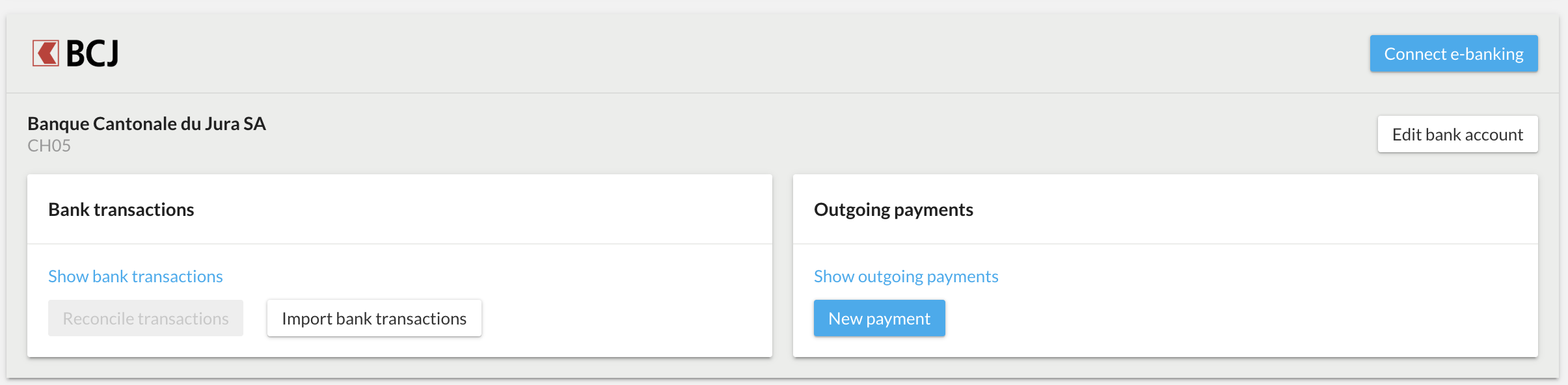
- Go to the "Banking" section and scroll down to your BCJ account
- Click "Connect to E-Banking"
- A dialog box will appear informing you that you are about to be redirected to BCJ's online banking service. Click "Go to BCJ" to continue.
- Log in using your e-banking credentials, including your verification method.
- Allow bexio to access your banking data by clicking "Confirm."
- Link the bank account to an existing bexio bank account or to a new bexio bank account. Bank accounts that you do not want to use in bexio can be ignored using the "Ignore this bank account in bexio" option. It is important that all bank accounts are either linked to a bexio bank account or explicitly ignored.
Once you have successfully linked at least one bank account, the "Retrieve Transactions" button will appear in place of the "Connect to Online Banking" button.
Retrieving transactions
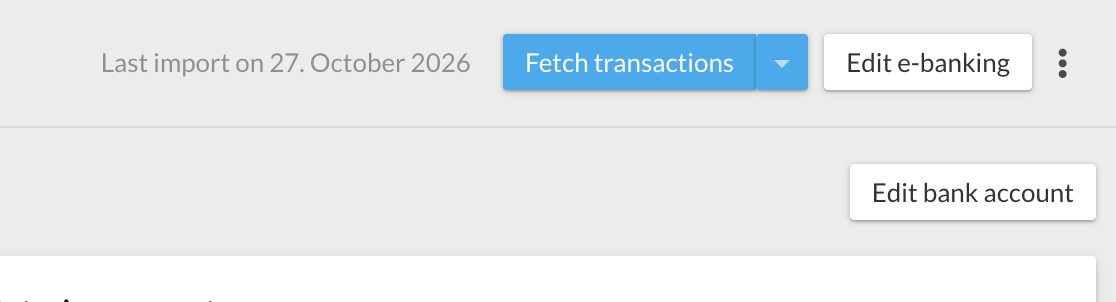
The BCJ bank account is synchronized automatically every night. If you want to perform the synchronization yourself, you can do so manually by clicking "Retrieve Transactions" in the "Banking" section.
Retrieve transactions retroactively using the date range
Transactions can be imported into your bexio retroactively. To do this, click “Banking” in the top menu of bexio, then click the small arrow next to “Retrieve Transactions.” You can then specify a “Date Range.” This ensures that even account statements that may already be marked as “retrieved or read” in your online banking will be checked again and imported.
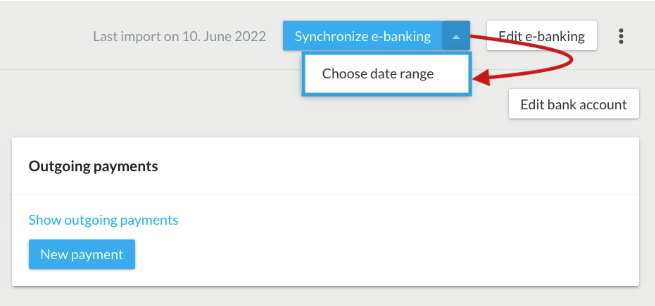
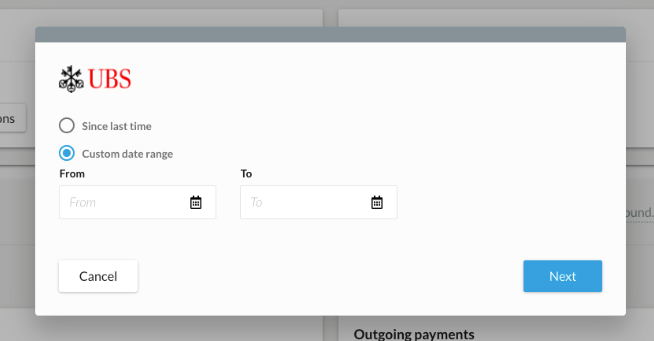
We have a duplicate filter enabled on the interface that prevents you from importing a transaction twice. As a result, you cannot have duplicates, which ensures that all transactions have been imported. All transactions are automatically retrieved overnight. However, this feature allows you to verify that all transactions have been imported and that nothing has been overlooked.
Record and approve outgoing payments
Record payments
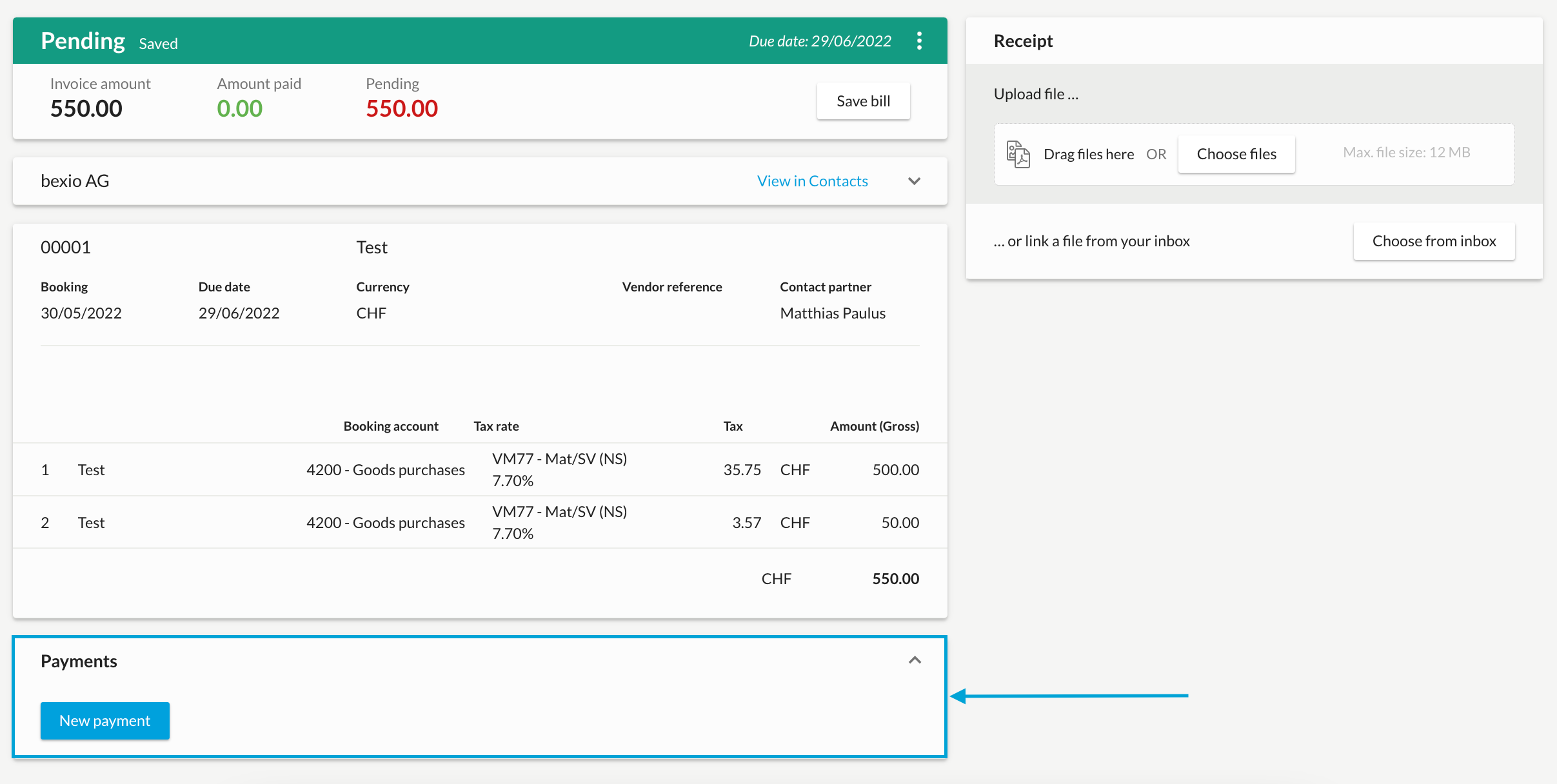
Outgoing payments are best entered via the supplier invoice or, alternatively, directly under “Banking” → “New Outgoing Payment.”
Submit payments
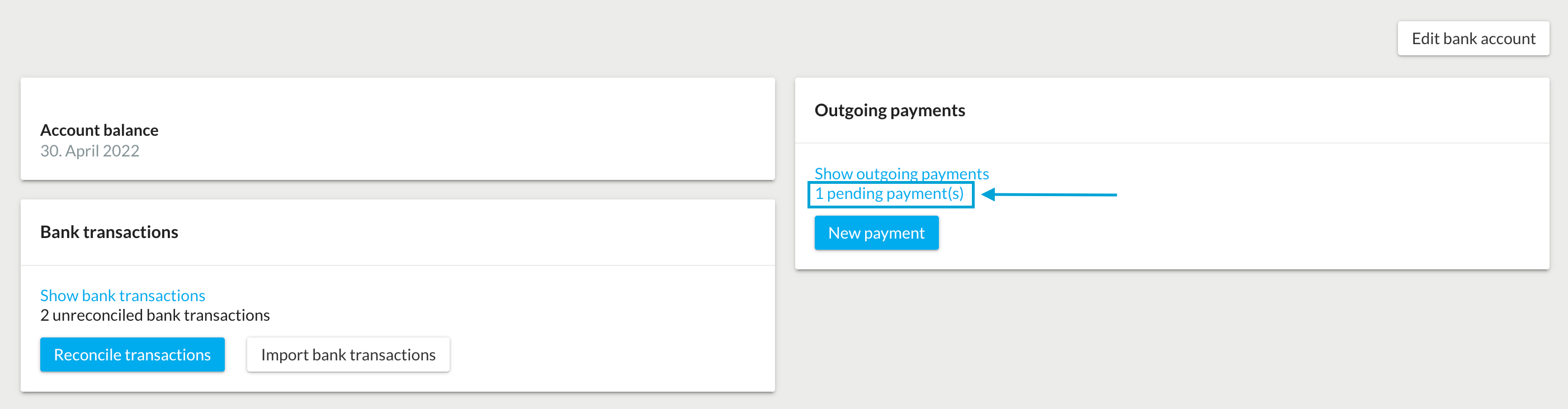
As soon as the payment has been recorded, it will appear in the bexio Banking section under “(..) Pending Payments.”
Um die Zahlungen für die Ausführung an Ihr E-Banking zu senden, wählen Sie die betroffenen offenen Zahlungen an und klicken anschliessend auf «Zahlungsauftrag übermitteln».
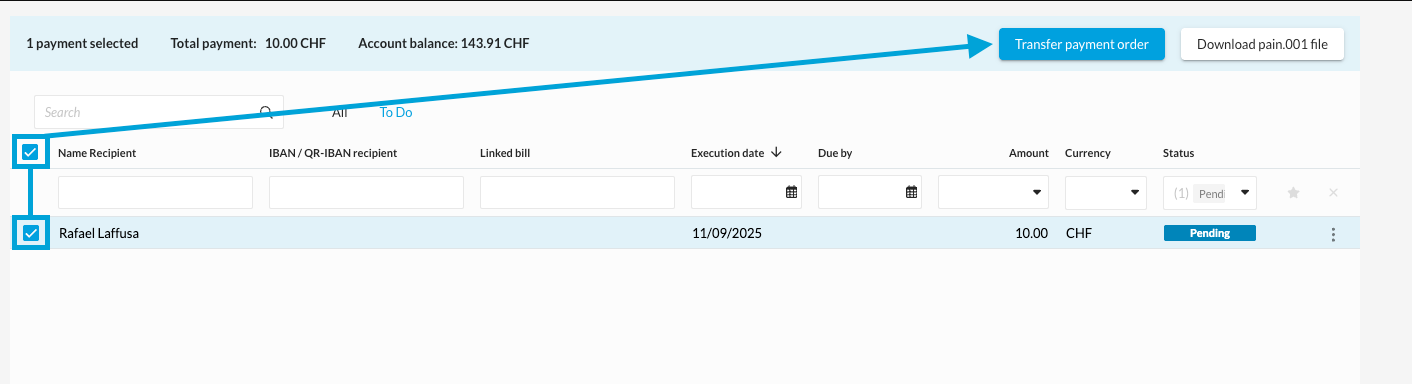
Nach der Übermittlung der Zahlungen müssen Sie diese zwingend im E-Banking freigeben damit die Zahlung am gewünschten Datum ausgeführt wird.
Hinweis:If the "Submit payment order" button is grayed out, this means that the interface is not connected, and you can only download a pain.001 file.

Disconnect the interface
How do I set up my bank account in bexio?
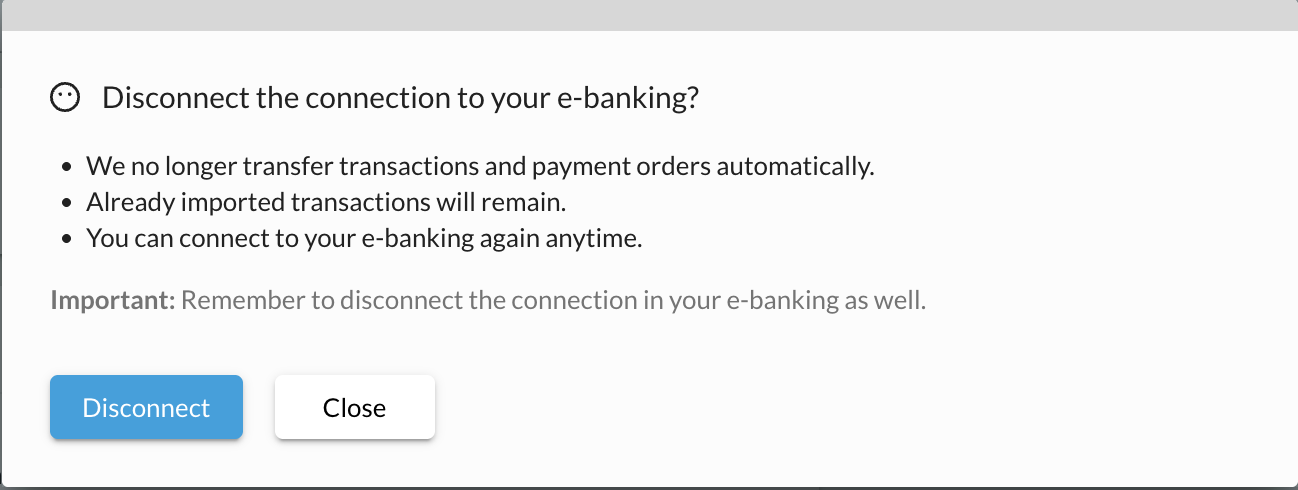
You can manually disconnect the e-banking connection by clicking the "three dots" next to the "Edit E-Banking" button.
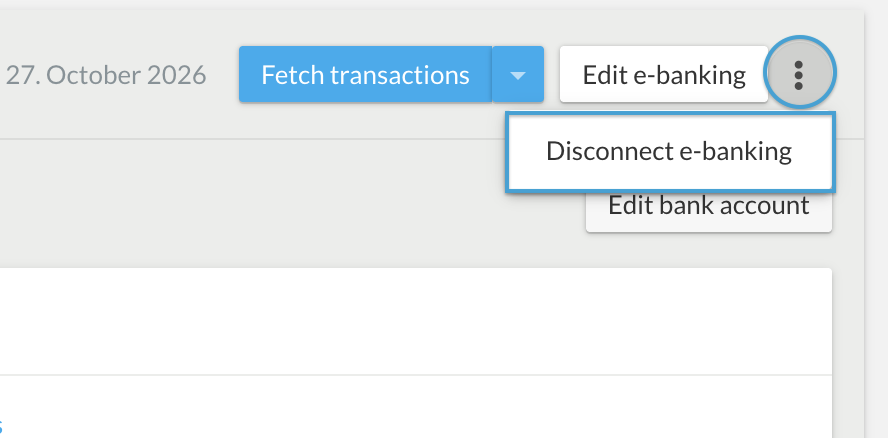
A dialog box will open in which you must confirm the disconnection between bexio and e-banking. Transactions that have already been imported will still be visible in bexio. The connection can be reestablished at any time.