Payroll types (Lohnarten) are the core of bexio's payroll accounting, controlling various components like salaries, allowances, and social security contributions. Their calculation logic must comply with legal regulations and forms the basis for annual payroll submissions. Existing payroll types can only be edited regarding their description and financial accounting accounts, but cannot be deleted once they have been used in payroll statements. The adjustment options include defining whether the payroll type is gross or net, increases or decreases the gross wage, and is subject to insurance contributions. You can edit payroll types under the menu item Company -> Payroll types. It is recommended to consult with a fiduciary beforehand and not to delete payroll types that have been used.
The wage types are used to control various wage elements during wage processing, such as
- Monthly wage
- Hourly wage
- Children/education allowance
- Daily allowance sickness/accident
- Daily allowances military/maternity
- Miscellaneous bonuses /premiums
- Payment for overtime
- Payment of expenses
- Social security contributions (AN/AG)
- Withholding tax etc.
All wage types are grouped in a wage type master and form the center (heart) of bexio payroll accounting. This involves the calculation logic for each payroll run, which must comply with social insurance and tax regulations. The cumulative values form the basis for the wage declarations required by the social insurance funds at the end of the calendar year. We have therefore decided to limit the creation and adjustment of wage types accordingly.
You can find the default settings and default account assignment in the following PDF:
Create new wage types: bexio supplies the Swissdec model wage type master as standard. Due to the significance, as mentioned above, you cannot create new wage types. If necessary, contact the support department. We will create the required wage type for you according to your specifications.
Adjust wage types: Existing wage types can only be adjusted with regard to description and FA accounts. New also the digit (wage statement).
Description: Name of wage type; Are printed on payroll and appear on all evaluations.
Debit account: FA account from bexio financial accounting. Selectable from the "Account plan" tab.
Credit account: FA account from bexio financial accounting. Selectable from the "Account plan" tab.
Digit (Wage statement): Digit assignment of the wage type for the wage statement. Determines in which digit of the wage statement the cumulative values from the paystubs are entered.
Further control data:
- Number
- Gross
- Increasing / Decreasing
- OASI/ALV
Determines whether wage type requires OASI/ALV - AI /AAI /DSP (accident, additional accident, illness)
Determines whether wage type requires AI /AAI /DSP - ST (Source Tax)
Determines whether wage type requires ST.
Tip: Talk to your trustee in advance and compare the standard wage type master with your requirements.
Note: Wage types that are already used in existing wage accounting cannot be deleted. We recommend that you do not delete wage types and refer to the specification that any changes (new or cancelled wage types, altered processes) must be reconstructed during at least 5 years (OASI revision).
Where and how can I create or adjust wage types?
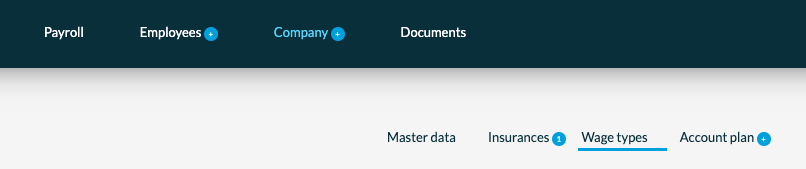
You can edit wage types in payroll accounting under "Company" -> "Wage types
Explanation of the column headings:
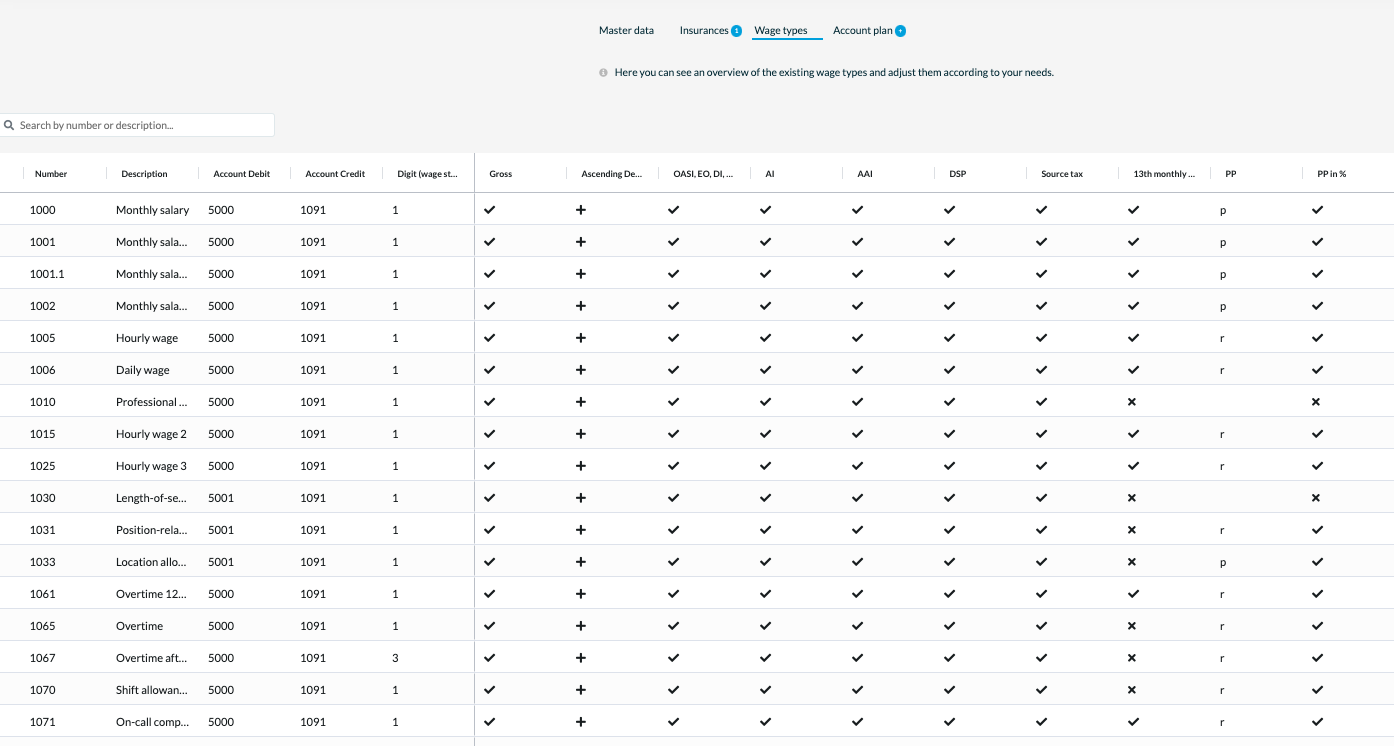
- Number: Wage type number, assigned by bexio and cannot be edited.
- Description: Name of the wage type, you can adjust it using the "Edit" button.
- Debit account: Selection of debit account using the accounts created in the wage "Account plan". You can customize using the "Edit" button.
- Credit account: Credit account selection based on the accounts created in the wage "Account plan". You can customize using the "Edit" button.
- Wage statement: Number of the corresponding field on the wage statement. You can now edit the digit directly in the wage types. This parameter determines the position of the respective wage type on the wage statement.
This gives you more flexibility to copy existing wage types and adjust their placement on the wage statement according to your needs.
This adjustment can also be made retroactively, even if all paystubs have already been closed.
You can make the settings directly under ‘Company’ ‘Wage types’ by clicking on the corresponding line and selecting the appropriate number in the ‘Wage statement’ column and saving it.
Any wage statements that have already been created would then have to be recreated.
- Gross: Differentiation gross/net wage hook = gross, cross = net
- Increasing/decreasing: Has a positive influence on gross wage / has a negative influence on gross wage
- Insurances (OASI, DSP, ST, etc.): Wage type is cumulative as the basis for the insurance deduction or not (tick or cross indicator).