New time recording
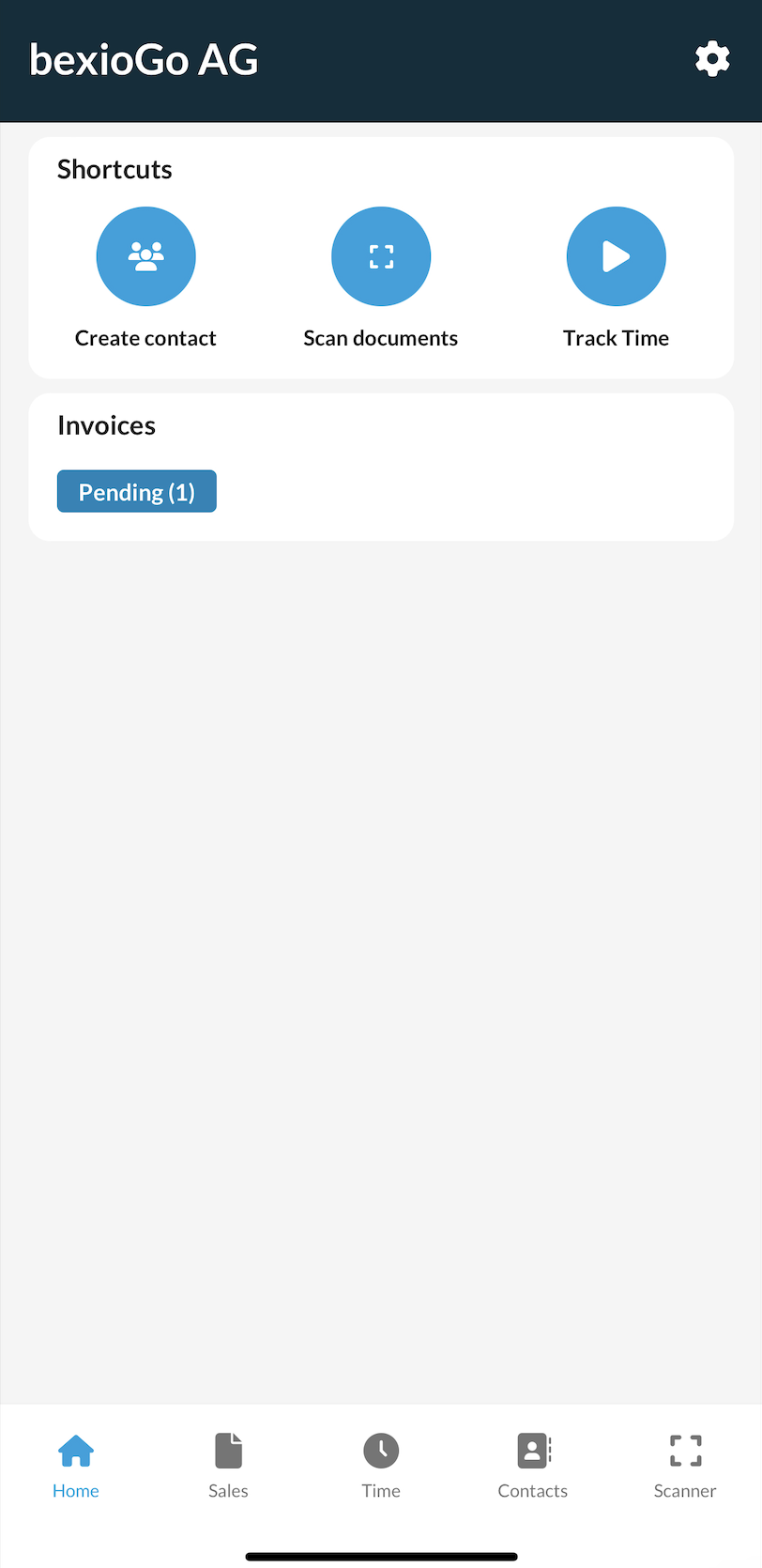
Make sure you are signed in to the correct company. In the header, you can change the company using the “arrows” if you have created several. Finally press “Track time”. A service can also be recorded in “Offline mode” (while disconnected from the Internet), but of course you will need to connect in order to upload the time entries to your bexio account.
Menu - Stop watch
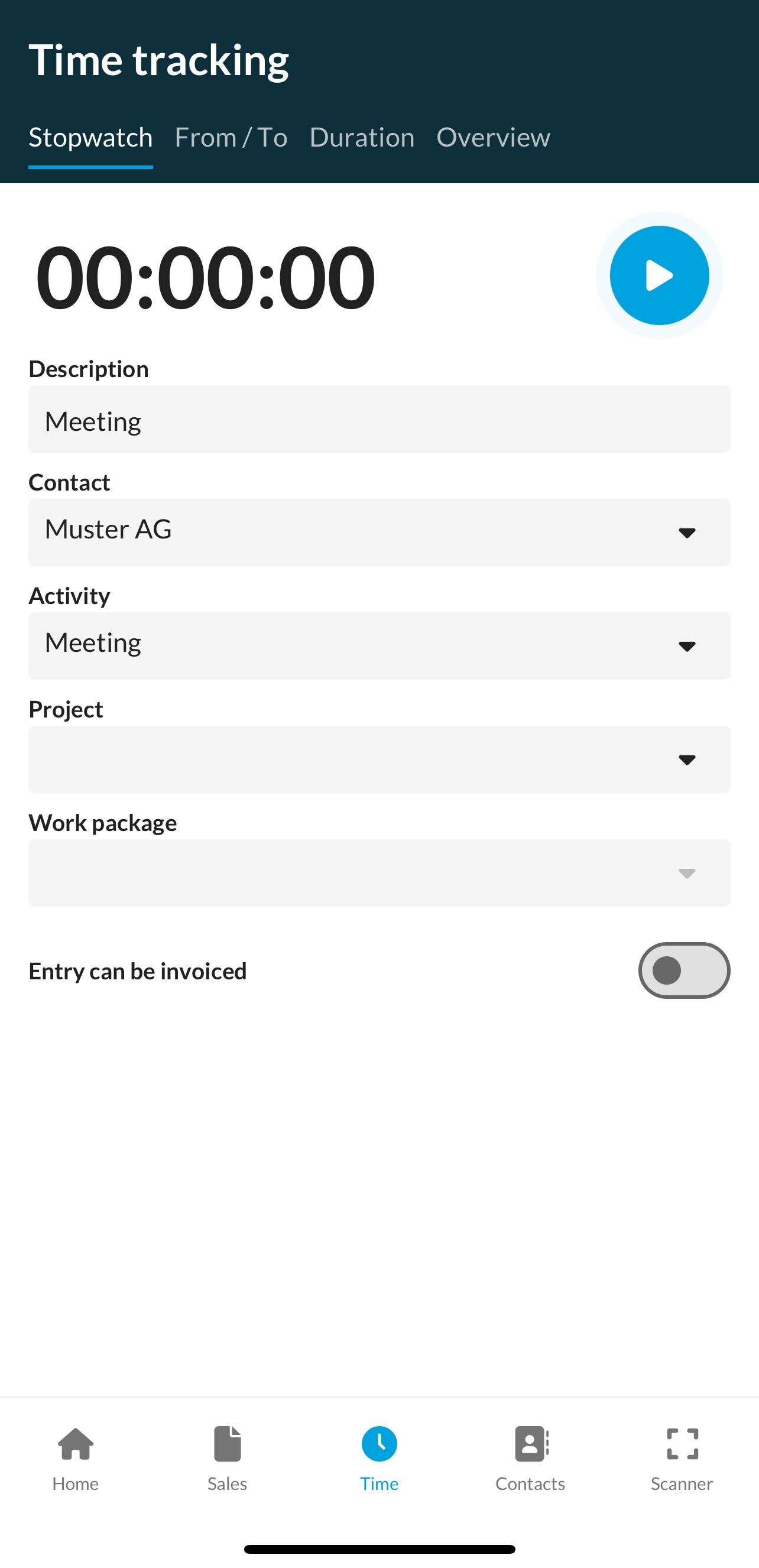
With the stopwatch, you can record the time spent while you actually perform your service. You have the option to pause the time and continue again. Service recording also continues to run while the app is closed and can be viewed and accessed using the notifications on your phone. If you manage several companies in the bexio Go app and have several time-recording sessions running at the same time, these can also all be seen in the notification area.
You can then add the description below and can enter the contact, the activity, the project, the work package, and whether the entry should be marked as billable for invoicing in a customer invoice.
Menu - Record time
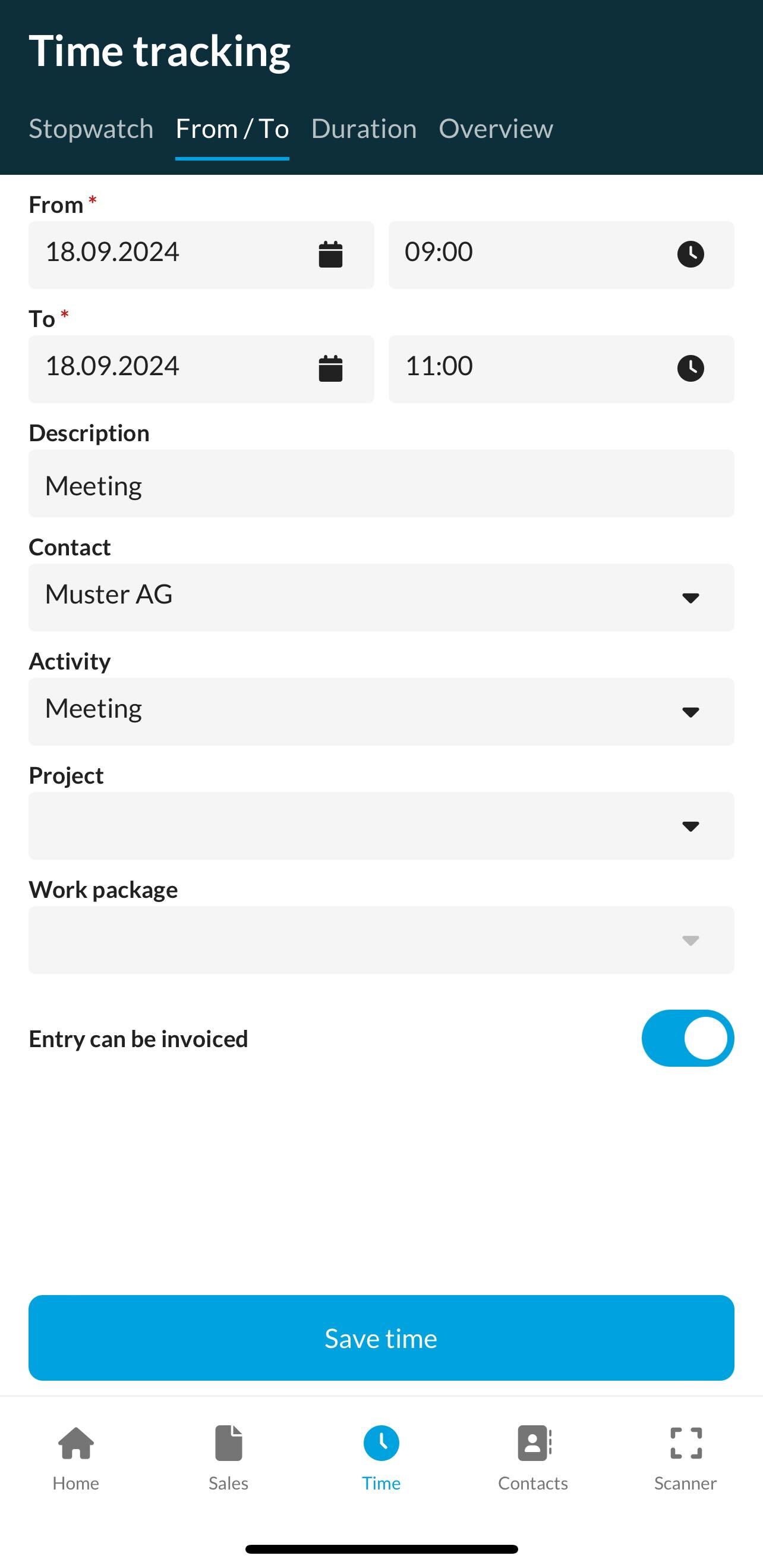
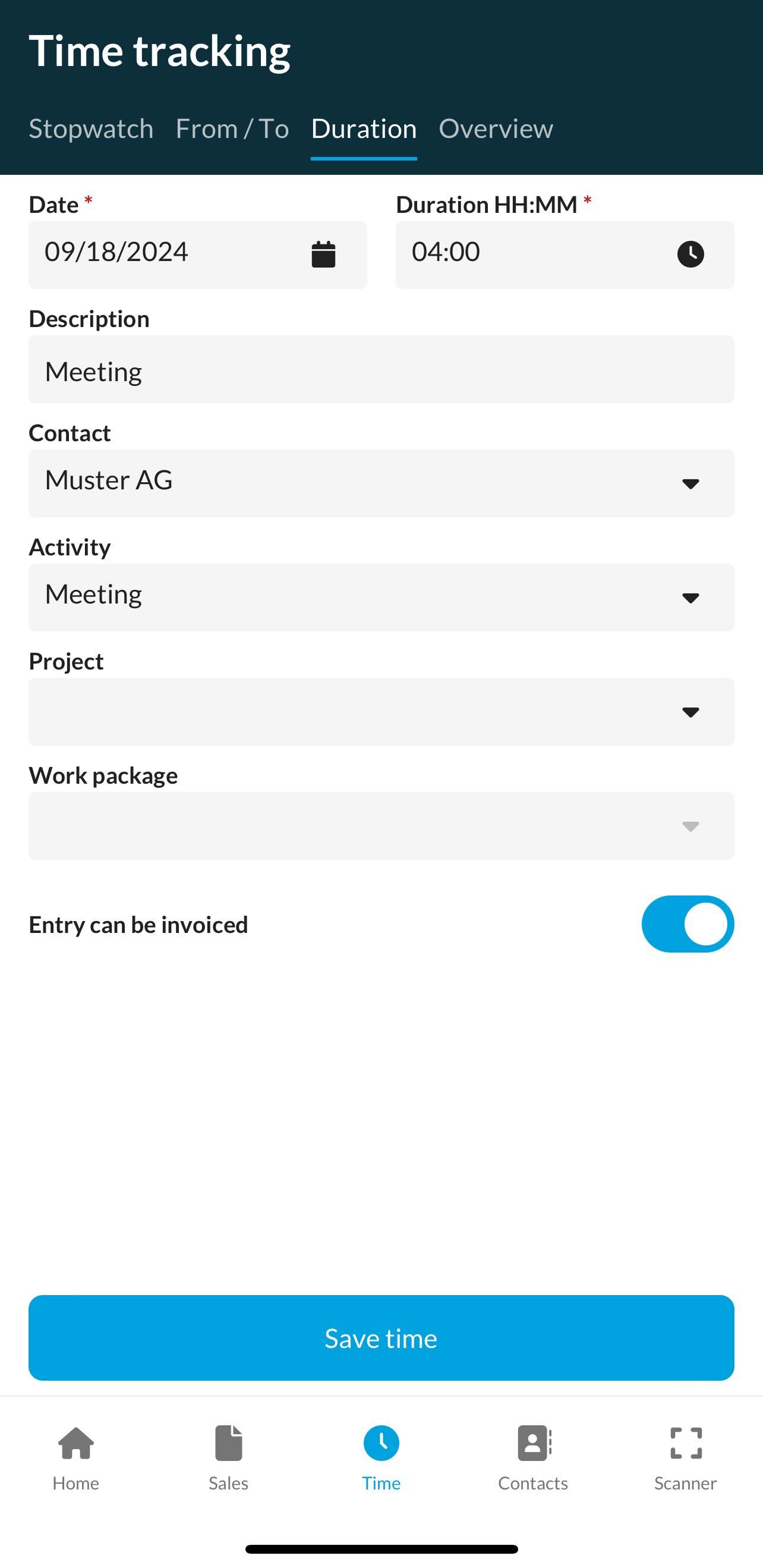
Under "Record time" you can, of course, also record the times you have worked directly by entering either the total "Duration" or by entering entries for "From/To".
Menu - Overview
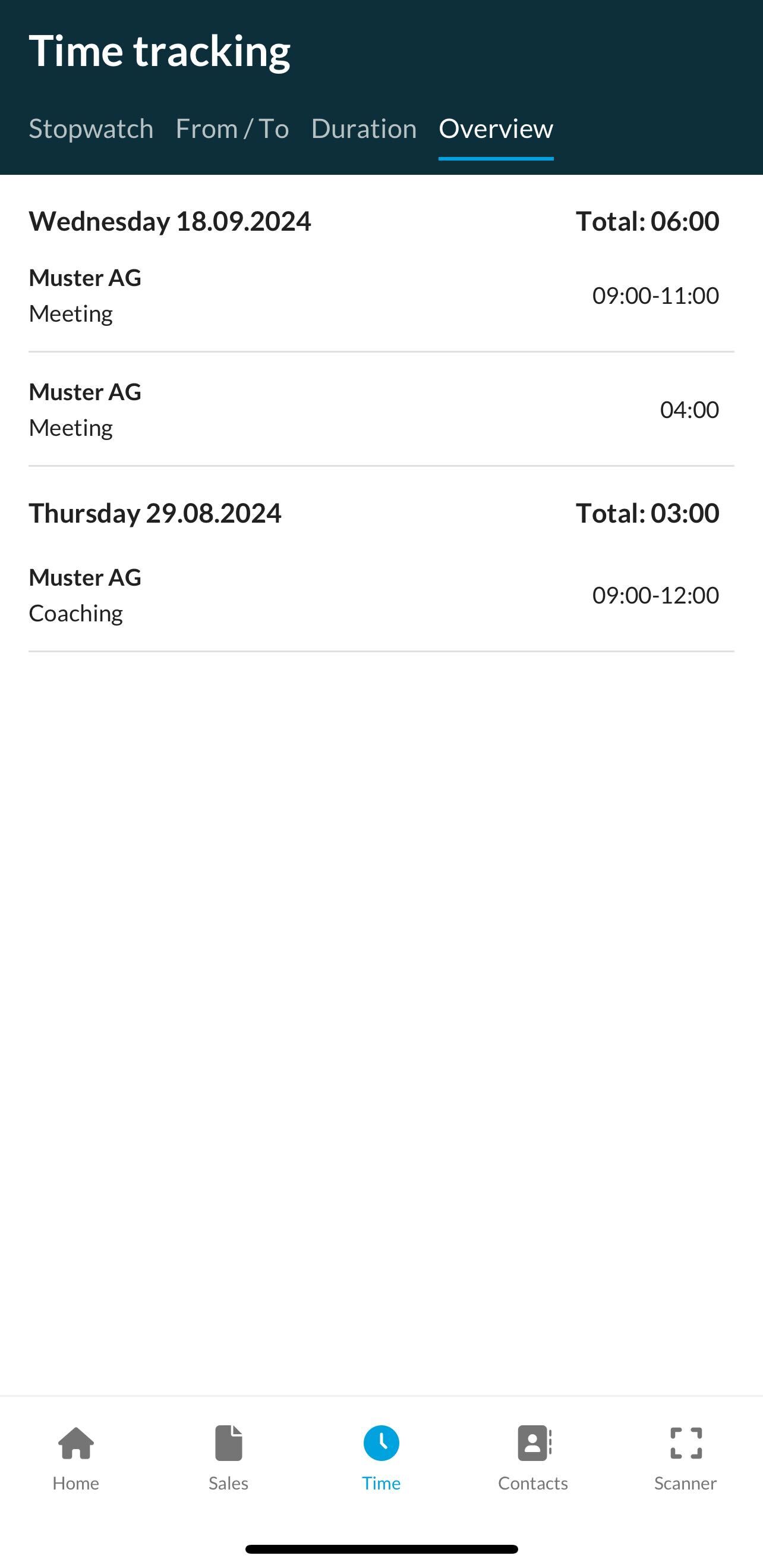
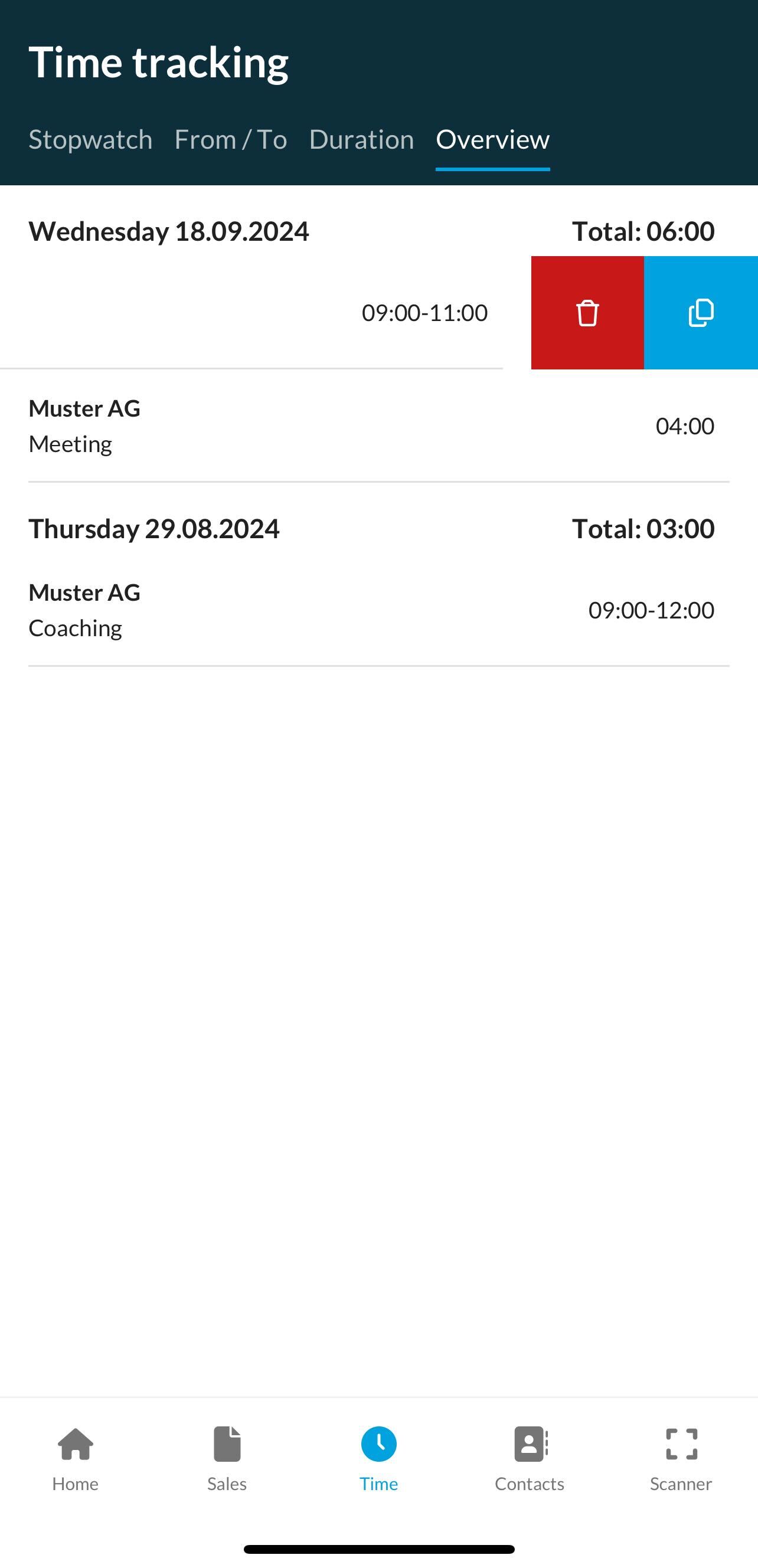
Under “Overview”, you can see the timeline of when you made your last entries in the app. No entries are displayed that were entered by other employees or entered in the web application at office.bexio.com.
Edit time entries
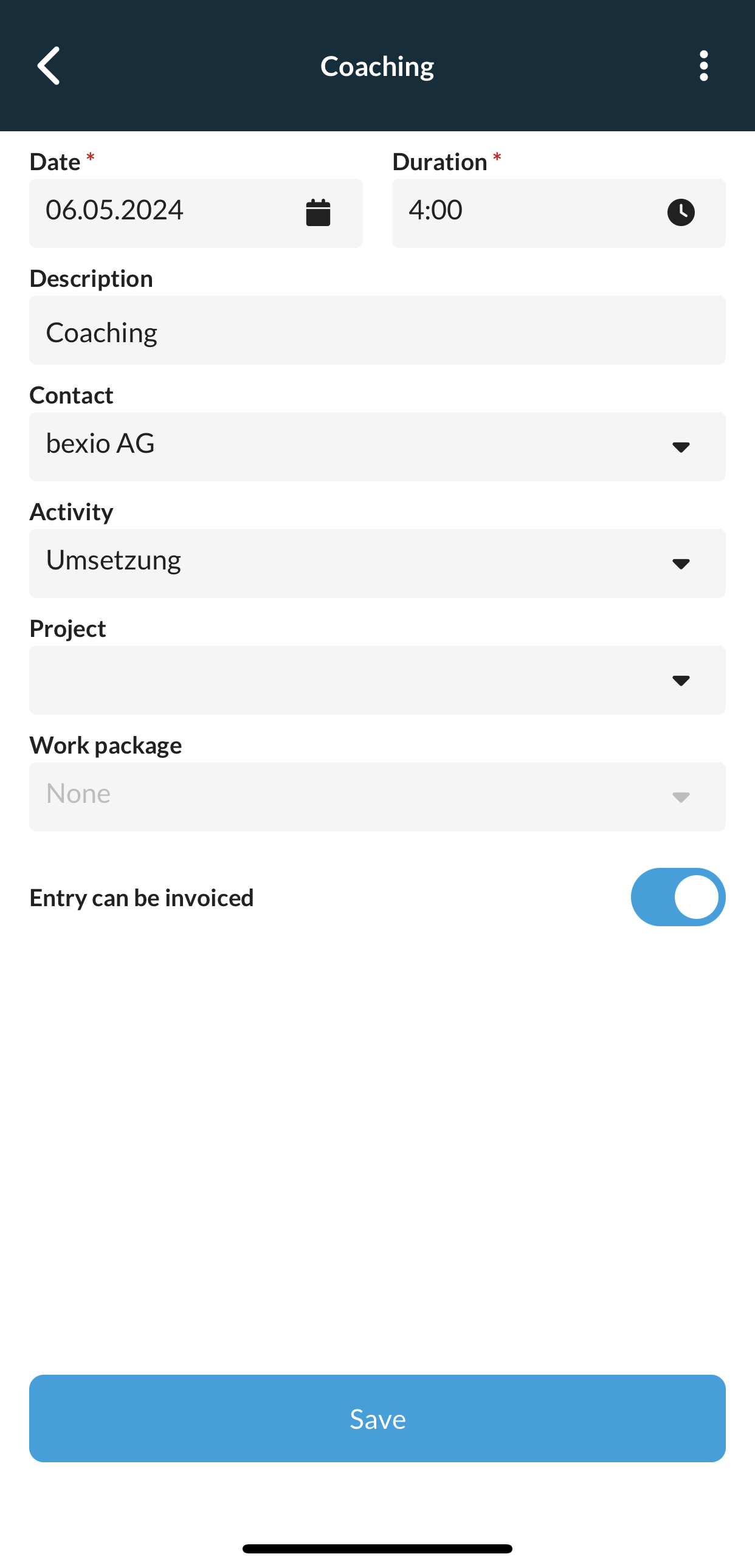
Time entries that have already been uploaded can also be edited again by tapping on a service record to go to the details view. When editing, however, you can no longer choose between “Duration” or “From/To” entries, since the option you originally selected when making the time entry cannot be subsequently changed. Confirm your changes below using the "Save" button to complete the process.
Remove time entries or duplicate time entries
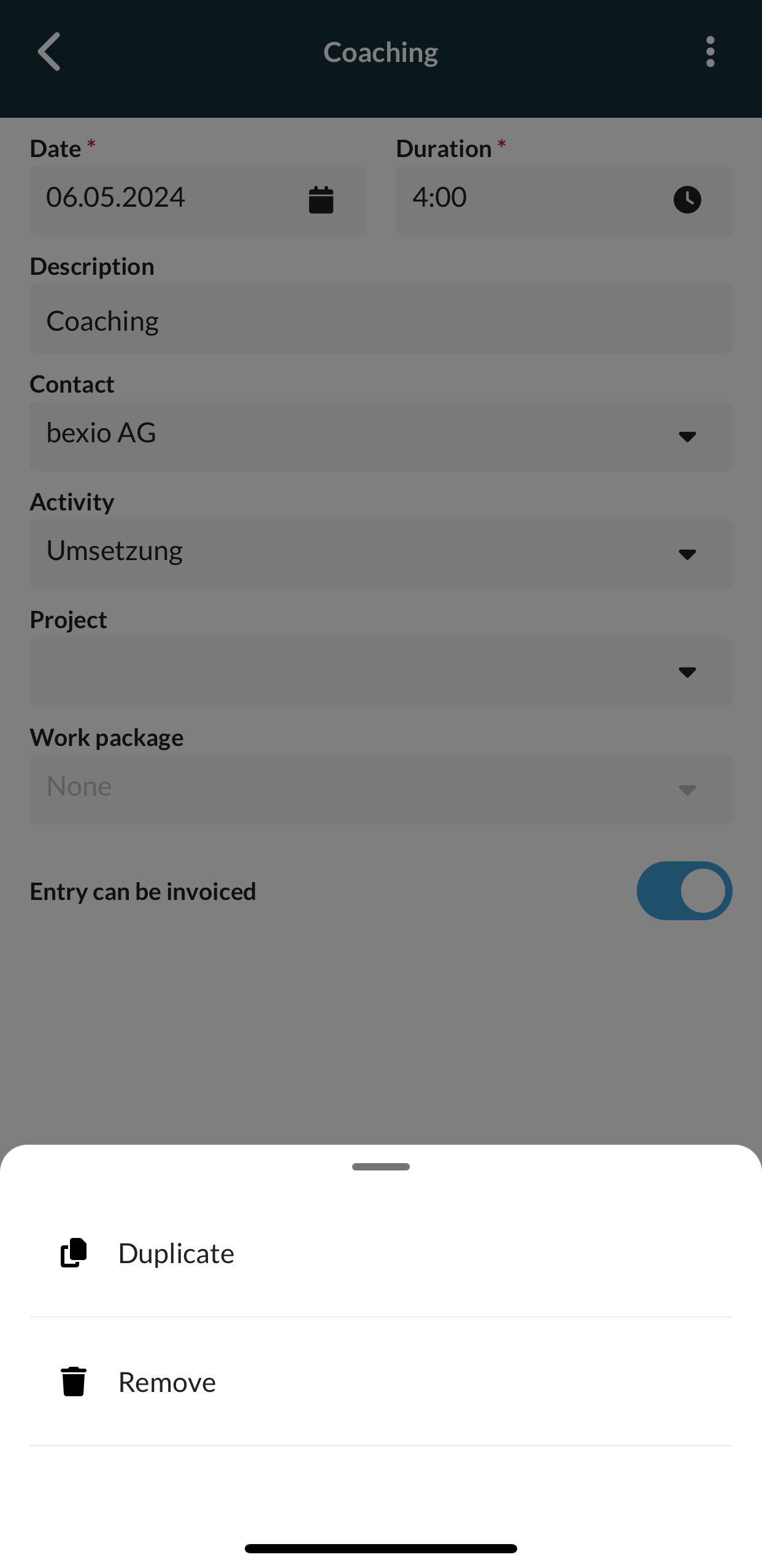
Delete:To delete time entries, click on the three dots in the top right-hand corner, and you will have the option to delete the recorded time.
Duplicate:You have the option to duplicate (copy) existing time entries. To do this, go to the overview in the time recording and select the time you want to copy. You can either copy the time entry directly in the overview using a "left swipe" or click on the three dots at the top right.
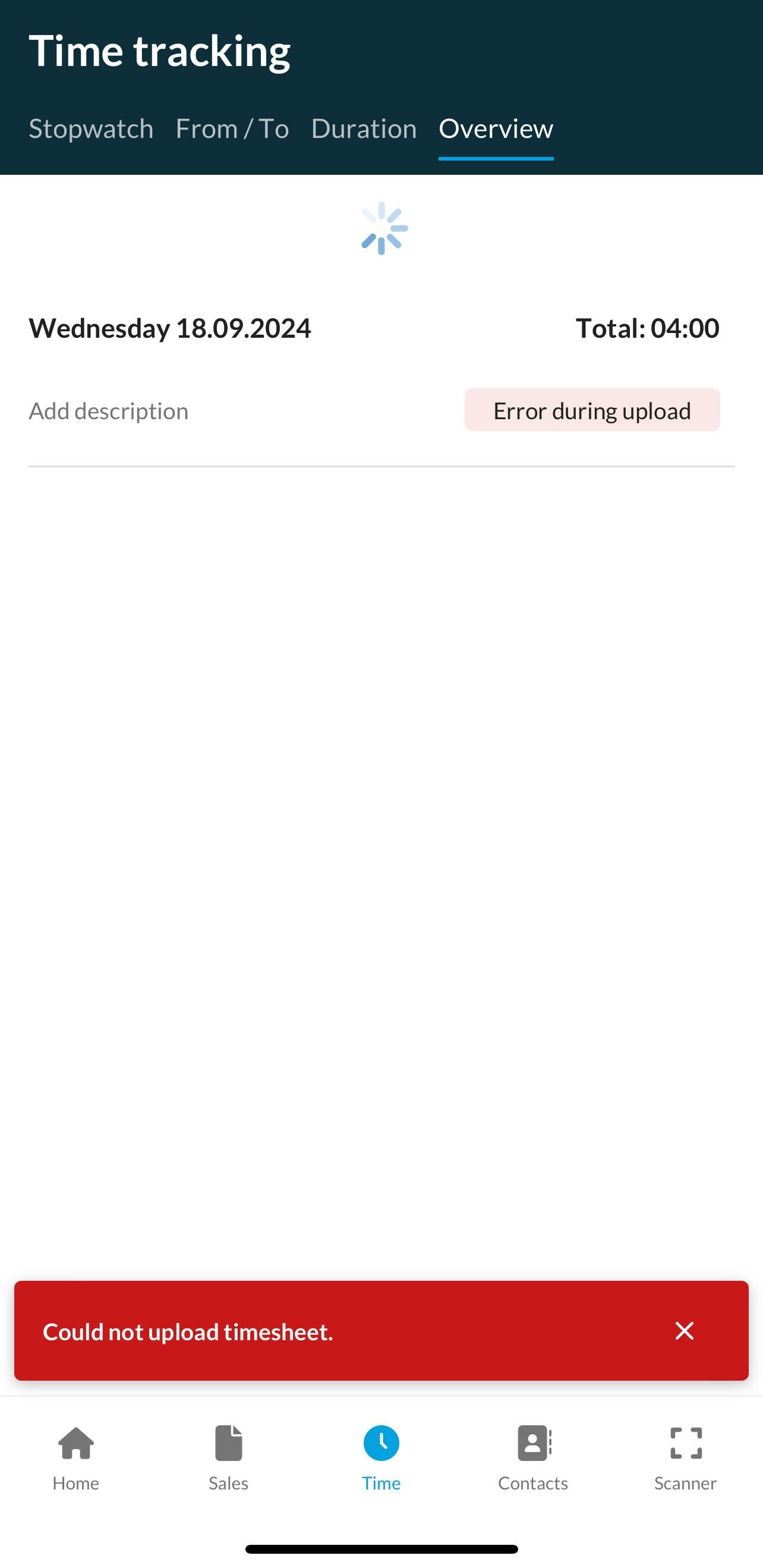
Error uploading
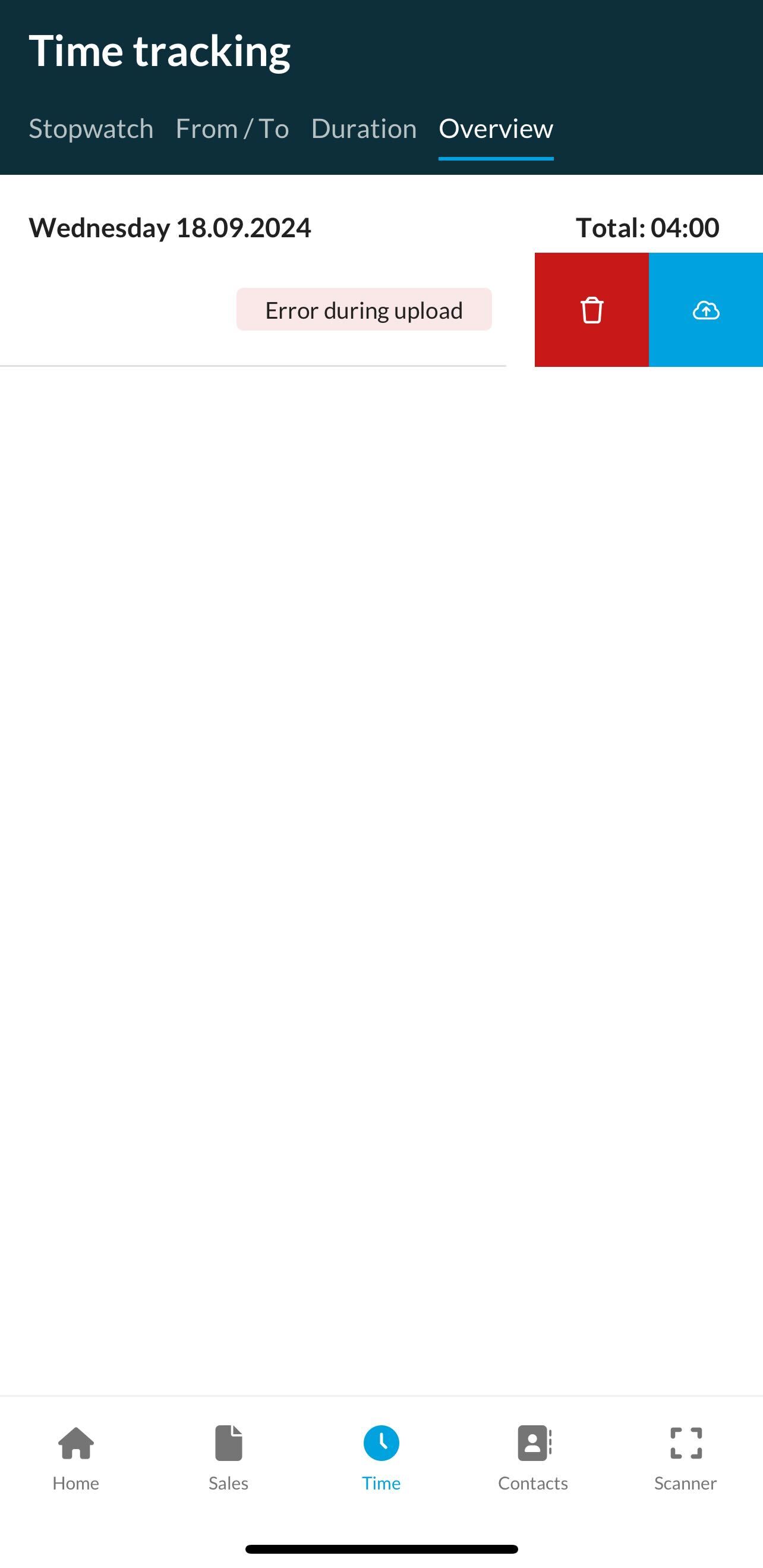
If a time entry cannot be uploaded, such as, for example, due to not being connected to the Internet, an error message with an exclamation mark will appear. Upload your service entry again by either "swiping to the left" and then pressing the “cloud symbol” or by opening the entry and clicking at the bottom "Save".