We recommend that you check any specific requirements or special cases that may apply to your bank.
Contents
QR Invoice in detail
The QR-invoice is the Swiss standard for automated payment processing. It consists of two inseparable elements:
- Receipt and payment part: Both sections are required for the customer and the bank.
- Dual readability: Information is displayed in plain text for visual verification and encoded in the QR code for digital processing.
- Data integrity: All information required for the execution of the payment is fully contained in both parts.
Only invoices in CHF or EUR can include a QR code. The system won't generate any QR codes for other currencies (e.g. GBP, USD, AED, etc.), even if the linked IBAN is in CHF. The invoice currency must correspond to one of the two authorised (CHF or EUR) currencies.

Image: The payment section of the QR Invoice in detail
How do I activate the QR invoice?
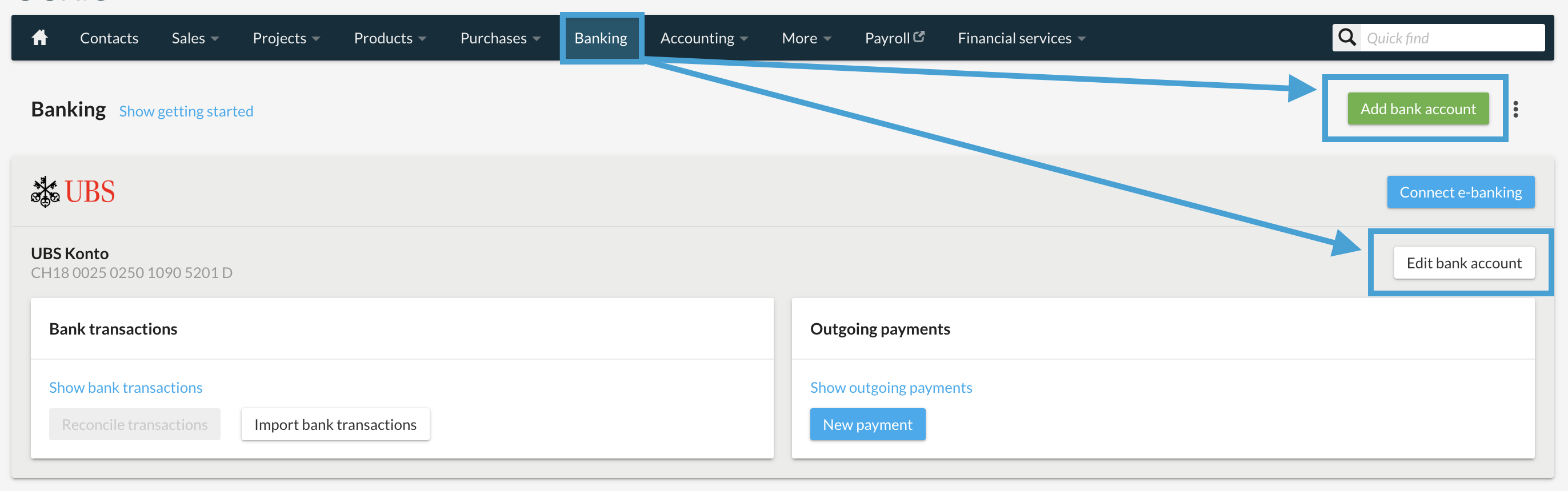
If you want to set up the QR invoice on your postal or bank account, go to bexio's banking area and click on "Add bank account" in the top right corner. If you have an existing account in which you want to set up the QR invoice, click on "Edit bank account".
Check the box for "invoice with QR code" at the bottom of the page, then the corresponding settings will open.
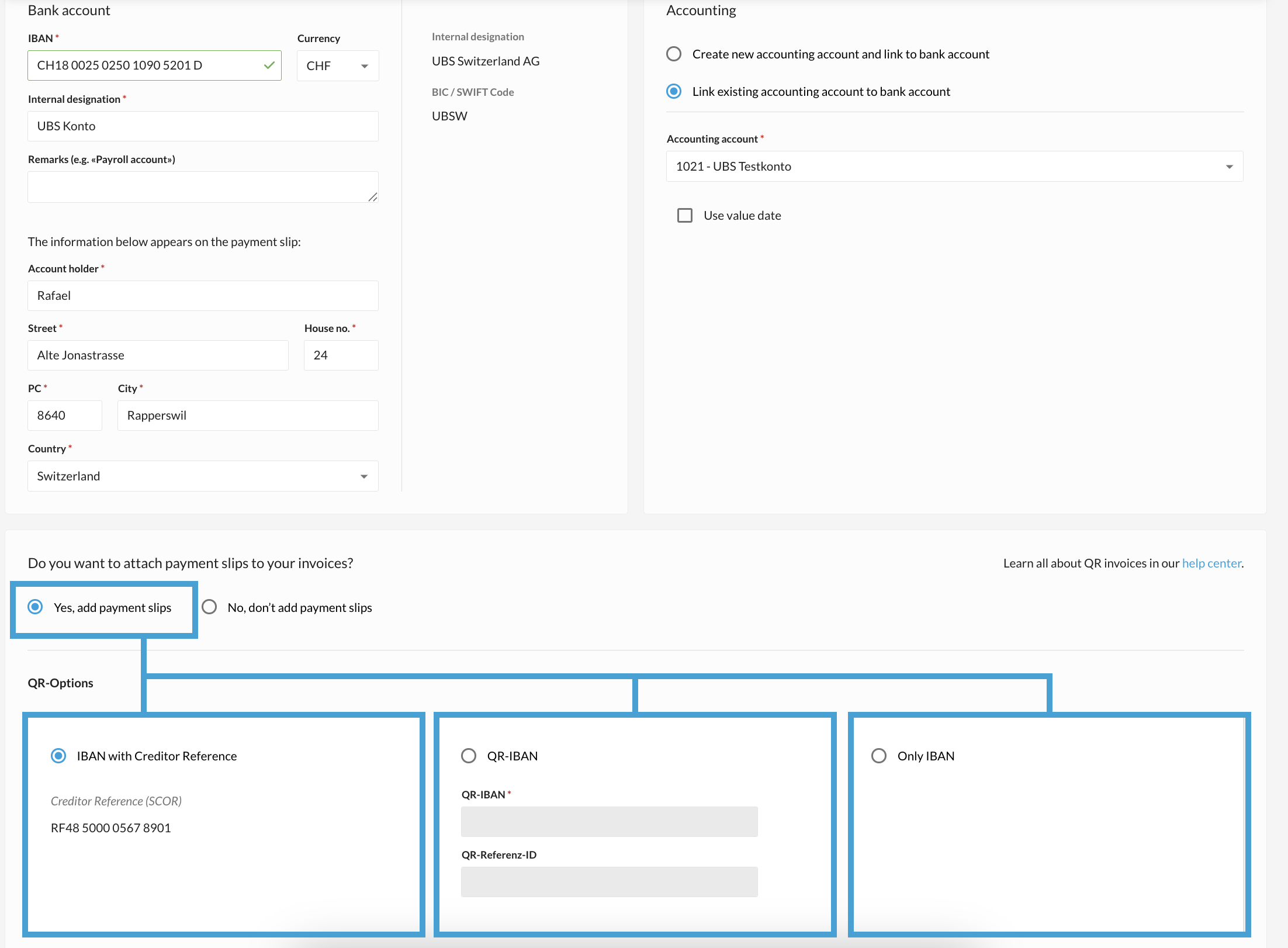
QR-Options
There are three different ways to set up the QR invoice:
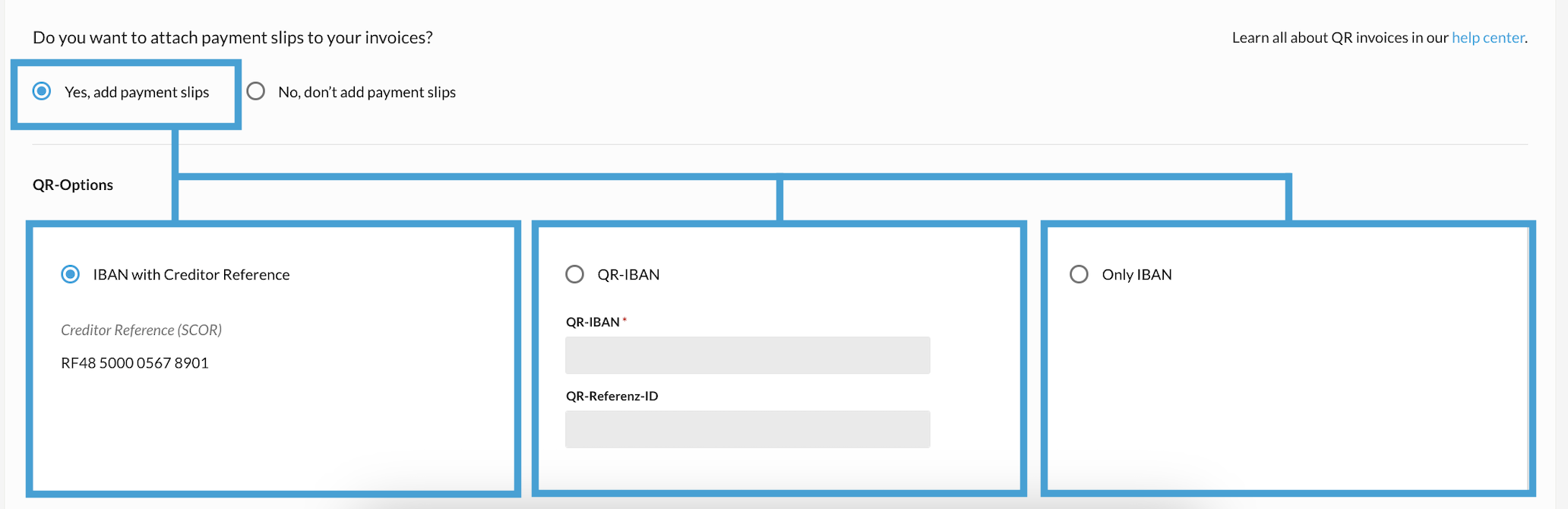
Our recommendation: Have you ever offered your customers the orange payment slip with reference no. (ESR for short) as a payment method? Then, it's recommended that you activate the equivalent QR code for the 2nd setting «QR-IBAN» (No. 2).
1. «IBAN with Creditor Reference»
This is suitable for those who have small invoice volumes and international reference numbers. It can also be used for international invoicing. You do not necessarily receive the creditor reference number back, which may make the reconciliation more complicated. However, there is a high probability that the automated reconciliation will still work with this option. (For unfulfilled criteria, manual assignment to enable the reconciliation is still possible.)
2. «QR-IBAN» (+ QR-Reference-ID)
This option is suitable for those with high invoice volumes. It corresponds to the orange payment slip, with its reference (ESR). With this option, the automated reconciliation of credits can be guaranteed, provided, of course, that the invoice recipient has entered the payment details correctly. The QR IBAN and QR Reference ID will be assigned by your bank.
❯ The QR IBAN is a normal IBAN ID, which identifies the financial institution. The number will be between 30,00 and 31,999. (E.g. CH44 3015 7123 0008 8901 2). You will receive this IBAN from your bank and must enter it.
❯ QR Reference ID: If you previously worked with the ESR procedure in bexio, the «QR Reference ID» is selected automatically. Otherwise, this field can be left blank.
3. «IBAN only»
This is suitable for those with small invoice volumes. It corresponds to the red payment slip and uses the normal IBAN. An IBAN payment cannot be assigned to an invoice automatically if the reference number is non-existent. Therefore, an automated reconciliation will not be possible. (Manual assignment for reconciliation is still possible.)
Procedure in the event of deviations between the amount paid and the invoice total.
By using the QR-invoice, you can authorize the system to automatically validate and reconcile a payment, even if the received amount is less than the invoice total (for example, in the case of a cash discount or a granted reduction).
Example: bexio applies the most favorable rule for reconciliation based on the following criteria:
-
Successful reconciliation (Fixed discrepancy): An invoice of 100 CHF paid at 96 CHF is automatically reconciled because the discrepancy (4 CHF) is below the 5 CHF threshold.
-
Successful reconciliation (Percentage): An invoice of 1,000 CHF paid at 986 CHF is automatically reconciled because the discrepancy (14 CHF) is less than 2% of the total amount (i.e., 20 CHF).
-
Reconciliation failure: An invoice of 500 CHF paid at 470 CHF will not be automatically reconciled. The discrepancy of 30 CHF exceeds both the fixed threshold (5 CHF) and the 2% threshold (10 CHF).

Creating a payment with QR-Invoice
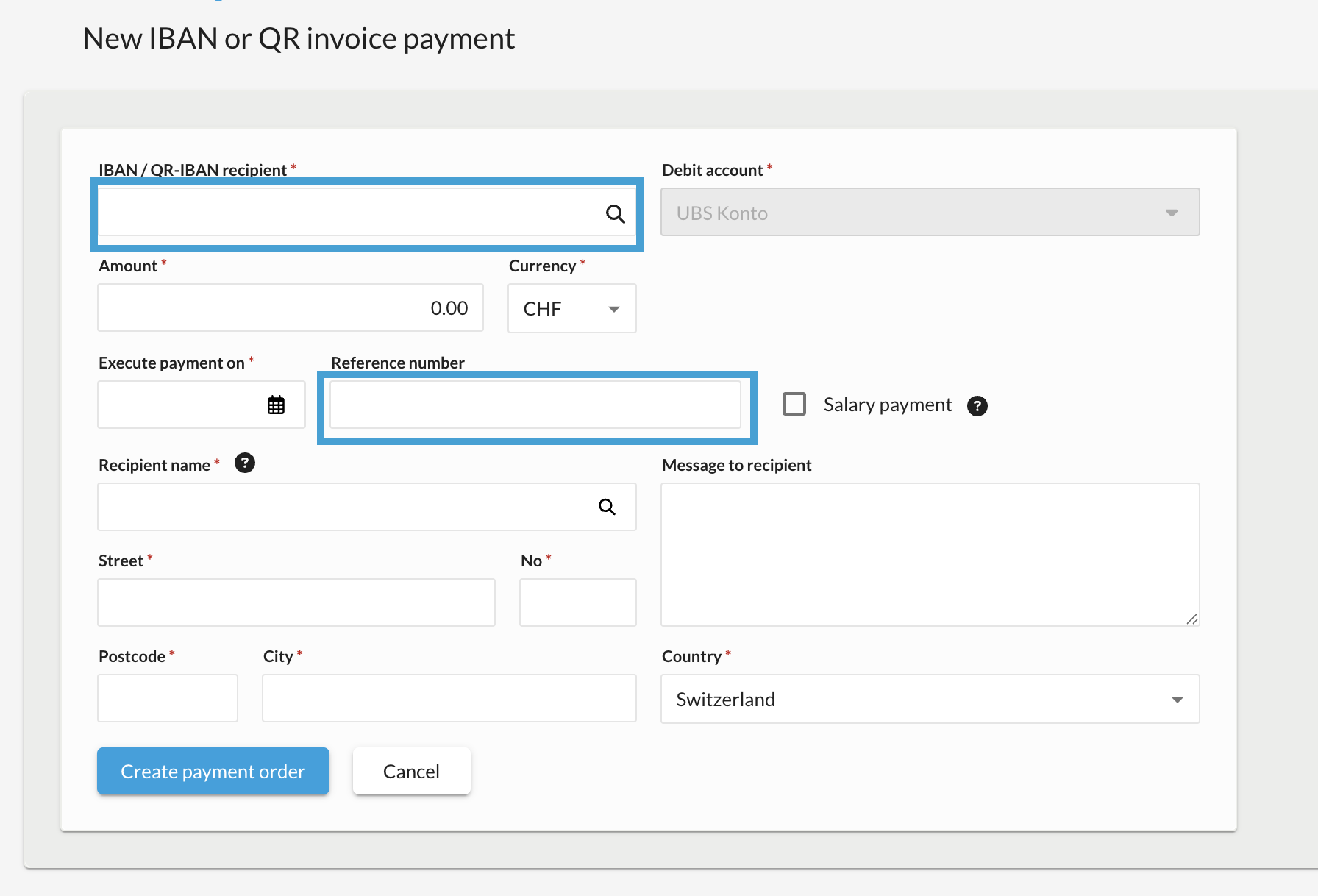
You can select the QR-Invoice in Banking when entering a payment.
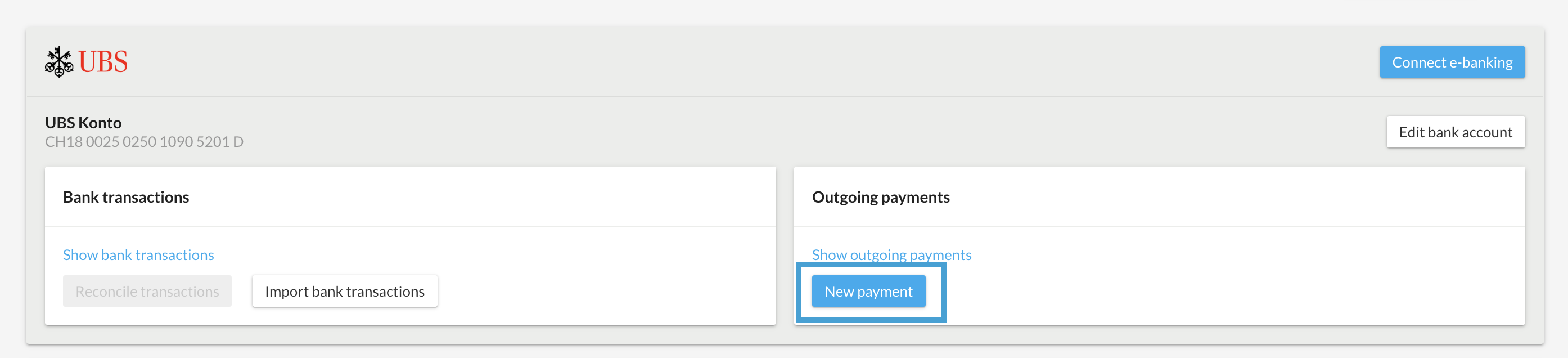
Please kindly note the following when entering a payment with QR-IBAN:
- QR-IBAN payment can only be recorded with a reference number (QR reference)
Example QR-IBAN payment:
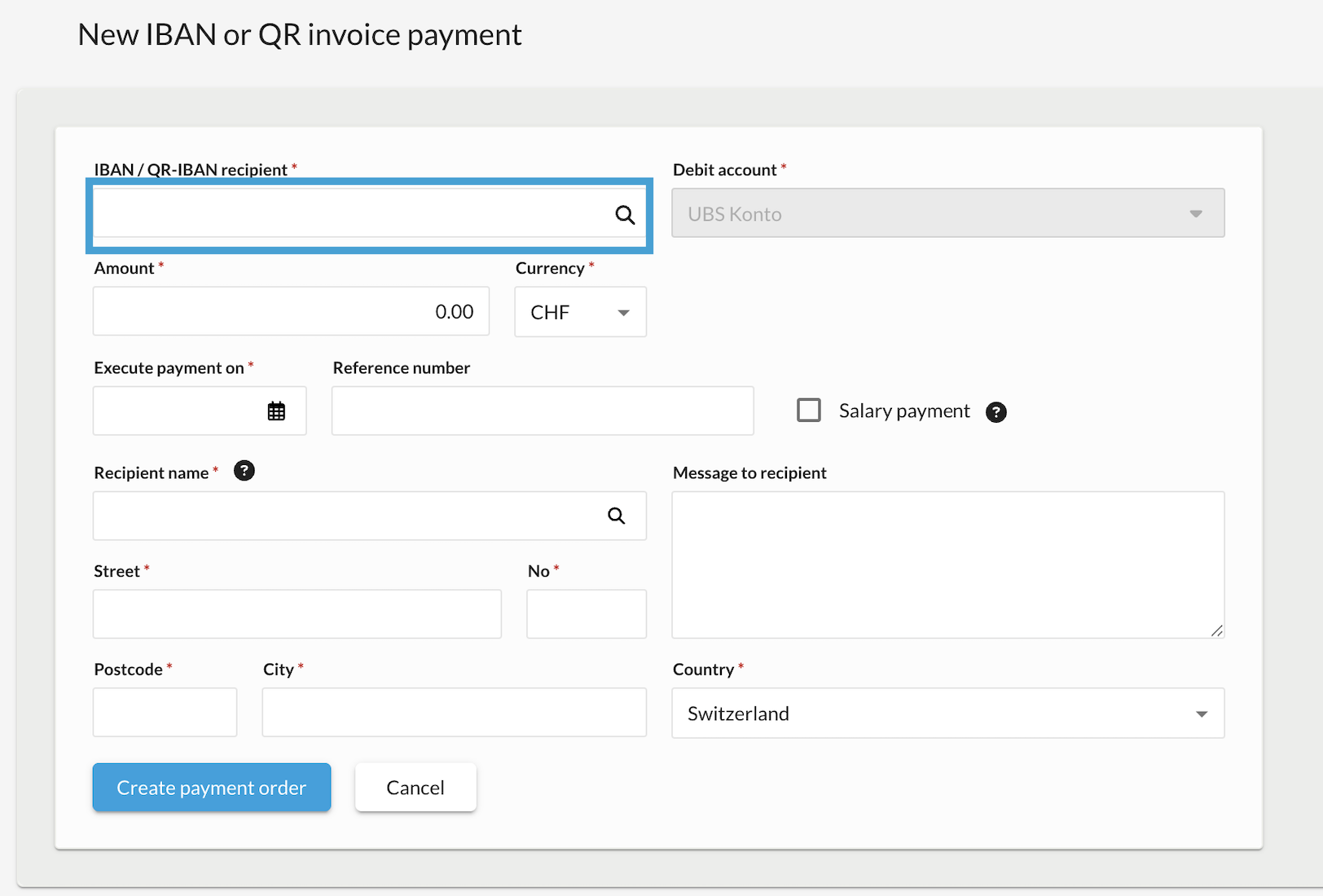
When entering a payment via QR invoice using any IBAN, please note the following
- IBAN payment can contain a reference number but it is not mandatory. The Reference number field can also be left blank.
Example IBAN payment
Printing the QR-Invoice
Please make sure that the bank account selected for your invoice is the one set up for QR payments. Once the option has been activated in your bank settings, bexio automatically generates the QR code on all documents issued in CHF or EUR. Please note that the system does not generate QR codes for other currencies.

In your document templates, you can enable the option to display the QR invoice on a separate page. This setting can be found in Settings > All settings > Document templates > Select the template of your choice.
Standardisation and printing of the QR-invoice
Automatic Positioning
The positioning of the QR-invoice cannot be manually modified in bexio. The system automatically generates the layout to ensure strict compliance with the official SIX standards. If the document appears cut off or misaligned when printing, we recommend checking your printer settings (for example, set the scale to "100%" or "Actual size").
Scissors symbol and perforated paper
When printing on plain white paper, the scissors symbol is mandatory. This mark is essential to validate the document's conformity if it is not pre-perforated.
-
On plain paper: The scissors symbol must appear on the printout.
-
On perforated paper: If you use sheets with micro-perforations, you can adjust your printer settings to perfectly align the cutting zones. The scissors symbol will remain visible, as bexio cannot automatically detect the type of paper loaded in your printer.
"Payable by" address is not appearing on my QR-invoice
If the recipient's details do not appear in the "Payable by" section of your QR-invoice, it usually means the contact information is incomplete. To ensure the document's validity, bexio automatically hides the address if any of the following elements are missing:
- Country
- Street and number
- ZIP code and City
Solution: Go to the specific Contact file to complete the address information. Once the data is saved, the "Payable by" block will display correctly on your QR-invoice, preventing the payment from being rejected by financial institutions.