This feature is ideal for regularly invoicing the same services: subscriptions, rent, licenses, or maintenance contracts.By setting up a recurring sales order, you automate the generation of your invoices at regular intervals. In this article, we will explain all the necessary steps.
Content:
1. How to set up a recurring invoice
1.1 Create the recurring order
1.2 Configure repetition settings
2. Two methods to generate invoices from a recurring order
2.1 Method A: Manual creation (one by one)
2.2 Method B: Recurring sales order procedure (bulk)
2.3 Bulk printing and sending
3. How to delete recurring orders
1. How to set up a recurring invoice
1.1 Create the recurring order
To do this, you must first create a Sales Order.
- Go to Sales → Orders.
- Click on New Sales Order.
- Add the line items to be invoiced.
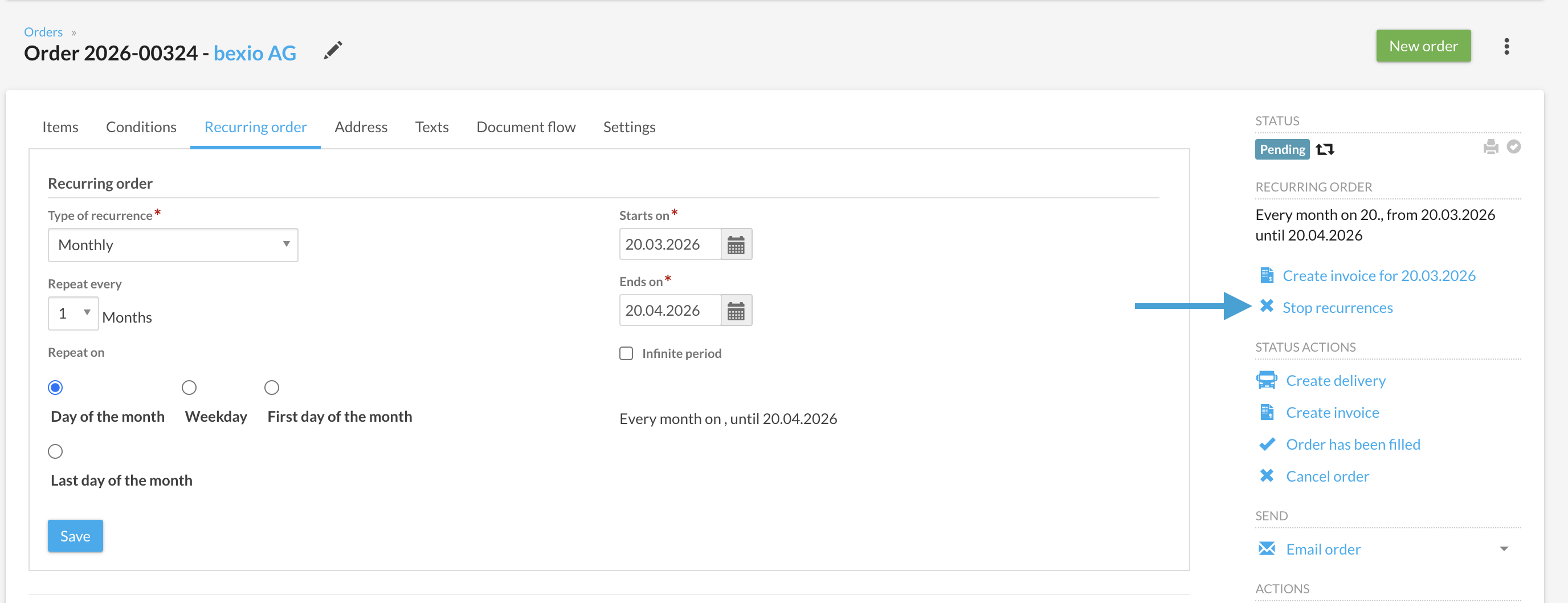
- Once the order is created, click on Repetition.
For recurring invoices, you must use "Service" type products/positions.
1.2 Configure repetition settings
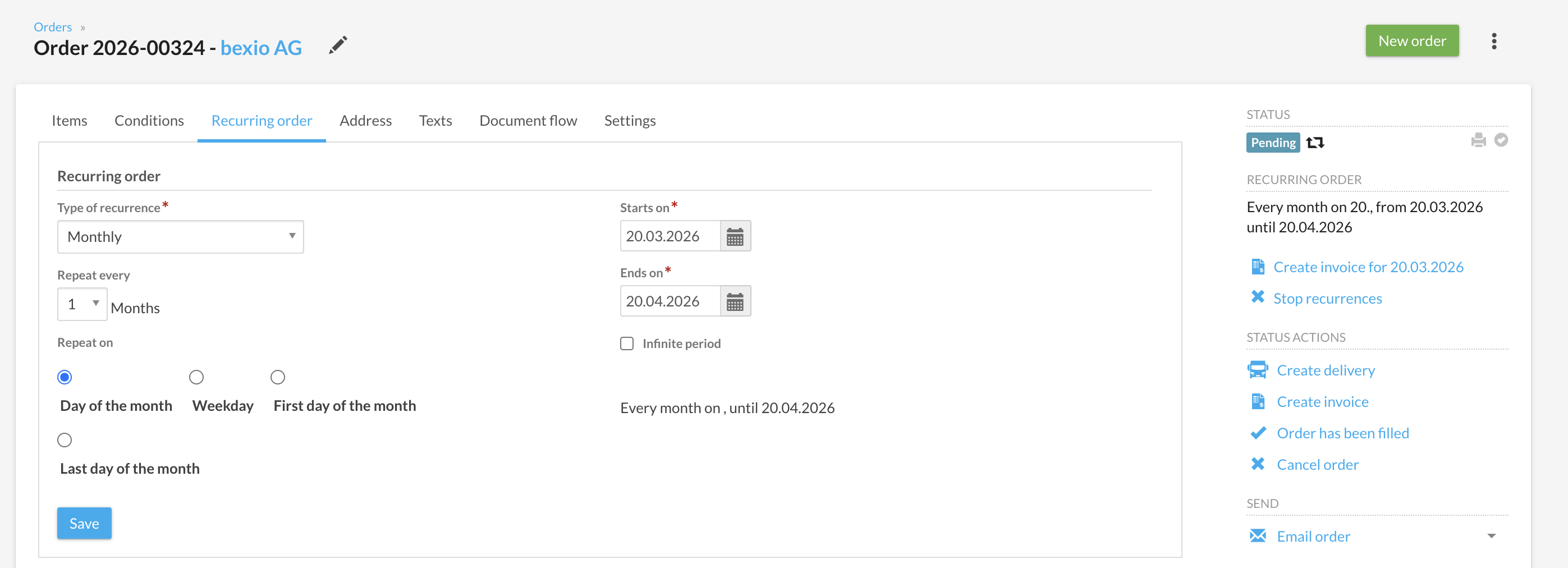
Under the Repetition Type tab, define the desired interval:
- Frequency: Daily, Weekly, Monthly, or Yearly.
- Repeat on: Choose the specific day (e.g., every Monday, every 1st of the month, or the last day of the month).
- Duration: Indicate a start date and an end date. For an open-ended contract, check Infinite period.
Visual indicators in your order list:
- Double arrow: Indicates that a repetition is active on this order.
- Black exclamation triangle: Signals that an invoice is due and needs to be generated.

2. Two methods to generate invoices from a recurring order
Once your repetitions and order are configured, you have two options to convert these orders into invoices.
2.1 Method A: Manual creation (one by one)
If you want to process a specific customer:
- Open the relevant recurring order.
- Click the button Create invoice for... (the next due date will be displayed automatically).
2.2 Method B: Recurring sales order procedure (bulk)
To process all your subscriptions at once, use the wizard:
- Go to Sales → Other → Recurring orders.
- Click on New Procedure.
Cycle settings:
- Recurring order until: Specify the deadline date. All due dates prior to this date will be listed.
- Initial invoice status: Choose whether invoices should be created as "Draft" or directly as "Pending".
- Contact addresses: Select whether you want the addresses from the order or the main contact address.
If a line appears in red with a triangle, it means an unusual number of invoices will be generated (e.g., catching up on several months of delay at once). Verify before validating.
2.3 Bulk printing and sending
Once the invoices are generated by the procedure:
- PDF Export: You can download a merged file containing all invoices (with or without letterhead) for printing.
- Email Sending: 1. Go to Sales → Invoices. 2. Filter by "Pending" status and by date. 3. Select all relevant invoices. 4. Use the bulk action to send them by email.
- Important: Bulk mailings (mass sending) exclusively contain the Network Link (online link to the invoice) and not the PDF file as an attachment.
- Do you want to attach the PDF file? In this case, the invoice must be sent individually: open the relevant invoice and use the "Send Invoice" button.
Please ensure your contact files contain a valid email address.
3. How to delete recurring orders
Automations can only be modified or deleted from the original Sales Order.
How to find all recurring orders?
- Go to Sales > Orders
- Click on "Filter"
- Look for the filter "Is it a recurring order?"
- Add the value "Yes" to find all your recurring orders.
How to find the main order?
If you have an invoice in front of you but cannot find the order:
- Go to the Document Flow tab of the invoice.
- Click on the linked Order to open it.
- Click on Delete Repetition to permanently stop future invoices.