Contents
General Information
What is the "Uniform Wage Notification Procedure"?
The Uniform Wage Notification Procedure, or ELM, can save you a lot of time when providing mandatory data to the Old Age and Survivors' Insurance Fund (AHV), your Accident Insurance provider, the withholding tax authority, etc.
Swissdec-certified payroll programs such as bexio can independently prepare data for various recipients.
You can transmit the data to the following recipients:
- Compensation Offices (Old Age and Survivors' Insurance – AHV)
- Family Compensation Office (FAK)
- Occupational Pension Scheme (BVG)
- Accident Insurance Scheme (UVG)
- Supplementary Accident Insurance Scheme (UVGZ)
- Daily Sickness Allowance Scheme (KTG)
- Swiss Earnings Structure Survey (LSE)
- Withholding Tax
How does the "Uniform Wage Notification Procedure" work?
You enter the data received from the recipients into the bexio payroll accounting system once. After the last payroll run before providing the data, you can select the desired recipients by clicking on them and then transmit the data.
After transmitting the documents, you will always receive a "receipt" with the result of the documents sent. These are checked by the insurance provider and either accepted or rejected. Accordingly, corrections can also be made and transmitted again for data that has already been transmitted.
Setting ELM
Insurance Master Data
The information for the Electronic Wage Notification Procedure (ELM) is displayed when you select the Advanced view on the Insurance screen.
For each insurance type (AHV, FAK, BVG, UVG, UVGZ, KTG), you have the option of choosing between the variant without electronic wage reporting or with electronic reporting (ELM).
For the variant without ELM, you can enter the name of the insurance type freely. For the variant with ELM, you must select the insurance type from a list.
Compensation Office (AHV, etc.) & Family Compensation Office (FAK)
Entry of the member number/insurance number is expected for the Compensation Office.
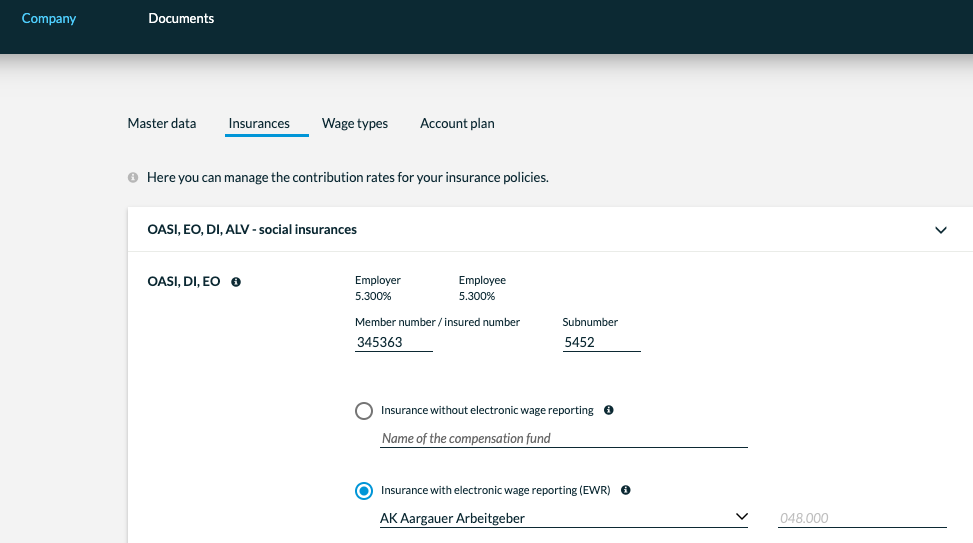
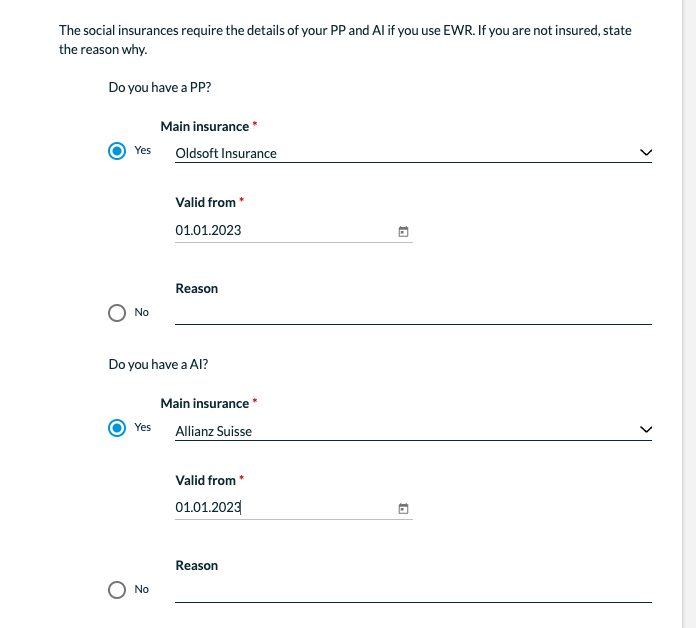
You must enter the data for your BVG and UVG main insurance within the AHV. Either since when you have been insured or a reason why you cannot state this.
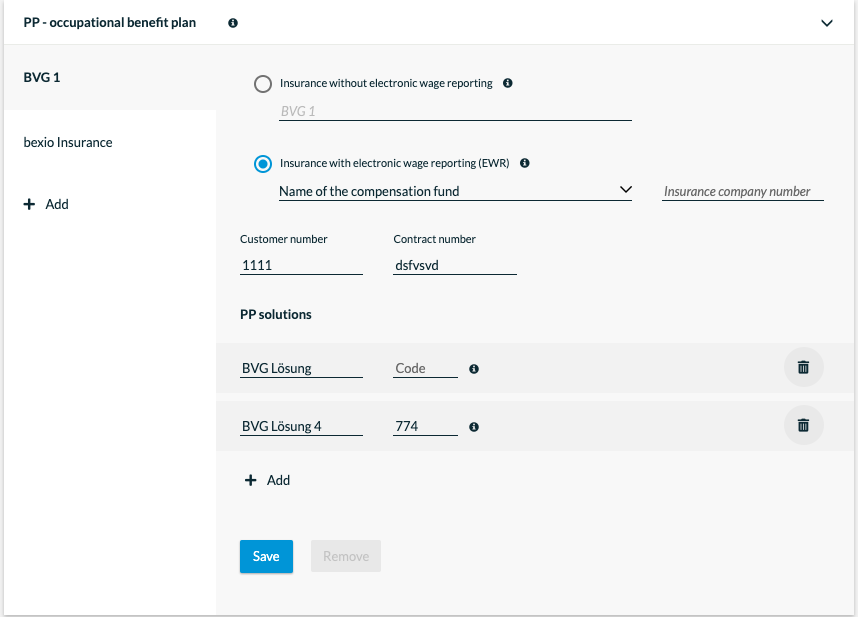
Occupational Pension Scheme (BVG)
This is new since the certification to version 5.0 You can now also select BVG providers that support electronic transmission.
The customer number and contract/sub-number fields are listed on the Annual Recap PDF.
Accident Insurance Scheme (UVG)
Customer number as well as contract and sub-number can be stored for each Accident Insurance policy. Several solutions can be added per insurance policy, with each solution being assigned its own code for a part of the business. These codes are the letters A to Z.
For each Accident Insurance solution, you can define whether the employer contributes 50% to the employee's NBU (non-occupational accident) deduction. This setting must apply equally to all employees, which is why it is found in the insurance solution and not in the employee master data.
The setting for whether only occupational accident (BU) or non-occupational accident (NBU) contributions are deducted for an employee must be configured directly with the employee in question. This selection, together with the operating division code selected for the Accident Insurance solution in question, then results in the composite code A0, A1, B0, etc.
Supplementary Accident Insurance (UVGZ) & Daily Sickness Allowance (KTG)
Similar to with the Accident Insurance (UVG), a two-digit code can be stored for the Supplementary Accident Insurance (UVGZ) and Daily Sickness Allowance (KTG) solutions, e.g. A1. This consists of your letter or a number in the first position and only one number in the second position, where the number 0 stands for the special meaning that no deductions take place.
Electronic notifications
Annual return
Annual declarations are submitted in the Documents – Annual Report section. First, select the recipients to whom you want to send a return. If the variant without ELM is selected for an insurance policy, the input will be grey and cannot be selected.
new screenshot annual reports
Likewise, institutions to which an annual return has already been sent cannot be selected again.
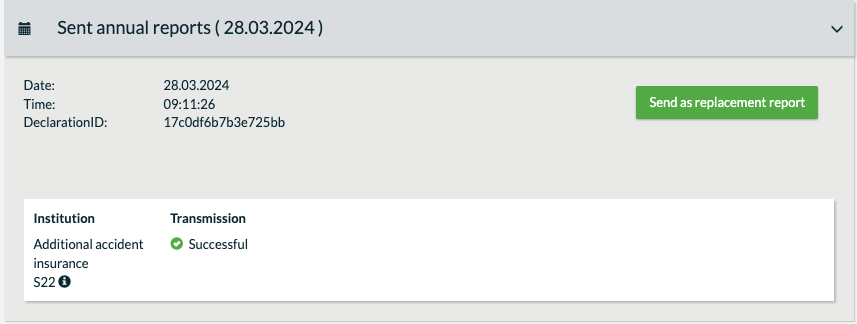
For each return sent, an entry will appear under Sent Returns with the date and time. Returns can be sent again as replacement return if, for example, an error has crept in with the figures. Any number of substitute returns can be sent, though it is up to the institution whether it accepts the replacement return.
For the individual institutions within a sent return, the results can be retrieved using the Results Query button.
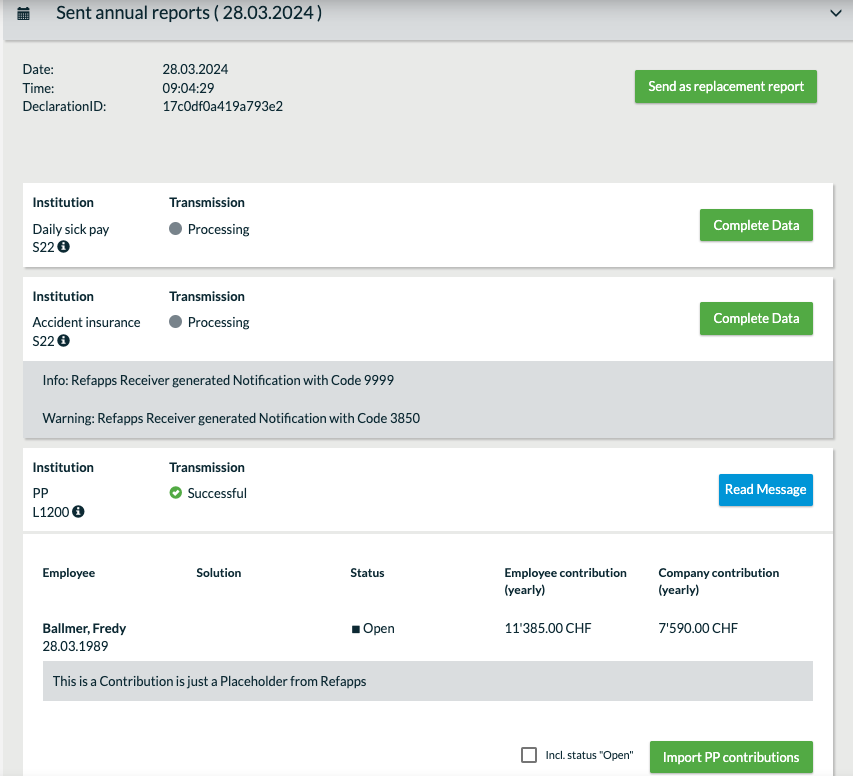

Some institutions require a release, which is done via the Release button. The are two different ways to do this. Either you are taken to a page of the institution where you have to complete the approval process. Or you will receive a message within the software to complete your data.