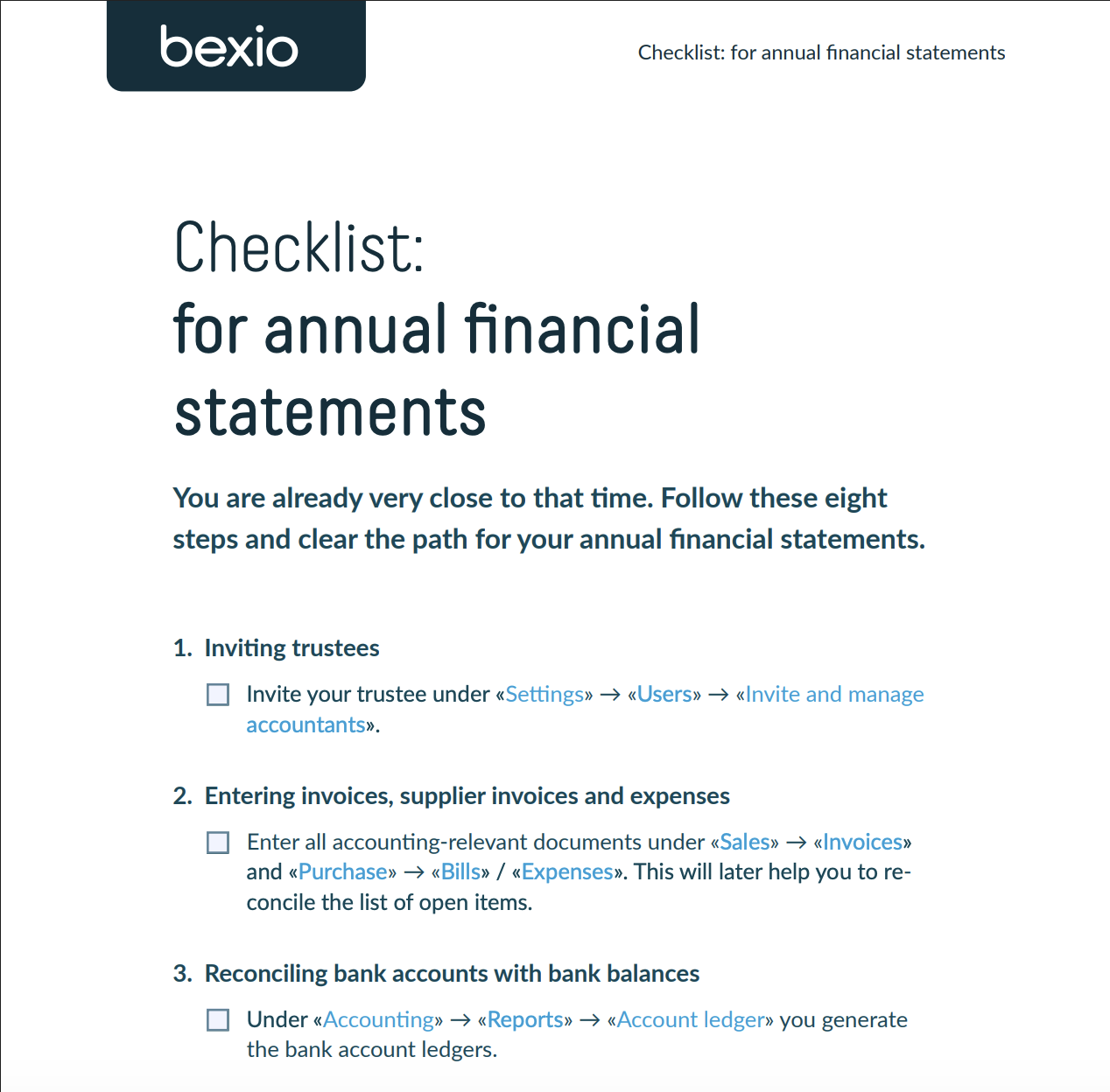
bexio simplifies your financial statements with "Fiscal year / year-End operations". You can find these functions under "Accounting -> Year-End closing". There is a checklist for the technical closing under "Close the fiscal year" (Year-end operations), which shows what needs to be done in bexio for the closing, and a PDF checklist as a guide for the year-end closing. You can find this here or via the tooltip next to "Close the fiscal year".
Content
Year-end closing checklist
To successfully close your year, follow the steps in our checklist. Download the checklist directly here or click on the preview to print the checklist → Open PDF.
In bexio, you can find this under Accounting -> Year-end closing -> by hovering over the "i" button.
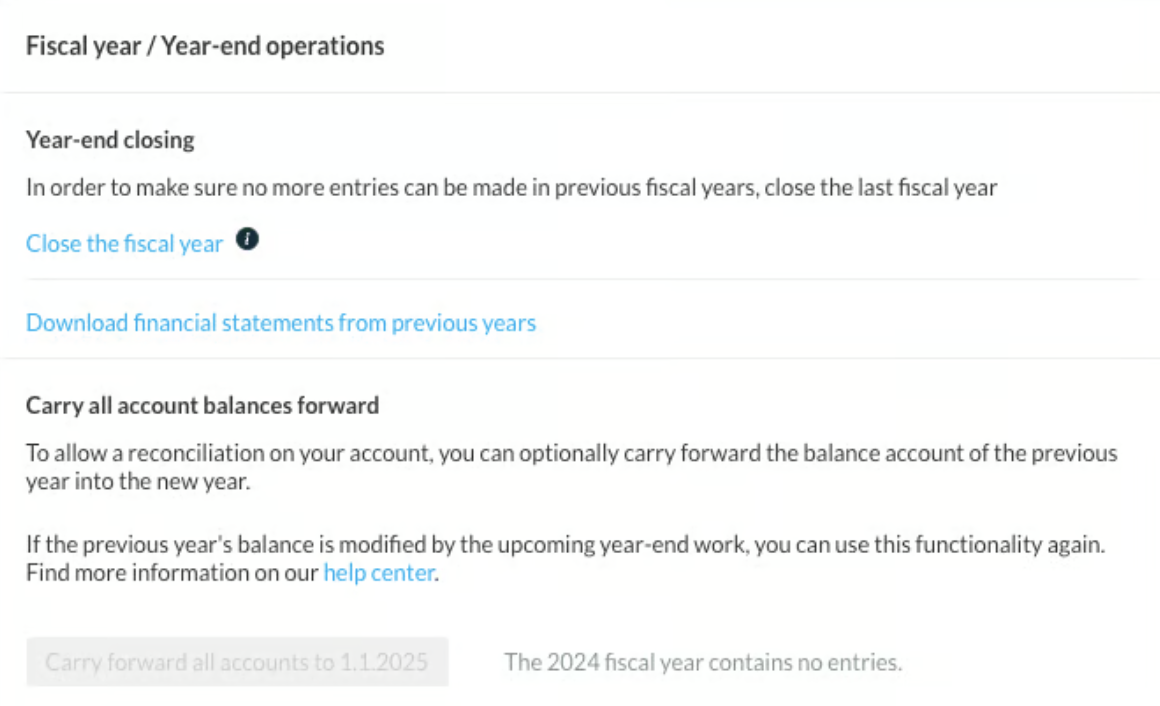
Close fiscal year in bexio
You can find these functions under Accounting -> Year-end closing. Here you can technically close the fiscal year in bexio so that no further postings can be made, you can download the documents of past year-end closings and set, update, or delete provisional balance carryforwards.
Important: To close the fiscal year in bexio, you need the "Accounting - Fiscal years" right. If you do not have this, please contact your super admin.
Year-end operations checklist
When you click on "Close fiscal year", you will be taken to the checklist for year-end operations. The year-end work checklist validates whether your accounts have a debit/credit difference and whether you have made your income postings and balanced your closing accounts (auxiliary accounts). In addition, it checks whether all your VAT periods have been marked as settled, and you must manually confirm that you have performed the revenue reconciliation. There is no automated function in bexio for revenue reconciliation.
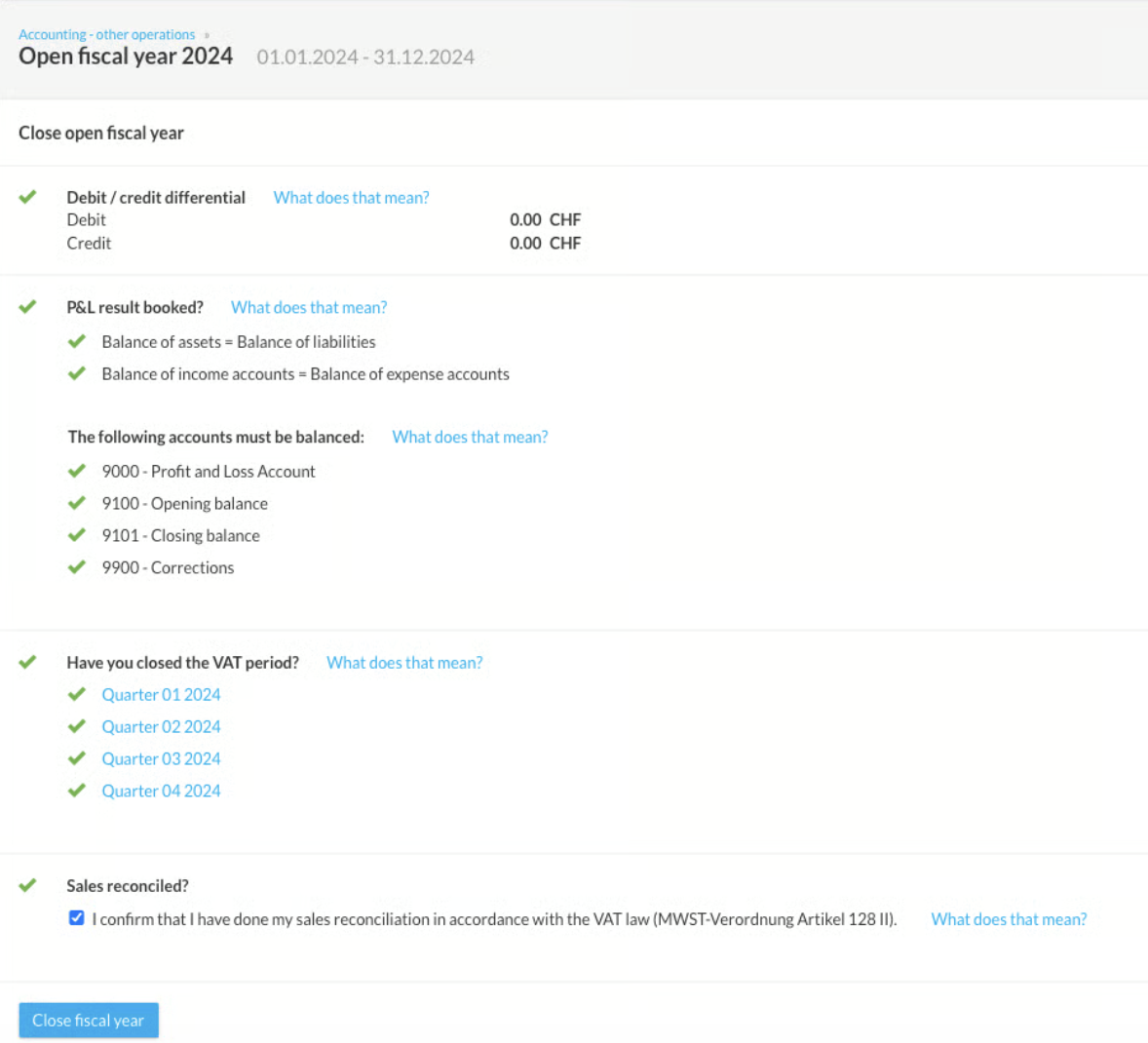
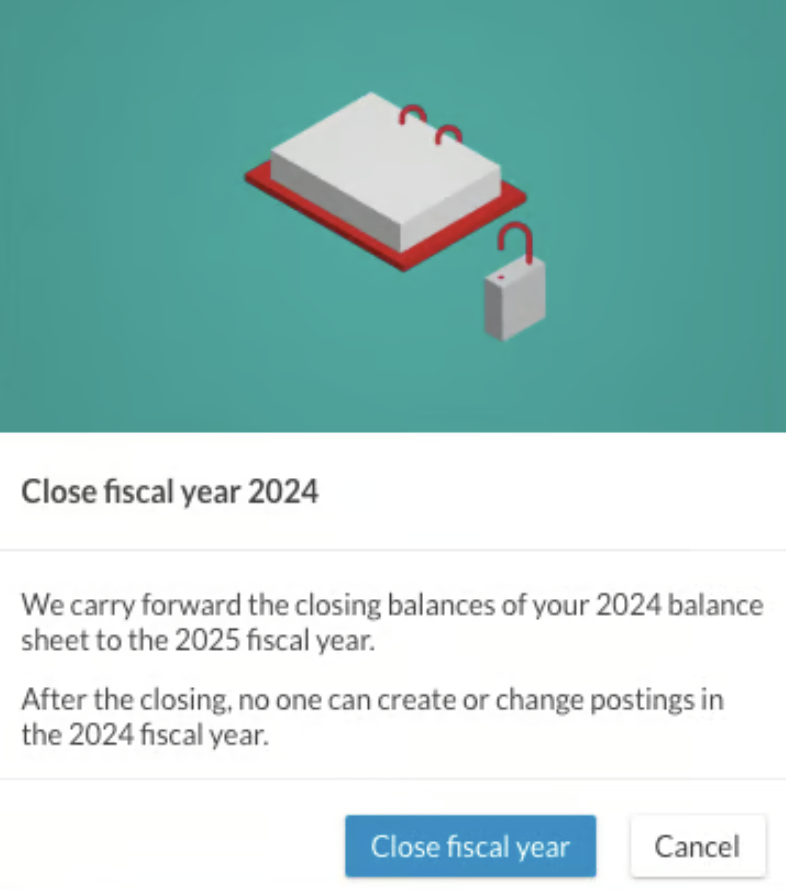
If you have green checkmarks throughout the checklist, the "Close fiscal year" button will become active. When you close the fiscal year, it will be locked, and you will no longer be able to make postings in that year.
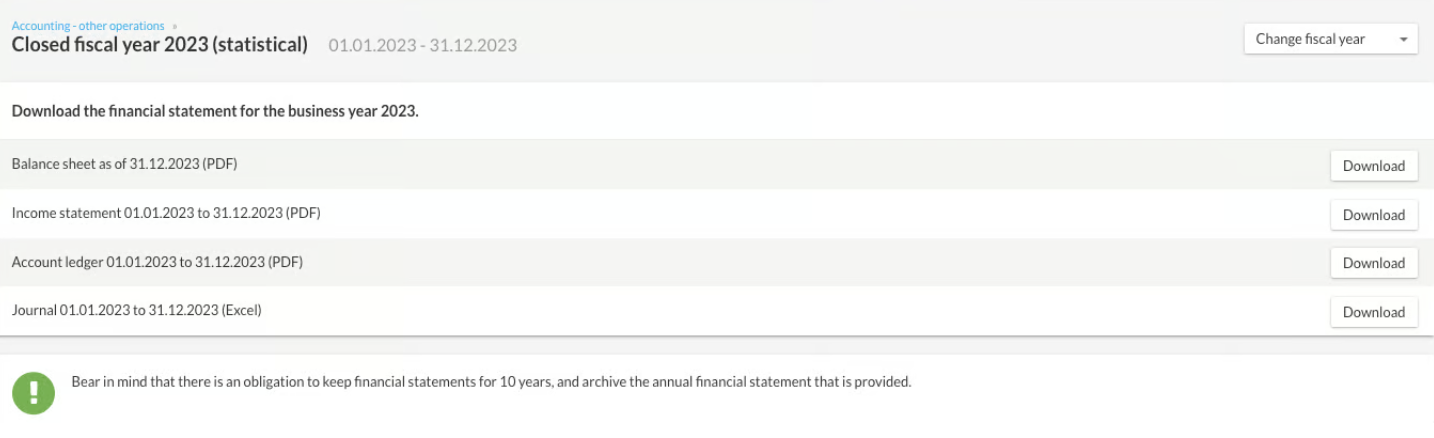
Once you have closed the fiscal year, you can export your definitive balance sheet and income statement, as well as the corresponding account statements and journal entries. You can find this function under Accounting -> Year-end closing -> Download financial statements from previous years.
Reopen fiscal year
Important: To reopen a fiscal year in bexio, you need the "Accounting - Fiscal years" right. If you do not have this, please contact your super admin.
You can find out how to reopen a closed fiscal year in this article.
Would you like to back up all your files from the inbox?
Contact our support via the contact form. We will gladly offer you a paid service, export the data for you and make it available to you.