In bexio, you have several methods for managing your payment reminders: via the dunning procedure, fully automatically, or manually from a specific invoice. This article guides you step-by-step to create, customize, and send a reminder directly from an invoice.
Content:
- Setup reminder levels
- Setup email templates for reminders
- Create a reminder from an invoice
- Edit and customise the reminder
- Send or print the reminder
- Alternative: External collection services
- Reminder Fees
Setup reminder levels
Before sending your first reminder, make sure your reminder levels and email templates are correctly configured.
You can define the structure of your reminders (for example: Payment reminder, 1st reminder, 2nd reminder).
- Go to: Settings > All settings > Features and modules > Reminder levels.
- Here you can define the number of levels, create new ones, and draft the accompanying text that will appear on the PDF document received by the client.
Setup reminder email templates
To ensure the email accompanying your reminder is ready to send:
- Go to: Settings > All settings > Features and modules > Email templates.
- Edit an existing template or create a new one.
Make sure your email templates are defined as "Standard" templates and linked to the correct corresponding reminder level.
How to create a reminder from an invoice
Once the setup is complete, you can generate a reminder for a specific client:
- Open the invoice of your choice (it must have the status “Overdue”).
- Click on the “Reminders” tab located in the invoice menu.
- Click on the “Escalate invoice to next reminder level” button.
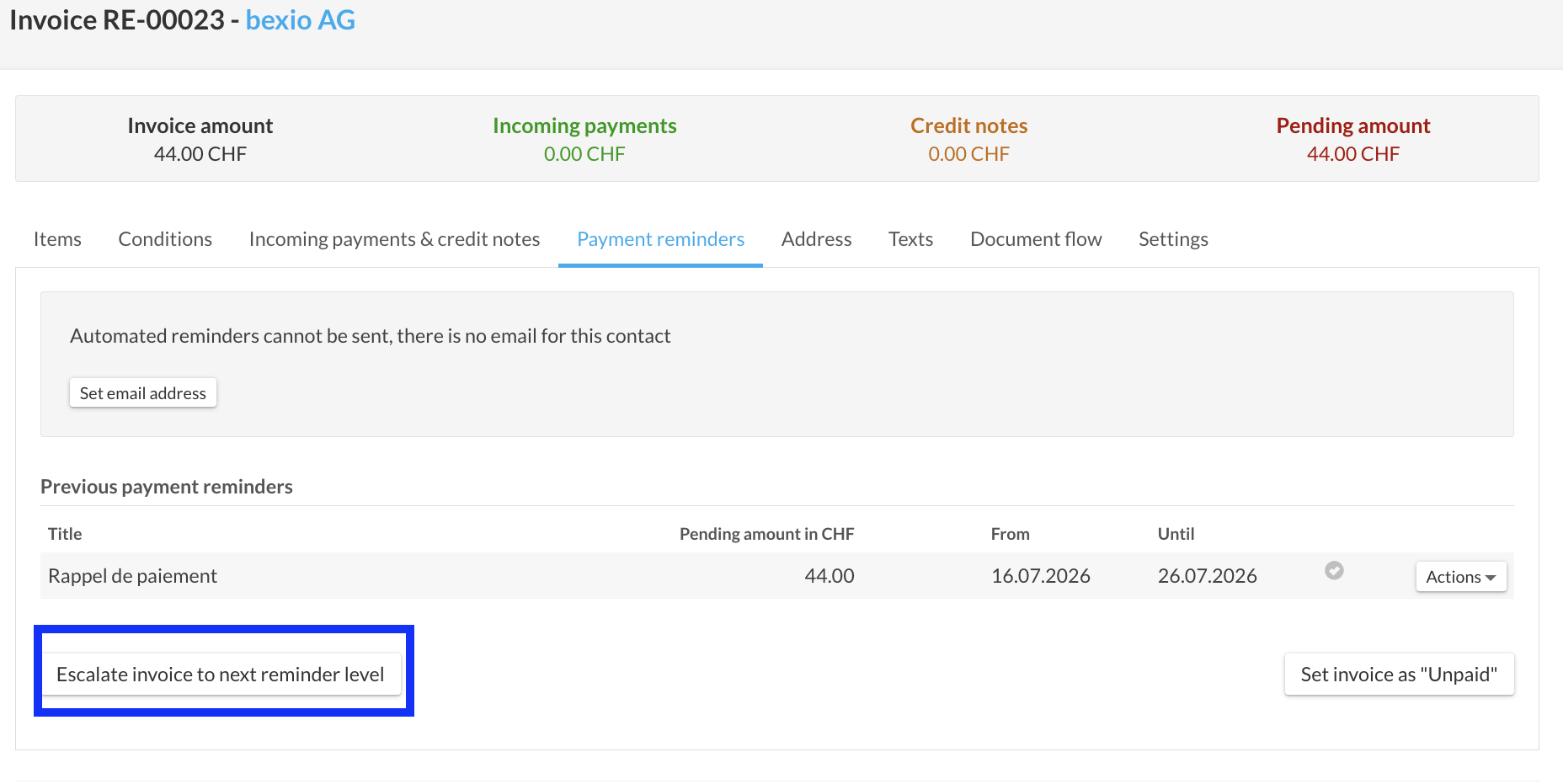
bexio then automatically generates a reminder containing all positions and amounts from the initial invoice.
Edit the reminder
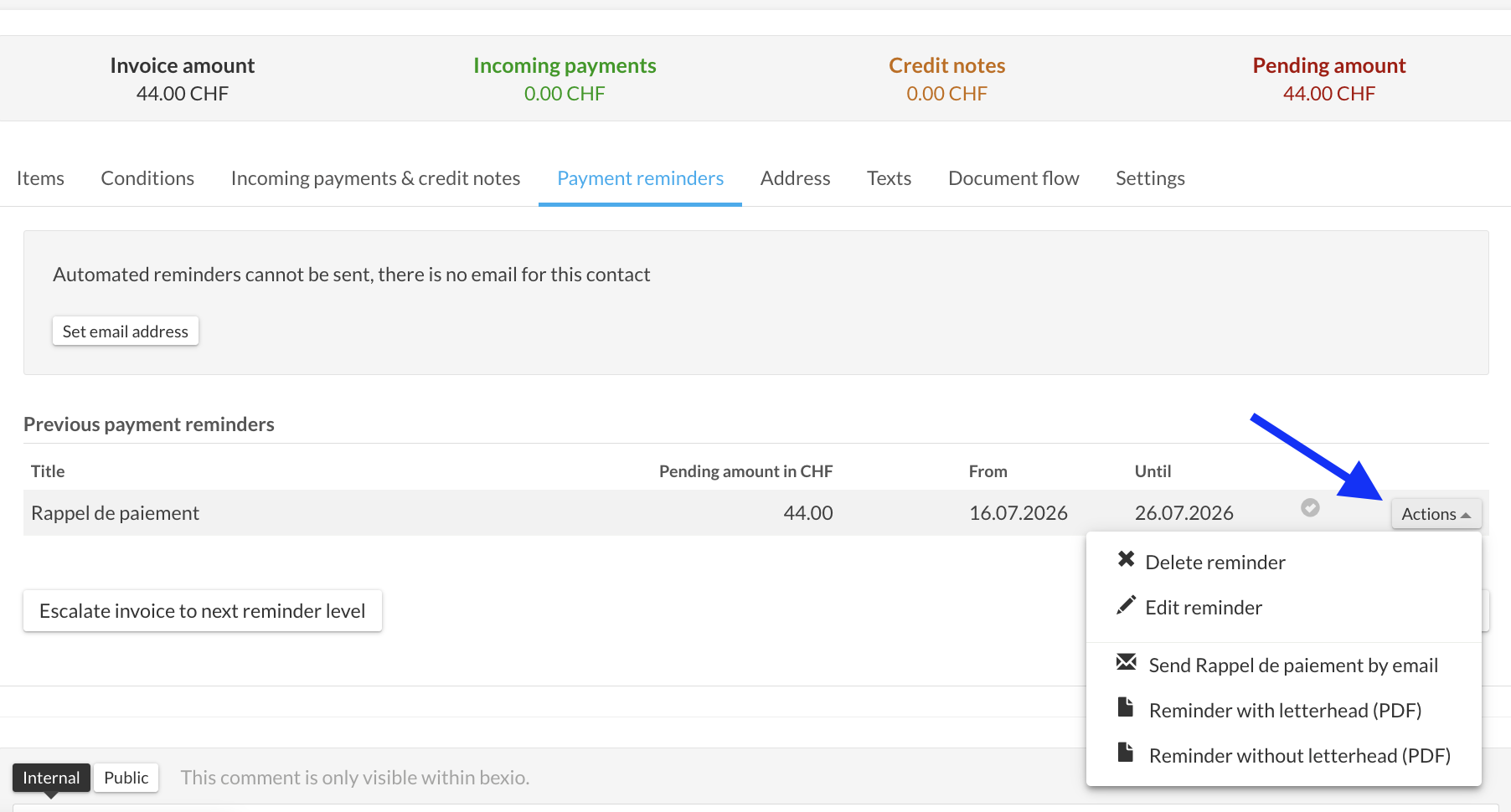
To customise a reminder before sending it, go to the Reminders tab, find the relevant reminder, then click on Actions > Edit.
You will then be able to customize several elements for this specific client:
- The document content: Directly modify the introduction and conclusion texts on the reminder to personalise it.
- The terms: Adjust the date of the reminder as well as the granted payment deadline.
- The accompanying email: Adapt the subject and body of the message to add a more personal touch or mention a specific arrangement.
Send or print the reminder
Once your reminder has been generated and adjusted, you can send it to your client from the dedicated tab:
- Go to the Reminders tab of the invoice and search for the relevant reminder.
- Click on the Actions drop-down menu located to the right of the relevant reminder.
- Choose your sending method:
- By email: Select Send reminder by email to send it directly from the interface.
- By mail (or for printing): Select Reminder with letterhead (PDF) to generate a PDF file ready to be printed and posted.
Alternative: External collection services
bexio works with several partners specialising in debt collection. We invite you to visit our bexio Marketplace to discover the available apps and connect them directly to your account to transfer your cases in just a few clicks.
Reminder Fees
Find out how to create reminder fees with bexio in this support article: Reminder fees