This article explains how to delete a user or a contact partner without a login from your bexio account, as well as the consequences of this action on your documents and notifications.
Content
- How to delete a user
- User with login
- Contact partner without login
- Delete your own profile
- Impact of user deletion on documents and search results
- Permission management and recommendations
1. How to delete a user
The process varies depending on the type of profile:
User with login:
- Go to Settings > Users > Manage users then click on the trash can icon to delete.
Contact partner without login:
Delete your own profile:
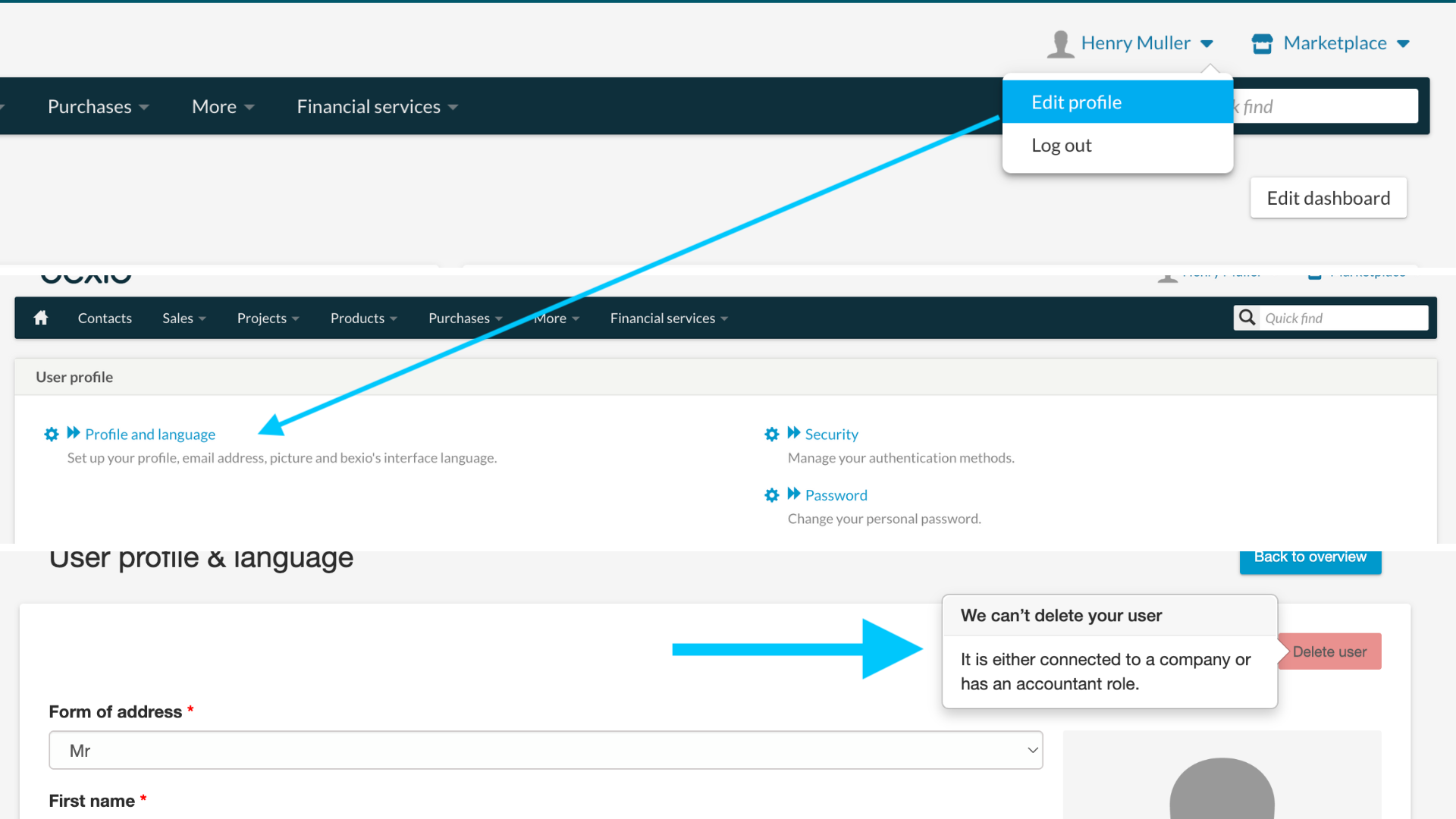
- A user can delete their own profile via the "Edit a profile and language" option only if they are no longer associated with any company.
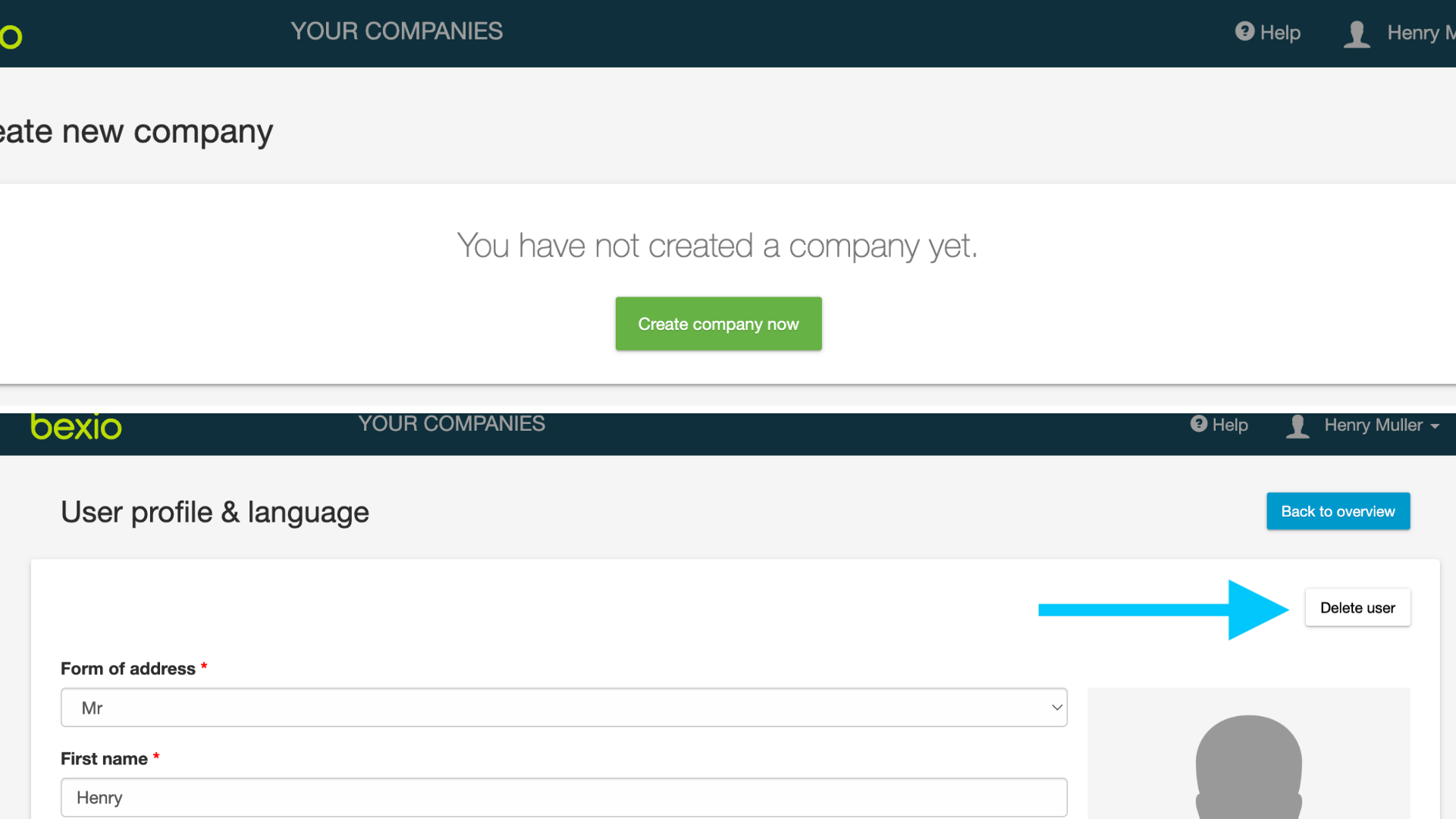
- If a user is associated with a company, the button will be displayed as in red. When the mouse is moved over the button, an informative text appears to explain the current status. In this case, deleting the profile isn't possible.
2. Impact of user deletion on documents and search results
Following the deletion of a user, their name remains recorded within the history of existing records (such as invoices, offers, and orders) to maintain historical data integrity. However, the following changes in system behavior will occur:
Filters and document searches:
- The deleted user no longer appears in the dropdown menus of filters for contacts, documents, and/or projects.
Automatic re-assignment:
- For documents in "Draft" status, the system automatically replaces the deleted user with the first active user with a login from the user list, sorted alphabetically.
- If documents (invoices, offers, or orders) are pending or paid, the contact partner remains the deleted one.
Contacts:
- For contacts linked to a deleted user or contact partner without a login, the corresponding field remains empty. Unlike documents with ‘Draft’ status, no automatic reassignment is performed for existing contacts.
Network-Link:
If a client accesses a document via a "Network" link associated with a deleted user:
- Documents (quotes, invoices, orders): The client can still accept a quote or open the network link to pay their invoice.
Project > time:
- Deleting a user will also remove all their assigned hours in the Project module.
To ensure the receipt of email notifications when a offer is accepted, the client must validate the new internal contact proposed by the system. This contact must imperatively be a user with a login (Settings > Manage users); a contact partner without a login cannot receive these internal alerts since they don't have a bexio account.
3. Permission management and recommendations
Access rights and permissions are not automatically transferred upon deletion. To ensure a seamless transition of documents from a deleted user to a successor, you have two options:
Option 1 - Manual modification:
- To re-assign all documents (offers, invoices, orders, etc.), replace the deleted user with a new user or a contact partner without a login directly within the relevant documents.
Please kindly note: This modification requires the documents to be set back to "Draft" status first.
To find out how to change a document's status to "Draft," consult the article "How to edit an invoice".
Option 2 - Global permissions for the new user:
- Grant the new user extended rights "View: all" and "Edit: all" in the relevant modules. This will allow them to view and intervene in all documents, even if they are not designated as the official contact partner for the document.
It is highly recommended to manually reassign active projects and documents to the user of your choice. If this is not done, the system will automatically assign them to the first available user in alphabetical order.
This proactive step is essential to ensure continuity in tracking and to guarantee that automatic email notifications are properly received by an active team member.