For importing your products, no template is needed. Import new products or update existing ones. The import process for files with even (max.) 15,000 products usually takes less than 30 seconds.
We recommend bexio for a maximum of 150,000 products without warehouse management, 50,000 products with warehouse management, and 15,000 products for using the product export.
Content
How does the import work?
Information: For the import function to be visible, the user right "Admin" is required. Account owners and "Superadmin" users can edit these rights.
Import products
The import function for products is located under "Products → Products → three-dots menu (top right) → Import products"
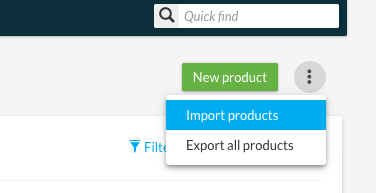
Selecting the Excel or CSV file
Select the file from your computer and upload it. Then click continue.
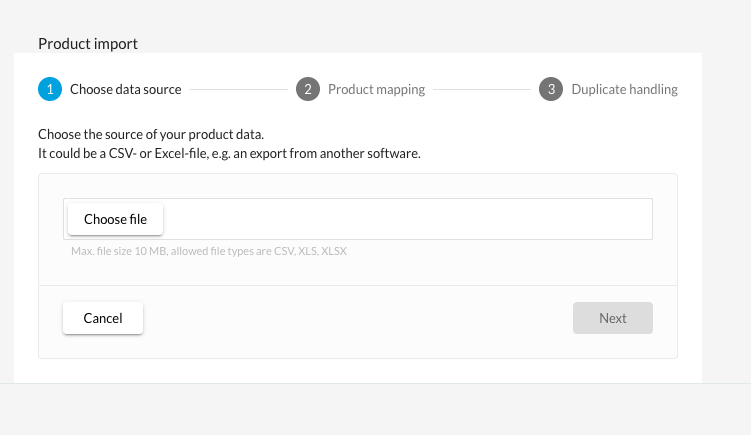
The maximum file size is 10MB. Allowed file formats are: CSV, XLS, XLSX - If you receive error messages at this point, our FAQ will help.
Column title assignment
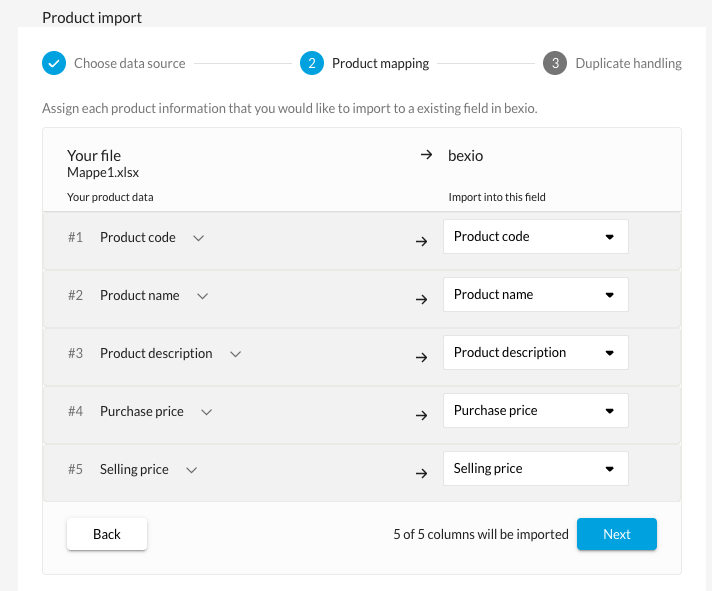
Select the data to be imported and assign it to an existing field in bexio. Unassigned fields will be ignored and therefore not imported.
Handling of duplicates
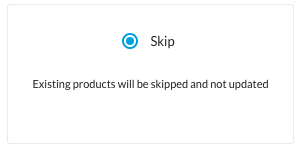
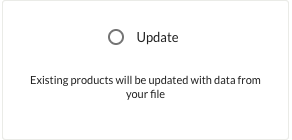
Select the import type & confirm with "Start import".
How should the Excel file be structured?
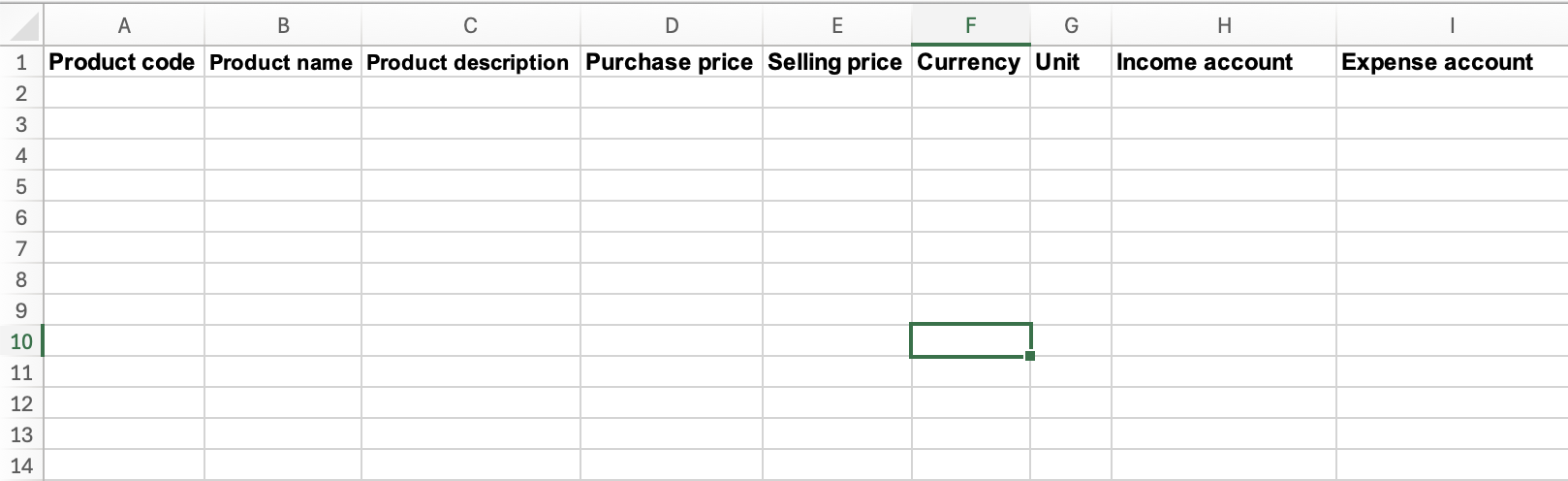
The file must have a header/title in the first row for the column assignment to work. Example:
What are the mandatory fields?
Basically, there is only one mandatory field - the "Product name". However, we also recommend using a "Product code".
When importing existing products, the following should be noted: If products that already exist in your bexio are imported, they are matched by "
Product name" or "
Product code".
- Are your products in bexio only saved with "Product names"?
Import only the "Product names" without the "Product code" (or store them in your product list first), otherwise duplicates will be recorded. - Are your products in bexio saved with "Product names" & "Product codes"?
Always import your products with the "Product code", as in this case matching is done via the code and not via the "Product name". If only the name is imported, duplicates will be recorded.
What product information can be imported?
These fields can be imported:
- Supplier
- Contact person
- Product code
- Group
- Product description
- Purchase price
- Selling price
- Currency
- Unit
- Revenue account
- Product name
- Expense account
- VAT
- Sales tax
- VAT
- Input tax
- Product code
- Supplier
- Product name
- Supplier
- Product description
- Supplier
- Notes
- Stock level
- Minimum stock
- Storage location
- Storage space
- Width (mm)
- Height (mm)
- Weight (g)
- Volume (ml)
Fields that require special attention:
- Supplier: First, enter your suppliers under "Contacts".
- Contact person: Use an email address set up as a user.
- Group: First, enter the groups & subgroups under "Settings > "All settings" > "Master data" > "Products: Groups". Use one column for the groups in the Excel file. If there is a subgroup, set it, otherwise the group. When selecting the subgroup, the supergroup is automatically set in bexio.
- Purchase & selling price: Can be imported with a maximum of 6 decimal places.
- Currency: First, enter currencies under "Settings" > "All settings" > "Functions & Modules" > "Currencies".
- Unit: First, create product units under "Settings" > "All settings" > "Master data" > "Product units".
- Revenue & Expense account: Check whether the selected revenue and expense accounts are created and activated under "Settings" > "All settings" > "Accounting" > "Financial Accounting Chart of Accounts". In Excel, only set the account number without description (e.g., 4200).
- VAT Sales & Input tax: Check whether the VAT rates are created in bexio under "Settings" > "All settings" > "Accounting" > "VAT tax rates". In Excel, only set the VAT code without description (e.g., UN77)
- Stock level: If the product is to be activated "with stock", enter a stock level here. If the product is not to have stock, leave the field blank. If no value is entered, the stock is not activated. (Maximum possible value: 6 digits)
- Storage location: First, enter the storage locations under "Settings > "All settings" > "Master data" > "Products: Storage locations".
- Storage space: First, enter the storage spaces under "Settings > "All settings" > "Master data" > "Products: Storage spaces".
Important: We currently only support ; (semicolon) as a delimiter for CSV files. If you use other delimiters, please convert the CSV file to XLS or XLSX.
Product information that cannot be imported
- Product type: The product type cannot be imported "directly". If a value is entered for the stock level (in the import file), the product type is automatically marked as "Goods". However, if this is left blank, no product type will be stored, and this information will remain blank in bexio. If you wish to select "Service", this can be initially set in the affected product.
- Tiered pricing: Tiered pricing cannot be imported. This must be entered directly in the bexio user interface.
Import errors
If errors occur during product import, we will provide you with a correction file. You can download the file directly from the error message.
In the first column of this Excel file, you will see the reason why this product could not be imported. Correct this and then upload the correction file directly to re-import the failed products.
Important! The "original file" remains unchanged. It may therefore be worthwhile to also correct the errors in the source file for future imports.
Export & Import
If you want to export your product list for adjustments and then re-import it, please note the following points:
- Column B: Product type > The product type cannot be imported. If a value is entered for the stock level (in Excel), the product type is automatically marked as "Goods". However, if this is left blank, no product type will be stored, and this information will remain blank in bexio. If you wish to select "Service", this can be initially set in the affected product.
- Column E/F: Product description (HTML) > Only import the "Product description HTML" column to re-import all formatting. (Column F can be ignored.)
- Column I/J: Main & Subgroup > When importing (assigning "Group"), select the "Subgroup", as the main group will then be automatically selected by the assigned subgroup.
- Column AA: Stock level > The stock level is exported as "0" if "Product with stock" is set to No. If the stock is to remain deactivated, the "0" must be removed so that the field is empty!
- Column AC: Contact person > Use the customer's email address here.
- Column AH: Tiered pricing > Tiered pricing cannot be imported. This must be entered directly in the bexio UI.
FAQ Error messages
Error message: File contains columns without titles / Solution: Delete the empty column.
Error message: File contains columns with the same title / Solution: Delete the duplicate column, or change the column title.
Error message: The import field appears completely empty and cannot be imported.
Solution: Remove any special characters from the column title (e.g., product name) to be able to import the column.
If the column title from Excel cannot be clearly assigned to a field in bexio, the message "Do not import" appears. However, you can still select a field and have this column imported correctly.