You can configure your number ranges so that they automatically restart at the beginning of each new year (for example, restarting at 1 or at a specific value defined on January 1st). This article guides you through the steps to enable and define these yearly number ranges.
Important: These settings must be configured before the end of the current year to take effect as of the following January 1st.
Content
1. Numbering for sales documents
1.1 Enable yearly restart
1.2 Define number ranges
2. Project numbering
3. Numbering for expenses, bills, and vendor credit notes
1. Numbering for sales documents
Concerned documents: Quotes, orders, invoices, deliveries, credit notes, and account statements. It can also be configured for purchase orders.
1.1 How to enable automatic restart
To ensure your documents restart at zero (or a defined value) on the 1st January, you must first authorise the system to reset the sequence each year:
- Go to Settings > All settings > Features & modules.
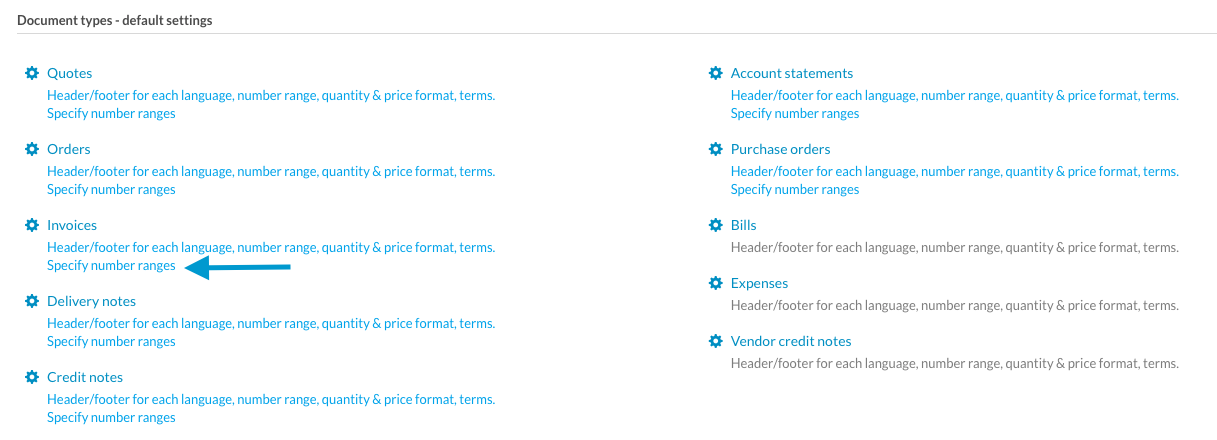
- Under Document types - Default settings, click on the desired document.
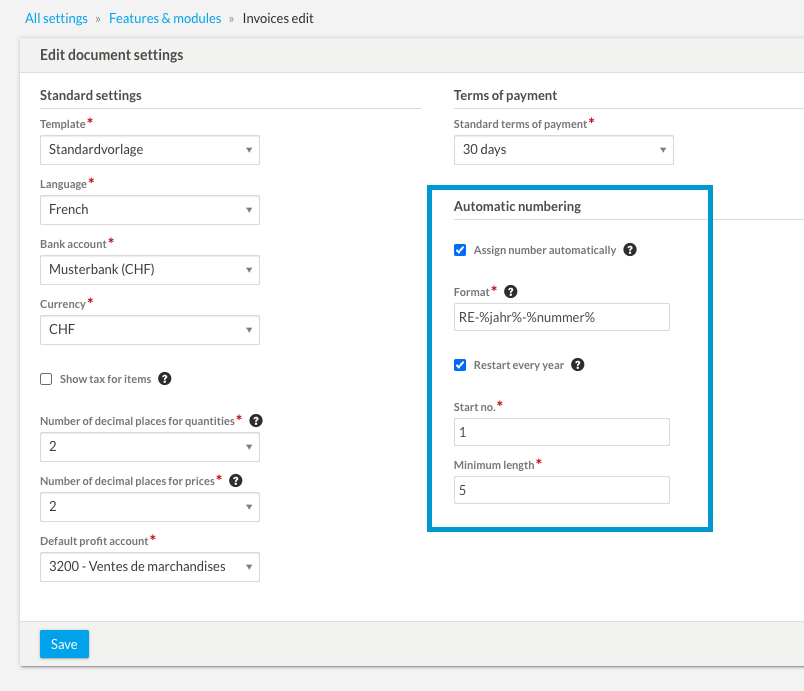
- Check the box "Restart every year".
- Format Tip: To make the year appear in the number (e.g., 2026-001), use the variables %Jahr%-%nummer% in the format field.
- Click Save.
1.2 Define number ranges
- After saving the numbering settings, click the "Specify number ranges" button.
- Enter the starting value for the new year.
Begin with the start value from the previous year: If your last document of the previous year is number 50, the numbering will naturally follow to become 2027-0051.
Start with the following value: You can choose to restart with a specific number. For example, by entering "5", the first document of the year will be 2027-0005.
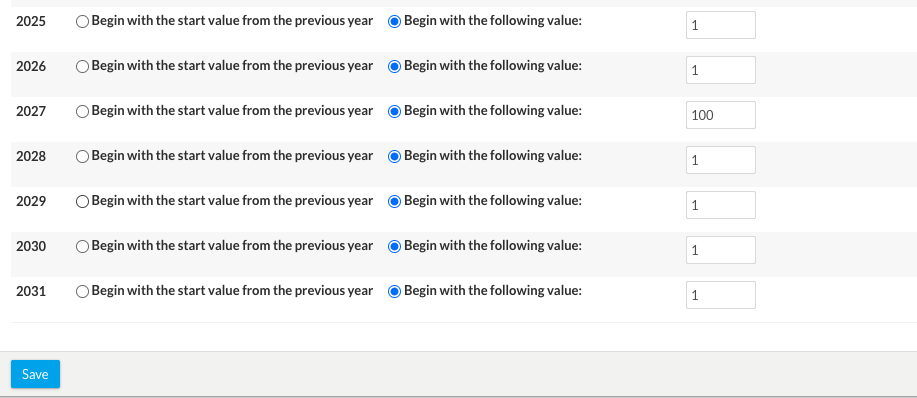
- Click Save.
This operation must be repeated individually for each document type (Quote, Invoice, etc.).
2. Project numbering
For projects, the path is slightly different:
- Go to Settings > All settings > Master data > Projects: document settings.
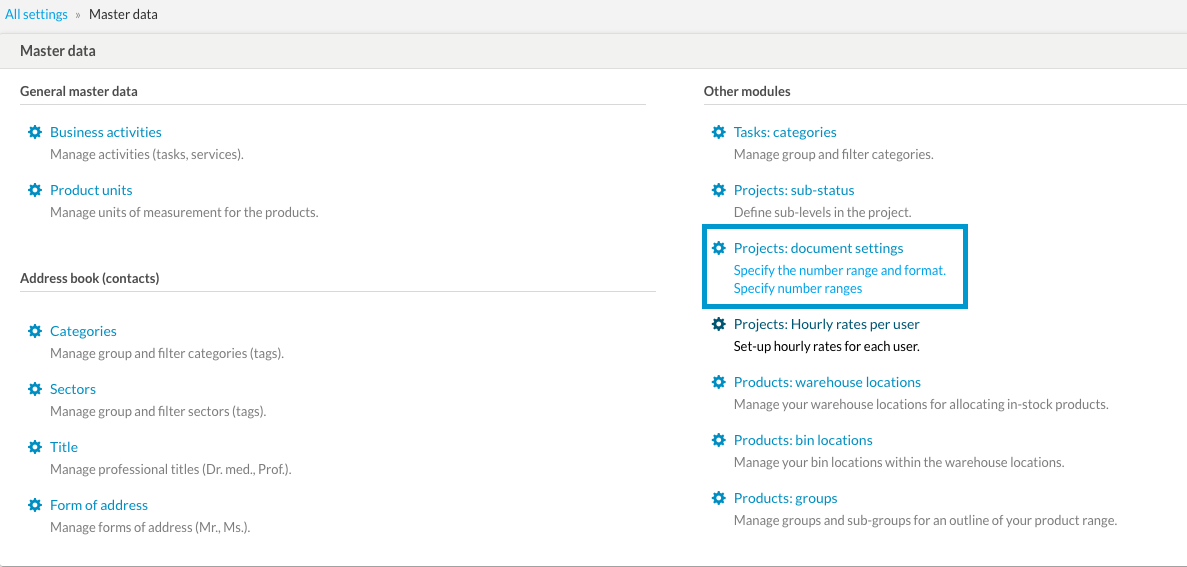
- Enable the "Restart every year" option.
- Follow the same procedure as for sales documents to define the number range.
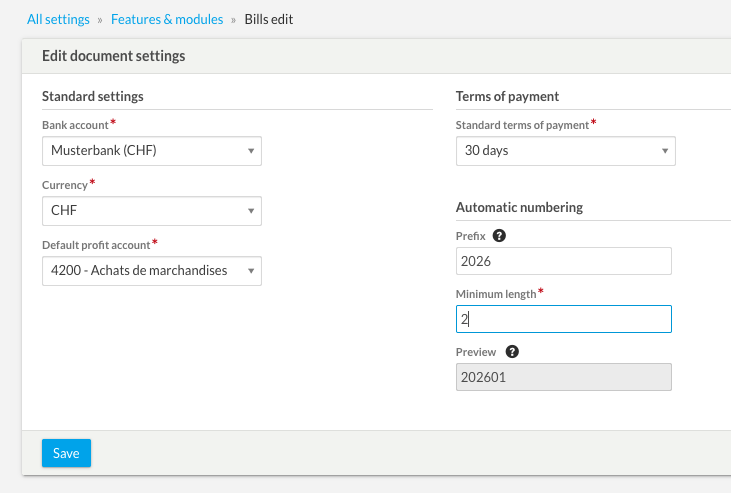
3. Numbering for expenses, bills, and vendor credit notes
For purchase module, numbering is simplified:
- There is no automatic "Restart" checkbox.
- Simply manually update the prefix (e.g., change from "2025-" to "2026-") in the document settings and save.
Do you need help ?
If you encounter difficulties during configuration or if the numbering is not applying as expected, please contact us via this form.