In bexio, you can manually move each overdue invoice to the next reminder level. However, to save time, you also have the option to process all your overdue invoices simultaneously using the dunning run feature.
Content:
- Set up reminder levels
- Set up reminder email templates
- Payment reminder runs (reminders about outstanding invoices)
- Start a new payment reminder run
- Finalise and export the reminder run
- How to manage an invoice that has reached the maximum reminder level?
Set up reminder levels
Before sending your reminder run, ensure that your reminder levels and email templates are correctly configured.
You can define the structure of your reminders (for example: Payment reminder, 1st reminder, 2nd reminder).
- Go to: Settings > All settings > Features and modules > Reminder levels.
- Here you can set the number of levels, create new ones, and draft the accompanying text that will appear on the PDF document received by the customer.
Set up reminder email templates
To ensure the email accompanying your reminders is ready to send:
- Go to: Settings > All settings > Features and modules > Email templates.
- Edit an existing template or create a new one.
Make sure your email templates are set as "Standard" templates and assigned to the corresponding reminder level.
Access payment reminder runs
- Go to the Sales > Other tab.
- Then click on payment reminder runs (outstanding invoice reminders)
The overview lists all reminder runs executed on your account. You can use the filters to:
- Filter by user (view your reminders or those of your colleagues).
- Filter by date to find a specific period.
Start a new payment reminder run
To start the process:
- Click the « New payment reminder run » button located at the top left.
- Set the reference due date: this date determines which invoices are considered overdue. This date will also appear on the generated reminders.
- Review the list of invoices: all overdue invoices will be displayed. Those accompanied by a clock icon (timing) indicate that an automatic reminder is scheduled.
Beware of automatic sending: Invoices displaying a clock icon have an automatic reminder already scheduled. Check these indicators carefully to avoid sending duplicate reminders to your customers.

- Select the invoices: A list of all invoices with the status « Overdue » as of the selected date will appear. Check the boxes for the ones you wish to advance to the next reminder level.
Finalise and export the reminder run
Once you have completed your selection, proceed to the final step where several options are available:
- Send by email: send the reminders directly via email to your customers.
- PDF Export: download the documents in PDF format (with or without letterhead/logo) for printing.
- Excel Export: extract a summary list of the reminders in Excel format.
How to manage an invoice that has reached the maximum reminder level?
When an invoice has reached the maximum reminder level and remains unpaid, you can change its status to mark it as « Unpaid ».
Procedure:
- Open the relevant overdue invoice.
- Click on the Reminders tab.
- Select the option Mark invoice as "Unpaid".
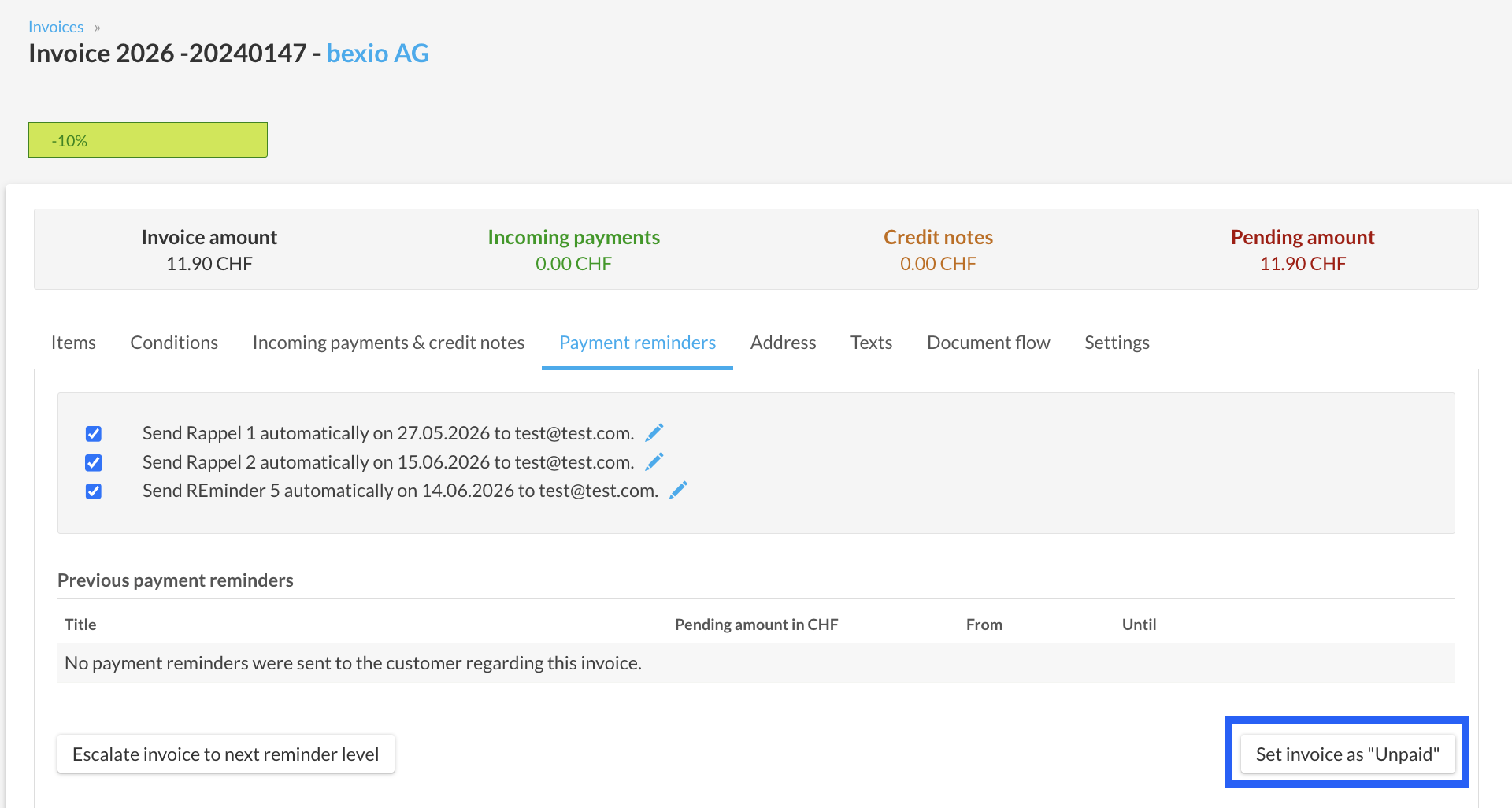
In order to mark an invoice as "Unpaid", the relevant VAT period must still be open. If the VAT period is closed, this option will not appear.
If your VAT period is already closed, do not modify the invoice directly. We recommend contacting your accountant or fiduciary for the correct accounting procedure.