When you create a new document in bexio (invoice, quote, order, etc.), you are automatically directed to the
“Positions” tab. This section provides you with numerous options to structure and present your services or products in an ideal way.
- All positions can be easily reorganised: simply click on a position and drag-and-drop it to the desired location.
- Only quotes and orders can contain "optional" positions.
Content:
- Standard Position vs. Product Position
- How to add standard and product positions
- Add a standard position
- Add a product position
- More items available
- Text
- Tracked time
- Expense
- Group positions
- Discount
- Subtotal
- PDF Page break
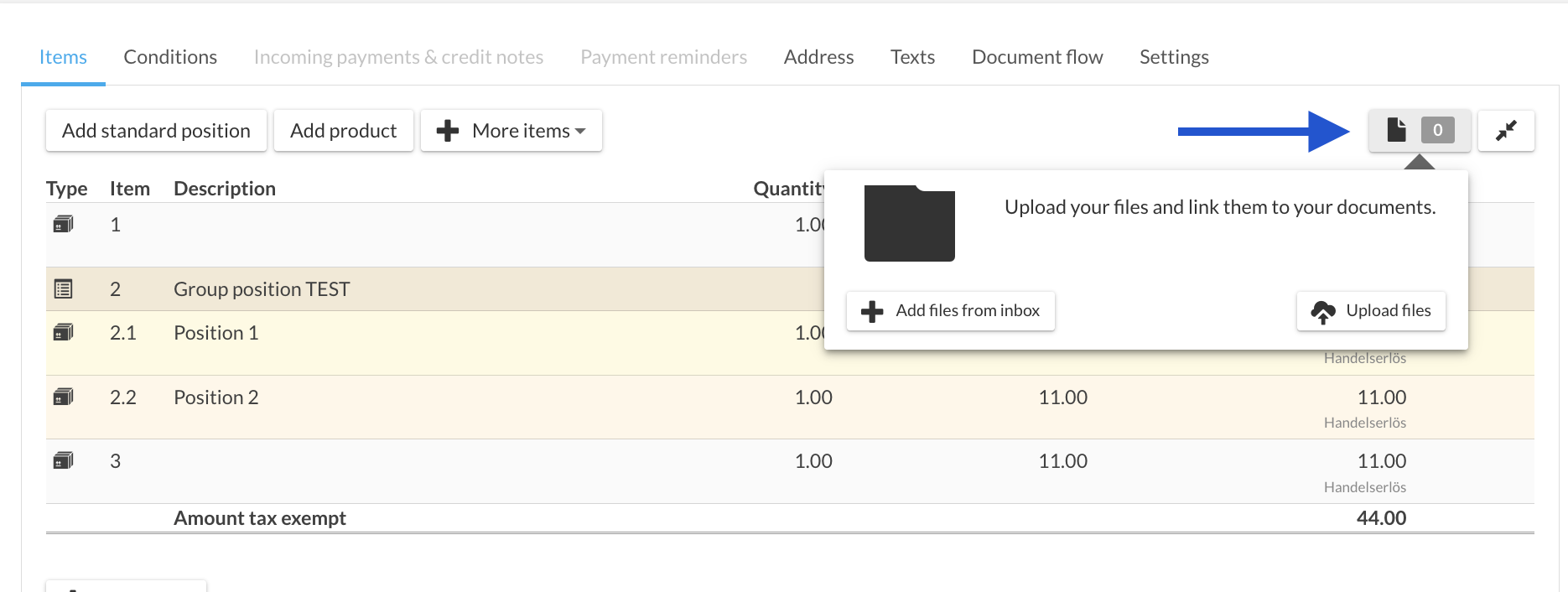
- Upload receipts / attachments
Standard Position vs. Product Position
- Standard position (default): This is created on the spot (for example, while drafting an invoice). It is a "blank" position that you fill out manually according to your immediate needs.
How to add standard and product positions
1. Add a default position
- Go to the “Items” tab.
- Click on “Add standard position”.
- Manually fill in the fields: Description, Quantity, Price, and Discount.
2. Add a product position
- Under the “Items” tab, click on “Add product position”.
- Search for your product using the full-text search (by typing its name or product code) or by clicking the pallet icon.
- Enter the desired quantity in the “Quantity” field.
The “Import product” button opens a detailed view (similar to a standard position template, but pre-filled with the product's data). You can make last-minute changes here before confirming by clicking Save.
Other positions available
To enrich your documents, click on the “+ more items” menu. You will find the following options:
Text
Allows you to easily add a block of text or explanatory notes anywhere in your documents.
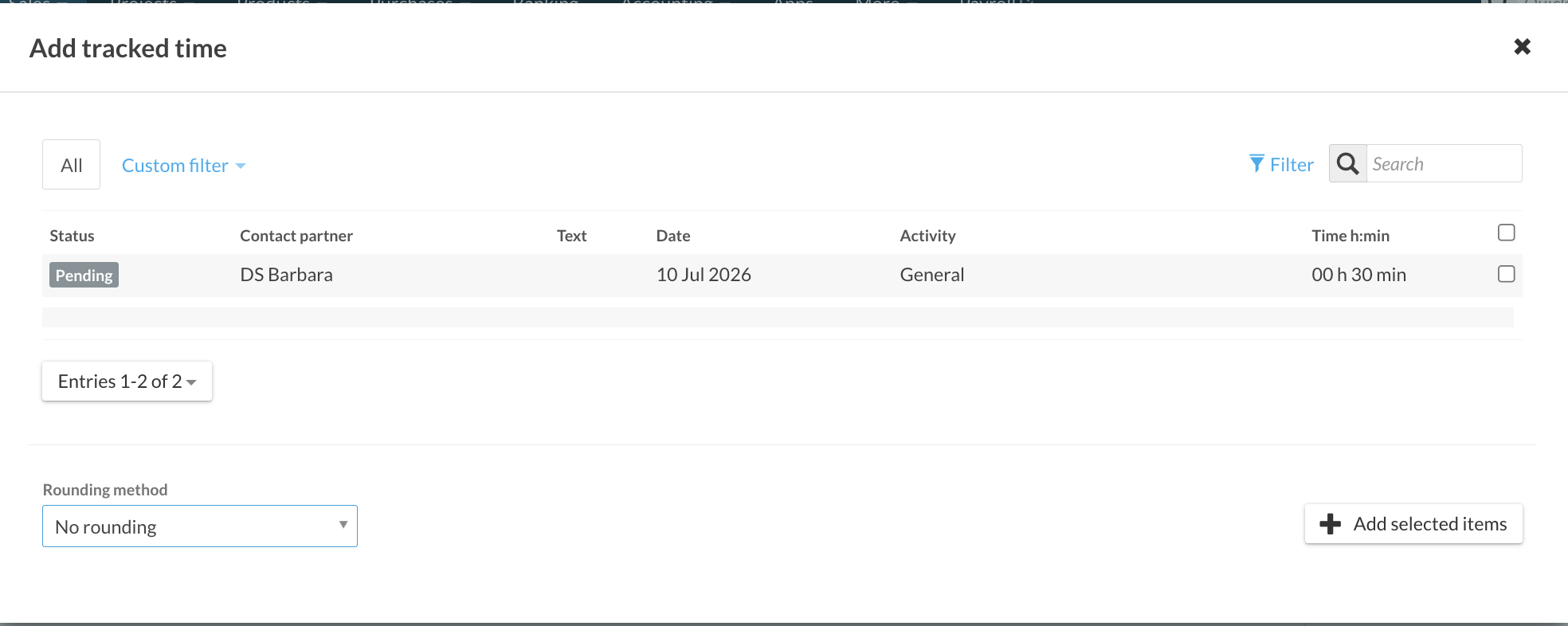
Tracked time (Invoices only)
You can only import this if you have previously logged time entries for the client the document is intended for.
To learn more about this topic, check our help articles: how to track time & how to invoice tracked time.
Expense (Invoices only)
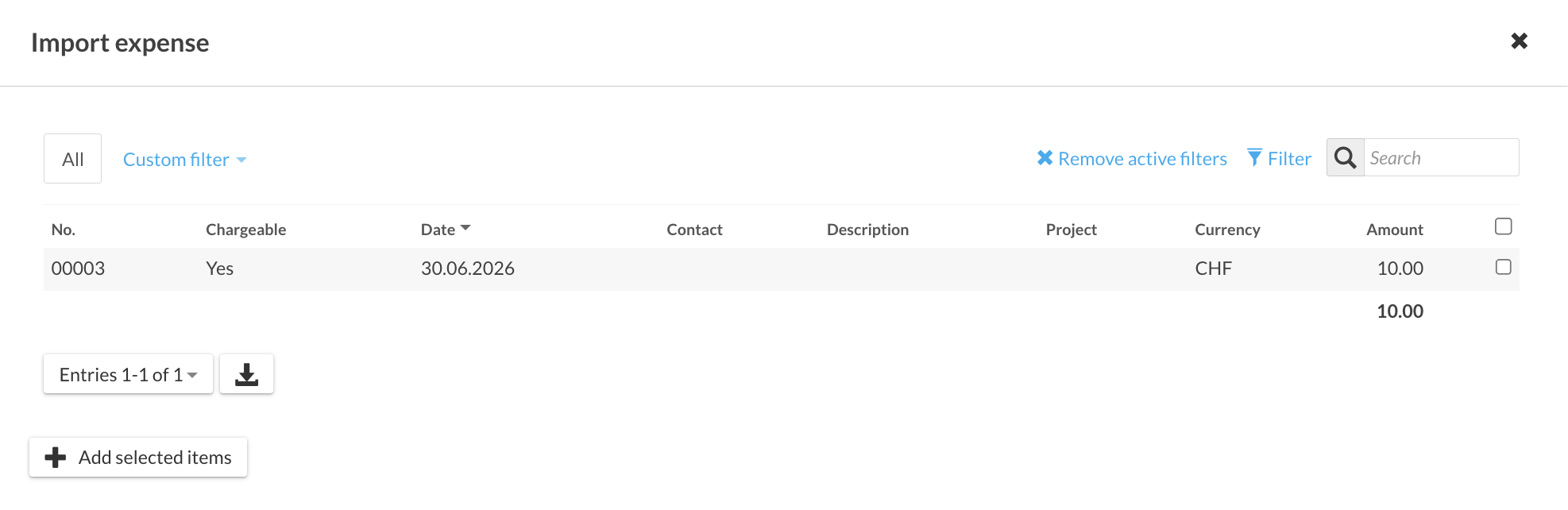
If you have entered expenses that you wish to bill to a client, you can import them directly into the invoice.
To learn more, click on: how to create expenses.
Group positions
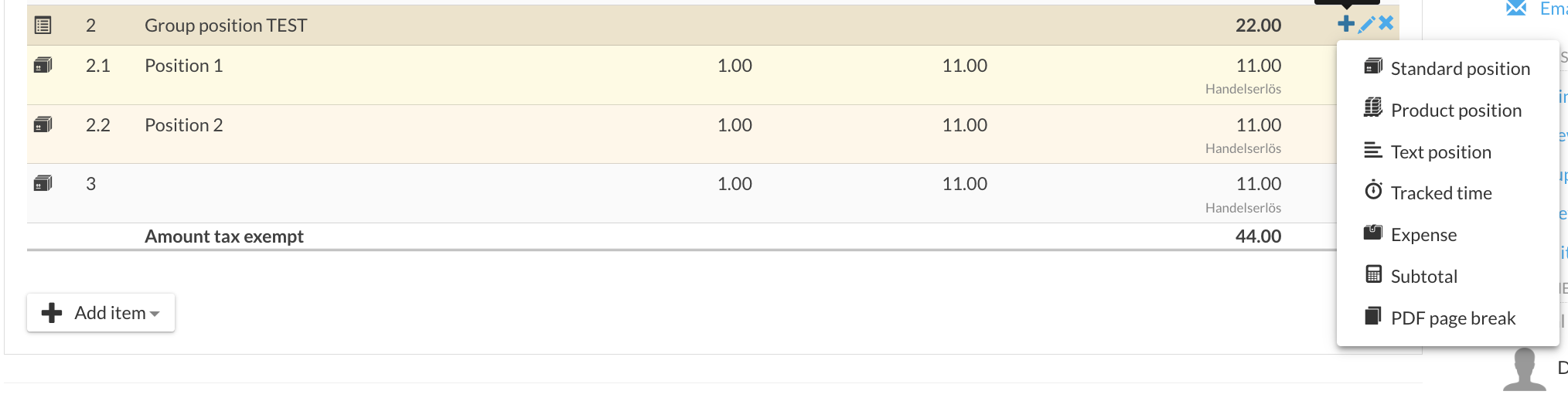
Group positions allow you to gather multiple items within a single group to obtain a partial total amount. They function like a package/bundle.
How to create:
- Create the group position, enter its name (and its description if necessary), then click Save.
- Once the position is created, a “+” button appears inside it.
- Click on this “+” button to insert the items of your choice (all position types are supported).
Quotes and Orders: You can set the entire group position as optional in your quotes or orders.
Amount Display: The cumulative total of all sub-positions is automatically displayed at the very top, next to the title of the group position.

Discount
Discount: If you wish to apply a discount to all positions in your document, use the discount position option.
Specific Discount: To apply a discount to a specific item, you must enter it directly in the fields provided for this purpose on the relevant default position, product position, or group position.
Subtotal
The subtotal allows you to provide better visibility of the financial structure of your documents (for example, at the bottom of the page).
A subtotal cannot be inserted after a group position; it can only be placed before the final total of the document.
PDF Page break
To optimise the visual layout of your documents when printing or generating the PDF, you can add page breaks manually.
If you wish to insert a page break inside a group position, you must configure it directly from the settings of that specific group position.
Upload receipts / attachments
You can easily link receipts or attachments to your invoices in two different ways:
-
From the bexio Inbox: Directly select documents or files already uploaded and stored in your Inbox & file upload section.
-
Upload files: Import local documents (PDFs, images, etc.) directly from your computer's desktop or folders.