Content
Currencies
Add currency (including rounding factor setting)
1. In bexio you can enter new currencies or manage existing ones. The currencies can be managed under "Settings" → "All Settings" → "Functions & Modules" → "Currencies and exchange rates".

2. The overview lists the currencies already entered. Click on the button "Add new currency" to add more.

3. Complete the input fields:

Under "Currency", search for either the three-letter country code (ISO code) or the name of the currency.
Under "Round to" you can set the factor to which you want to round. For 0.01, amounts are rounded to the nearest centime. With 0.05 - to five centimes.
Important: The rounding factor is not applied to expenses. This means that the amount will be booked as you have entered it in the expenses.
If, for example, you have entered a rounding factor of 0.05 (5 centime rounding) and enter an expense of Fr. 9.96, we will book exactly this amount of Fr. 9.96. This amount will not be rounded down to Fr. 9.95.
With "Fixed exchange rate" you define the exchange rate with which the conversion into the master currency is to take place.
Exchange rates
The exchange rate can always be stored in relation to the master currency. You define the master currency when you create your bexio account. As soon as you have entries in bexio (e.g. from invoices), the master currency can no longer be adjusted (unless there is not yet a single entry in the journal for all financial years).
To edit a currency and its exchange rate, click on the "three-point menu" on the right-hand side of the overview. Then select "Edit currency". The exchange rates are entered according to the following principle: 1 Euro corresponds to 1.05000 Swiss Francs, 1 Indian Rupee corresponds to 0.012 Swiss Francs, etc.
Delete currency
To delete a currency, click on the "three-point menu" on the right side of the overview. Then select "Delete currency".

Invoicing/settings
In the case of companies liable to pay tax, the use of the correct exchange rate is very important. The currency exchange rate that corresponds to the invoice date must therefore be checked or adjusted in the settings.
To edit a currency and its exchange rate, click on the "three-point menu" on the right-hand side of the overview. Then select "Edit currency". The exchange rates are entered according to the following principle: 1 Euro corresponds to 1.05000 Swiss Francs, 1 Indian Rupee corresponds to 0.012 Swiss Francs, etc.
In most cases, the monthly average rate published by the Swiss Federal Tax Administration (FTA) is sufficient. This exchange rate is always published by the FTA on the 25th of the month, or the first working day following this, always with respect to the following month. Example: On 25th May, the monthly average exchange rate for the month of June is published.
The current monthly average exchange rate can be found on the website of the FTA under the following link: FTA monthly average exchange rate
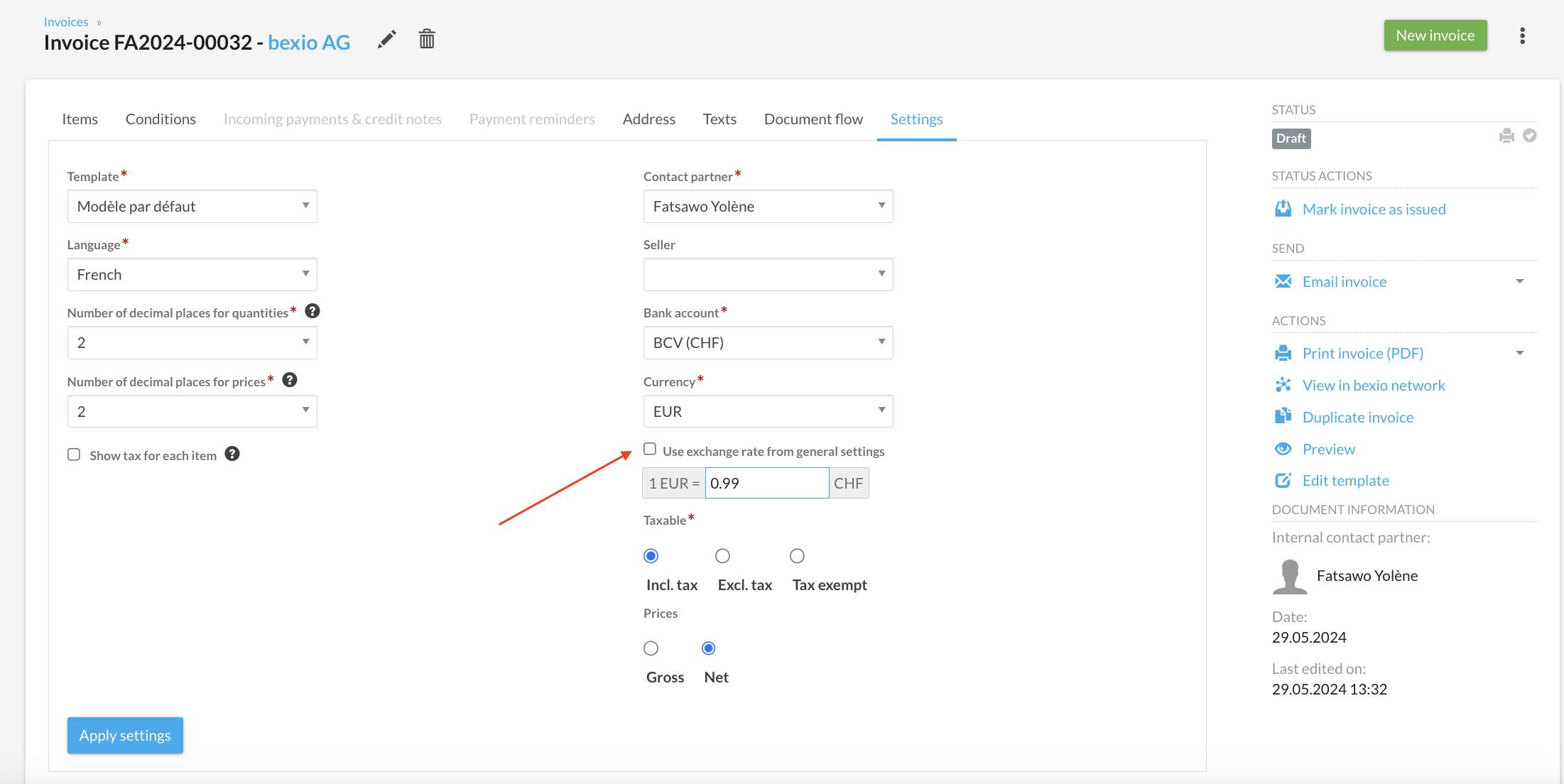
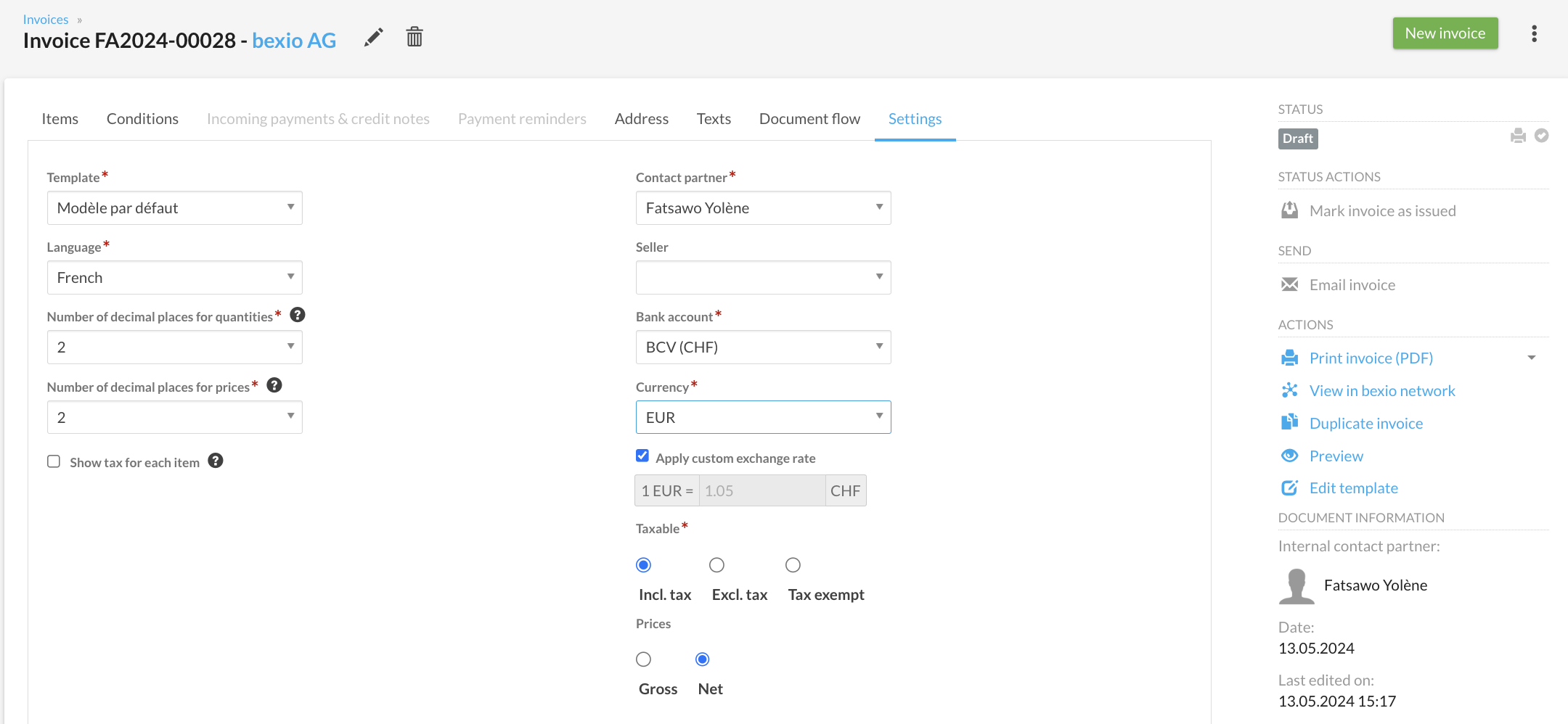
The receipt is now issued in the relevant foreign currency. The incoming payment is made to the foreign currency bank account that has been set. The exchange rate and the associated foreign currency bank account can be selected in the invoice settings.
Receipt of payment
The customer's payment is made to the foreign currency account recorded on the invoice. The bank posts the amount received in the specified foreign currency. The incoming payment is posted either in banking or via the manual incoming payment.
When the payment in foreign currency is posted in the sub-ledger, bexio automatically posts exchange rate gains or losses if the calculated base currency invoice amount does not match the calculated base currency payment amount. This posting primarily balances the customer collective account (debit/credit) in the base currency (which, in most cases, is CHF). When the exchange rate gains and losses are automatically posted, all discounts, partial payments, etc., are then correctly taken into account in a thorough calculation of all posting options.
Example – invoicing/incoming payments in euros
Customer account cleared, holdings of Euro = 0, no valuation necessary
Account form 1100 (accounts receivable)

In order to activate the monthly average exchange rates, the base currency needs to be in CHF.
You can activate it by clicking on Settings -> All Settings -> Company -> Basic settings
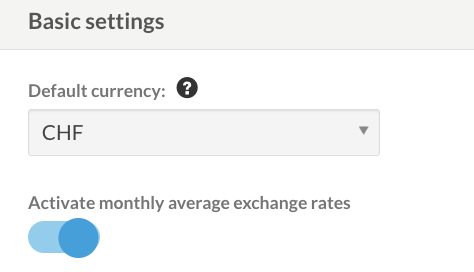
If you experience any issues, you can deactivate the monthly average exchange rates at any time with this toggle. When the toggle is deactivated, you will see the chart with the rate you put manually previously.
What changes from the former average exchange rates:
If Monthly average exchange rates are activated, this is how the currencies list looks like:
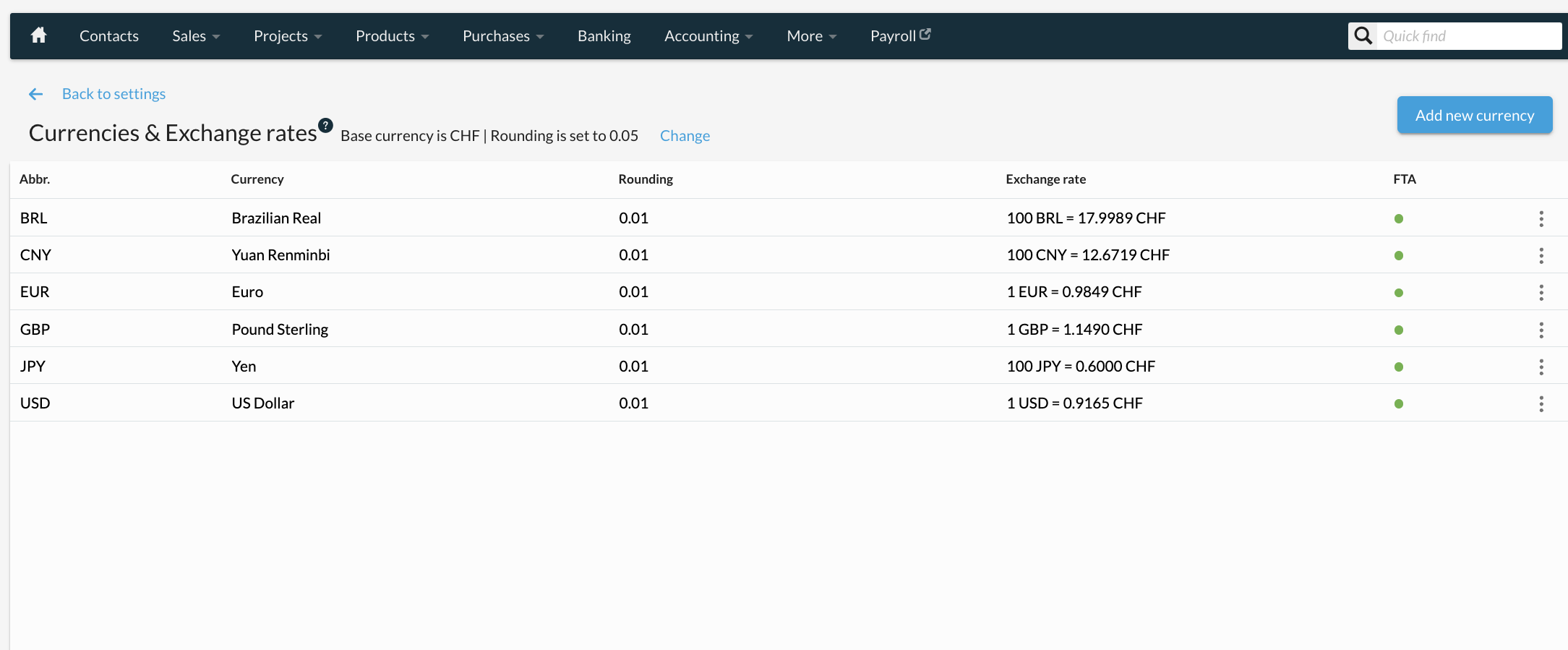
At the bottom, you have the yearly overview per month and currency.
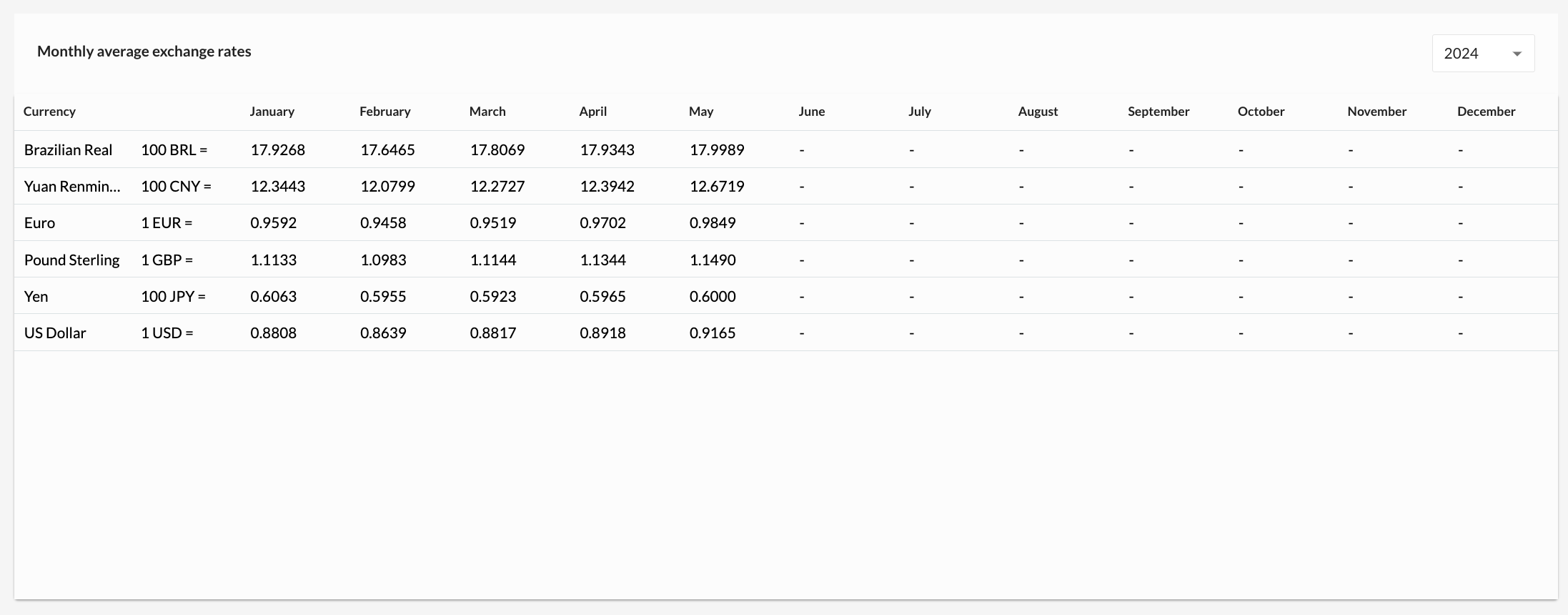
The yearly overview of monthly average exchange rates will show the rates of the last 3 years.
Where Monthly average exchange rates can be used
The Monthly average exchange rates can be used in the following parts of bexio:
- In Sales documents:
- Quotes, Offers, Invoices and Credit Notes.
- In Purchase documents:
- In Accounting:
- In Contacts:
- In bexio Go
When you are doing an invoice or another document, you can unselect the Monthly average exchange rates and use the manual rate of your choice.