If you are working with an external collaborator or a team member who does not need direct access to bexio, but whom you still wish to display as a salesperson or correspondent on your documents, you can create a contact partner without login. This option has the advantage of requiring no additional license, making this profile entirely free of charge.
When to use a contact partner without login
A contact partner without login cannot log in to bexio. This profile type is primarily used to:
- Designate a the contact partner or owner on documents such as offers, projects, or invoices.
- Identify a reference person (e.g., owner or contact partner) within your contacts.
- Distinguish who is responsible for specific documents without adding a user with bexio access.
Even if the designated contact partner on a sales document (quote, order, invoice) doesn't have a login to access bexio, they can still receive email notifications.
Indeed, when your customer adds a comment via the Network Link (or when they accept or reject a quote), the system automatically sends an email notification to the main contact partner assigned to that document, regardless of whether they have user access or not.
To check or update this information, simply open the relevant document (quote, order, or invoice) and go to the "Settings" tab of the document. The responsible person's name is listed there under the "Contact partner" field.
How to add a contact partner without login
To add a correspondent without access, follow these steps:
1. Go to Settings > All settings > Features and modules > Contact partner (without login)
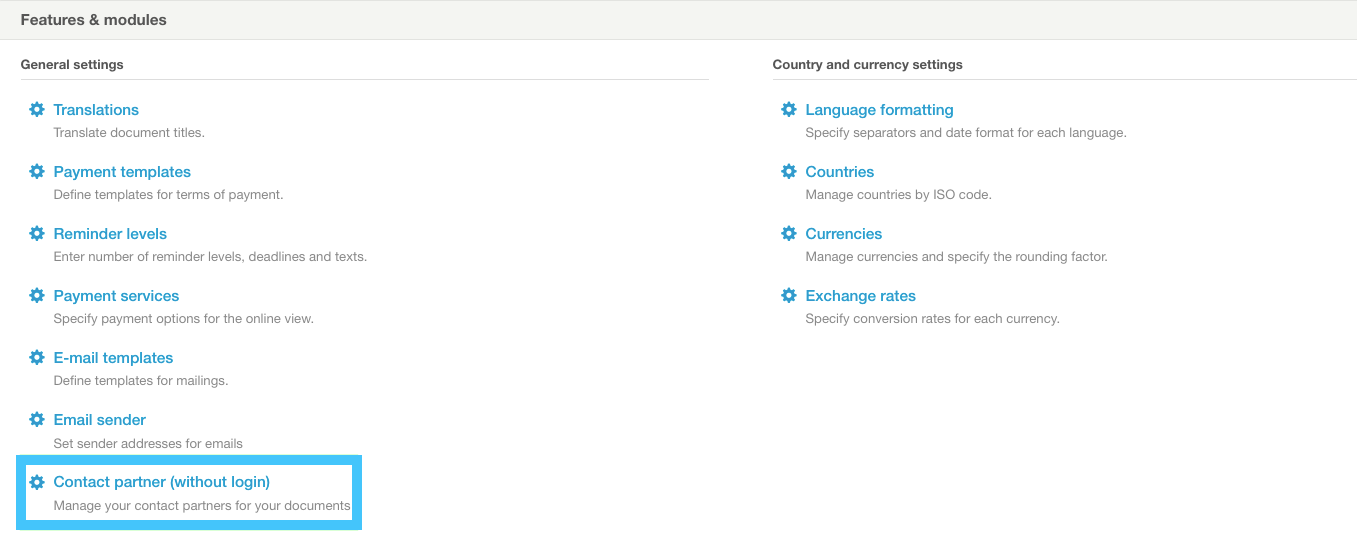
2. Click on the « New contact partner » button.

3. Enter the first name, last name, and a unique email address.
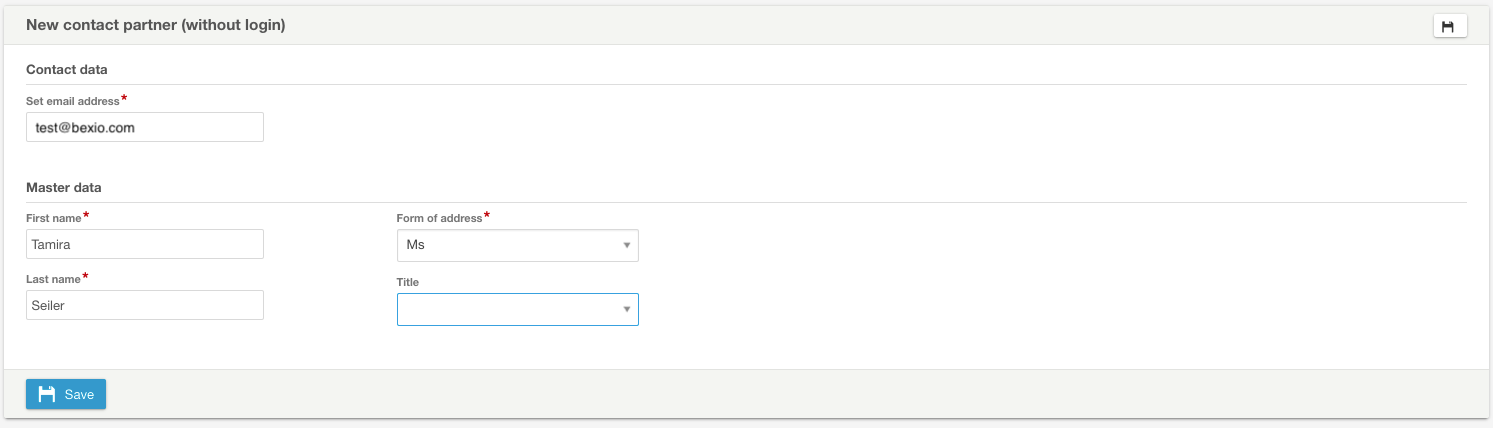
Please kindly note: The email address used must not already be associated with an existing bexio account (whether it is a user with login or another contact partner without login). If the address is already registered in the system, an error message will be displayed indicating that this user already exists.
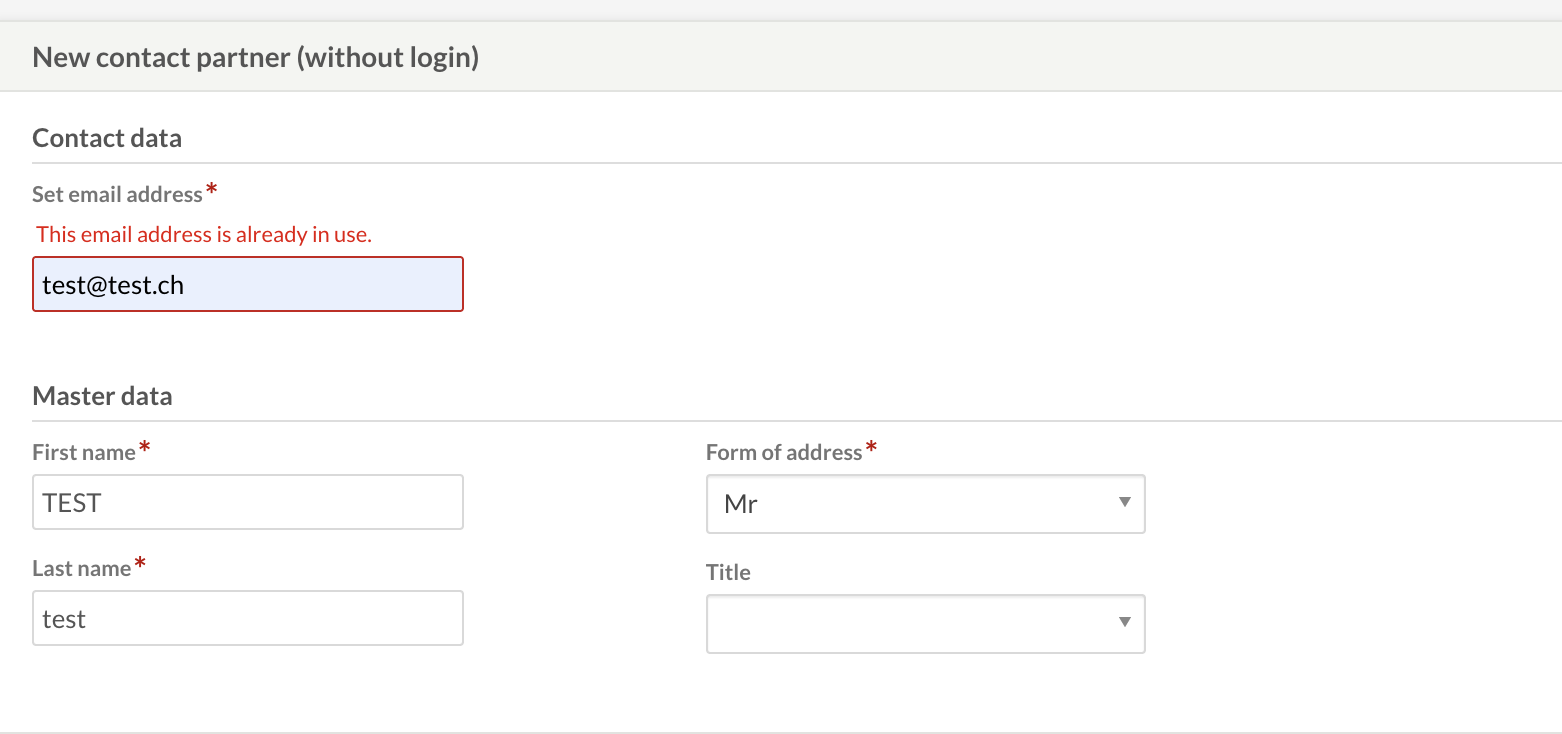
4. Finally, click Save.