This article explains how to set up, edit, and apply custom payment terms in bexio to perfectly match your business needs.
Content:
- Where to manage payment templates?
- Setting up a payment template
- Discount options
- How to apply a payment template to your documents
Where to manage payment templates?
In bexio, you can create new payment templates or adapt existing ones to suit your industry sector.
Go to: Settings → All settings → Features & Modules → Payment templates.
Set up a payment template
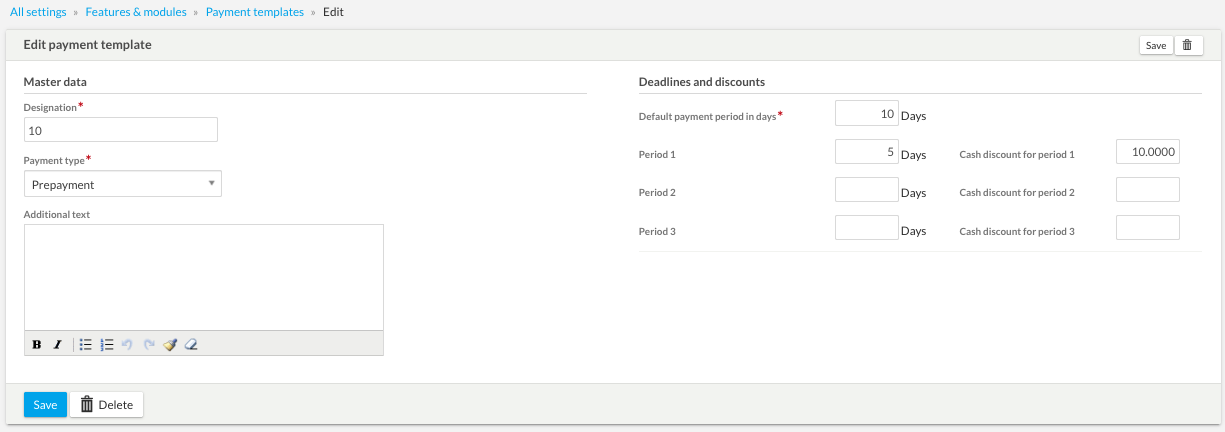
When creating or editing a template, start by giving it a clear Name (e.g., 30 days net, Cash with 2% discount), then configure the following settings:
1. Default payment period in days
This field indicates the number of days granted to the customer starting from the invoice date. Once this period passes without payment, the invoice status automatically changes to "Overdue".
2. Payment method and additional text
Discount options
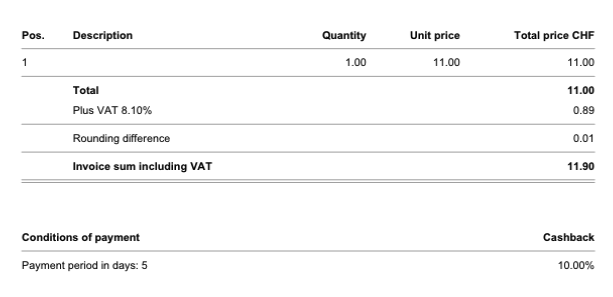
Encourage your customers to pay their invoices quickly by offering a discount for early payment.
To do this, simply set:
- The discount period (number of days during which the discount applies).
- The discount percentage granted (e.g., 10% if paid within 5 days).
How to apply a payment template to your documents
Once your payment templates are created, you can use them in two ways:
-
By default (for all documents): You can set a default template that will automatically apply to all new invoices in the document settings.
-
Per document (case-by-case): Regardless of the default setting, you can manually change the payment template when creating a specific document.
-
- Open the relevant document (e.g., your invoice).
- Go to the "Conditions" tab.
- Under the Use payment terms template section, select the template of your choice, then click Use payment terms template. The document information will update automatically.