In bexio, you can create and manage various categories. Categories act as personalized labels that allow you to filter your data quickly. They are available in two modules:
-
Contacts: Classify your relationships (e.g., VIP Customers, Suppliers, Prospects) to specifically manage contacts, reports, orders, and other documents.
-
Tasks: Organize your work lists by type or project (e.g., Administration, Sales, Urgent).
The memo is a space for internal notes located directly within your contacts tab > to learn more, see the article Memos in contacts.
Content
1. Managing and using categories (contacts)
Categories allow you to segment contacts and tasks for effective filtering and tailored organization.
To configure categories:
Settings → All settings → Master data → Categories
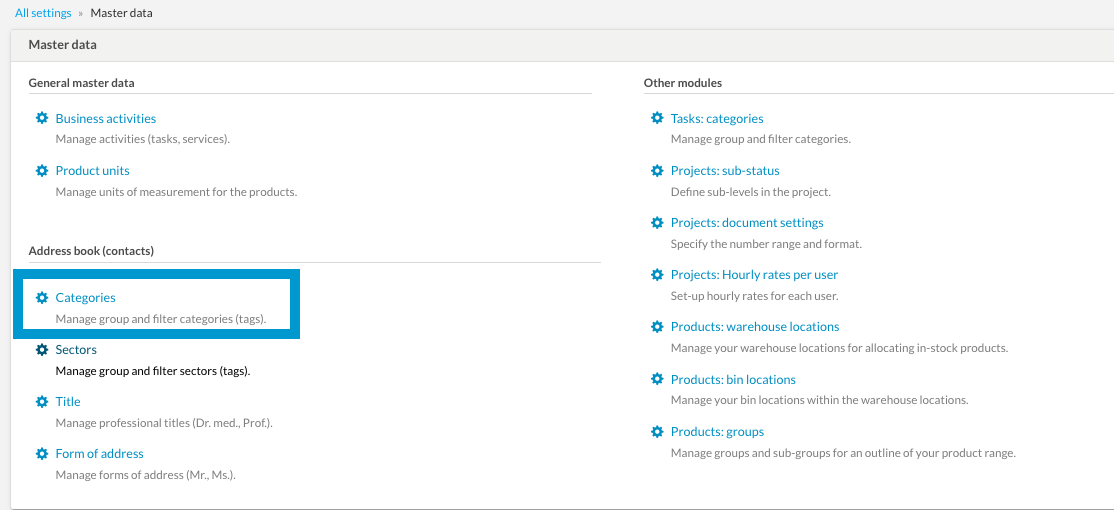
1.1 Adding a new category
Click on "New category" button to define a new segment.
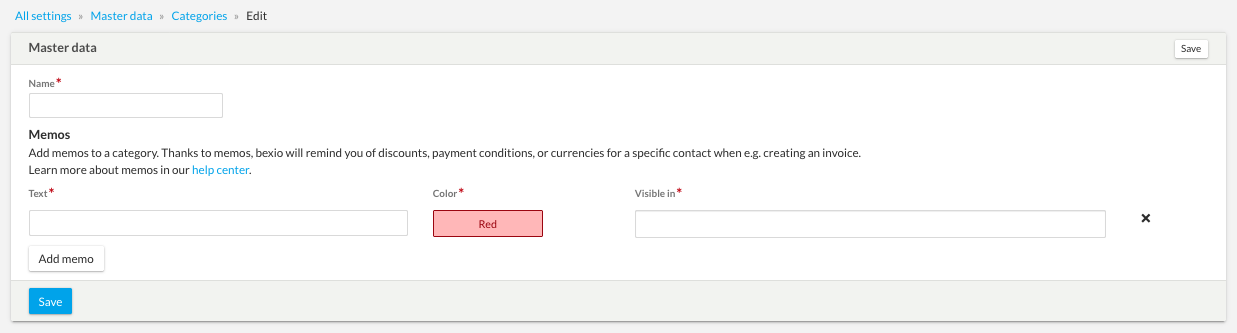
Category Memos: When creating a category, you can add a Memo.
-
This is a text reminder that will appear when creating documents (invoices, quotes) for contacts linked to that category.
-
Ideal for highlighting specific details (e.g., "10% special discount" or "Payment within 60 days"). For more information: Memos in contacts.
1.2 Assigning a category to a contact
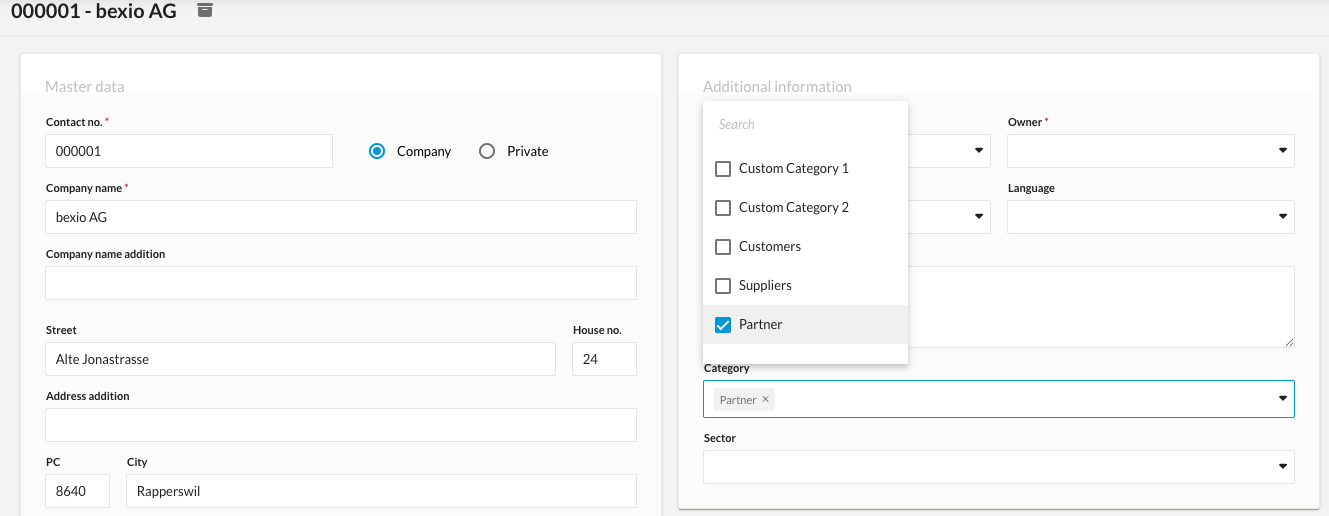
Select the contact and click on the pencil icon (Edit), then select the desired categories.
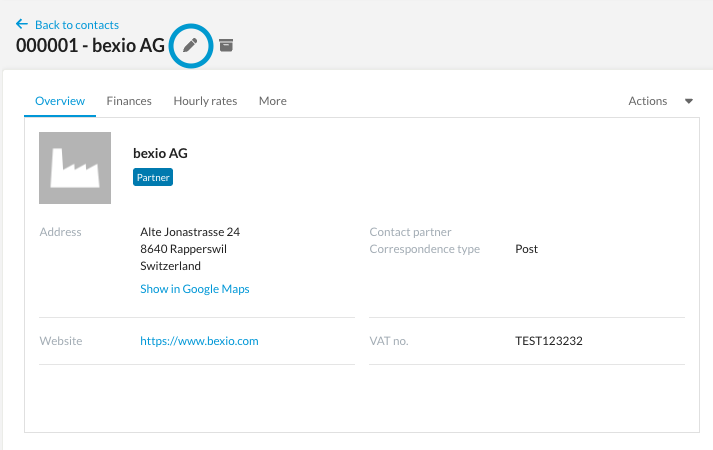
While editing the contact, you can add additional categories previously entered in the basic settings.
1.3 Deleting a category
Go to Settings → All settings → Functions and modules → Category. Click on the category you wish to remove and confirm the action using the "Delete" button.
Please kindlly note: This action only deletes the classification label. Your contacts remain registered in bexio, but they will no longer be associated with that category.
2. Managing and using categories (tasks)
You can organise your tasks by subject area (e.g., Sales, Administration, Support).

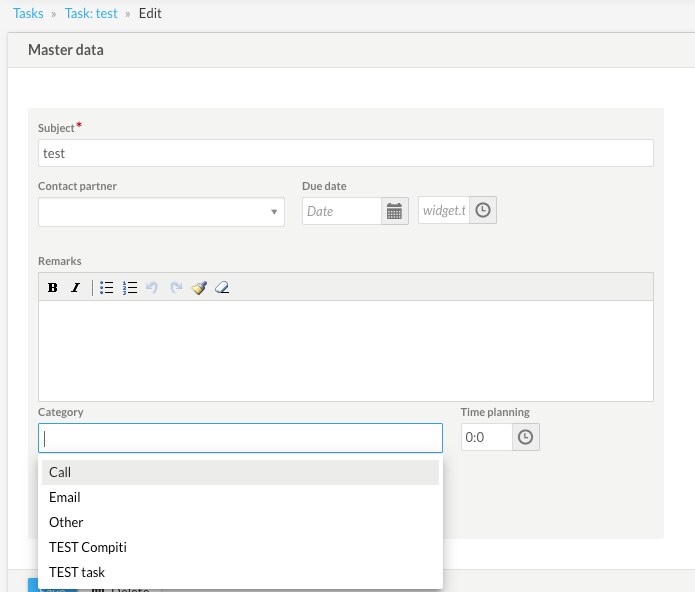
Open an existing task or create a new one, then select the appropriate category from the "Category" dropdown menu.
2.1 Assigning a category to a task
When creating or editing a task, select the categories created under the "Category" field.