This article explains how to delete a sales order and details the possible actions based on different statuses.
Prerequisites for deletion:
- The order must be in "Pending" or "Cancelled" status.
- Once an order is deleted, its number is retired and cannot be reused by default. However, a workaround is available if you need to reassign the same number.
We recommend cancelling an order rather than deleting it permanently to maintain a record of the history in your interface.
Content:
1. Deletion according to order status
1.1 "Pending" Status
1.2 "Partial" Status
1.3 With invoice (all status types)
1.4 "Done" Status
1.5 "Cancelled" Status
2. Special case: recurring orders
3. Delete all documents
4. Has the order been deleted and you want to reuse the same number?
Deletion according to order status
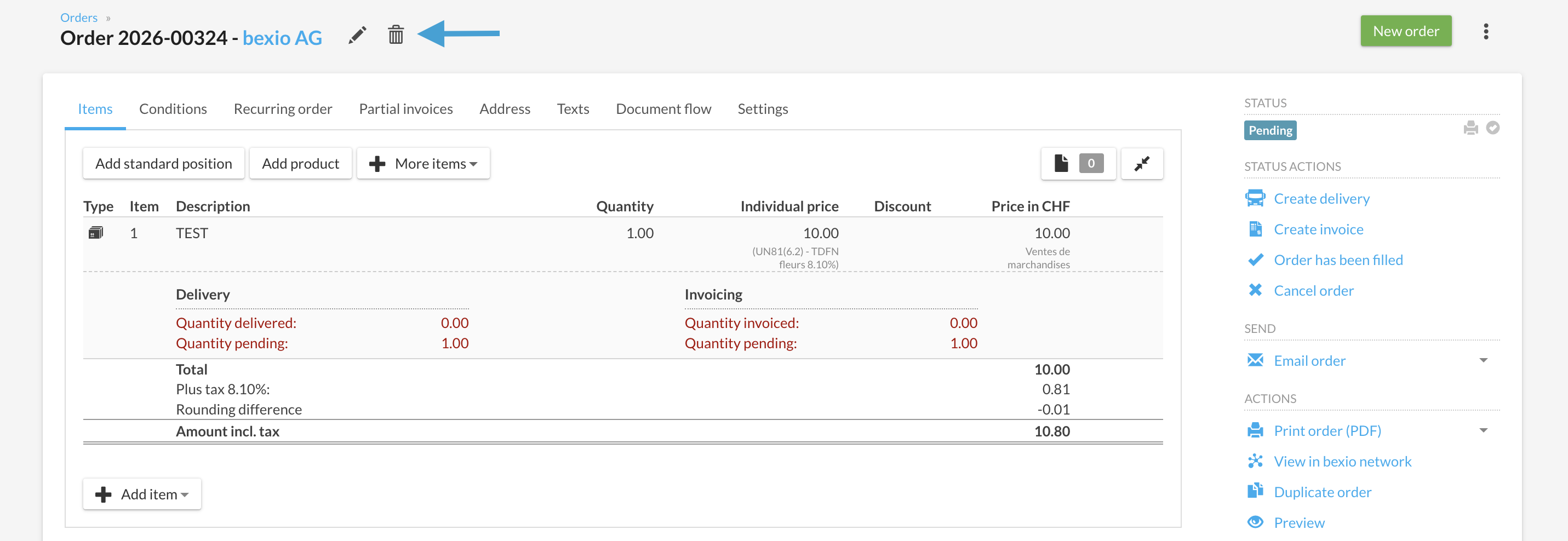
"Pending" Status
If the sales order is in "pending" status, you can delete it directly via the trash icon.
"Partial" Status
With delivery note in "Draft" status
- First delete the delivery note.
- The order automatically reverts to "Open" status.
- You can then delete it.
Alternative: Cancel the sales order and then delete it.
For more information on deleting delivery notes, see the article "Delete delivery notes".
With delivery note in "Done" status
- Cancel the sales order.
- Then delete the cancelled order.
With invoice (all status types)
If an invoice (completed, partial, or recurring) has been created:
- Cancel the sales order.
- Then delete the order.
The invoice is not deleted automatically. It must be deleted separately if necessary.
"Done" Status
Without invoice or delivery note
- Edit the order via "Edit sales order again".
- Change the status to "Open".
- Then delete the order.
With invoice and delivery note
- Edit the order to change the status to "Partial".
- Cancel the order.
- Then delete it.
"Cancelled" Status
If the order is in "Cancelled" status, you can delete it directly via the trash can icon.
When cancelling and deleting an order:
- Linked delivery notes are also cancelled and deleted.
- Invoices are not affected by an order cancellation.
Special case: recurring orders
Cancelled sales orders with active repetition cannot be deleted.
Delete all documents
To delete all documents, please refer to the article: "Delete all documents"
Has the order been deleted and you want to reuse the same number?
If you have deleted an order and need to reassign its number to a new document, here is the workaround to follow:
- Go to "Settings" → "All Settings" → "Features & Modules" → "Orders".
- In the default document settings, uncheck the box "Assign numbers automatically", then click "Save".
- Next, create a new document and manually enter the number of the previously deleted order.
Important: Once the order has been created with the desired number, do not forget to go back to the standard settings to reactivate automatic numbering.